Choose a meaningful label
Use the Client profile's Text Watermark for a customer name, order reference, or delivery label. Prepare the appropriate label for a recipient-specific release rather than assuming names are inserted automatically.

Share reports, manuals, proposals, and course documents while controlling how recipients copy, print, and view the content. Keep the editable originals with you.
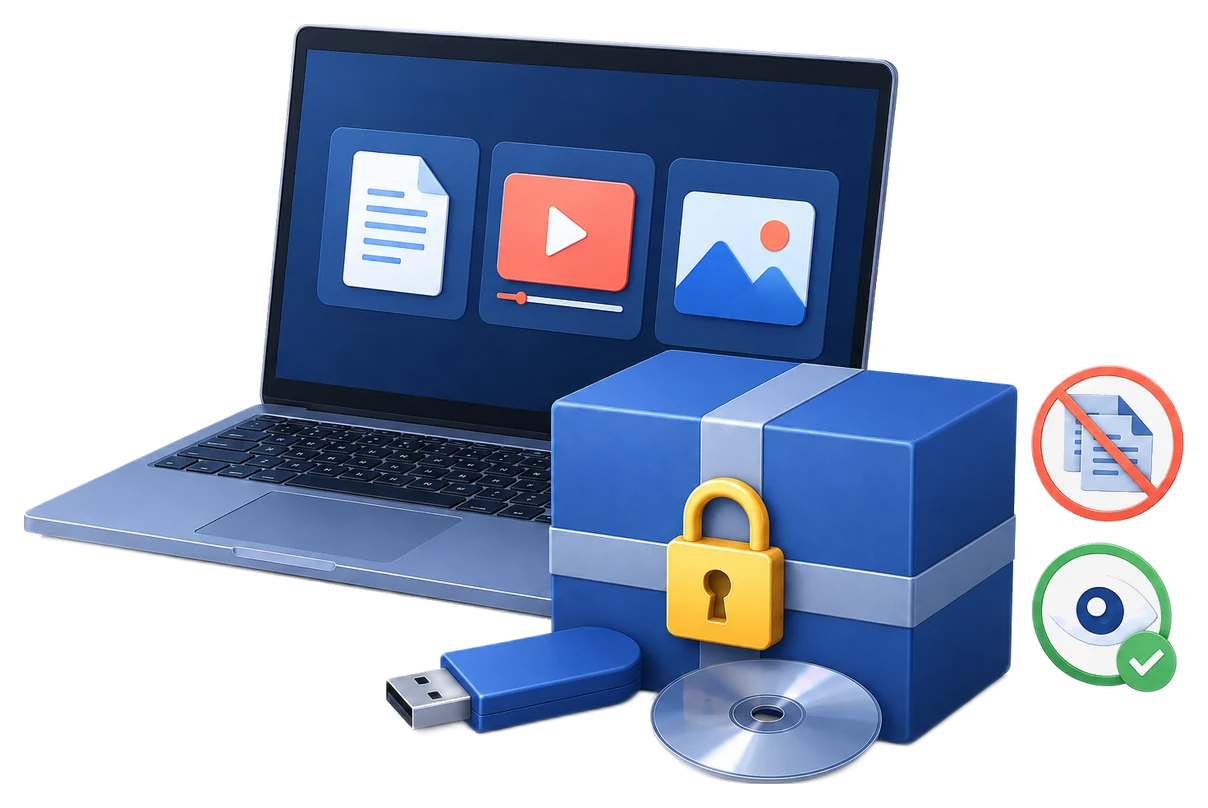
When you send a paid report, training manual, proposal, or spreadsheet, the recipient may need to read it without reusing its contents freely. GiliSoft Copy Protect packages PDF and Office files for controlled viewing, with recipient rules for copying, printing, screenshots, passwords, binding, and access periods.
Use a protected package when recipients should view finished documents under content reuse rules rather than receive ordinary reusable source files. Configure the Client profile in GiliSoft Copy Protect, choose GCP or EXE output, and test the delivered reader experience. The protected content is the focus: copying a GCP package file is not the same as gaining unrestricted access to its documents.
Opening protection, accidental-edit prevention, and restrictions on content reuse are different requirements. Choose the method that fits the document format and the recipient's working environment.
| Method | Main control | Good fit | Delivery requirement |
|---|---|---|---|
| GiliSoft Copy Protect | Reader rules for content copying, printing, capture, and access | PDF, Office, and mixed-file deliveries to clients or learners | Recipients use protected GCP or EXE output and the selected access rules. |
| PDF permissions | PDF printing, changes, and content copying | PDF-only distribution | Use the PDF permission settings and verify behavior in the recipient's reader. |
| Office file password | Opening the original document | Trusted recipients who need the native Office file | An opening password does not by itself define post-opening reuse rules. |
| Microsoft 365 IRM | Account-based document permissions | Managed organizations with rights-management services | Requires supported applications, accounts, and an available rights-management setup. |
| Read-only controls | Accidental changes and editing workflow | Internal review or completed drafts | Read-only status is not a barrier to making a separate file copy. |
Prepare reports, manuals, presentations, worksheets, images, and supporting media as one protected delivery. Keep source documents internally while recipients read the finished content through the protected reader.
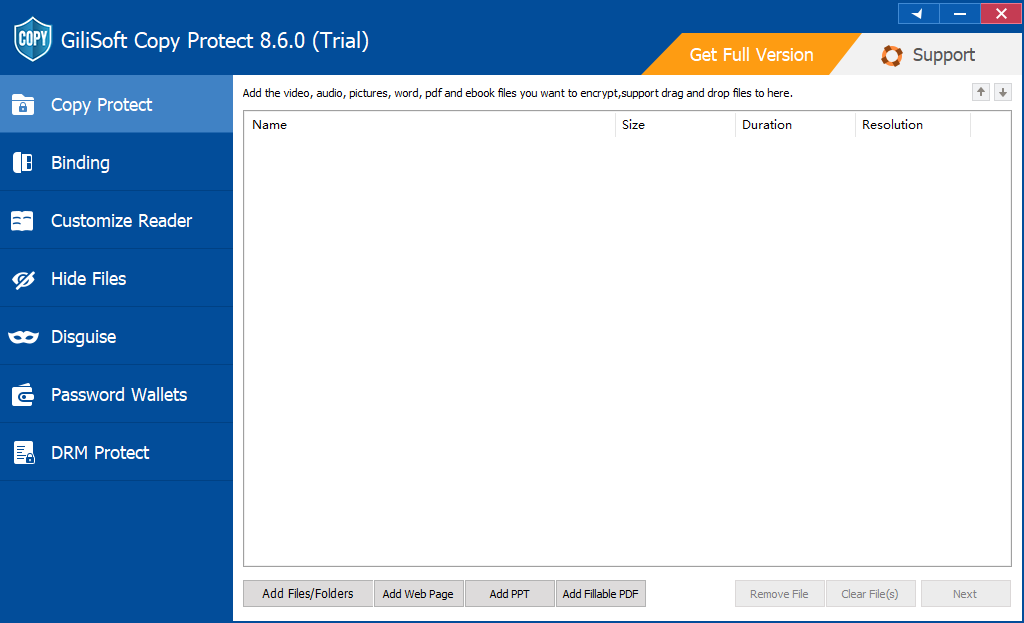
Use Add Files/Folders for the documents or project folder. The workspace also offers dedicated options for web pages, PPT content, and fillable PDFs. Remove working drafts, private client files, or instructor-only material that does not belong in the recipient's package.
Save the Project ID, choose the output location, and select GCP or EXE. GCP uses the protected-reader workflow; self-contained Windows EXE output is marked with a 4 GB limit.
In the Client tab, enable the recipient user and set the client name and password. Choose the required controls, including Prohibit Copying, Prohibit Paste, Prohibit Printing, Prohibit Screenshots, and Clipboard Disabled. Configure expiry, page limits, or watermark text when the delivery requires them.
Keep Admin credentials separate. Review any enabled Demo profile as well, so a preview route does not offer actions you intended to restrict for recipients.
Use the binding workflow when access should be associated with a computer, USB or external drive, or CD/DVD. Connect the intended delivery medium when requested and follow the corresponding binding option.
Where device binding takes place on first opening, make that first opening on the intended device. Use a separate test package for support checks so you do not accidentally bind a live customer's delivery to the preparation computer.
Build the completed output, then open it using the intended reader and Client credentials. Test on the approved device or media rather than assuming an Admin session proves the recipient rules work.
Send the protected package, reader or opening instructions, required client access details, and a support contact. Keep source files, administrator credentials, and the publisher's project record out of the delivery folder.
The Copy Protect user guide covers the full package, reader, profile, and binding workflow.
| Test as a recipient | What to confirm |
|---|---|
| Open with Client access | The intended document set opens without giving the recipient publisher or Admin access. |
| Copy text, images, or content out of the reader | The selected content-copy and clipboard rules behave as configured for the file types supplied. |
| Print or capture content | Printing and supported software-capture paths follow the intended rules. Do not treat capture restrictions as protection against a separate camera. |
| Read representative pages | Tables, charts, diagrams, fonts, links, and any intended form interaction remain usable in the delivery. |
| Check watermark and access period | The visible label does not obscure the document, and expiry or page limits match the recipient's agreed access. |
| Try a copied package outside the authorized binding environment | Test whether its protected content opens under the selected rule. A successful file-copy operation alone does not show that content protection failed. |
For PDF-only distribution, Acrobat can set permissions for printing, changes, and content copying. These are separate from a password required to open the PDF.
See Adobe's PDF permissions instructions. This method addresses the PDF, not a combined Office-and-media package.
Use a document password when recipients should keep the native file but need a password to open it. It does not, by itself, set Copy Protect reader permissions.
Microsoft documents the Word workflow. Excel and PowerPoint use their corresponding workbook or presentation protection commands. Once the original is open, an opening password is not a general content-copy restriction.
For organizations with rights management configured, IRM assigns permissions to named users. Read, Change, and Full Control levels determine permitted actions; authors can also apply an access end date.
Availability depends on the organization, supported apps, and rights-management service. Microsoft's IRM documentation explains the permission levels and setup.
Read-only mode and editing restrictions help with review, but they are not interchangeable with encryption or controlled delivery. Microsoft explains that a read-only Word file can still be copied under another name, and that Excel worksheet protection is not a security feature.
Use these controls to preserve a working layout or discourage accidental changes. If external readers need restrictions on copying, printing, or access, choose the corresponding delivery controls instead.
Use the Client profile's Text Watermark for a customer name, order reference, or delivery label. Prepare the appropriate label for a recipient-specific release rather than assuming names are inserted automatically.
Choose the available fixed or floating style, placement, font, and color. Check representative pages so the watermark does not cover figures, formulas, or important instructions.
Set the intended Expiration Date and document page limits where needed. Test those rules with a separate trial delivery before issuing a paid manual or client package.
Deliver protected reading copies with client credentials, the selected copy and print rules, and the purchased access period. Keep the editable master internally.
Use a controlled viewing package when a customer only needs to review the content. If collaboration requires the native editable document, plan that as a different delivery.
Keep PDFs, slides, worksheets, images, and supporting media in the intended audience's package. Separate materials that require different access rights.
Use the appropriate binding workflow and test the completed content on the intended medium. Include the reader and opening instructions with the delivery.
Document copy protection software delivers files in a controlled viewing environment with rules for content copying, printing, clipboard use, screenshots, and access. GiliSoft Copy Protect creates protected GCP or EXE output instead of handing recipients ordinary reusable source documents.
Yes. Copy Protect supports PDF, Word, Excel, PowerPoint, WPS, images, web pages, media, and mixed folders in a protected project. Prepare the files needed by the intended audience, then check the finished package's rendering and permitted actions in the recipient's reader environment.
Because the protection applies to the content inside the GCP package, not to copying the GCP file itself in File Explorer. USB binding controls access to the protected content with the intended hardware; Reader permissions control supported content reuse after it opens. A copied package is not the same as an unrestricted copy of its documents. Copy Protect alone does not block the package-file copy operation.
Client settings include Prohibit Printing, Prohibit Screenshots, copying and pasting restrictions, and Clipboard Disabled. Configure the recipient profile and test those actions in the completed protected reader. Software capture restrictions cannot guarantee every recording method is blocked, and a separate camera can still photograph visible content.
Choose GCP for the standard protected-reader delivery and larger projects. EXE creates a self-contained Windows package and is marked with a 4 GB limit in the software. Select the format for the recipient's intended viewing environment, and keep original documents and publisher credentials out of the delivered folder.
Send the completed protected package, the intended reader or opening instructions, the required client credentials, and a support route. If access is bound to a USB drive or disc, supply the intended medium. Keep the administrator password and publisher project records private.
Client settings provide an Expiration Date, document page limits, Text Watermark, and fixed or floating watermark controls. Enter the intended access period and watermark label before creating the delivery. For a named recipient, prepare the appropriate label for that release and test it on representative pages.
Use File Lock Pro to lock or hide source documents and folders stored on your own computer. Use Copy Protect when another person needs to read delivered documents under content reuse and access rules. Local file locking does not carry those reader permissions into an ordinary document sent as an attachment.
Create a protected document package, configure recipient rules, and test the Client experience with GiliSoft Copy Protect.