

Five ways to protect PowerPoint files on a USB drive
| Method | What it does | Best use | What to know |
|---|---|---|---|
| GiliSoft Copy Protect | Packages the deck with password, copy, print, clipboard, screenshot, device, watermark, expiry, and viewing rules | Client, training, course, and event delivery on USB | The recipient opens a GCP or EXE package rather than the original PPTX file |
| PowerPoint password to open | Encrypts the PPT or PPTX file and requires a password before opening | Trusted recipients who still need the original presentation | After opening, the recipient has the original Office file |
| Password to modify | Allows viewing while requiring a password for normal editing | Review copies where recipients may read the deck | Microsoft notes that a viewer can still save the presentation under a different name |
| Microsoft 365 IRM | Assigns read, change, print, copy, and expiration rights to named users | Organizations with managed Microsoft accounts and rights services | Recipients may need a supported account and licensing-server access |
| Mark as Final or PDF export | Discourages editing or removes normal slide-editing controls | Low-risk handouts and finished reference copies | Neither method is a complete anti-copy system for external USB distribution |
Method 1. Protect a PowerPoint delivery with GiliSoft Copy Protect
This is the recommended method when a presentation must leave your organization on removable media but the editable PPT or PPTX source should stay internal. The protected project can contain the deck, videos, PDFs, spreadsheets, images, fonts, and other supporting files used during the presentation.
- Prepare the final PPT or PPTX file. Place linked videos, audio, fonts, PDFs, and handouts in the same project folder so nothing is omitted.
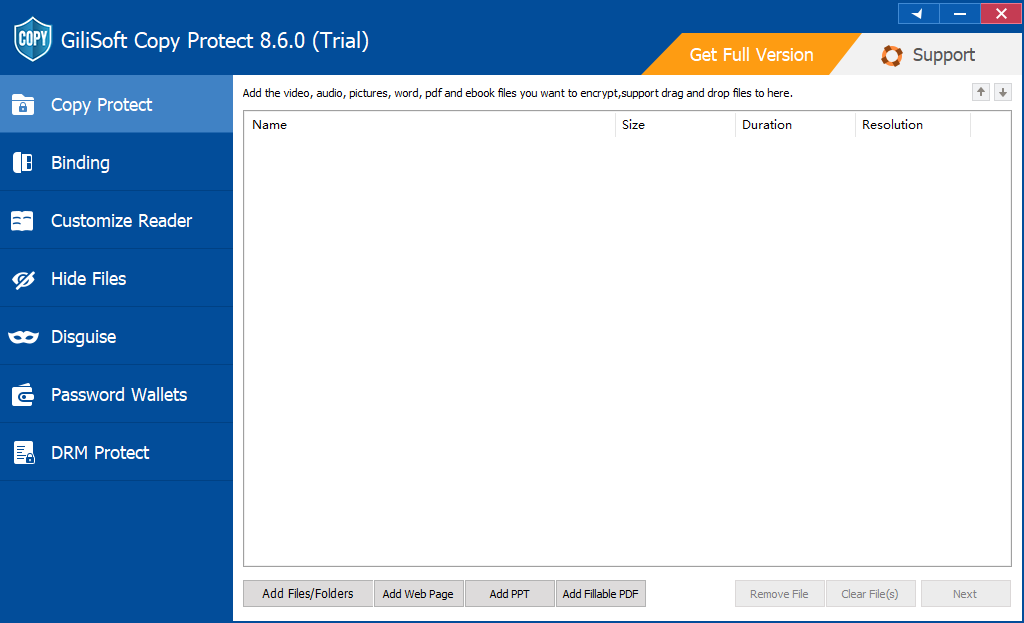
- Open Copy Protect and add the presentation, supporting files, or the complete folder that should appear in the protected delivery.
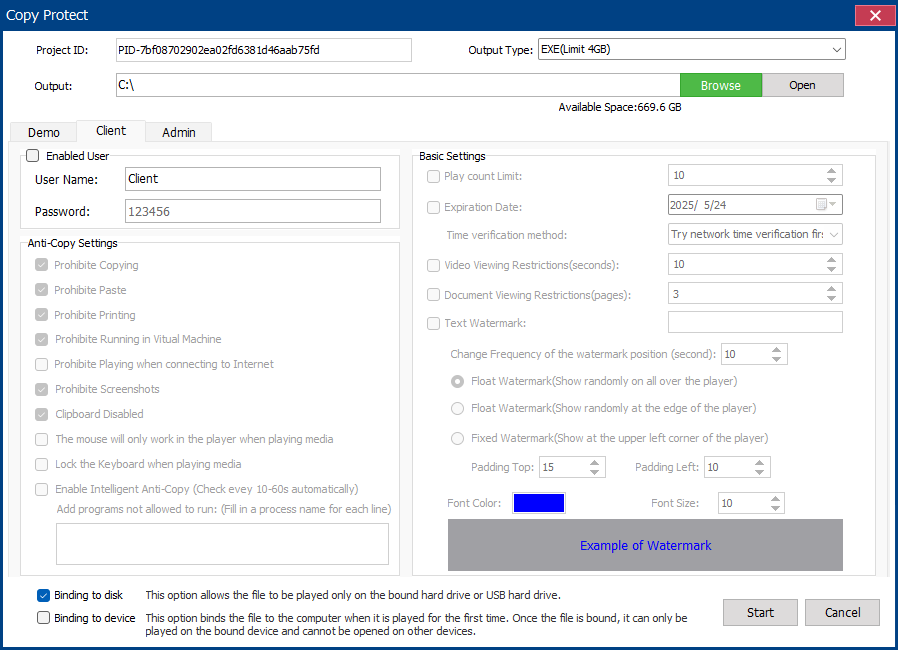
- Select GCP for a protected reader package or EXE for a self-running Windows delivery within the 4 GB output limit.
- Set the opening password, copy and print permissions, screenshot and clipboard rules, watermark, expiration, and viewing limits required for this recipient.
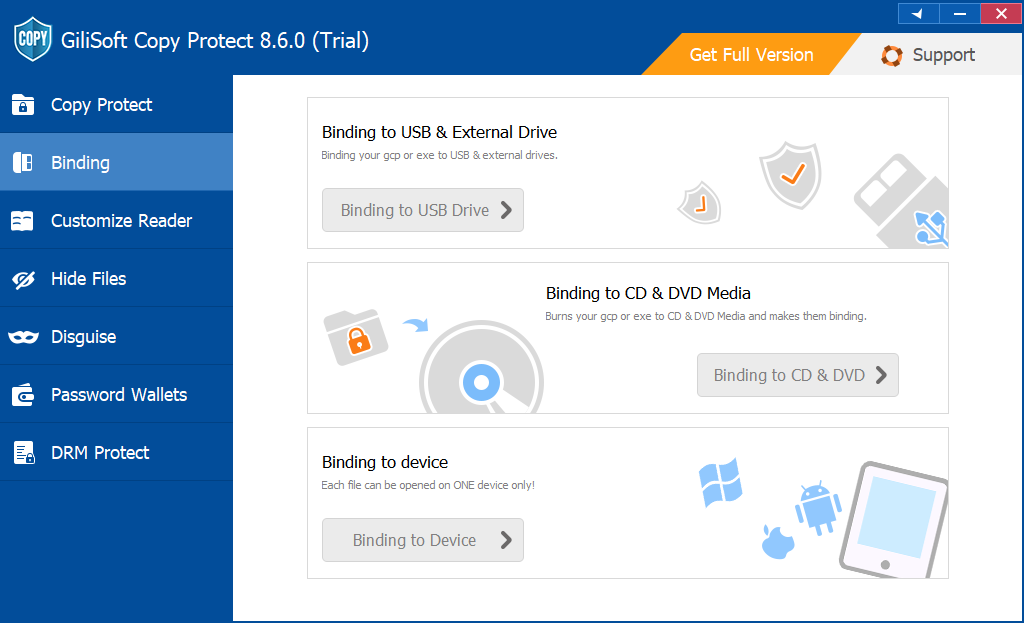
- Bind the package to the USB drive or approved Windows computer when the presentation must not travel with a shared password alone.
- Build the package, copy it to the USB drive, and test every slide, video, hyperlink, font, and protection rule on a separate Windows PC.
Keep the editable presentation inside your organization
Deliver a GCP or EXE package to customers, learners, partners, or event attendees while retaining the original PPTX and project assets in your own archive. This fits sales decks, paid training, compliance presentations, workshop materials, conference handouts, and confidential proposals.
Method 2. Encrypt the PowerPoint file with a password
PowerPoint can encrypt a presentation so it cannot be opened without the password. This is the simplest built-in option when the recipient genuinely needs the original PPT or PPTX file and you trust that person to use it appropriately.
- Open the presentation and select File > Info.
- Select Protect Presentation > Encrypt with Password.
- Enter and confirm a strong password, save the presentation, close it, and reopen it to verify the prompt.
- Copy the encrypted file to the USB drive and send the password through a separate communication channel.
Method 3. Require a password to modify the presentation
A modification password lets recipients open the slides while reserving normal editing for authorized users. In the Windows desktop app, use Save As > More Options > Tools > General Options, then set the password to modify.
This is useful for collaborative review, but it is not a substitute for copy protection. Microsoft states that an unauthorized user can still open the presentation and save it with another file name.
Method 4. Restrict named users with Microsoft 365 IRM
Information Rights Management is suitable when the presentation stays within a managed Microsoft environment. It can assign permissions to named users or groups and restrict editing, printing, forwarding, copying, or access after an expiration date.
- Save the presentation, then go to File > Info.
- Select Protect Presentation > Restrict Permission by People > Restricted Access.
- Add the approved users or groups and assign their access level.
- Set expiration or additional permissions where available, then test with a real recipient account.
Method 5. Use Mark as Final or export a PDF for low-risk sharing
Mark as Final makes the presentation read-only and tells recipients that editing is discouraged. It is useful for completed internal drafts, but it does not prevent the file from being copied and the status can be removed.
Exporting slides to PDF removes ordinary PowerPoint editing tools and can improve compatibility on computers without PowerPoint. It is useful for handouts and fixed-layout reference copies, but a normal PDF remains a transferable file unless separate PDF permissions or protected delivery controls are added.
Package linked files correctly before copying to USB
Microsoft's Package Presentation for CD feature can copy a presentation and its linked files to a USB folder. This helps preserve fonts and external elements, but it packages the files without adding anti-copy protection.
- In PowerPoint for Windows, go to File > Export > Package Presentation for CD.
- Add the required presentations and choose whether to include linked files and embedded TrueType fonts.
- Select Copy to Folder and choose a folder on the USB drive.
- Test the packaged presentation on another computer before applying the final GiliSoft protection and distributing the drive.
Recommended protection for common PowerPoint USB deliveries
USB delivery checklist
- Remove hidden notes, comments, revision information, personal metadata, and backup slides that should not leave the organization.
- Confirm all linked video, audio, fonts, PDFs, and hyperlinks work on another Windows PC.
- Keep the editable PPTX and media assets in an internal archive, not beside the protected package.
- Use a recipient-specific password or device binding instead of one permanent password for every customer.
- Test copy, print, screenshot, expiration, watermark, and viewing-limit behavior before shipping the USB drive.
- Keep a verified backup of the unprotected source project and the final protected output.
Related PowerPoint and USB protection guides
PowerPoint USB protection FAQ
Can I stop every possible copy of a PowerPoint presentation?
No software can stop someone from photographing visible slides or manually recreating content. Practical protection restricts ordinary redistribution and common reuse paths such as copying files, printing, clipboard use, screenshots, Save As, and opening on an unapproved device.
Can I protect videos and PDFs stored with the presentation?
Yes. Copy Protect can include the PowerPoint file and supporting video, audio, PDF, image, spreadsheet, web, and folder content in the same protected project.
Should I choose GCP or EXE output?
Choose GCP for the standard protected-reader format and larger projects. Choose EXE for a self-running Windows package when the complete output is within the 4 GB EXE limit.
Does the recipient need PowerPoint?
That depends on the delivery method and the presentation content. Test the exact protected package on a clean recipient-style Windows PC before distribution, especially when the project uses linked media, custom fonts, macros, or external components.
Official references
- Microsoft: Password protection for presentations in PowerPoint
- Microsoft: Restrict access to PowerPoint presentations with IRM
- Microsoft: Package a presentation for CD or USB flash drive
- Microsoft: Help prevent changes to a final version of a file
Deliver the presentation without distributing the editable source
Create a protected GCP or EXE package for the PowerPoint deck and supporting files, then decide who can open, copy, print, capture, and reuse the content.
View GiliSoft Copy Protect