

USB Document Protection Software for Windows
Use this workflow to choose a document delivery method that controls recipient use instead of only encrypting a removable drive at rest. Keep source files with the publisher, test the exact recipient environment, and describe restrictions honestly.
Quick answer
If the recipient must view but not freely reuse documents, test GiliSoft Copy Protect with a GCP package, client permissions, and optional USB binding. If the requirement is only to protect a lost or stolen USB drive, use removable-drive encryption instead.
Choose the Right USB Protection Method
| Requirement | Approach | What to verify |
|---|---|---|
| Confidential proposal | Remove internal material first | Comments, notes, hidden sheets, metadata |
| View-only client copy | Use protected package and client settings | Reader, copy, print, and expiry |
| Lost-media protection only | Use removable-drive encryption | Key recovery and allowed recipient access |
Step-by-Step Protection Workflow
- Define allowed recipient actions
Agree who may open the content, whether printing or copying is allowed, when access ends, and how support or reissue works.
- Prepare a clean source set
Remove drafts, internal notes, hidden material, unnecessary metadata, and editable masters that should not be delivered.
- Create a protected package
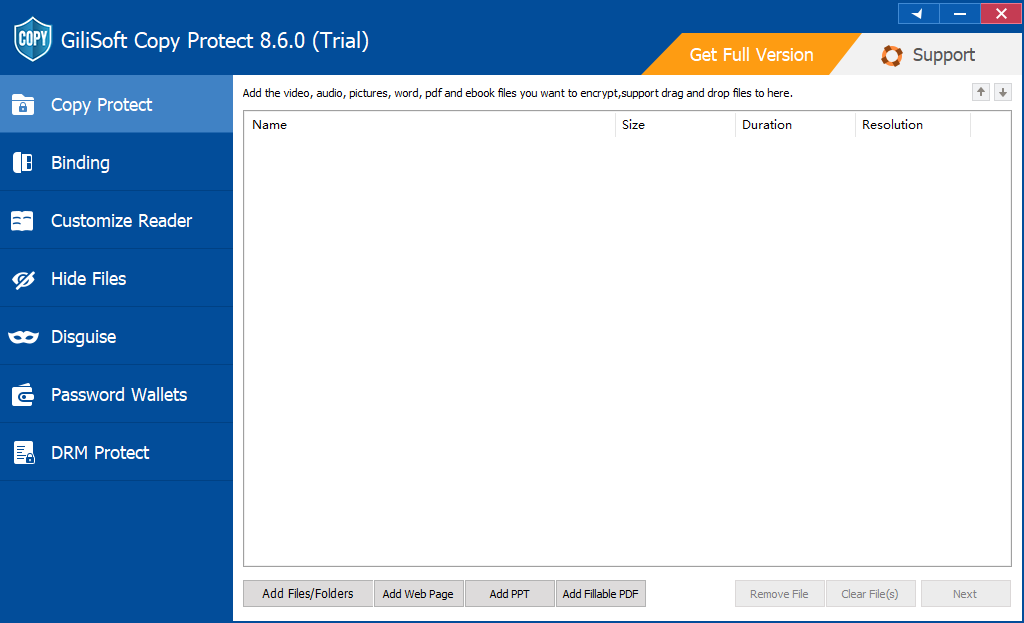
Add files in GiliSoft Copy Protect and choose GCP or EXE output suitable for the content size and recipient environment.
- Configure client settings and optional binding
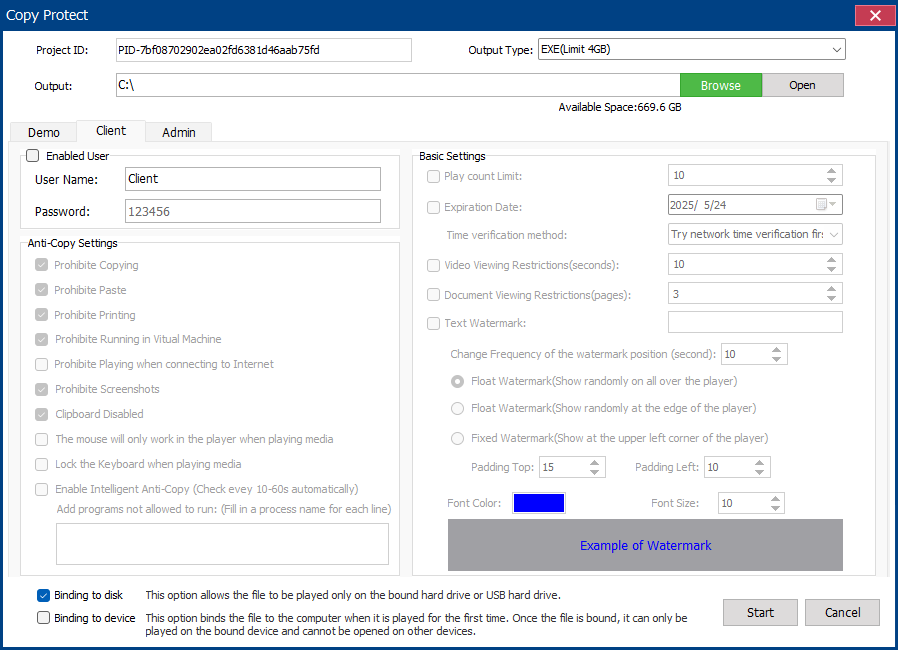
Create recipient credentials, set copy and print rules, apply watermark or expiry where needed, and bind to USB or a device only when practical.
- Test the recipient experience
Open the finished package on a separate Windows PC with client credentials, reconnect the USB, check every content type, and verify the intended restrictions.
Use the GiliSoft Copy Protect Workspace
These screenshots show the real package, binding, client, or administrator settings. The recipient must be able to open the package in the intended Windows environment.
Verify the USB Delivery Before Handover
| Document format, reader support, copy and print policy, and encryption need | Test with recipient-level credentials, not the publisher's administrator profile. |
|---|---|
| Package integrity | Open every delivered content type, confirm the correct version, and keep the Project ID and admin credentials in publisher records. |
| Support and replacement | Document reader requirements, authorized hardware, expiry, and the procedure for lost, replaced, or failed USB media. |
Frequently Asked Questions
Can GiliSoft Copy Protect protect the files for this USB task?
It can package supported documents, images, video, audio, and mixed folders for controlled viewing. Test the exact source types and the recipient Windows environment before delivery.
Does copy protection stop every possible leak?
No. It reduces ordinary copying, printing, clipboard use, and similar actions under the selected viewer rules, but visible content can still be photographed or recreated.
Is USB binding the same as USB encryption?
No. Binding associates protected output with approved hardware. Removable-drive encryption protects data at rest until the drive is unlocked.
Should recipients get the administrator password?
No. Give them only the client credentials and instructions required to open their package; keep admin credentials and the Project ID with the publisher.
What if the authorized USB drive fails?
Plan a verified reissue procedure before distribution. Do not assume a copied package will open from replacement hardware when binding is enabled.
Should I use GCP or EXE output?
GCP is the standard protected-reader format. EXE can be useful for a self-contained package when the recipient permits executables and the output remains within the product size limit.