
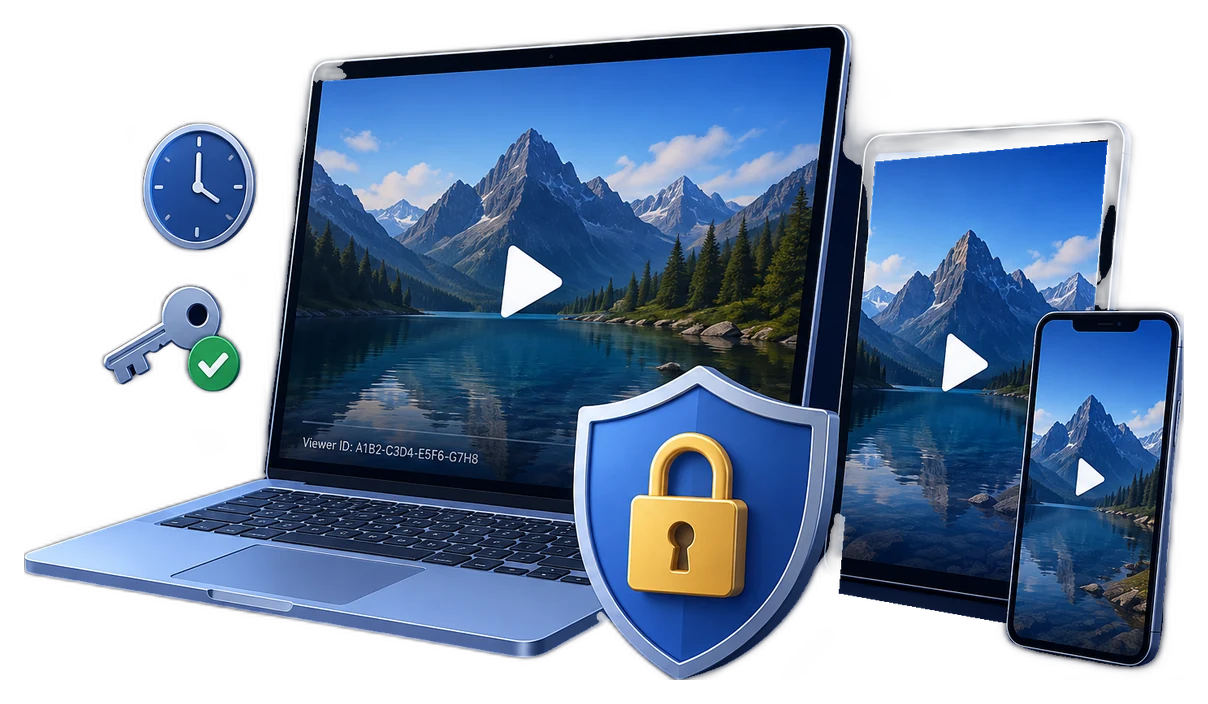
DRM for Training Videos: Controlled Offline Playback
Training videos can outlive a course or employee role. When lessons are delivered as local files, the publisher needs a practical way to issue viewer access, limit reuse, and support legitimate device changes.
Quick answer
Package the approved training videos in GiliSoft Video DRM Protection, keep the publisher Encryption Key, issue learner Playback Passwords, and test playback and course accessibility before distribution.
Plan Training Access Before Packaging
| Situation | Approach | Check before release |
|---|---|---|
| Staff use shared classroom PCs | Avoid per-person PC Binding unless the environment supports it | Test each shared seat and credential policy |
| Partner uses one assigned laptop | Consider PC Binding | Plan for a replaced or repaired laptop |
| Recurring cohorts | Use distinct projects or viewer password records | Versioning, expiry, and support ownership |
| Captions or transcript required | Prepare accessible source and compatible player path | Test the protected output, not only the original video |
How to Protect and Deliver the Videos
- Freeze the course edition
Remove draft or outdated lessons and confirm that captions, transcript, and learner instructions are available through an accessible delivery path.
- Create the protected package
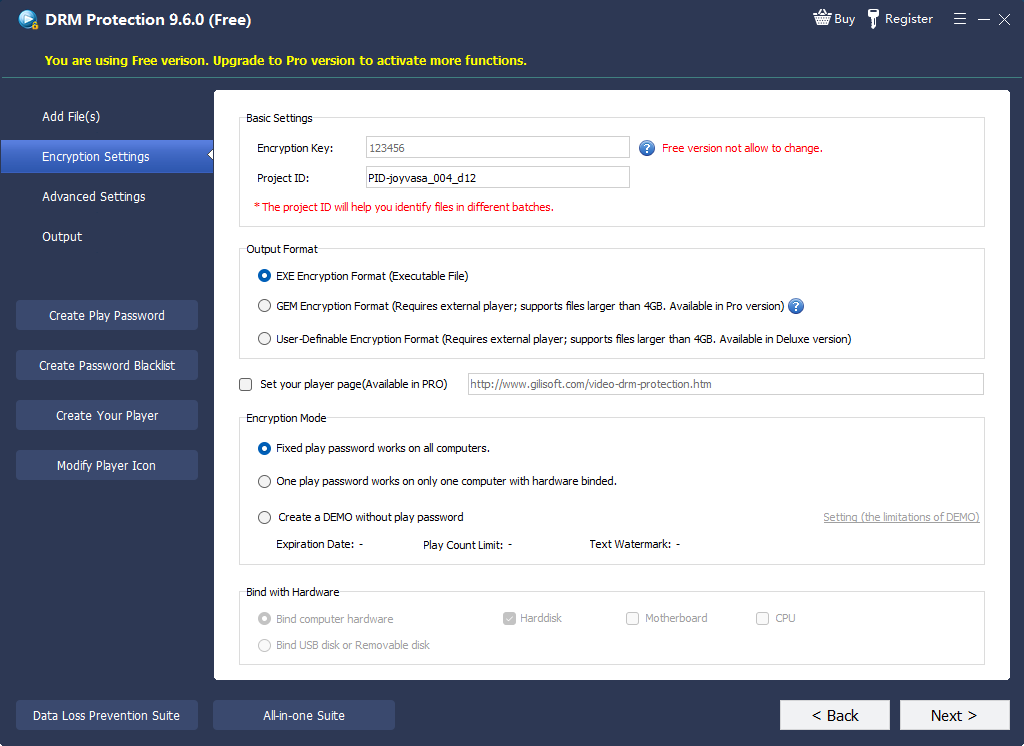
Add training videos, set a clear Project ID, store the Encryption Key, and choose the least restrictive binding mode that fits the learner environment.
- Add traceability and export
Configure viewer watermark or playback limits when needed, then export the approved GEM or EXE output.
- Issue and test access
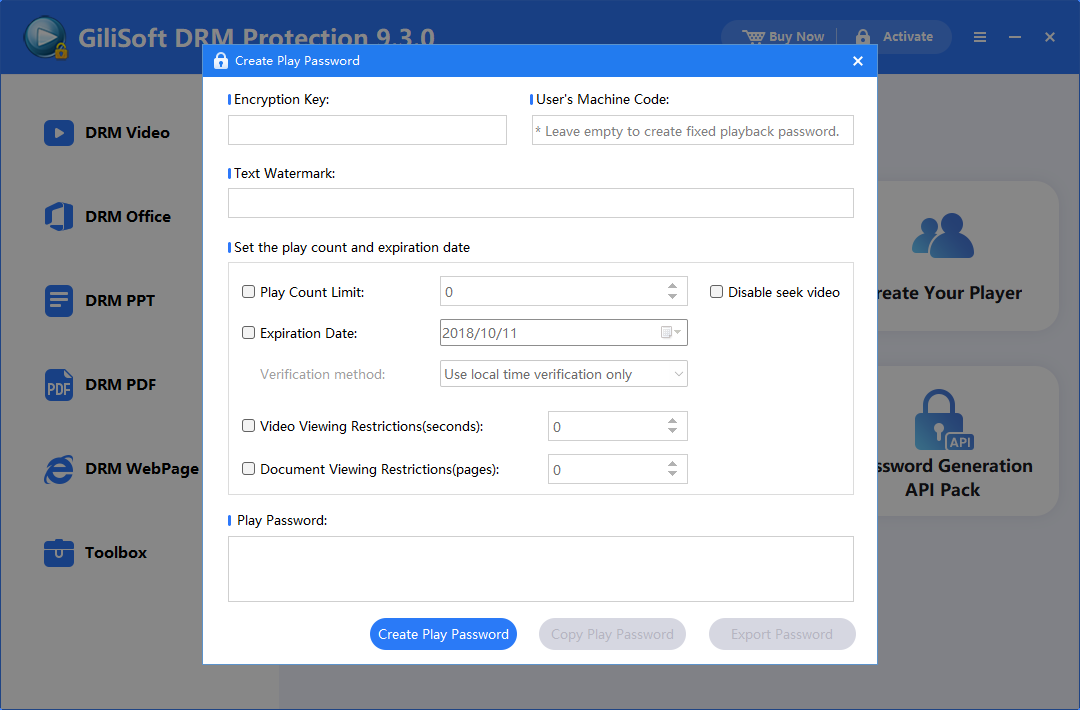
Create a Playback Password, supply it to a pilot learner, and check video, sound, captions, expiry, and the help route on a supported device.
The Video DRM Protection user guide shows the matching settings, password maker, and supported package workflow.
Product Interface for This Workflow
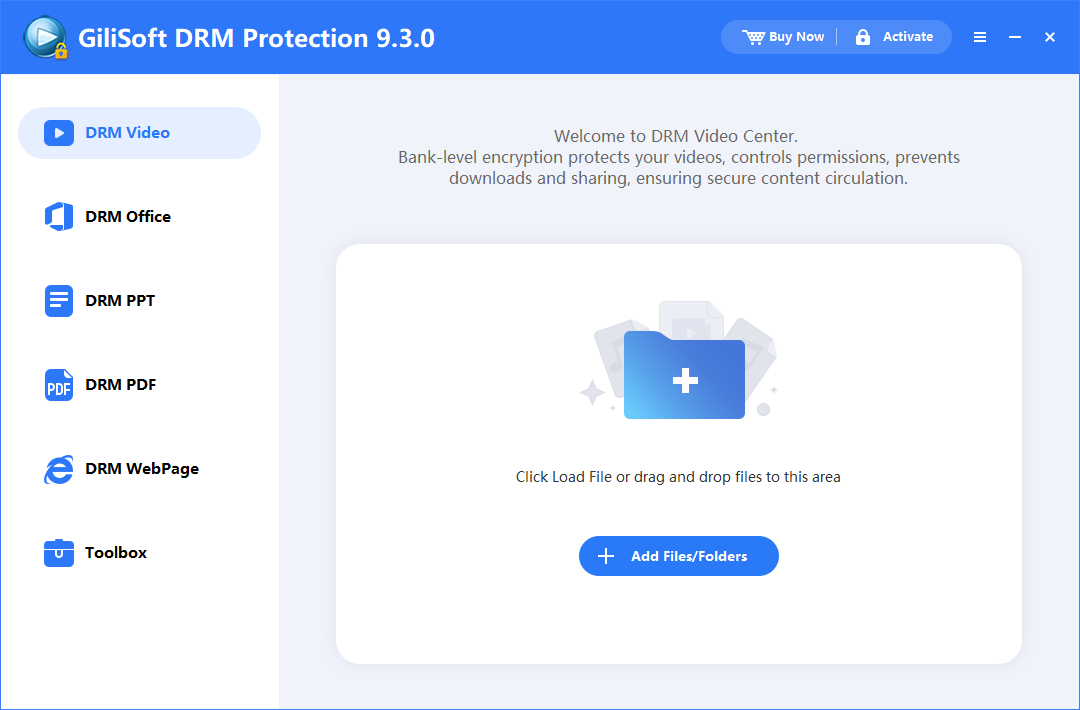
Use the actual GiliSoft Video DRM Protection screens to confirm project settings, protected output, and viewer credentials.
Check the Viewer Experience
- Keep the publisher Encryption Key and Project ID separate from the viewer Playback Password.
- Test the completed GEM or EXE package in the supported playback environment, not just the original source video.
- Check expiry, device changes, caption or transcript access, and a reachable support route.
- When using an online blacklist, confirm it was configured before release and verify the next online check.
Frequently Asked Questions
Must every learner use PC Binding?
No. Choose binding only when the device policy and support process justify it.
Does the package generate captions?
No claim is made here. Prepare captions or transcripts separately and test how learners access them in the protected viewing workflow.