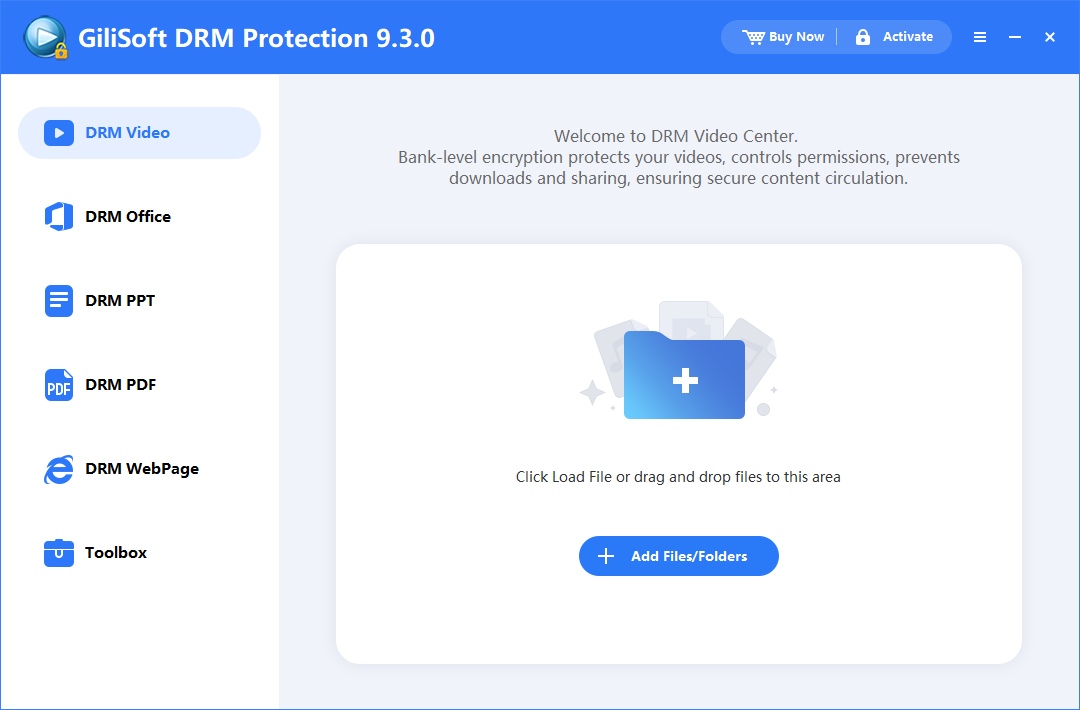
Add the source videos
Open GiliSoft Video DRM Protection on Windows and choose DRM Video. Use Add Files/Folders or drag the videos into the workspace. Review the file list and keep the original recordings separate from the protected output.

Create protected videos and manage how viewers open them. Follow the complete setup, packaging, password, and player workflow for your courses, client recordings, and licensed content.
Choose a task to protect videos, create viewer Playback Passwords, set access rules, or manage a delivered course. The tutorials cover the Windows publisher workflow and the matching player, password, and device checks for viewers.
Add a course, client recording, or licensed video in DRM Video. Common source formats include MP4, AVI, WMV, MPG, RM, RMVB, FLV, and VOB. For documents and web content, use the matching DRM Office, DRM PPT, DRM PDF, or DRM WebPage workspace.
The screenshots show 9.x interfaces. Some output formats and controls require a paid edition; use the options enabled in your installed version.
Open GiliSoft Video DRM Protection on Windows and choose DRM Video. Use Add Files/Folders or drag the videos into the workspace. Review the file list and keep the original recordings separate from the protected output.
Open Encryption Settings. Record the Encryption Key and Project ID securely, select the output format available in your edition, and choose fixed-password or device-bound playback for this delivery. Keep the Encryption Key with the publisher, not in the viewer delivery folder.
A GEM output requires the matching external player; an EXE is a Windows executable. The pictured screen also shows a user-defined format option for Deluxe. Choose the format and player for the intended viewer platform before creating a batch.
Follow the separate fixed-password, PC Binding, USB Disk Binding, or disc delivery task below.
Use Advanced Settings for watermark appearance, anti-copy restrictions, optional questions, viewer messages, and blacklist verification. Configure any online blacklist checks before exporting. Viewer-specific watermark text, expiration, and play limits are entered when creating the Playback Password.
Open the task for watermark style, anti-copy controls, questions, viewer messages, or blacklist verification when you need it. Keep online verification compatible with the internet restrictions you select.
Open Output, select a destination separate from the source files, and choose one combined package or separate packages. Select Encrypt now! and wait for completion. Then prepare the matching player and issue a Playback Password for the chosen binding mode before testing the delivery.
The illustrated progress is 0.0%, not a completed export. Keep the saved key and Project ID with your publisher records. For PC Binding, the viewer next opens the completed output on the intended computer to obtain its Machine Code; follow Create a Viewer Playback Password.
Projects are created and managed on Windows. Protected playback on other desktop or mobile platforms requires the appropriate output and supported GiliSoft player; a Windows EXE is not a universal mobile player.
In Encryption Settings, choose Fixed play password works on all computers when shared access across computers is intended. Keep the matching Encryption Key and Project ID.
Configure the required settings and complete Output. This mode is different from an individual PC-bound credential.
Open Create Play Password, enter the saved Encryption Key, and leave User's Machine Code empty as instructed by that dialog. Set any required limits, then create and record the resulting Playback Password.
Use the completed output, matching player, and generated password on the computers intended for this delivery. Treat the fixed credential as shareable; choose PC Binding when access must be tied to one computer.
See the Create Play Password screenshot for the empty Machine Code instruction.
In Encryption Settings, choose the mode where one play password works on only one computer with hardware binding. Review the computer hardware choices offered by the installed edition.
Complete the protected output, then have the viewer open it on the intended Windows PC with its required player. Ask the viewer to send the Machine Code shown there.
Open Create Play Password, enter the matching Encryption Key and that exact User's Machine Code, set the viewer text and limits, and generate the credential. Follow the password task for the complete sequence.
Test the issued credential on its approved PC and on a different PC. For a second approved computer, obtain that computer's Machine Code and issue access for it rather than reusing the first PC's credential.
The Encryption Settings screenshot shows the password mode and hardware-binding controls. For delivery-specific guidance, see bind video playback to a PC or storage device.
In Encryption Settings, use the device-bound mode and choose Bind USB disk or Removable disk where enabled. Keep a record of the intended delivery device.
Follow the installed edition's device-selection and output prompts for the target USB drive. Complete encryption, retain the publisher key, and prepare the matching player and viewing credential. Simply putting an ordinary encrypted file on a USB drive does not establish USB binding.
Open the completed delivery with the intended USB device connected. Also test the package copied away from that device, using the same viewing setup. Confirm the configured media binding controls playback rather than judging protection only by whether the file can be copied.
See Encryption Settings for the removable-disk binding control and protect videos shared on USB for the delivery checklist.
Use CD Binding when it is offered by your installed edition for CD/DVD delivery. Confirm the target media and reader requirements for that workflow before preparing copies.
Follow that workflow's media-selection and output instructions to create the protected delivery, then prepare its required player and credential. Do not assume burning an ordinary GEM or EXE file to a disc establishes disc binding.
Test the delivered CD/DVD in the intended reader and attempt playback of a copy moved away from it. Check the configured binding and include the correct player and viewer instructions with the disc.
The illustrated Encryption Settings screen shows PC and USB controls, not a CD setup dialog. Use the CD Binding controls supplied by the edition you install.
Use the saved Project ID to find the Encryption Key used for this output. Open Create Play Password and enter that key; the project label is not a replacement for it.
Enter User's Machine Code exactly as supplied from the intended viewer computer. For fixed-password playback, follow the dialog instruction to leave it empty. Do not mix codes from a support PC and the viewer PC.
In Text Watermark, enter a learner name, client ID, or short delivery label. The appearance comes from Basic Settings, not from this text field.
Enable and set only the required expiration, play-count, seeking, or preview restrictions. Follow expiration and playback limits to check their behavior.
Select Create Play Password, then use Copy Play Password or Export Password when enabled. Send the resulting Playback Password to the viewer and retain the publisher key and issuance record privately.
| Field | How to use it |
|---|---|
| Text Watermark | Set the viewer identifier; its appearance follows the watermark style configured in Basic Settings. |
| Expiration Date | Enter the intended end date explicitly. Do not assume the field starts a fixed access period at first playback. |
| Play Count Limit | Use only when the viewing policy requires it; allow for restarts and normal revision. |
| Disable seek video | Restrict jumping through the video only when that behavior is required. |
| Verification method | Review the method offered by the installed version and test its behavior with the intended connection and date setup. |
For credential-specific questions, see Playback Passwords and publisher keys.
In Create Play Password, enter the project Encryption Key and the correct Machine Code when PC Binding is used. Set the limits before generating the viewer credential.
Enable Expiration Date and enter the intended calendar date. Review Verification method when enabled. This is an end-date field, not an automatic number of days from first playback.
Enable Play Count Limit and enter the allowed count if required. Use Disable seek video only when jumping through the lesson must be restricted. Review the separate Video Viewing Restrictions (seconds) field if a limited preview is intended.
Create the password, record its rules, and test permitted playback and the configured limit with sample access rather than consuming a learner's live allowance. If the viewer policy changes later, do not assume editing the publisher dialog rewrites an already-issued password.
The password maker screenshot shows these checkboxes and fields. Read disable access after expiration for the end-date workflow.
Open Advanced Settings > Basic Settings. Select a floating watermark across the player, a floating edge watermark, or a fixed position. Set movement frequency, font color, font size, and spacing with the available controls.
Create the protected output with that style. In Create Play Password, enter the viewer or delivery identifier in Text Watermark, then generate that viewer's credential.
Play the delivered output with the generated password and inspect slides, faces, and captions. Adjust style before creating a replacement output if needed; changing the publisher settings does not update an old delivered copy.
Watermark appearance and viewer text are separate settings. See brand training videos with viewer watermarks for placement considerations.
Keep the protected file with the player or player instructions supplied by the publisher. Use the application intended for that protected format and platform, rather than assuming an ordinary video player will open it.
For PC Binding, open the content on the intended Windows computer. For USB or CD Binding, use the approved delivery device or disc. Keep the required online verification available.
For PC Binding, send the displayed Machine Code to the publisher and receive the generated Playback Password. Do not ask for the publisher Encryption Key or substitute another computer's password.
Enter the supplied Playback Password and check the intended lesson, audio, watermark, and access rules. If playback fails, send the exact error and delivery details to the publisher and follow playback troubleshooting.
Go to Advanced Settings > Anti-Copy Settings. Review the available virtual-machine, screenshot, input, and process restrictions for the intended viewing environment.
Choose only the required checks. The pictured interface includes screenshot restrictions, keyboard or mouse restrictions, Intelligent Anti-Copy, and a list of programs not allowed to run with one process name per line. Keep online blacklist verification compatible with your internet policy.
Build a sample output and check permitted viewing, seeking, and the software capture or environment restriction you enabled. Use viewer watermarks alongside these controls; an external camera filming a screen is not blocked by a software capture setting.
Open Advanced Settings > Anti-Copy Questions. Choose Automatic QA Mode for the simple questions described by the interface, or Customized QA Mode for your own prompts.
For automatic questions, review Frequency of QA (Mins). For custom questions, fill Question, Answer, and Time to pop up the question (Mins), then use Add Question. Review the resulting list.
Play through the relevant times, check the question and answer behavior, and adjust the frequency before releasing the course. Use Delete Question or Clear Question when removing unwanted entries.
In Advanced Settings > Ad settings, enable start or end website pop-ups only when required. Enter the destination links for those selected events.
Use Notification of Verification for viewing instructions. Fill the player title, verification title, purchase text, and purchase link fields that your delivery needs. Keep the publisher Encryption Key out of these messages.
Open the completed output, inspect the verification prompt and titles, and check every enabled link at the relevant playback event. Correct the package settings before distribution if a link or message is wrong.
Use Create Your Player when preparing the player for your protected output. Create Password opens the access utility; Upload Password Blacklist supports the configured cancellation workflow.
Follow the selected tool's prompts for the intended output. Use Custom Player Icon and Sign Your Player.exe when your Windows release process requires them. The Password Generation API Pack is an integration tool, not a viewer credential.
Open the protected content with the player you intend to distribute and a sample Playback Password. Send the protected files, required player instructions, and viewer credential, while keeping source videos and publisher keys out of the delivery.
| Tool shown | Use in the workflow |
|---|---|
| Create Password | Open the utility used to generate viewer Playback Passwords. |
| Upload Password Blacklist | Manage the blacklist upload step for the configured cancellation workflow. |
| Create Your Player | Prepare the player used for your protected delivery. |
| Custom Player Icon | Use the player icon customization tool when preparing a branded delivery. |
| Sign Your Player.exe | Open the player-signing utility as part of the release workflow. |
| Password Generation API Pack | Review the integration tools available for a development project; keep its key material with the publisher. |
Open Advanced Settings > Play Password Blacklist and enable Enable Password Blacklist before creating the protected output.
Use the administration login for the configured verification setup. Replace any default administrator password before release, and keep the service and administration details with the project records.
Complete the remaining project settings and export the protected package. Keep its verification service reachable under the anti-copy and internet rules you chose.
First establish successful playback on its intended device. Add that sample Playback Password through the configured management tool or service, save or upload the change, and verify rejection after the player checks the updated list.
This screen configures verification and administrator access; it is not a screenshot of the later blacklist-entry form. A package delivered without this setup does not acquire it merely because a new list is created later.
Match the viewer, project, and approved device in your issuance records. Cancel the Playback Password, not the publisher Encryption Key or Machine Code. Confirm that this delivered package already uses the configured blacklist.
Open the management service or the Upload Password Blacklist workflow from Toolbox. Add the issued Playback Password and save or upload the updated list through the configured service.
Use the same approved device on which that sample credential previously worked, with online verification available. Confirm it is rejected after the player checks the updated list; testing only on a wrong PC does not prove revocation.
Test a separate valid credential on its approved device and record the cancellation. A shared credential affects its whole group. Revocation does not remotely delete files or immediately update a disconnected player.
Follow how to revoke video access after delivery for cancellation scenarios and the before-and-after test.
Use the exact protected output and player to be delivered, a valid sample password, and the approved device or media. Check video, sound, captions, and the viewer watermark.
Try a PC-bound credential on another computer, or a media-bound package copied away from its intended USB drive or disc. Check the configured playback result rather than whether the file itself copies.
Use sample access to test seeking, replay, the intended expiration behavior, and any play or preview limit. For blacklist testing, first prove the credential works on its intended device, then cancel and retest that same access after verification.
Confirm a separate valid credential still works on its approved device. Keep the Project ID, Encryption Key, output edition, player version, and issuance records privately so later support and access changes use the correct project.
| Test | Expected behavior |
|---|---|
| Correct output, player, credential, and approved device | The video opens with sound, the intended watermark, and any required captions. |
| PC-bound password used on another computer | The first computer's credential does not authorize that other PC. |
| Storage-bound file copied away from the intended media | The copied package does not become unrestricted content. |
| Pause, seeking, replay, and access end date | The configured rules match the viewing policy and do not interrupt normal use unexpectedly. |
| A test password added to the configured blacklist | It is rejected on its intended device after the player checks the updated list; a different valid credential still works on its own approved device. |
Use sample credentials for these tests rather than consuming a live viewer's limited play count.
Record the protected output, Project ID, player version, exact error message, and intended PC or media. Find the matching publisher record without posting its Encryption Key publicly.
Compare the saved key and issued Playback Password with the output. For PC Binding, verify the intended Machine Code; for media binding, use the approved device. Check expiration, play count, preview limits, and the configured blacklist.
Confirm the protected file copied completely, use the matching player, and test the required connectivity. Review conflicts between online checks and internet restrictions. Retest with a known-valid sample on its approved device before changing the delivery.
| Symptom | Check |
|---|---|
| Playback Password is rejected | Match the delivered project, saved Encryption Key, and issued credential. For PC Binding, compare the intended Machine Code. |
| Video opens on one PC but not another | Check whether PC Binding is selected. Issue access for the second approved Machine Code rather than reusing the first PC's credential. |
| Previously working access has ended | Review the expiration date, play count, and any entry in the configured password blacklist. |
| Online verification does not work | Check service connectivity and the package's verification setup. Review conflicting internet restrictions in Anti-Copy Settings. |
| File does not open in the selected application | Confirm the protected file copied completely and use the player intended for that output and target platform. |
| Watermark text or position is wrong | Check the viewer Text Watermark in the password record and the appearance configured in Basic Settings. Verify the actual completed playback. |
Keep the exact error and test results with the support record. Do not replace a device-bound credential with an unrelated fixed password simply to bypass a failed check.
No. Keep the Encryption Key in the publisher's project records and use it when creating Playback Passwords. Send viewers the resulting Playback Password, not the Encryption Key.
A Machine Code is required for PC Binding. The viewer opens the protected content on the intended Windows computer and sends that code to the publisher, who creates a Playback Password for that computer.
Use a fixed password when viewing across computers is intentional and a shared credential is acceptable. Use PC Binding when a password should authorize one approved Windows computer. Keep a record for each approved computer if a viewer uses more than one.
GEM output is opened through the intended GiliSoft playback workflow. EXE is a Windows executable output. Available formats depend on the installed edition; choose the output and player for the viewer's platform rather than assuming one format runs everywhere.
Set fixed or floating watermark placement, movement frequency, font, and spacing in Advanced Settings > Basic Settings. Enter viewer-specific Text Watermark when creating the Playback Password. Check the completed playback so the watermark does not cover captions or essential content.
The password maker shows an explicit expiration date. Enter the intended end date and choose the verification method available in your setup. Do not assume that the date field automatically creates a period beginning at first activation.
Yes, when online blacklist verification was configured before the protected output was delivered. Add the issued Playback Password to that configured blacklist. Rejection takes effect when the player checks the updated online list; a disconnected player does not receive the change immediately.
Yes. USB Disk Binding and CD Binding associate playback with the selected delivery media. Test both the intended media and a copy moved elsewhere; protection controls access to the content rather than making the package file impossible to copy.
Projects are created and managed on Windows. Protected playback can be delivered through supported GiliSoft players on desktop and mobile platforms, depending on the output and player selected. The Machine Code instructions in this guide describe PC-bound Windows playback.
The Project ID identifies the course, client delivery, or content edition so you can find its matching Encryption Key and access records later. Keep both values in the publisher archive; the label alone is not a substitute for the correct key or viewing credential.
The package may still be copied or forwarded. The selected password, device or media binding, expiration, and verification rules govern whether its contents may be played. Test an unauthorized playback attempt rather than relying only on whether Windows allows the file to be copied.
Anti-copy settings can restrict supported software capture paths, and viewer watermarks add traceability. They cannot stop an external camera filming a screen or guarantee that every recorder is blocked. Test the settings with the player and environment used by viewers.
Use Video DRM when you need continuing access rules such as device binding, viewer watermarks, expiration, play limits, or blacklist verification. A fixed-password encrypted delivery may be sufficient when those individual access controls are unnecessary.
Use this page for the complete product workflow. The guides below go deeper into a particular access rule or delivery scenario.
Plan protected copies for courses, clients, and approved delivery devices.
Protect downloadable videosProtect video course downloadsProtect videos shared on USBSecure video delivery softwareProtect client video deliveriesSecure private coaching videosFind help with individual credentials, planned end dates, and cancellation.
Video playback passwordsBind video playback to a deviceDisable access after expirationRevoke a Playback PasswordVideo license control softwareAdd viewer identification and review the relevant playback restrictions.
Prevent screen recording of videosBrand training videos with watermarksVideo access control softwareApply the workflow to learner access and content delivery.
Protect training videosSet DRM rules for training videosProtect e-learning videosSecure corporate training videosProtect paid video contentProtect membership videosProtect subscriber video contentChoose the protection approach that fits the required controls.
Video DRM vs video encryptionVideo DRM vs video copy protectionCompare video DRM softwareCopy protection for e-learning platformsRead the related guides for password protection and portable delivery.
Password protect video filesEncrypt video files with a passwordVideo encryption vs Video DRMProtect video files on a USB driveStart with a sample video, configure the project, create a viewer Playback Password, and verify the complete delivery with GiliSoft Video DRM Protection.


Enter your email address to get our latest newsletter