

How to Crop a Video on Mac for the Right Frame
Cropping removes pixels outside the selected frame. It can improve composition or adapt a video to a new aspect ratio, but it cannot restore detail and may exclude subjects that move later.
Quick answer
Set the destination frame first, open the crop tool in GiliSoft Video Editor Pro for Mac, keep the required aspect ratio, draw the area to preserve, and preview representative motion before applying the crop.
Choose Crop, Fit, or Reframe
| Situation | Recommended approach | Check carefully |
|---|---|---|
| Remove unwanted edges | Use a focused crop | Moving subjects near the boundary |
| Convert landscape to vertical | Create a deliberate vertical composition | Subject tracking, captions, and safe areas |
| Keep the complete original frame | Fit with a background instead of cropping | Visible bars or designed background treatment |
Step-by-Step Mac Workflow
- Define the destination
Choose widescreen, square, or vertical output based on where the video will be viewed.
- Open the crop controls
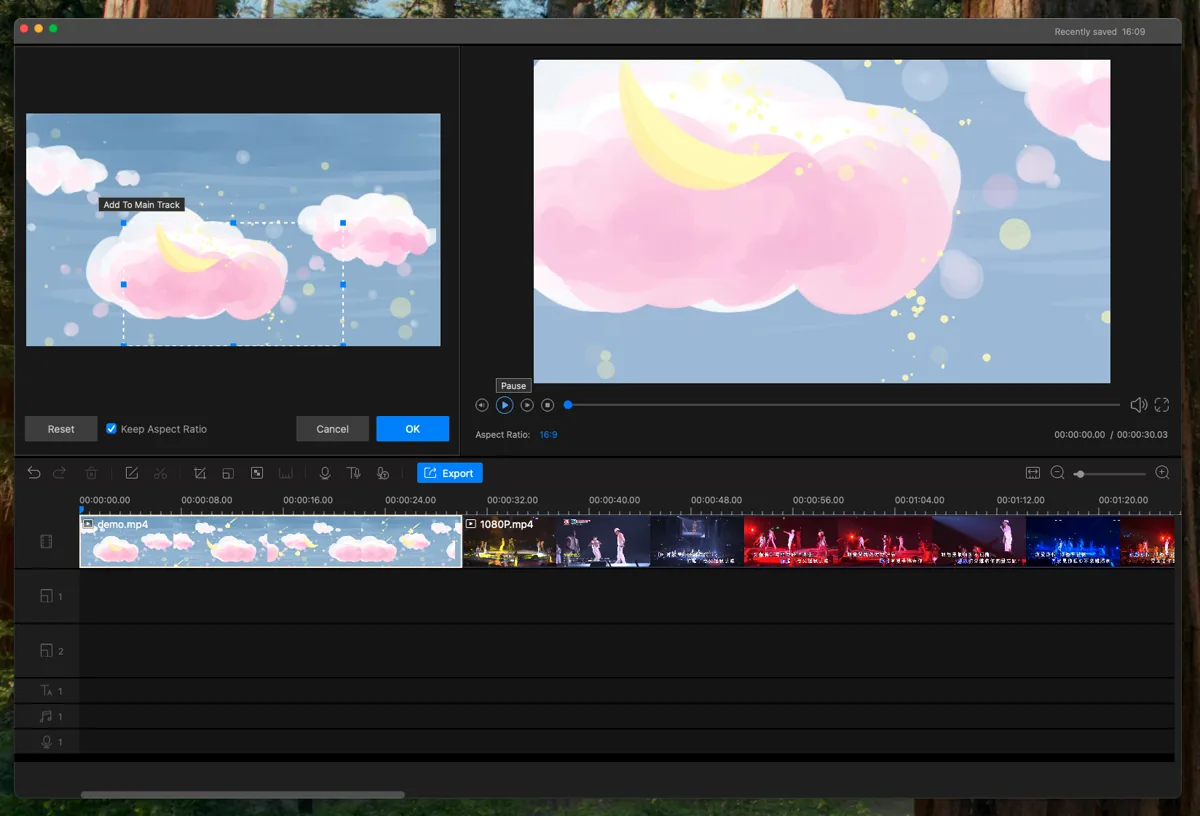
Select the clip, open Crop, and enable the required aspect ratio before dragging the selection.
- Check motion across the clip
Preview the beginning, middle, end, and fast-motion sections so faces, products, hands, and text stay inside the frame.
- Apply and verify at output size
Export a short test, inspect sharpness and composition at the real viewing size, then render the final video.
See the Video Editor Pro for Mac user guide for the complete timeline, effects, audio, text, privacy, and export workflow.
Video Editor Pro for Mac Interface
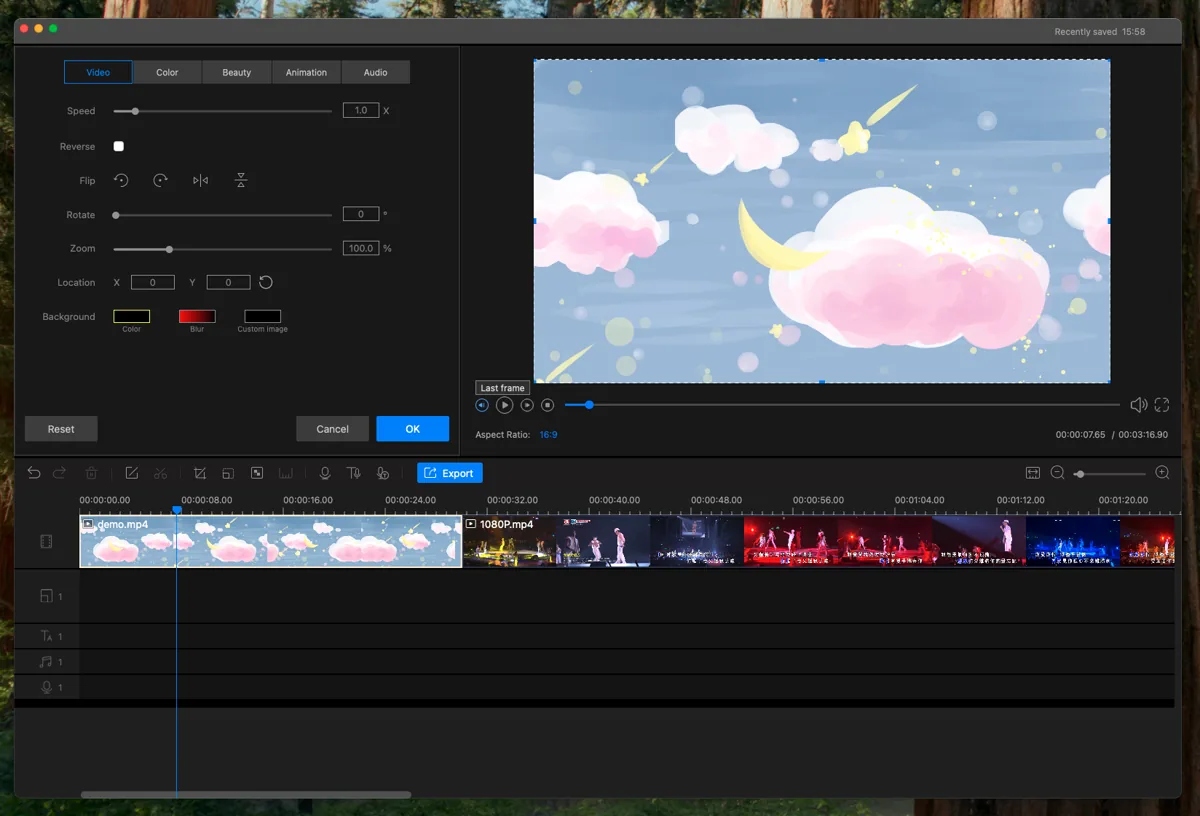
These real product screenshots connect the workflow to the current Mac editing interface.
Review Before Export
- Keep the source media and project until the finished export has been approved.
- Watch the complete timeline once without stopping and note every visible or audible issue.
- Test the rendered file outside the editor and on the intended destination device or service.
- Confirm reuse rights for video, music, logos, fonts, and other third-party material.
Frequently Asked Questions
Does cropping change the aspect ratio?
It can. Constrain the selection when the output needs a specific ratio, or fit the full frame with a background.
Why does a subject disappear later?
The crop was checked on only one frame. Review motion across the complete clip before export.