
Confirm whether the car stereo, home player, computer, or DVD player expects an Audio CD, MP3 disc, WMA disc, or data disc.
GiliSoft MP3 CD Maker Guide
How to Burn Audio CDs, MP3 CDs, and Music Discs on Windows
Choose the correct disc type, arrange and prepare tracks, burn one or several copies, and test the finished disc for car, home, classroom, or offline playback.
Audio filesVideo sourcesTrack list
Burn
Audio CDMP3 discDisc image
Before You Burn
These checks help prevent a completed disc that cannot be played by its destination device.
Insert a compatible writable or rewritable CD or DVD and confirm that Windows recognizes the recorder.
Check track names, duration, sound level, unwanted sections, and supported audio or video sources.
Decide the playlist sequence and keep the selected content within the disc capacity.
Choose the Right Music Disc Type
A higher-capacity disc is not automatically compatible with every CD player.
Best for traditional CD players, older car stereos, and broad compatibility.
Holds more tracks, but the destination device must support MP3 discs.
Use with devices that explicitly list WMA disc support.
Stores files for computers and compatible devices; ordinary Audio CD players may not recognize it.
Create an Audio CD, MP3 Disc, or WMA Disc
Start in the main workspace and choose the output matching the destination player.
- Select the required Audio CD, MP3 CD/DVD, WMA CD/DVD, or data-disc task.
- Add audio files or supported video sources containing the music you need.
- Arrange tracks in playback order and remove unwanted entries.
- Select the recorder and review the available disc capacity.
- Choose the burn settings, start writing, and wait for completion.
See How to Burn an Audio CD or How to Burn an MP3 CD for focused examples.
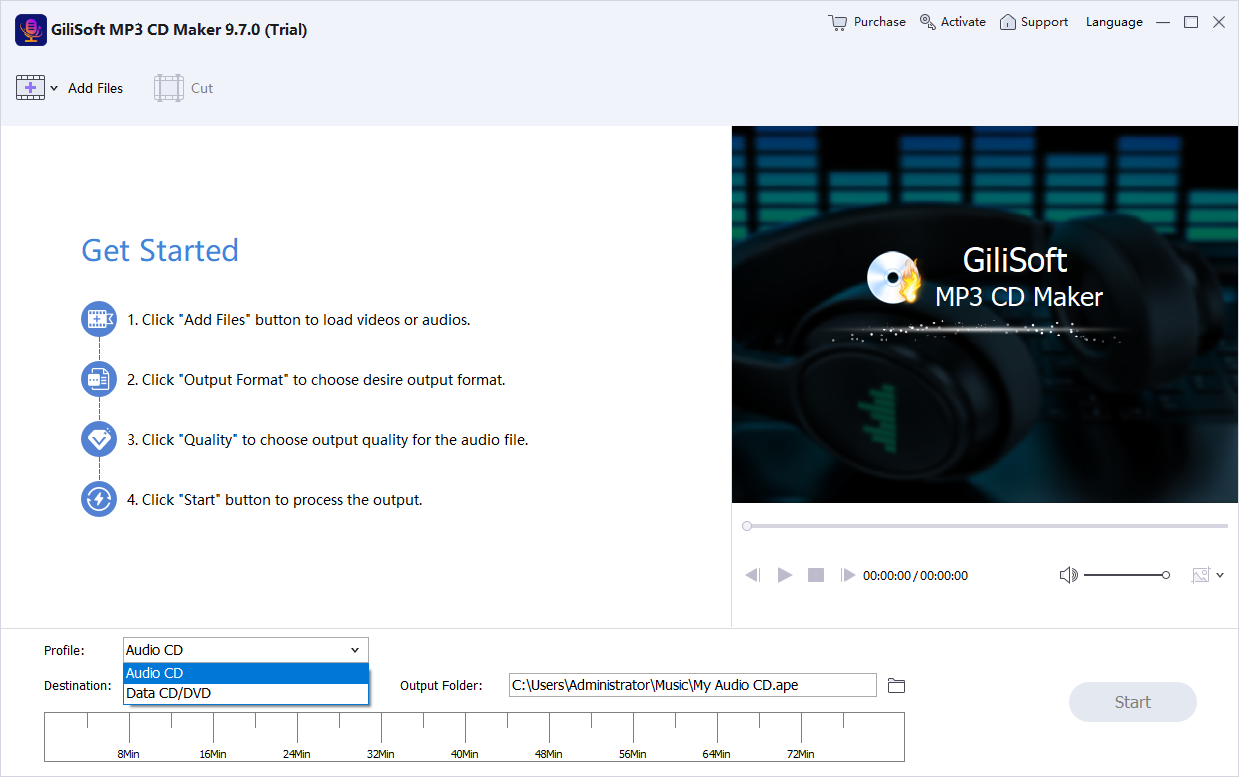 Main music-disc workspace. Click to enlarge.
Prepare Tracks Before Burning
Use these complete preparation tools when the source needs work before the final disc is written.
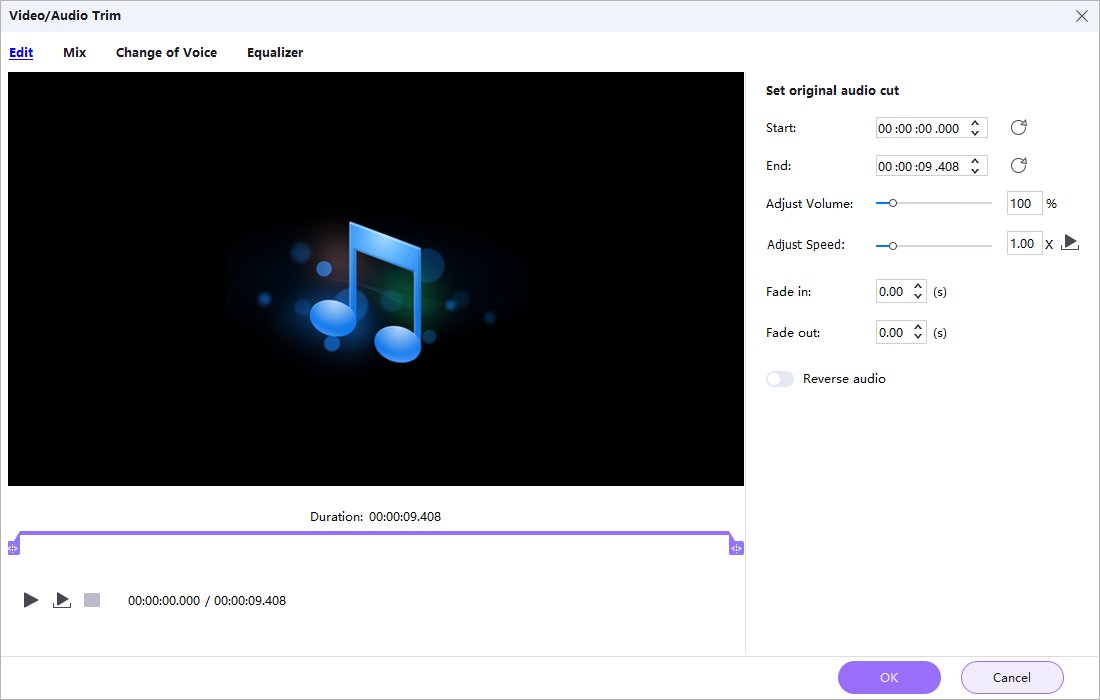
Cut Audio Segments
Set the start position and duration so only the required section enters the disc project.
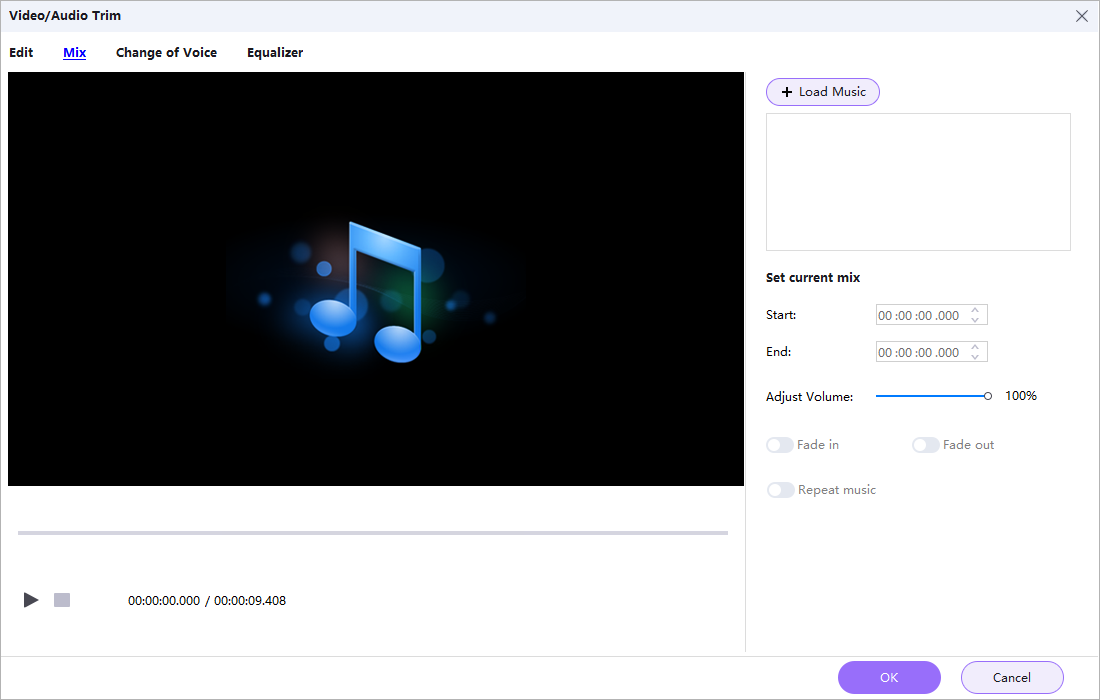
Mix Audio Sources
Combine music, narration, or several sources into one prepared track.
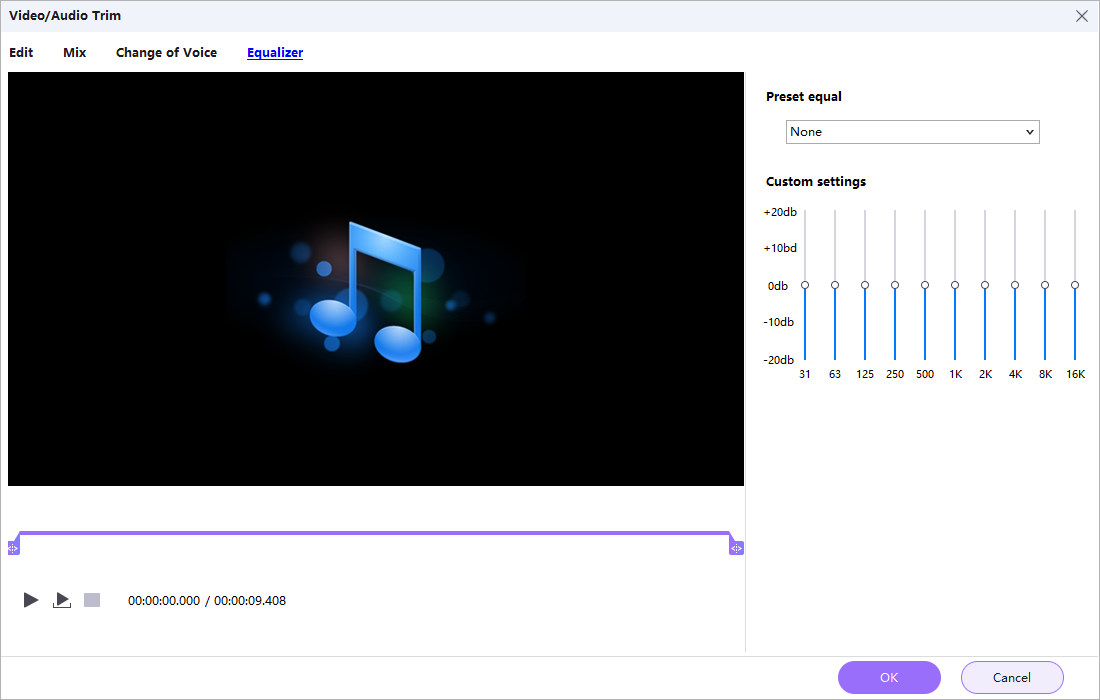
Adjust the Equalizer
Review frequency balance and make practical sound adjustments before burning.
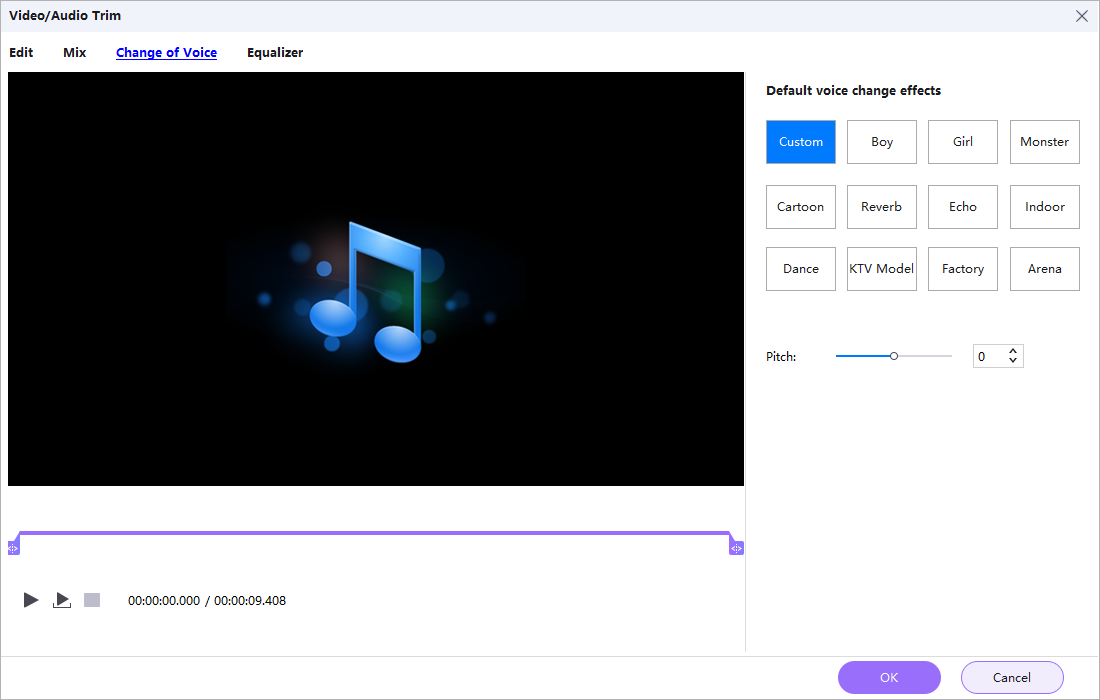
Apply Voice Effects
Change narration or creative audio before adding it to the project.
Create a Supported Music Disc Image
Save a project as an image when a physical disc is not required immediately.
- Choose the available image-file task.
- Add and arrange the source tracks.
- Select an image format offered by the software.
- Choose a destination with enough space.
- Create the image for backup, testing, or later burning.
Available formats depend on the selected task. Confirm the current output list rather than assuming every task offers the same formats.
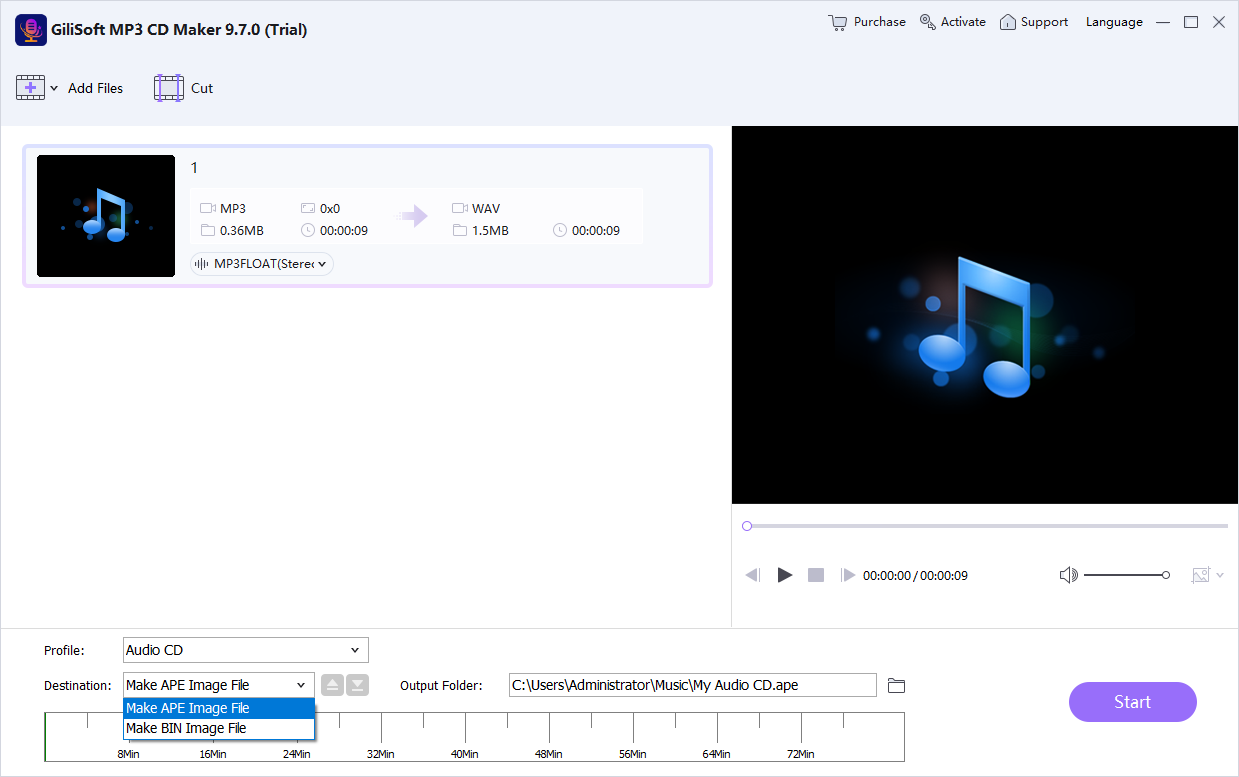 Supported disc-image output. Click to enlarge.
Multiple Copies and Rewritable Media
Final Music Disc Checklist
MP3 CD Maker FAQ
Audio CD or MP3 CD?
Choose Audio CD for broader traditional-player compatibility. Choose MP3 CD for more tracks only when the player supports it.
Why will an MP3 disc not play in my car?
The stereo may support Audio CDs but not MP3 data discs, or it may require a particular MP3 profile.
Can video files be used as sources?
Yes. Supported video sources can be added when their soundtrack or music is needed.
Can I trim a track first?
Yes. Set the start position and duration, preview the segment, and use the prepared result.
How do I make several copies?
Finalize the list and settings, choose the copy count, then check a representative disc.
What should I test after burning?
Confirm recognition and test several tracks on the actual destination device.
Create Music Discs for Car, Home, and Offline Playback
Build Audio CDs, MP3 and WMA discs, music DVDs, supported disc images, and repeated copies from one Windows workspace.
Download Trial


