
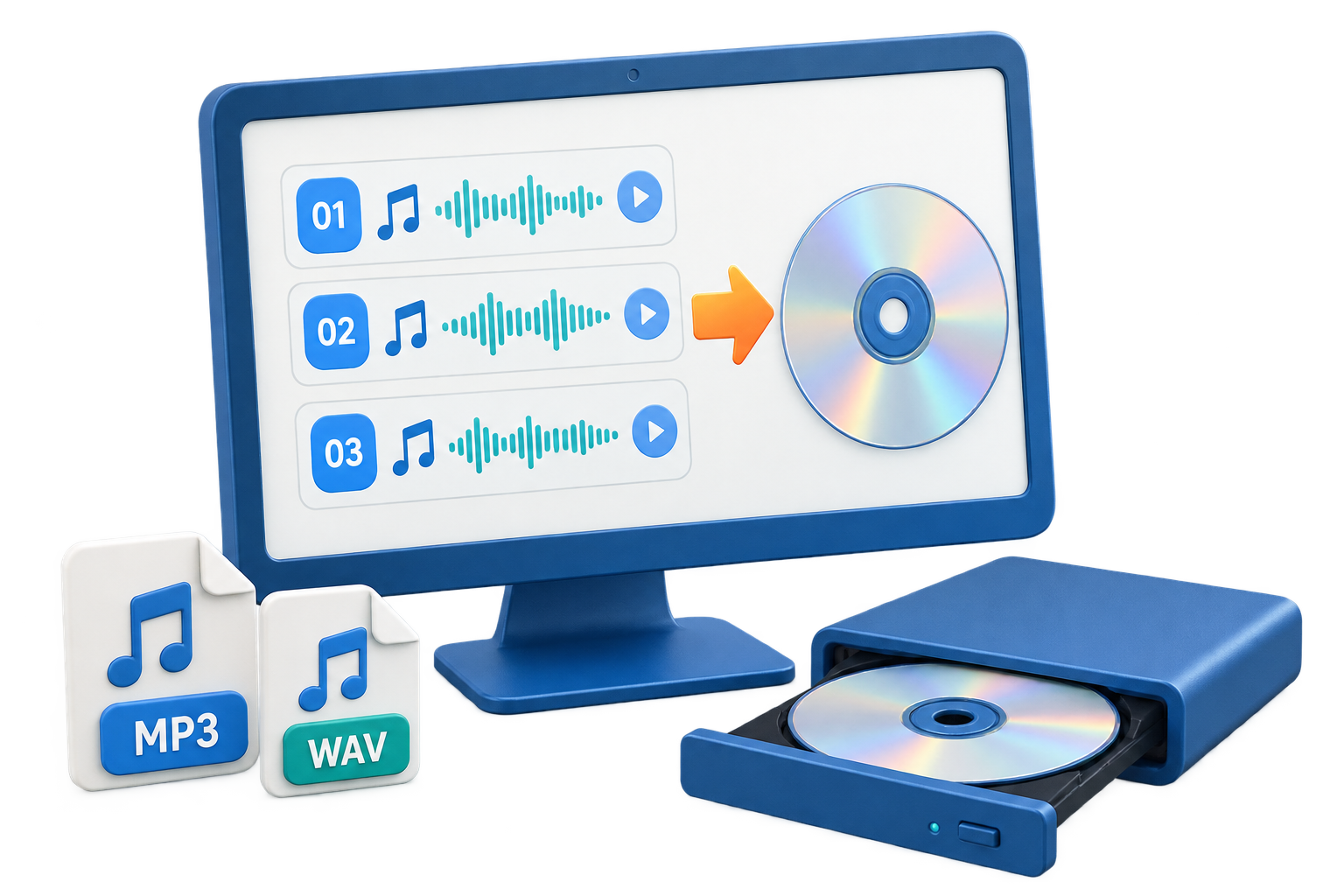
Use an MP3 CD Only When the Player Supports It
Quick answer: An MP3 CD is a data disc containing compressed MP3 files. It can hold far more music than a standard Audio CD, but a traditional CD player may not recognize it. Confirm MP3-on-CD support, accepted media, folder limits, and playback order in the device manual before burning.
| Playback or workflow | Recommended output | Important check |
|---|---|---|
| Player says “Audio CD” only | Standard Audio CD | Do not use MP3 data mode |
| Player lists MP3 CD/CD-R | MP3 CD | Check bit rate, folders, and track limits |
| DVD player lists MP3 files | MP3 CD or MP3 DVD | Confirm supported media type |
| PC file archive | Data CD | Playback compatibility is secondary |
Before You Start
A successful burn begins with the destination player, compatible blank media, and a reviewed source list. Decide those details before the optical drive starts writing.
Check MP3 support
Look for MP3 CD, CD-ROM MP3, CD-R, and folder specifications.
Use consistent files
Keep filenames, tags, and encoding practical for older players.
Plan folders and order
Simple folder structures and numbered filenames are easier for legacy devices.
How to Burn an MP3 CD on Windows: Step by Step
Confirm the destination player
Read its manual and verify MP3 playback from the exact CD-R or CD-RW media you plan to use.
Prepare the MP3 collection
Remove duplicates, check damaged files, simplify names, and decide whether folders or one flat list works best.
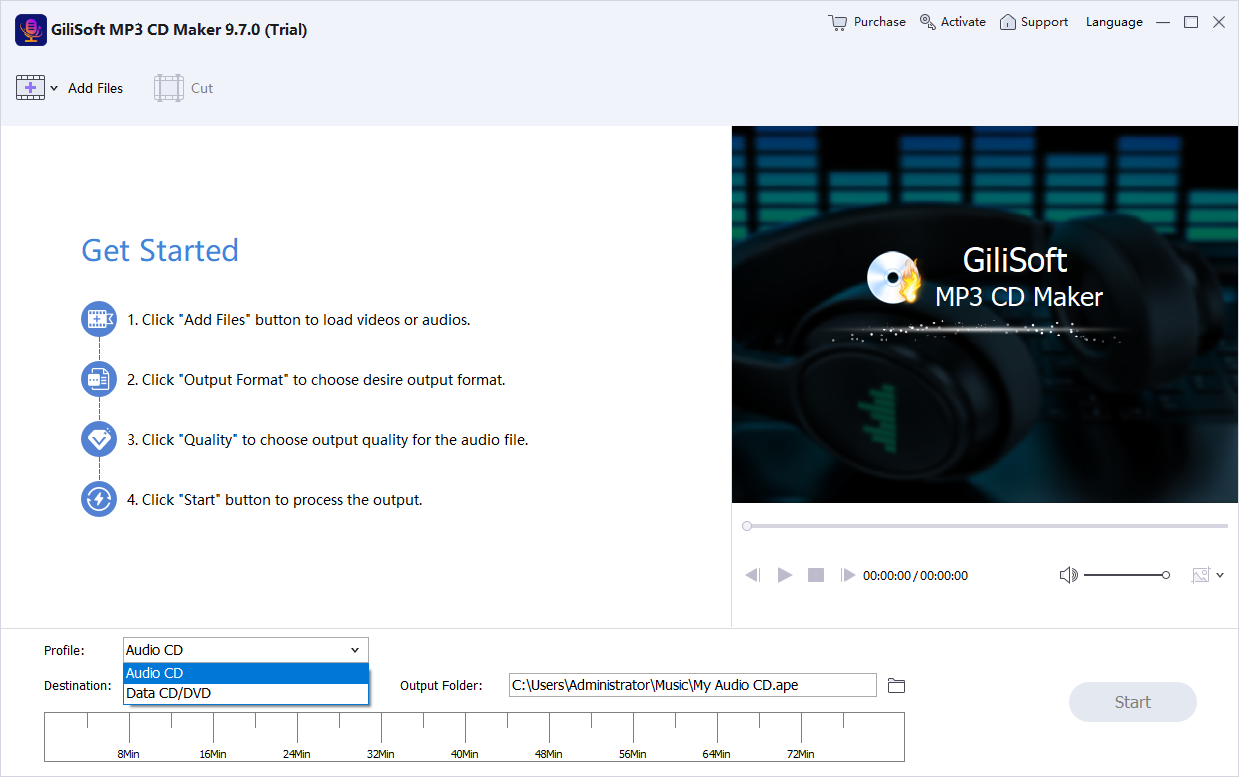
Choose MP3 CD output
Open GiliSoft MP3 CD Maker and select MP3 CD rather than standard Audio CD.
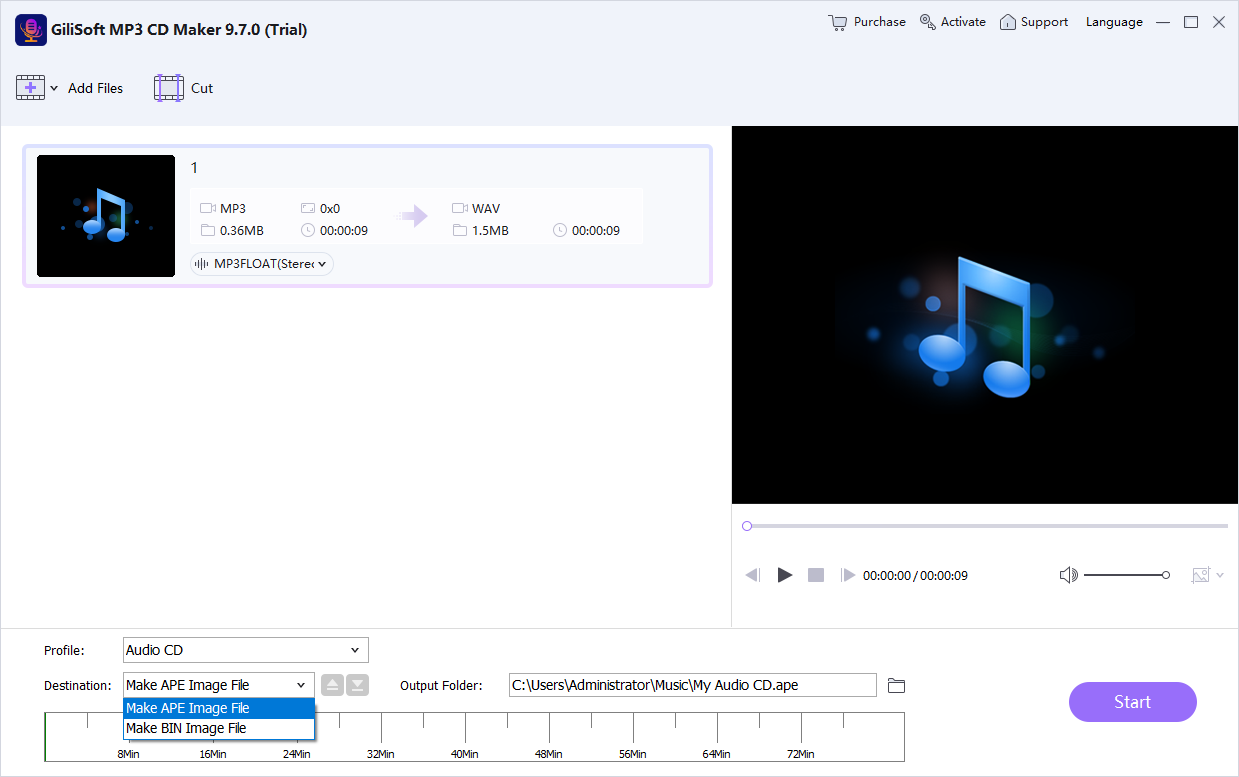
Add and organize files
Import the tracks, arrange albums or folders, and keep within the displayed disc capacity.
Burn and close the disc
Select the correct recorder, write the project, and use a completed session suitable for the destination player.
Test navigation and playback
Check folder browsing, track order, long filenames, the final track, and resume behavior in the actual device.
Improve Disc Reliability and Playback Compatibility
Use simple folder structures
Some players impose album, folder-depth, filename, or track-count limits.
Number filenames when order matters
Legacy hardware may sort by filename rather than tags or the visual project order.
Avoid assuming every MP3 works
A player may limit sample rates, bit rates, media, or disc file systems.
Keep an Audio CD fallback
When compatibility is uncertain, a shorter standard Audio CD is usually the safer test.
Recommended Windows Tool: GiliSoft MP3 CD Maker
GiliSoft MP3 CD Maker supports MP3 CD and MP3 DVD output alongside standard Audio CD, WMA, and data-disc modes, making it useful when the same music collection must target both modern and legacy playback hardware.
- Create standard Audio CDs or MP3/WMA music discs from the appropriate mode.
- Import common audio formats and selected video sources when their soundtrack is needed.
- Arrange, remove, trim, mix, or preview material before committing it to disc.
- Test a finished disc before making copies or distributing authorized content.
Troubleshoot Common CD Burning Problems
| Problem | Likely cause | What to do |
|---|---|---|
| Disc shows “No files” | Player does not support MP3 CD or the disc structure | Check the manual and try a simpler MP3 CD or standard Audio CD |
| Tracks play in the wrong order | Player sorts by filename or folder rules | Prefix filenames with zero-padded track numbers |
| Some MP3 files are skipped | Encoding profile is unsupported | Convert affected files to a common MP3 profile and test again |
| Disc works on PC only | PC supports formats the standalone player does not | Use the player specifications, not PC playback, as the compatibility test |
Burn Only Music You Are Authorized to Copy
Use your own recordings, public-domain material, or music for which you have suitable copying and distribution permission. Purchasing access or being able to play a stream does not necessarily grant the right to duplicate it, and technical protection should not be bypassed.
Frequently Asked Questions
Is an Audio CD the same as an MP3 CD?
No. A standard Audio CD stores CD audio for broad player compatibility and is normally limited by playing time. An MP3 CD stores compressed files as data and works only in players that support MP3 discs.
Should I use CD-R or CD-RW?
CD-R is generally the safer choice for older car and home players. CD-RW is reusable, but many older devices do not support it reliably. Check the destination player manual.
Why does the disc play on my PC but not in the car?
The car player may not support the selected disc type, file format, recordable media, folder structure, or an unclosed session. Test a standard Audio CD on CD-R when broad compatibility is the priority.
What should I test after burning?
Test the first, middle, and final tracks on the actual destination player. Also confirm track order, navigation, silence between tracks, and that the disc starts after reinsertion.
Can I burn downloaded or streaming music to CD?
Only burn music you own or are authorized to copy. A playable source does not automatically grant duplication or distribution rights, and protected streams should not be bypassed.
Can GiliSoft MP3 CD Maker use audio from a video file?
Yes. The product supports selected video sources when their soundtrack is needed, alongside common audio formats. Review the extracted track before burning.
More Audio CD and Music Disc Guides
Continue with the disc format, production method, or complete product guide that matches the next task.