
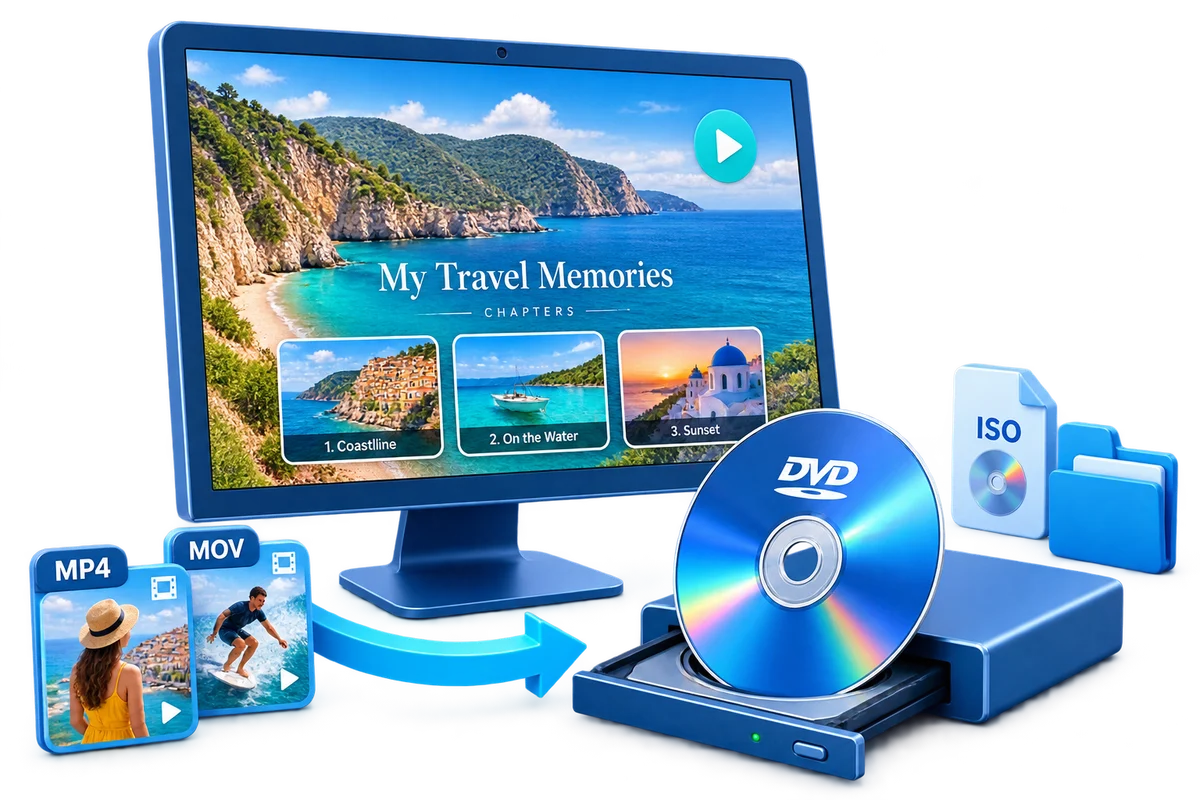
Choose the Output by How It Will Be Used
| Goal | Best choice | Why |
|---|---|---|
| Several separate videos | Title menu | One clear button for each video |
| One long event | Chapter menu | Entry points at meaningful scenes |
| Short single video | Simple menu or direct play | Avoid unnecessary navigation |
| Client or family collection | Custom menu | Use a relevant background and concise labels |
Prepare Before Creating the DVD
Map the structure
List every title and chapter before selecting a template.
Write short labels
Use wording that stays readable at television distance.
Prepare one background
Choose an image with quiet space behind text and buttons.
Set a clear order
Arrange buttons in the same sequence viewers expect.
DVD Menu Creator for Windows: Step by Step
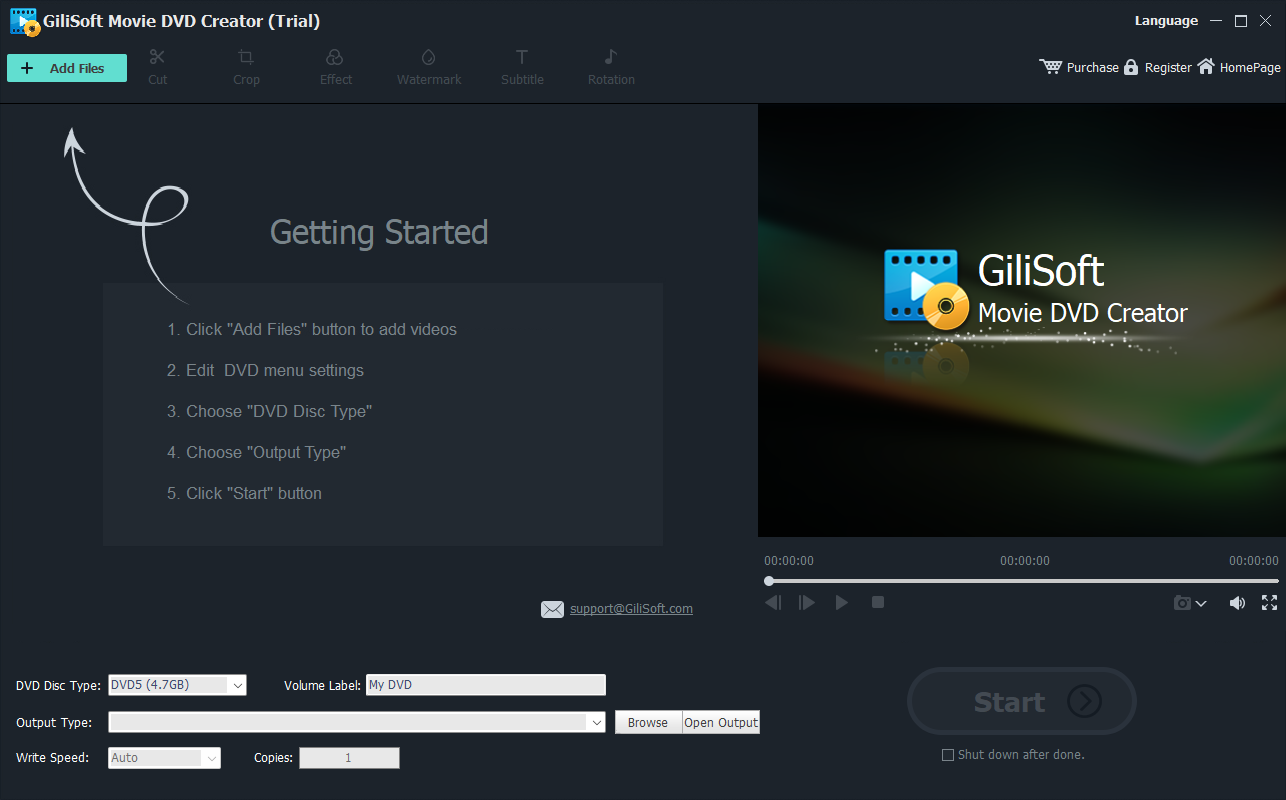
Add the finished videos
Import final source files and place them in the intended viewing order.
Define titles and chapters
Separate independent videos as titles and place chapter points at useful scene changes.
Choose a menu template
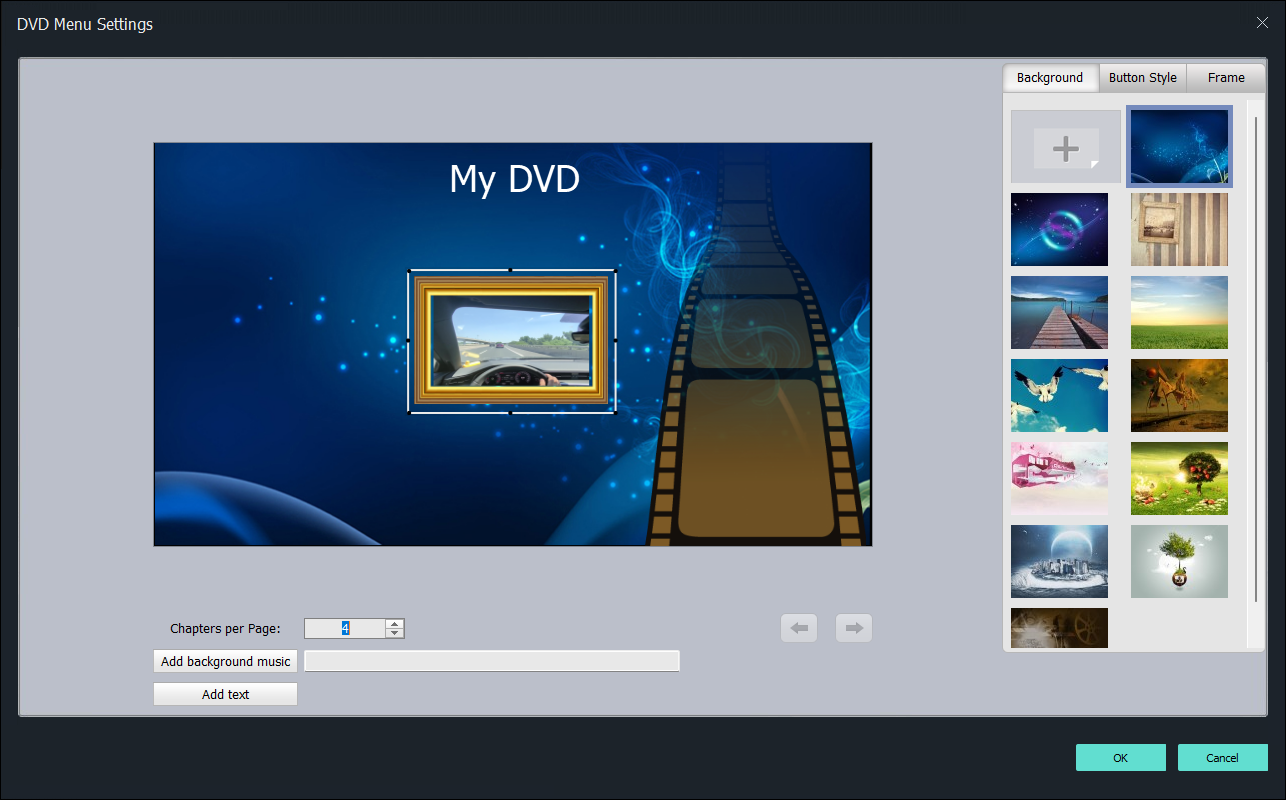
Select a layout that fits the number of buttons without crowding.
Customize the menu
Set the title, background, frames, thumbnails, and concise button labels.
Preview every navigation path
Test Play, title buttons, chapter pages, Next, Previous, Home, and end actions.
Create and test the output
Choose PAL or NTSC, output to disc, ISO, or folder, and test the complete project.
Design a DVD Menu That Works on a TV
Prioritize contrast
Keep labels distinct from the background in bright and dark areas.
Respect screen edges
Place important text and controls away from the outer edge.
Limit choices per page
Use another menu page instead of shrinking too many buttons.
Keep navigation predictable
Home, Next, and Previous should behave consistently.
Author the Complete Project with GiliSoft Movie DVD Creator
GiliSoft Movie DVD Creator keeps source preparation, titles, chapters, menu design, PAL or NTSC selection, preview, and disc, ISO, or DVD-folder output in one workflow. It is intended for creating DVD-Video, not merely copying loose video files to optical media.
Troubleshooting
- A button opens the wrong video: verify its title or chapter target and preview again.
- Labels are hard to read: shorten them and increase contrast with the background.
- A chapter is missing: confirm the chapter point and available menu pages.
- The menu is cropped on a TV: move essential elements farther from the screen edge.
- The disc skips the menu: check startup behavior and confirm DVD-Video authoring.
Create Discs Only from Authorized Video
Use recordings you own or have permission to copy and distribute. DVD creation does not override copyright, privacy, licensing, or technical protection.
Frequently Asked Questions
Can I create title and chapter menus?
Yes. The product supports menu templates and chapter-based navigation.
Can I use my own menu background?
Yes. Use an image with enough quiet space for readable labels and buttons.
How many buttons should a menu page contain?
Use only as many as remain legible and easy to select; add pages for larger projects.
Can I preview the menu before burning?
Yes. Preview every route before creating the final disc or image.
Can the menu project be saved as an ISO?
Yes. Disc, ISO, and DVD-folder outputs are available.
Why does a copied video disc have no menu?
Copying files creates a data disc. DVD-Video authoring is required for television-style navigation.