

How to Disable File Renaming in Windows 11/10
Windows does not provide a dedicated "Disable Rename" switch for an ordinary file. You can protect the file with GiliSoft File Lock Pro, apply Read-only for a lightweight deterrent, or configure NTFS permissions for account-level control.
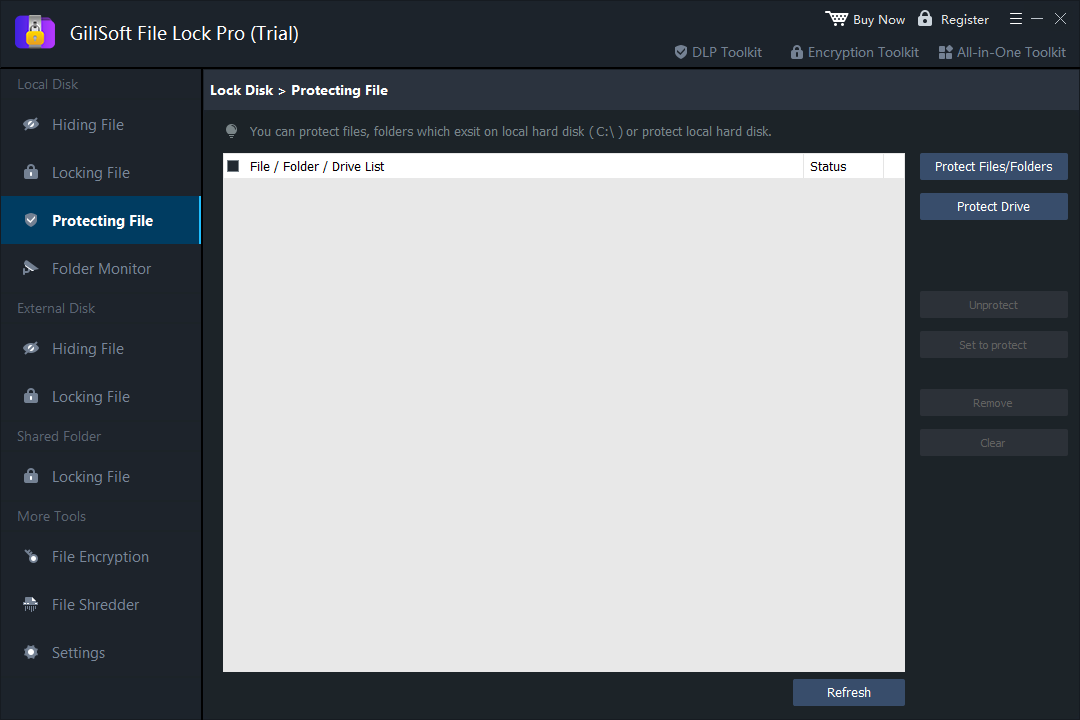
For reliable day-to-day protection, open File Lock Pro > Local Disk > Protecting File, add the target file, and apply protection. Read-only is useful for temporary protection against accidental changes, while advanced NTFS permissions are better suited to administrators who can manage ownership, inheritance, and recovery.
What Actually Controls File Renaming?
A filename is directory information, so preventing a rename is not exactly the same as making the file contents read-only. Windows may evaluate the file's attributes, its access-control list, and permissions inherited from the parent folder.
For an NTFS file, access rules can include Write, Modify, Delete, Change permissions, and Take ownership. A user who owns the file, belongs to another permitted group, or can take ownership may still be able to change the protection. That is why every method should be tested from the actual Windows account that will use the file.
Compare the Three Practical Methods
| Method | Best for | Strength | Important limitation |
|---|---|---|---|
| GiliSoft File Lock Pro Recommended | Shared PCs, office files, project assets, USB and external storage | Managed protection | Requires the File Lock Pro master password for administration |
| Read-only attribute | Reducing accidental edits or renames | Basic deterrent | A permitted user can clear the attribute |
| Advanced NTFS permissions | Administrators controlling specific Windows accounts | Account-based control | Works on NTFS and requires careful ACL management |
Prevent File Renaming with File Lock Pro
Use this method when the file should remain visible but unauthorized users should not rename, modify, move, or delete it casually.
Install and open GiliSoft File Lock Pro, then enter the master password.
Choose Local Disk and open Protecting File. Use the external-disk section when the target is stored on USB or another removable drive.
Click Protect Files/Folders, select the file whose name must remain unchanged, and apply protection.
Test rename, edit, move, and delete operations from the intended standard Windows account.
Use Read-only for Lightweight Rename Protection
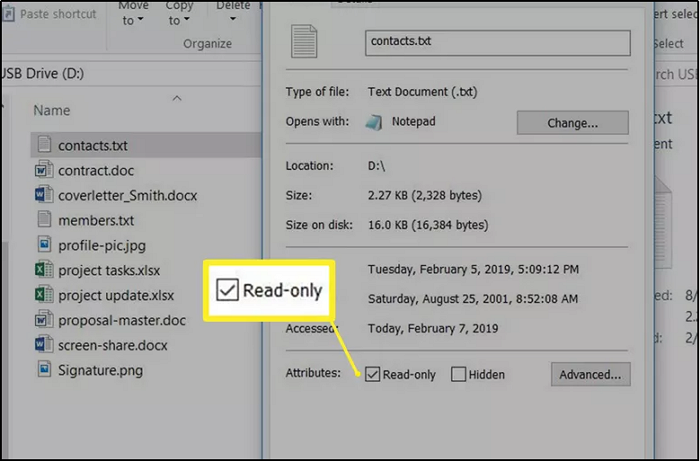
The Read-only attribute can stop ordinary applications and File Explorer from changing or deleting a file until the attribute is removed. It is useful for preventing mistakes, not for defending against an authorized user who knows how to clear it.
Right-click the file and choose Properties.
On the General tab, enable Read-only, then click Apply.
Try renaming and saving over the file, then verify that the application reports the restriction.
To restore normal editing, return to Properties and clear Read-only.
Restrict File Rename with Advanced NTFS Permissions
This method is designed for administrators who understand users, groups, ownership, inherited access, and effective permissions.
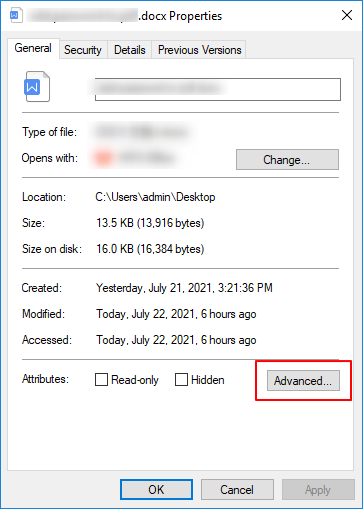
Right-click the file, open Properties > Security, and select Advanced.
Identify the exact standard user or group to restrict. Disable inheritance only when explicit rules are necessary.
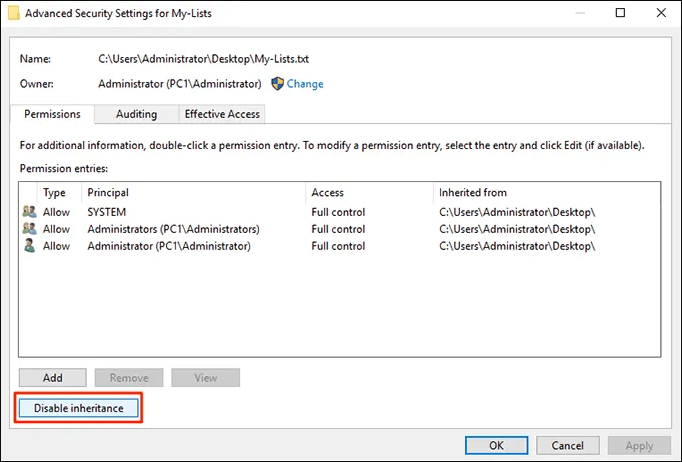
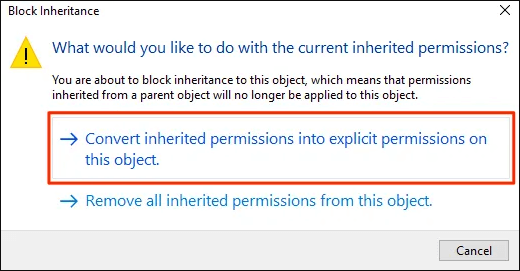
If Windows prompts you, convert the existing inherited entries into explicit permissions before editing them.
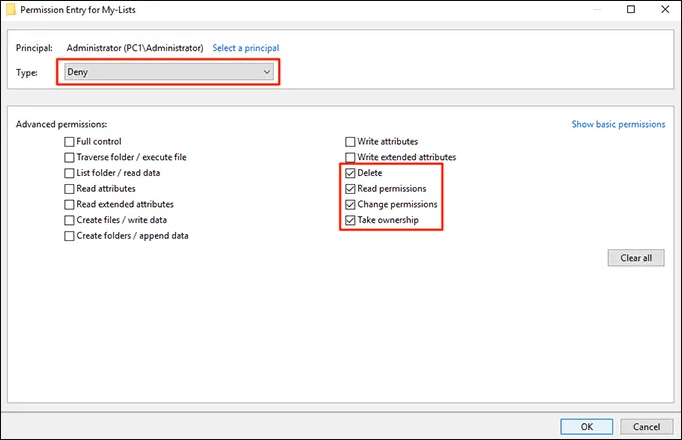
Edit only the intended account and apply the narrowest required Deny rule. Recheck the parent folder if inherited or Delete child permissions still allow file operations.
What Does Not Provide Reliable File Rename Protection?
Changing the extension
Renaming .docx to another extension only changes how Windows identifies the file. It does not protect the original name or content.
Hidden attribute
Hidden reduces ordinary visibility, but users who show hidden items can find and rename the file.
Encryption alone
Encryption protects content in specific access scenarios. It does not automatically preserve the filename after an authorized user opens the location.
App privacy settings
Windows file-system privacy settings mainly govern selected app access and do not create a general File Explorer rename lock.
Test the Rule Before Protecting Important Files
Copy a sample file into the same storage location as the real target.
Apply the chosen method and test rename, edit, Save As, move, copy, and delete.
Repeat the test while signed in as the actual standard user, not only as an administrator.
Confirm that the master password, owner account, or administrator can restore normal access.
When Disabling File Rename Is Useful
Application and configuration files
Preserve filenames referenced by scripts, shortcuts, templates, or desktop software.
Approved office documents
Keep finalized contracts, policies, reports, and forms under expected names on shared PCs.
Media project assets
Reduce broken links caused by renaming source video, image, subtitle, and audio files.
USB and external-drive delivery
Maintain predictable filenames when project files move between staff, classrooms, events, or clients.
Disable File Rename FAQ
Can I prevent renaming but still allow the file to be opened?
Yes. File Lock Pro's Protecting File mode keeps the file visible while restricting unwanted operations. A carefully designed NTFS rule can also separate read access from modification rights.
Is Read-only enough to protect an important file?
Read-only is suitable for accidental-change prevention. It is easy to remove and should not be treated as password-protected access control.
Why can an administrator still rename the file?
Administrators may be able to take ownership or change the file's ACL. Use a controlled standard account for testing and preserve a documented recovery path.
Can File Lock Pro protect files on USB storage?
Yes. File Lock Pro supports files on local disks, external drives, USB storage, and LAN shared folders.
Related File Protection Guides
Technical references: Microsoft attrib command | Microsoft file attribute constants | Microsoft Access Control overview | Microsoft NTFS ACL and ownership notes