

Use GiliSoft File Lock Pro when you want one password-oriented workflow for mixed file types on local, USB, external, or shared storage. Use NTFS permissions when access should follow Windows accounts, EFS when a supported Windows edition should encrypt selected files for the current account, and BitLocker when the complete drive needs protection.
First Decide What "Lock" Should Do
No single Windows setting performs every kind of file protection. Before changing permissions or encryption, identify the result you actually need.
Require a password
The file stays where it is but should not open through its normal application until the correct password is supplied.
Separate Windows users
Each person has an account, and only selected accounts should read or modify the file.
Encrypt file contents
The data should remain unreadable if someone bypasses normal File Explorer access.
Protect a lost drive
The main risk is theft or removal of the PC, external drive, or USB storage rather than one selected file.
Compare Five Practical File-Locking Methods
| Method | Protection target | How access works | Best fit |
|---|---|---|---|
| File Lock Pro Recommended | Selected files, folders, and drives | File Lock Pro master password and local rules | Mixed file types and direct day-to-day locking |
| NTFS permissions | Files and folders on NTFS | Windows accounts and access-control lists | Shared PCs with separate user accounts |
| EFS | Selected files and folders | Windows account certificate | Per-user encryption on supported Windows editions |
| Document password or encrypted archive | Supported Office files or a packaged copy | File or archive password | Sending a protected document or bundle |
| BitLocker | Entire supported volume | Device authentication or recovery key | Lost, stolen, or removed drives |
Lock Selected Files with File Lock Pro
Choose this method when ordinary files of different types should remain in their current folders but should not open normally without the File Lock Pro password.
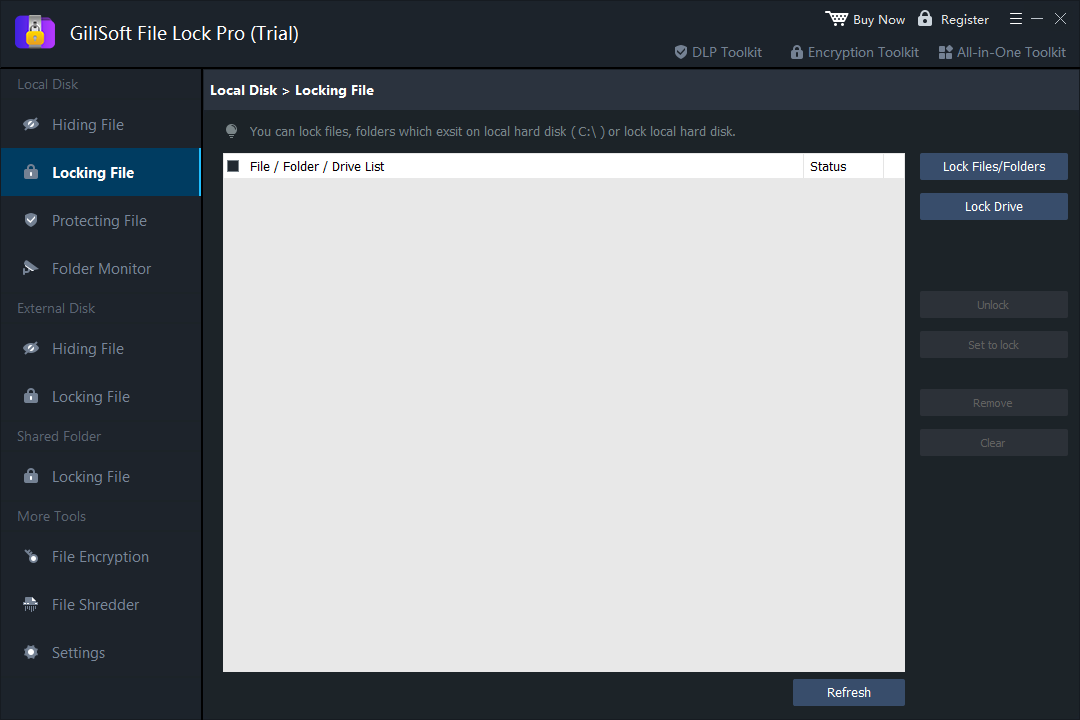
Open GiliSoft File Lock Pro and enter the master password.
Select Local Disk > Locking File. For removable storage, use the corresponding External Disk section.
Select Lock Files/Folders, add the target file, folder, or drive, and apply the lock.
Test the protected item from Windows File Explorer. Also test from the standard user account that needs to be restricted.
Restrict a File with Windows NTFS Permissions
Windows permissions are useful when each person signs in with a separate account. They are account-based access control, not a separate password attached to the file.
Right-click the file, choose Properties, then open the Security tab.
Select Advanced and review the current owner, inherited entries, and the users or groups that already have access.
Add or edit the intended Windows account, then assign only the read, modify, or full-control rights it actually needs.
Test from that account. Remember that administrators may be able to take ownership or change the access-control list.
Microsoft documents files as securable Windows objects whose access is evaluated from the file security descriptor and the signed-in user's access token. Permissions therefore work best in an account-managed environment, especially on NTFS storage.
Encrypt a File with Windows EFS
EFS encrypts selected files or folders for the current Windows user account. It does not normally display a separate file-password prompt when that user is already signed in.
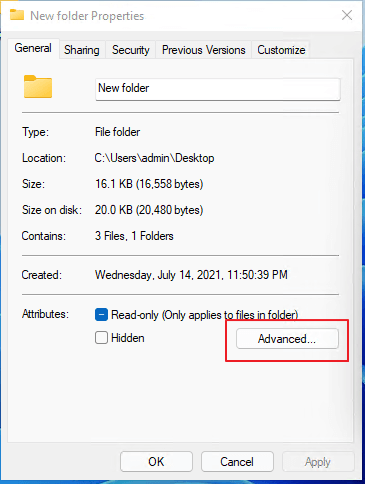
Right-click the file and select Properties.
On the General tab, select Advanced.
Enable Encrypt contents to secure data, select OK, then apply the change.
Back up the EFS certificate and private key to a separate safe location before relying on the encrypted file.
Use a Document Password or Encrypted Archive
This is practical when the protected file will be sent to someone else or when the application already supports file-level passwords.
For Word, Excel, or PowerPoint files
In the desktop Office application, open File > Info, choose the relevant Protect command, then select Encrypt with Password. Save the document and reopen it to verify the password. Microsoft warns that forgotten file passwords may not be recoverable, so store the password securely.
For other file types
Create a password-protected archive with a trusted archive utility. This produces a new protected package rather than locking the original file in place. Verify the archive, then decide how the unprotected source copy should be handled.
Protect the Whole Drive with BitLocker
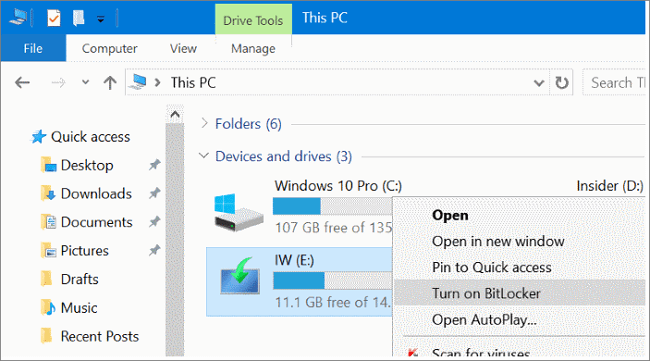
Use BitLocker when the main risk is loss, theft, or physical removal of the complete drive. It protects an entire supported volume rather than one selected file.
Microsoft describes BitLocker as volume encryption designed to reduce unauthorized access to data on lost, stolen, or decommissioned devices. That makes it a strong device-level layer, but it does not replace a file-specific password once the volume is unlocked for the signed-in user.
Common File-Locking Mistakes
Relying only on Hidden or Read-only
Both attributes can be useful for organization or accident prevention, but neither provides strong password-based access control.
Leaving an unprotected original
An encrypted archive does little if the original file remains accessible in Downloads, Recent Files, backups, or a shared folder.
Losing recovery material
Back up EFS certificates and BitLocker recovery keys separately from the protected data before making the only copy inaccessible.
Testing only as administrator
Permissions and policy results vary by account. Verify the real experience from the standard account that will use the PC.
Which Method Should You Choose?
- One or several mixed files on a shared Windows PC: use File Lock Pro.
- Different people have separate Windows accounts: use carefully managed NTFS permissions.
- Selected files need account-bound encryption: use EFS on a supported edition and preserve the certificate.
- A Word, Excel, or PowerPoint file needs a portable password: use the application's file-level password.
- Several files must be sent as one protected package: use an encrypted archive.
- A laptop or complete drive may be lost or stolen: use BitLocker or supported device encryption.
File Locking FAQ
Can Windows put a password on any file?
No universal Windows command works for every file type. Office passwords, EFS, NTFS permissions, archives, and BitLocker each protect data differently. File Lock Pro provides one consistent workflow for selected files and folders.
Is EFS the same as a file password?
No. EFS is tied to a Windows account certificate. The authorized user normally opens the file without a second password prompt after signing in.
Can BitLocker lock one file?
No. BitLocker encrypts an entire supported drive or volume. Use file-level protection when only selected items need control.
Can File Lock Pro lock files on USB storage?
Yes. It supports selected files and folders on local disks, USB storage, external drives, and LAN shared folders.
Technical references: Microsoft file security and access rights | Microsoft file and folder encryption | Microsoft BitLocker overview | Microsoft Word password protection