
How to Clean Junk Files on Windows 11 Safely
A useful junk cleaner should explain what it found before anything is removed. Start with Windows storage categories, protect personal folders, and use a broader cleanup scan only when you can review the result.
Quick answer
Open Settings > System > Storage and review Temporary files or Cleanup recommendations first. Storage Sense can automate selected cleanup on the system drive. For a broader, reviewable scan, GiliSoft Total Repair includes Junk Clean, Disk Analysis, Large File Clean, and related tools. Back up important work and never approve an unfamiliar category only because it is large.
Know What Is Safe to Remove
| Category | Review | Why it matters |
|---|---|---|
| Temporary app and system files | Usually removable after active work is closed | Applications may recreate them when needed |
| Recycle Bin | Open it before emptying | It may contain the only recoverable copy of a file |
| Downloads | Review manually | Installers, invoices, exports, and archives may still be needed |
| Previous Windows installation | Remove only after the current installation is stable | Deleting it can remove a rollback option |
| Large personal files | Move, archive, or delete by ownership | Size alone does not make a file junk |
Start with Windows 11 Storage Tools
- Check storage use.
Open Settings > System > Storage and identify which category is consuming space.
- Review Temporary files.
Select categories individually. Pay special attention to Downloads, Recycle Bin, and previous Windows installations.
- Configure Storage Sense.
Choose how often it runs and whether it may manage Recycle Bin, Downloads, or locally available cloud content.
- Recheck free space.
Restart only if Windows requests it, then confirm that the intended files were removed.
Scan Junk Files with GiliSoft Total Repair
Use Total Repair when you want one view of supported browser, application, Windows, and disk cleanup categories. The scan should narrow the review; it should not replace it.

- Close browsers and active applications.
This reduces locked files and protects unsaved sessions.
- Run Junk Clean.
Let the scan complete before selecting any cleanup action.
- Expand and review the results.
Exclude personal downloads, retained caches, or application data you do not recognize.
- Clean selected items only.
Record the free-space change and open important apps afterward.
Do Not Treat Personal Files as Junk
Documents, photos, project folders, virtual machines, email archives, browser profiles, game saves, and cloud-sync folders need an owner decision. If a large item is unfamiliar, locate it, identify the application that created it, and back it up before removal.
Free Space Is Not the Same as a Full PC Repair
Cleanup can resolve low-storage warnings and create room for updates or exports. It may improve responsiveness when a drive is critically full, but it will not repair failing hardware, remove every malware infection, upgrade insufficient memory, or make an old processor faster.
Junk Cleaner for Windows 11 FAQ
What junk files are safe to delete in Windows 11?
Temporary files are often safe after active work is closed, but review every category. Downloads, Recycle Bin contents, previous Windows installations, application caches, and personal folders can contain files you still need.
Is Storage Sense enough for Windows 11 cleanup?
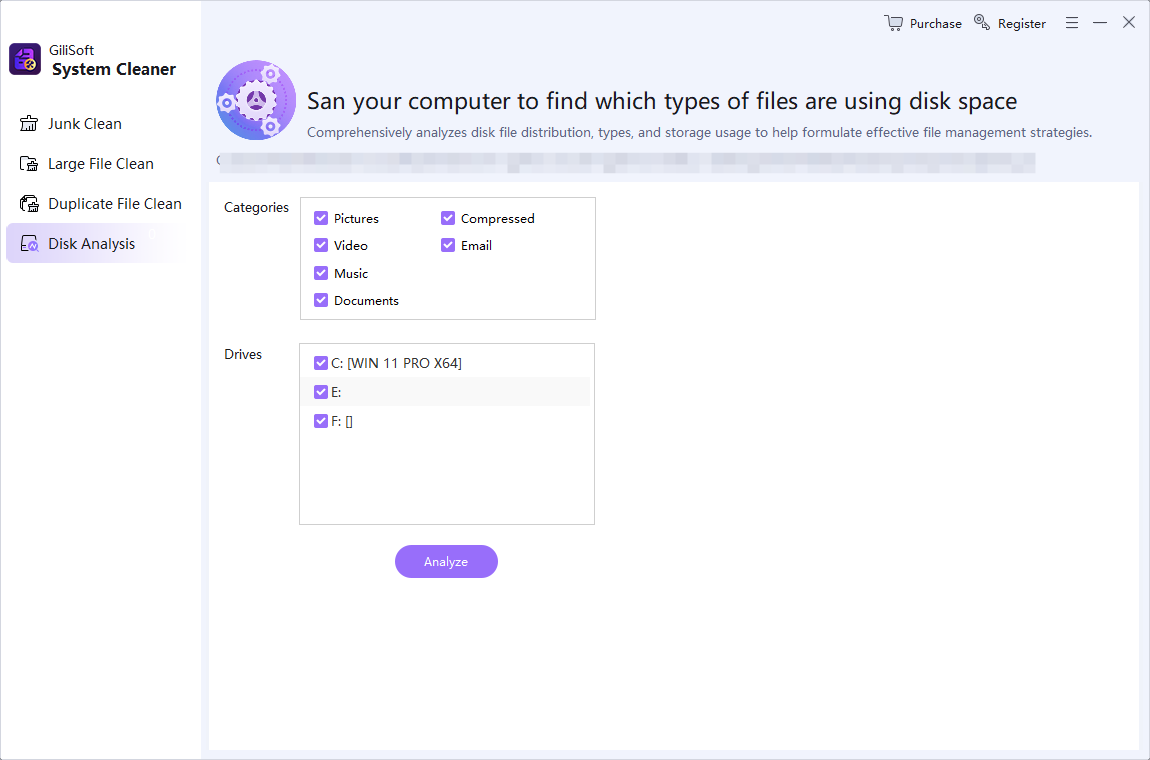
It is a good first step for routine system-drive cleanup. A separate disk analysis or reviewed cleanup scan can help explain space used by other drives, large files, and supported application categories.
Will deleting junk files make my PC faster?
It can help when very low free space is disrupting updates, paging, or application work. It does not fix every performance problem; startup apps, memory pressure, drivers, malware, storage health, and hardware also matter.
Should I delete everything a junk scan finds?
No. Read the category, location, and owner first. Exclude anything connected to active projects, saved sessions, downloads, backups, or an application you rely on.
Can I recover files after junk cleanup?
Recovery is not guaranteed, especially after continued use of the drive or cleanup of temporary storage. Back up important files and review the Recycle Bin and Downloads before cleaning.
Does GiliSoft Total Repair clean personal documents?
Its cleanup tools are intended to scan supported junk and storage categories, but scan results still require review. Use Disk Analysis or Large File Clean to understand space use and make deliberate decisions about personal files.