
How to Password Protect an External Hard Drive
The right method depends on what must remain private: selected folders, the whole drive if it is lost, or files shared between Windows and Mac. Choose the protection scope first, because folder locking and full-drive encryption solve different problems.
Quick answer
On Windows, use GiliSoft File Lock Pro when you need to lock or hide selected folders on an external hard drive without reformatting it. Use BitLocker To Go on a supported Windows edition when the entire drive must remain unreadable after removal. On Mac, use APFS (Encrypted) for a Mac-only drive or an encrypted disk image for selected files.
Choose the protection method by use case
| What you need | Best-fit method | Important limitation |
|---|---|---|
| Lock selected folders on a Windows PC | GiliSoft File Lock Pro | Access locking is not the same as full-drive encryption |
| Protect the whole drive if it is lost or removed | BitLocker To Go on supported Windows editions | Keep the recovery key away from the drive |
| Use an encrypted external drive only with Mac | Disk Utility with APFS (Encrypted) | Formatting erases the drive first |
| Protect selected files on Mac without erasing the drive | Encrypted disk image | The protected files must be stored inside the mounted image |
| Move one drive between Windows and Mac | Plan format and protection compatibility before changing the drive | BitLocker and APFS encryption are platform-centered workflows |
Lock folders on an external hard drive in Windows
This route is practical when the external drive remains under your control and the goal is to stop routine access to selected folders without converting the entire disk to an encrypted format.
- Connect and identify the external drive.
Confirm its drive letter, volume label, capacity, and expected files. External-drive letters can change after reconnection.
- Back up irreplaceable data.
Copy important files to separate controlled storage and open several backup files before changing access settings.
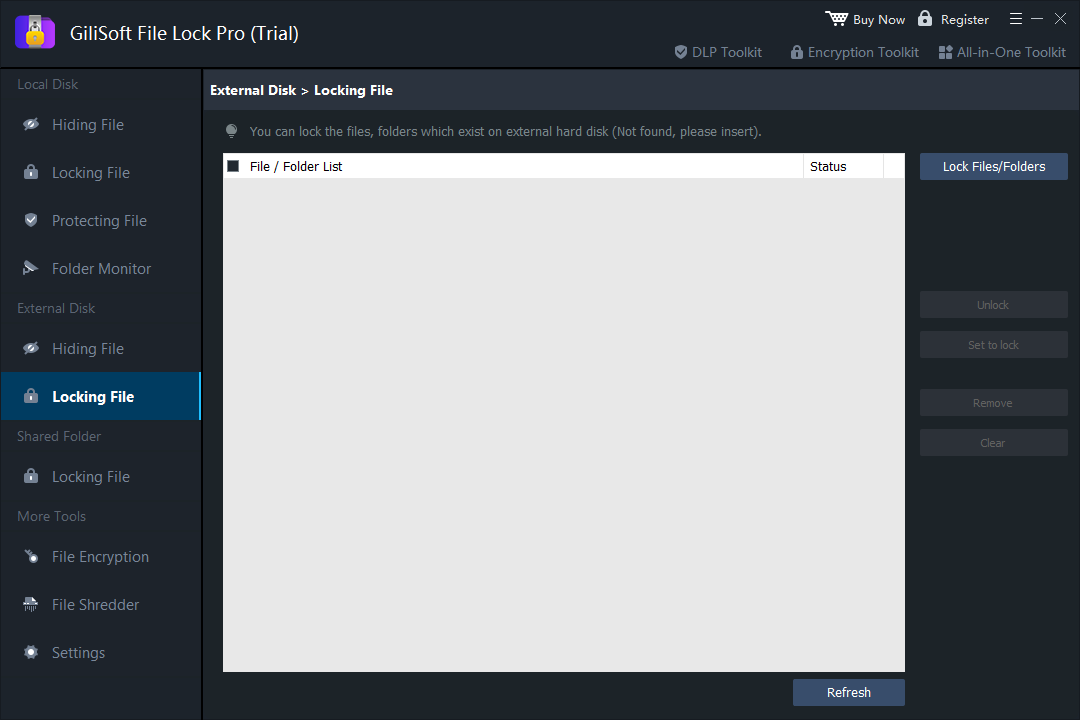
- Open External Disk locking in File Lock Pro.
Set a strong master password, then choose the external-drive protection section.
- Select the folder or verified drive.
Close files in use, apply the lock, and do not disconnect the drive while the operation is being saved.
- Test both access states.
Close File Lock Pro and test the protected location. Unlock it again and verify representative documents, photos, and project files.
Encrypt the whole external drive with BitLocker To Go
Use BitLocker To Go when the entire external drive must remain unreadable without the password or recovery key. Manual BitLocker management is available on supported Windows Pro, Enterprise, and Education editions.
- Check the Windows edition and drive health.
Back up the drive, resolve file-system errors, and connect it directly to a stable USB port.
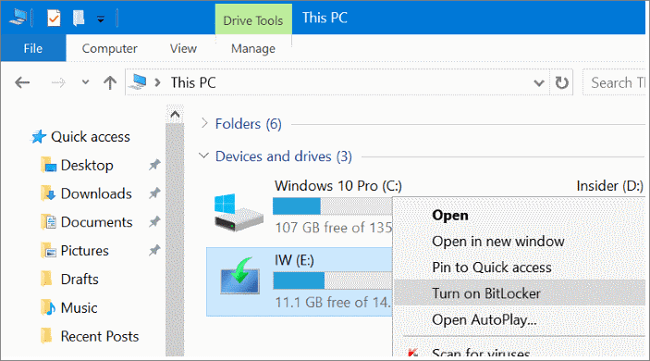
- Open Manage BitLocker.
Find the external drive and select Turn on BitLocker.
- Create the unlock password.
Use a unique password that is not stored in an unprotected file on the same drive.
- Save the recovery key separately.
Confirm that you can retrieve the key before encryption begins.
- Choose the encryption scope and finish.
Follow the Windows prompts and keep the drive connected until encryption completes.

Password protect an external hard drive on Mac
Encrypt the whole drive with Disk Utility
For a Mac-centered workflow, Disk Utility can erase and format the external drive as APFS (Encrypted). Back up first: erasing the device removes its existing contents.
- Back up and verify the external drive.
Confirm the device name and capacity before opening Disk Utility.
- Choose View > Show All Devices.
Select the physical external device, not an unrelated internal disk or volume.
- Erase with APFS (Encrypted).
Enter a strong password and a useful hint that does not reveal the password itself.
- Restore files and test remounting.
Eject and reconnect the drive, confirm the password prompt, and verify restored files.

Protect selected Mac files without erasing the drive
Create an encrypted disk image in Disk Utility, choose an appropriate size and encryption option, and store sensitive files inside it. Eject the mounted image after use. This protects the image contents without reformatting the whole external drive.
Plan carefully for a drive used on Windows and Mac
A file system that both platforms can read does not automatically provide a shared password-protection method. APFS (Encrypted) is designed around Mac use, while BitLocker To Go is designed around Windows. Before changing a shared drive:
- List every computer that must open it and the software allowed on each computer.
- Keep an unprotected recovery copy under separate physical and account controls.
- Test the chosen format and unlock process on every intended computer with noncritical sample files.
- Do not erase or convert the only copy of important data.
- For selected files, consider a protected container or separate platform-specific copies instead of forcing one full-drive format into every workflow.
External drive protection checklist
- Verify the target. Match the volume label, capacity, and contents before locking, erasing, or encrypting.
- Maintain a separate backup. Password protection does not repair physical failure, corruption, or accidental deletion.
- Close open files. Stop editing, backup, synchronization, and media applications using the drive.
- Store recovery details separately. Never keep the only password or recovery key on the protected drive.
- Test the real workflow. Reconnect, restart, unlock, and open representative files before relying on the setup.
Troubleshooting
The drive letter changed in Windows
Identify the drive by its label, capacity, and contents rather than assuming the old letter still points to it.
BitLocker asks for the recovery key
Retrieve the key from the location selected during setup. Do not format the disk to bypass recovery.
Mac cannot open the Windows-protected drive
BitLocker is a Windows-centered workflow. Return to a compatible Windows computer or use an approved compatibility solution after confirming organizational policy.
Windows cannot open an APFS encrypted drive
APFS encryption is Mac-centered. Use a Mac with the correct password to access the data, then move approved copies through a compatible workflow.
The drive clicks, disconnects, or reports errors
Stop repeated write and encryption attempts. Protection software cannot repair failing hardware, and additional stress may make recovery harder.
External hard drive password FAQ
Can I password protect an external hard drive without formatting it?
Yes, if the goal is to lock selected folders or control routine access in Windows, File Lock Pro can be used without reformatting the entire drive. Whole-drive Mac encryption through Disk Utility normally requires erasing and formatting first.
How do I lock a folder on an external hard drive?
On Windows, connect and verify the drive, back it up, open File Lock Pro, choose the external-drive locking section, select the folder, apply the lock, and test both locked and unlocked access.
Is folder locking as secure as full-drive encryption?
No. Folder or drive locking controls access in a supported software environment. Full-drive encryption is intended to keep the underlying data unreadable without the required key, including after physical removal.
Can the same password-protected drive work on Windows and Mac?
Compatibility depends on the file system and protection method. BitLocker and APFS encryption are platform-centered, so test the exact computers and workflow before relying on one drive across both systems.
What happens if I forget the password?
Recovery may be impossible. Preserve approved recovery information or the BitLocker recovery key separately from the drive, and verify access before storing the only copy of important files.