

Locking a drive can mean two different things. You may want to encrypt the entire volume so its data stays unreadable if the computer or disk is stolen, or you may want to stop other users of the same Windows PC from opening a selected drive during an active Windows session.
BitLocker is the Windows full-drive encryption method on supported editions. GiliSoft File Lock Pro is the practical alternative when you want to lock or hide a selected data drive without configuring BitLocker. This guide walks through both approaches and explains which one fits each situation.
Choose the Right Way to Lock a Drive
| Method | Main protection | Windows edition | Best fit |
|---|---|---|---|
| BitLocker | Full-volume encryption | Pro, Enterprise, or Education for manual BitLocker management | Lost-device and offline disk protection |
| GiliSoft File Lock Pro | Drive locking, hiding, and selected-folder control | Windows 11/10 | Shared-computer access control |
| GiliSoft Private Disk | Encrypted virtual drive | Windows 11/10 | Dedicated private workspace |
| GiliSoft USB Encryption | Secure and public areas on removable media | Windows 11/10 | Password-protected USB storage |
Method 1. Lock a Drive with BitLocker
BitLocker encrypts an entire volume. On Windows 11 and Windows 10 Pro, Enterprise, or Education, sign in with an administrator account, search for Manage BitLocker, and select the drive you want to protect.
- Open Manage BitLocker from Start or Control Panel, locate the target drive, and choose Turn on BitLocker.
- Select Use a password to unlock the drive, then enter and confirm a strong password.
- Back up the recovery key to a safe location that is separate from the protected drive.
- Choose whether to encrypt only the used space or the entire drive. For a drive that already contains data, encrypting the entire drive offers more complete coverage.
- Select the encryption mode. Use compatible mode when a removable drive must work with older Windows systems.
- Review the choices, select Start encrypting, and keep the computer powered until encryption finishes.
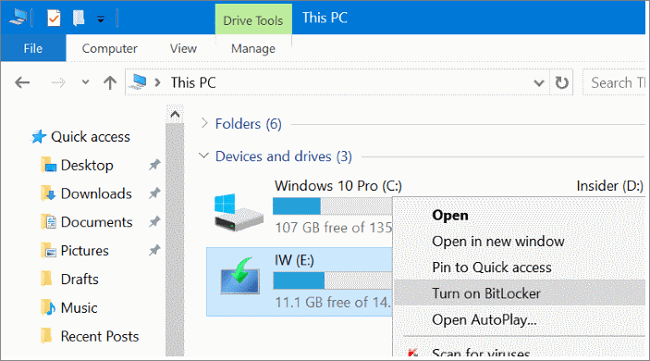 Open the drive menu and start BitLocker for the selected volume.
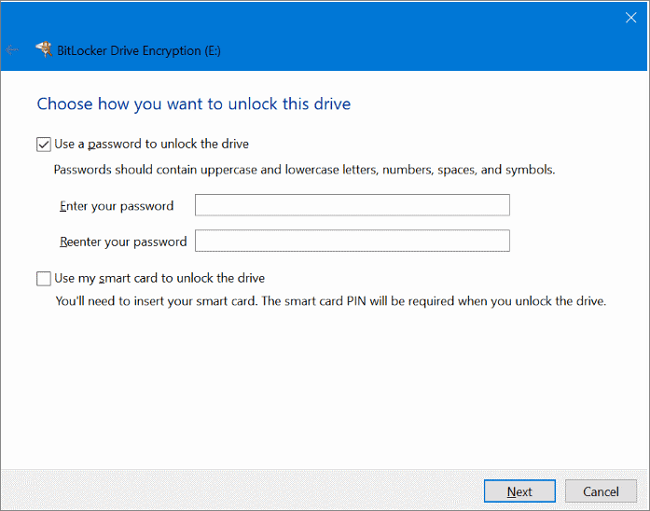 Set the password that will unlock the protected data drive.
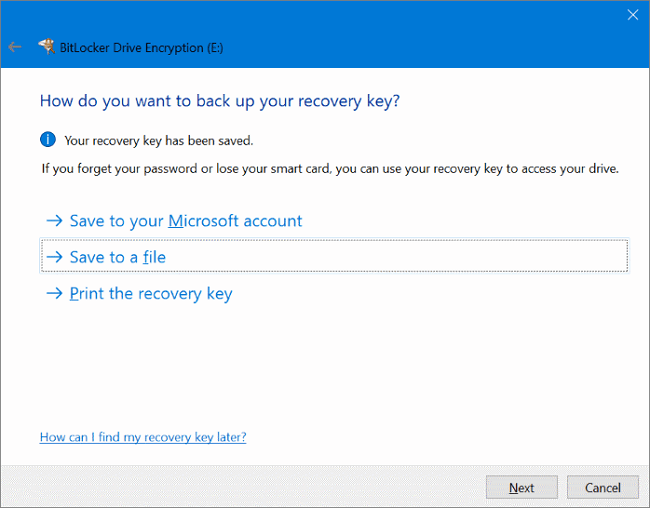 Save the recovery key somewhere other than the encrypted drive.
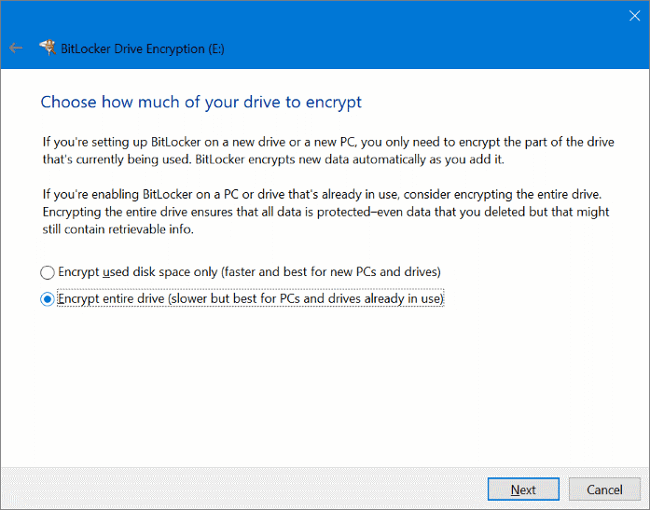 Select the encryption scope that matches the drive's existing use.
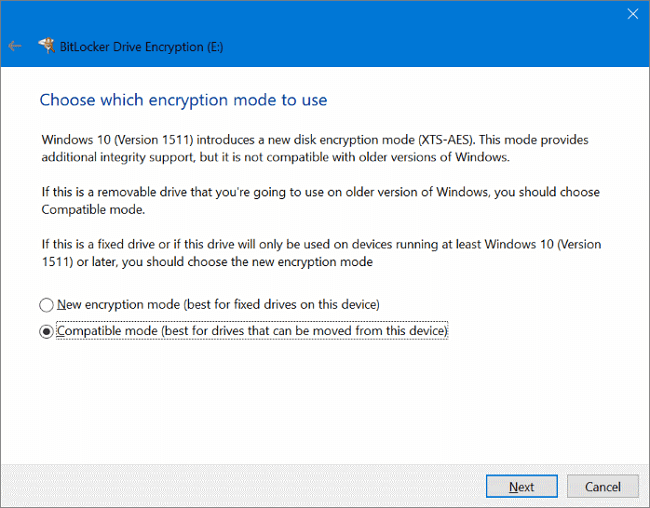 Choose the encryption mode based on where the drive will be used.
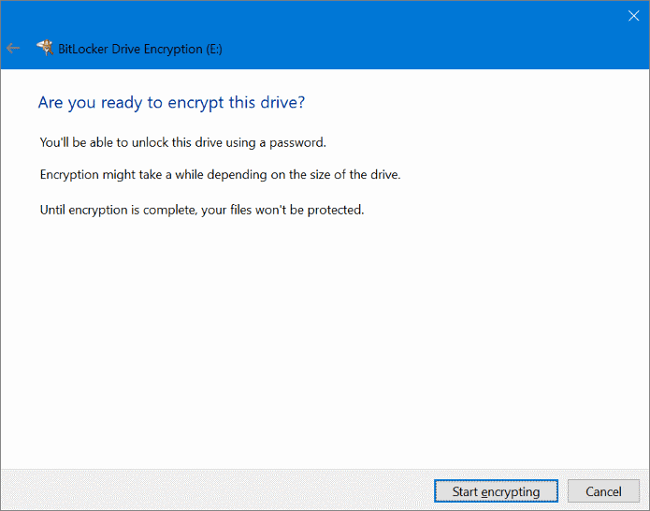 Start encryption after confirming the password, recovery, scope, and mode settings.
Method 2. Lock or Hide a Drive Without BitLocker
File Lock Pro is designed for users who want selected local drives and folders to stop appearing or opening normally on a shared PC. The master password controls access to the application and its protected-item list.
- Install and open GiliSoft File Lock Pro, then enter the master password.
- Open Local Disk > Locking File.
- Select Lock Drive, choose the data drive you want to protect, and confirm the selection.
- Test the locked drive from File Explorer. To restore access later, return to File Lock Pro, select the drive, and choose Unlock.
- If the drive should disappear from ordinary Explorer views, use Local Disk > Hiding File > Hide Drive instead.
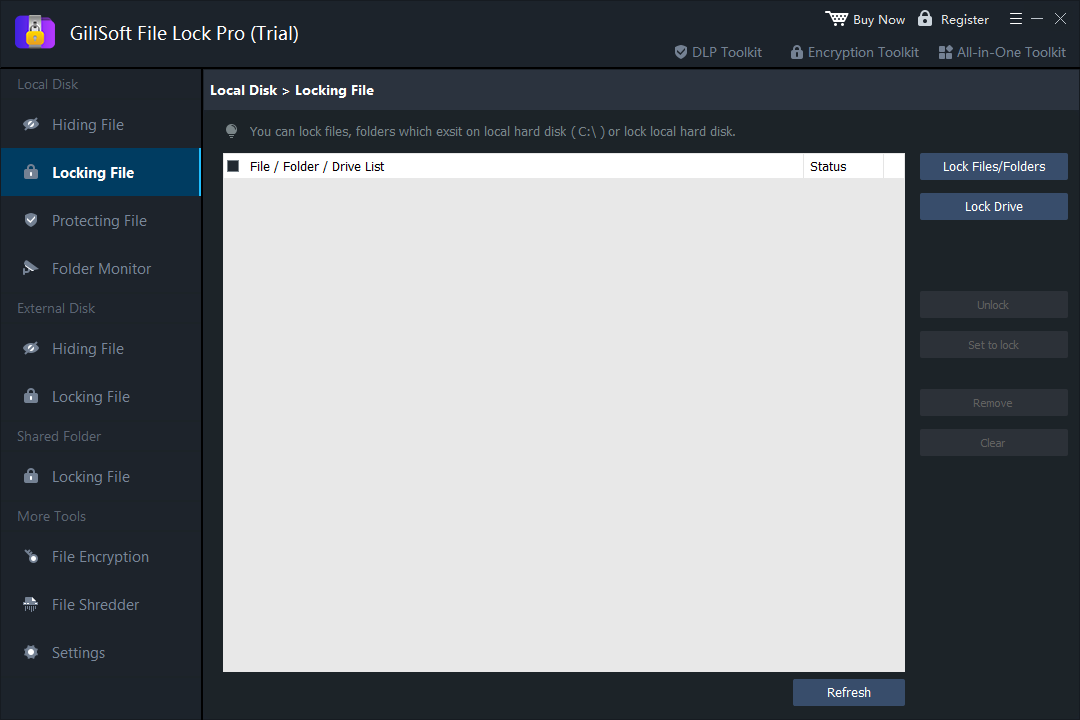 Use Lock Drive from the Local Disk locking screen, then manage authorized access from the protected-item list.
Drive locking plus file and folder protection
File Lock Pro also supports hiding drives, locking selected folders, protecting files from changes, monitoring folders, locking shared folders, encrypting individual files, and securely shredding private data.

Optional: Create a Separate Encrypted Private Drive
If you do not want to change access to an existing drive, GiliSoft Private Disk creates an encrypted virtual drive for confidential files. It mounts as a drive letter after authentication and can be closed when the private workspace is no longer needed.
BitLocker vs File Lock Pro
Drive Lock FAQ
Can I lock a drive in Windows 11 Home?
Windows Home does not include the full Manage BitLocker interface, although supported devices may offer Device Encryption. File Lock Pro provides drive locking and hiding controls on Windows 11 Home without requiring BitLocker management.
Does locking a drive encrypt every file?
BitLocker encrypts the volume. File Lock Pro drive locking controls access and visibility; its separate File Encryption tool is used when individual files need encrypted output.
Can I lock an external hard drive?
BitLocker can encrypt supported external volumes. File Lock Pro can lock or hide folders on external drives, while GiliSoft USB Encryption creates a secure area on removable media.
What happens if I forget the password?
BitLocker requires the recovery key. File Lock Pro can use the recovery email configured in its password settings, so set and verify that address before protecting important data.
Lock selected Windows drives without BitLocker
Use GiliSoft File Lock Pro when local drives and private folders need password-controlled access on a shared Windows 11 or Windows 10 computer.
View GiliSoft File Lock Pro