
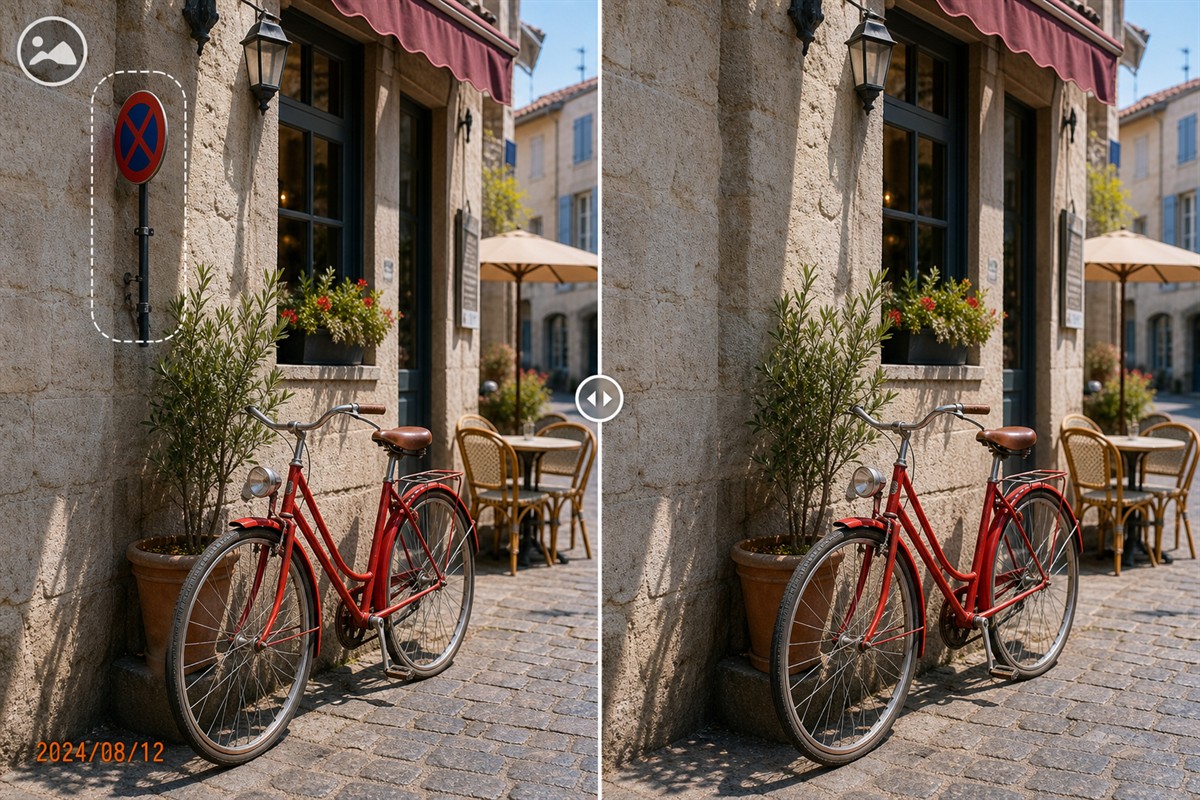
What Is Offline Photo Cleanup Software?
Offline photo cleanup software performs the required image selection, repair, preview, and export work in a desktop application instead of sending every source photo through a browser upload.
This approach is useful on field laptops, classroom PCs, archive workstations, internal business systems, client-production computers, and locations with slow, expensive, restricted, or unavailable internet access.
What to Check Before Choosing Offline Photo Software
The installer is only one part of the workflow. A product is suitable for offline work when the functions, formats, licensing, storage, and update process match the actual environment.
Core processing location
Confirm that opening, selecting, repairing, previewing, and exporting the required image can be completed in the Windows application without a browser upload.
Installation and activation
Determine whether initial setup, license activation, computer changes, or recovery require connectivity before moving the PC into a restricted network.
Feature-specific connectivity
Test every required function. AI-labelled tools can have different processing paths from ordinary selection and cleanup features.
Input and output formats
Use representative JPEG, PNG, BMP, scanned images, and real resolutions rather than assuming every archive or camera file follows the same path.
Update and installer handling
Plan how approved updates, installer copies, release notes, and rollback information reach the computer when normal internet access is unavailable.
Folder and backup controls
Choose source, working, output, and backup locations that comply with permissions, encryption, synchronization, retention, and recovery requirements.
When Offline Photo Cleanup Is the Better Fit
Unpublished client images
Clean authorized campaign drafts, product photographs, portraits, and deliverables without routing every source through an online remover.
Family and archive photos
Work on copies of scans and personal images while preserving dated or unedited master files in the archive.
Training and classroom computers
Prepare course screenshots and images in labs where student workstations have limited or filtered network access.
Field and travel laptops
Continue ordinary photo cleanup when a reliable upload connection is unavailable or bandwidth is expensive.
Internal business systems
Keep routine image preparation inside established Windows storage and access controls before approved delivery.
Repeated production work
Use consistent local input and output folders for image sets instead of uploading and downloading each result separately.
Tasks the core MarkEase workflow can address
MarkEase can be used to select and clean authorized watermarks, camera dates, text, logos, background people, and small unwanted objects. Results depend on the available surrounding texture: plain sky and walls are easier than faces, hair, product details, text, railings, and patterned surfaces.
How to Prepare GiliSoft MarkEase for Offline Work
Complete the preparation on a connected or approved staging computer before relying on the software in a disconnected environment.
- Download the official MarkEase installerKeep an approved installer copy and record the product version, source URL, date obtained, and any organizational verification process.
- Install and complete required licensingConfirm activation, account, computer-change, and recovery requirements while support and connectivity are available.
- Test representative source filesOpen the real formats, sizes, color profiles, and resolutions expected in production rather than a single easy sample.
- Verify every required feature under the real policyTest the core cleanup workflow and each AI-labelled function separately with the intended network state.
- Define controlled source and output foldersPreserve originals, use working copies, choose clear file names, and verify whether folders synchronize or back up automatically.
- Document updates and recoveryRecord how installers, updates, licenses, settings, output files, and backups will be maintained if the workstation cannot access the public internet.
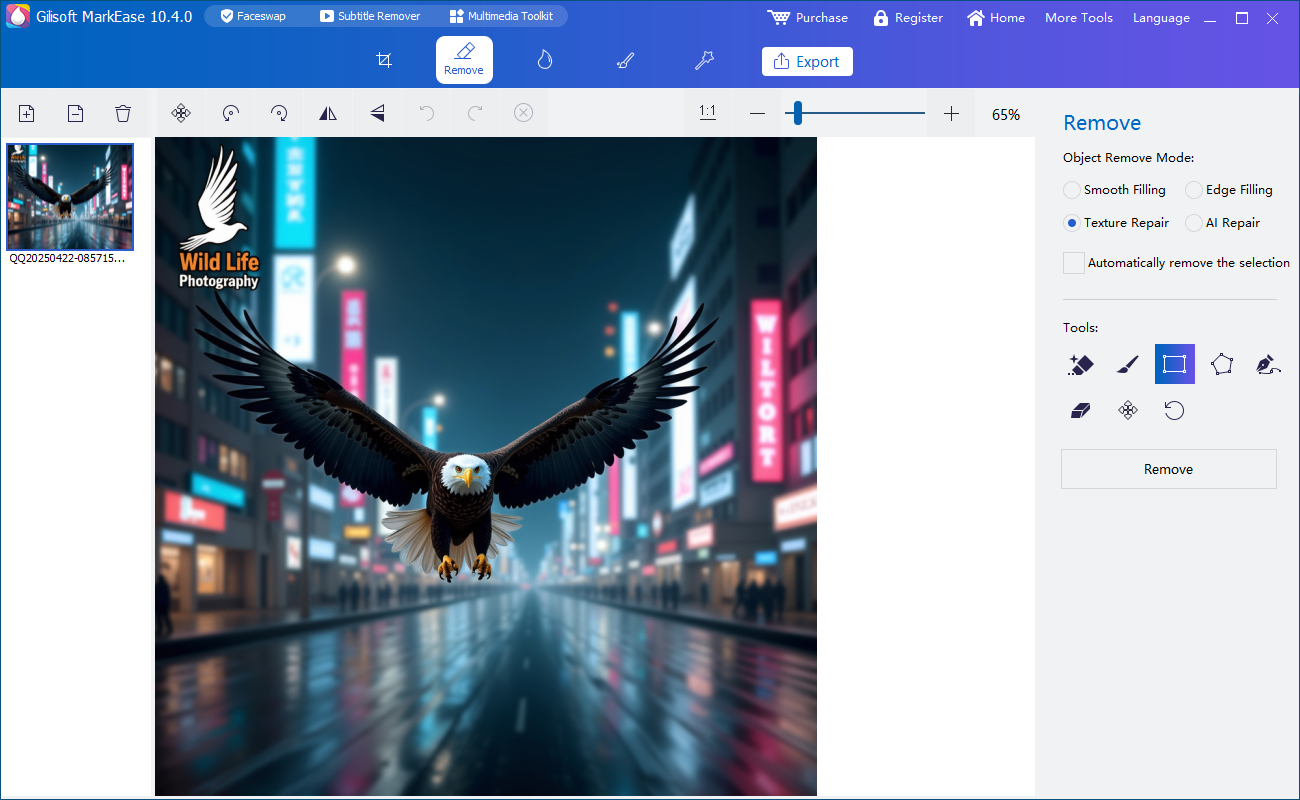

Evaluate MarkEase before offline deployment
Download the Windows trial, test the required photo types and features, inspect exported quality, and verify licensing and connectivity behavior in advance.
Download MarkEase TrialOffline Photo Cleanup Software vs Online Tools
| Option | Best fit | Main advantage | What to verify |
|---|---|---|---|
| GiliSoft MarkEase core workflow | Focused Windows cleanup for authorized watermarks, dates, text, logos, people, and small objects | No browser upload required for the core selection, repair, preview, and export workflow | Installation, licensing, exact features, formats, output quality, and update process |
| Browser-based remover | Quick one-off jobs when uploads and provider terms are acceptable | No desktop installation and easy access from several devices | Connectivity, size limits, retention, deletion, training use, account history, and region |
| Built-in Windows editor | Basic crop, rotation, exposure, and supported erase functions | Already available and simple for common edits | Version, account, cloud-library status, feature connectivity, and repair controls |
| Professional desktop editor | Complex restoration, layers, precision cloning, and manual redraw | More control over difficult edges, patterns, and source pixels | Learning time, project files, caches, licensing, and feature-specific cloud behavior |
Offline does not guarantee perfect reconstruction
Adobe, Microsoft, and GIMP documentation describe selection, contextual replacement, source sampling, and manual refinement. Microsoft notes that erase results may not meet expectations, and GIMP warns that repeated healing can cause smudging. Test difficult images at full size instead of evaluating only a reduced preview.
Editing and deployment principles consulted: Adobe Content-Aware Fill, Microsoft Photos editing guidance, GIMP Heal documentation, and NIST cloud privacy guidance.
Offline Photo Workflow Deployment Checklist
Know the limits of a disconnected workstation
Offline operation reduces dependency on uploads and connectivity but also delays updates, online help, license recovery, and cloud-dependent capabilities. Document the supported workflow clearly so users know which MarkEase tasks are approved and which require a connected staging system.
Offline Photo Cleanup Software FAQ
Can GiliSoft MarkEase clean photos without a browser upload?
Yes. Its core selection, repair, preview, and export workflow runs in the Windows application without requiring the source image to be submitted through a web page.
Does offline photo software never need internet access?
Not necessarily. Installation, licensing, updates, support, and specific AI-labelled functions can have separate requirements. Test the exact deployment in advance.
What can MarkEase clean locally?
The core workflow can address authorized visible watermarks, date stamps, logos, text, background people, and small objects when the surrounding image supports reconstruction.
Why should representative photos be tested?
Simple walls and sky behave differently from faces, hair, text, patterned clothing, architecture, and large images. Real formats and backgrounds expose practical limitations.
Is offline processing automatically private?
No. Folder synchronization, network storage, backups, removable media, screen sharing, metadata, and final delivery can still transfer or expose images.
Should source photos be overwritten?
No. Preserve untouched originals and export cleaned results into a separate controlled location.


