
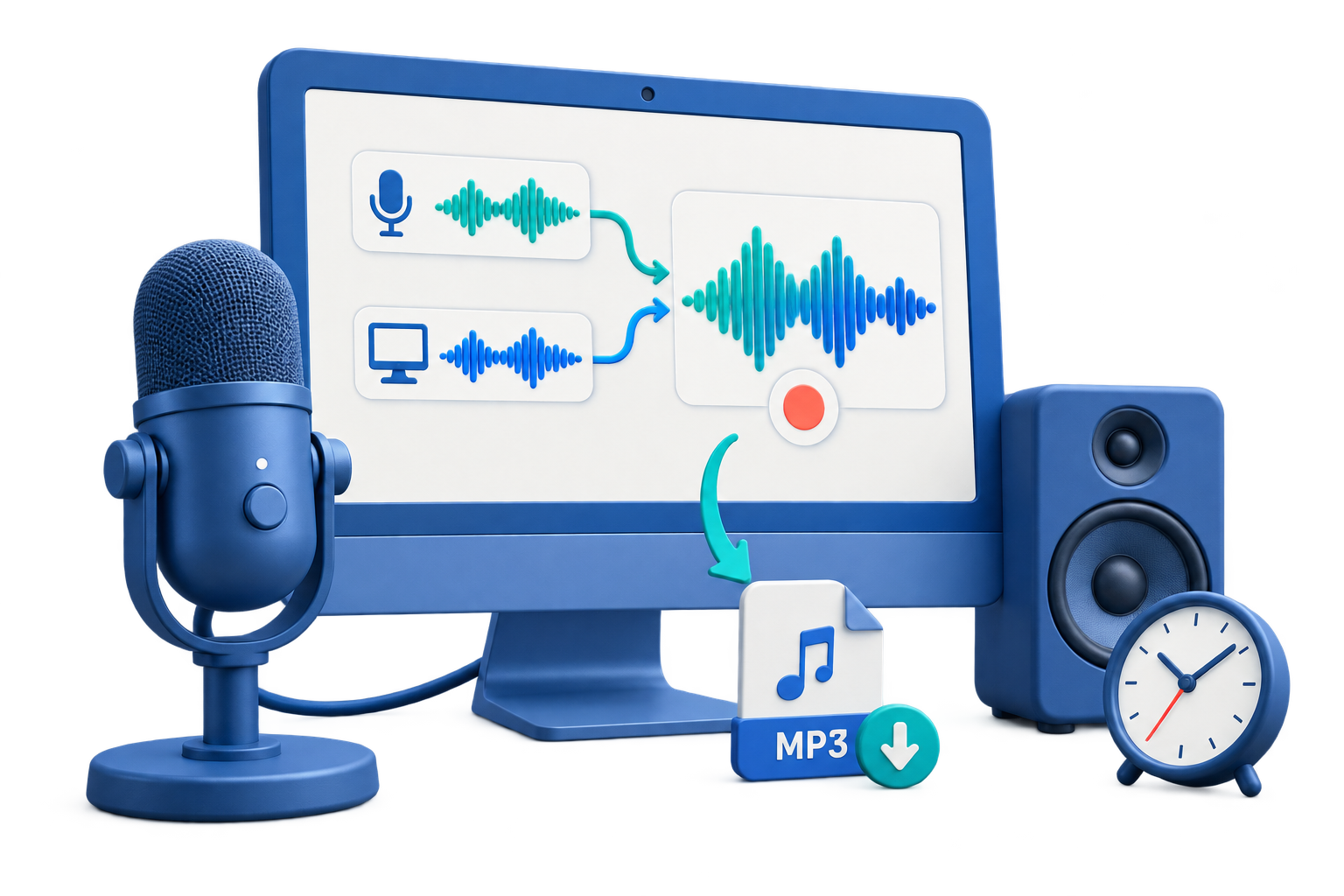
Select the interview setup
Local guest
Use the microphone that captures both speakers, or record separate sources when your setup supports it.
Remote guest
Capture authorized meeting playback and your microphone together after testing the call.
Voice-over notes
Keep spoken notes separate from the final interview when possible.
Step-by-step workflow
Use this sequence in GiliSoft Audio Recorder Pro and make a short test before the full recording or export.
Confirm the interview arrangement
Tell the guest about recording, confirm consent, and close applications that may create alerts or competing audio.
Connect and select sources
Choose the microphone, computer sound, or both in GiliSoft Audio Recorder Pro. Check that the conferencing app uses the same devices.
Record a sound check
Have each speaker talk at normal volume. Listen for echo, low input, and one voice being much louder than the other.
Record the interview
Start before the introduction, avoid moving the microphone, and mark any retakes verbally instead of stopping repeatedly.
Review and preserve
Check the first answer, a middle section, and the closing. Save a working copy before editing or sharing.
Improve the result before you finish
Make the source intentional
Choose only the input you need and keep unrelated applications quiet. Clear source routing is easier to fix before recording than after export.
Keep a review checkpoint
Listen to the beginning, a representative middle section, and the ending. Confirm that the file is saved before closing the source.
Common problems and practical fixes
- Silent file: verify the source, Windows output device, app volume, and microphone permission.
- Notification sounds: close unrelated apps and use Windows Focus or Do Not Disturb.
- Uneven voice: move the microphone consistently and test input level before the full take.
- Missing ending: leave a few seconds after the last word, then stop and verify the saved file.
Record and share responsibly
Capture audio only when you have permission and follow workplace, school, platform, privacy, and copyright requirements. These tools do not bypass protected playback or replace consent.
Frequently Asked Questions
What audio source should I select?
Choose the source that matches the task: computer sound for playback, microphone for speech, or both when narration and system audio must be captured together.
Why is the recording silent?
Check the selected source, Windows output device, application volume, and microphone permissions. Make a short test recording before capturing the complete session.
How can I avoid unwanted sounds?
Close unrelated media, use headphones when monitoring a microphone, and enable Windows Focus or Do Not Disturb to reduce notification distractions.
Which format is suitable for sharing?
MP3 is convenient for everyday sharing and storage. WAV is better when you want an uncompressed working file for later editing.
Related Windows audio guides
Continue with the workflow that matches the source or post-processing task.