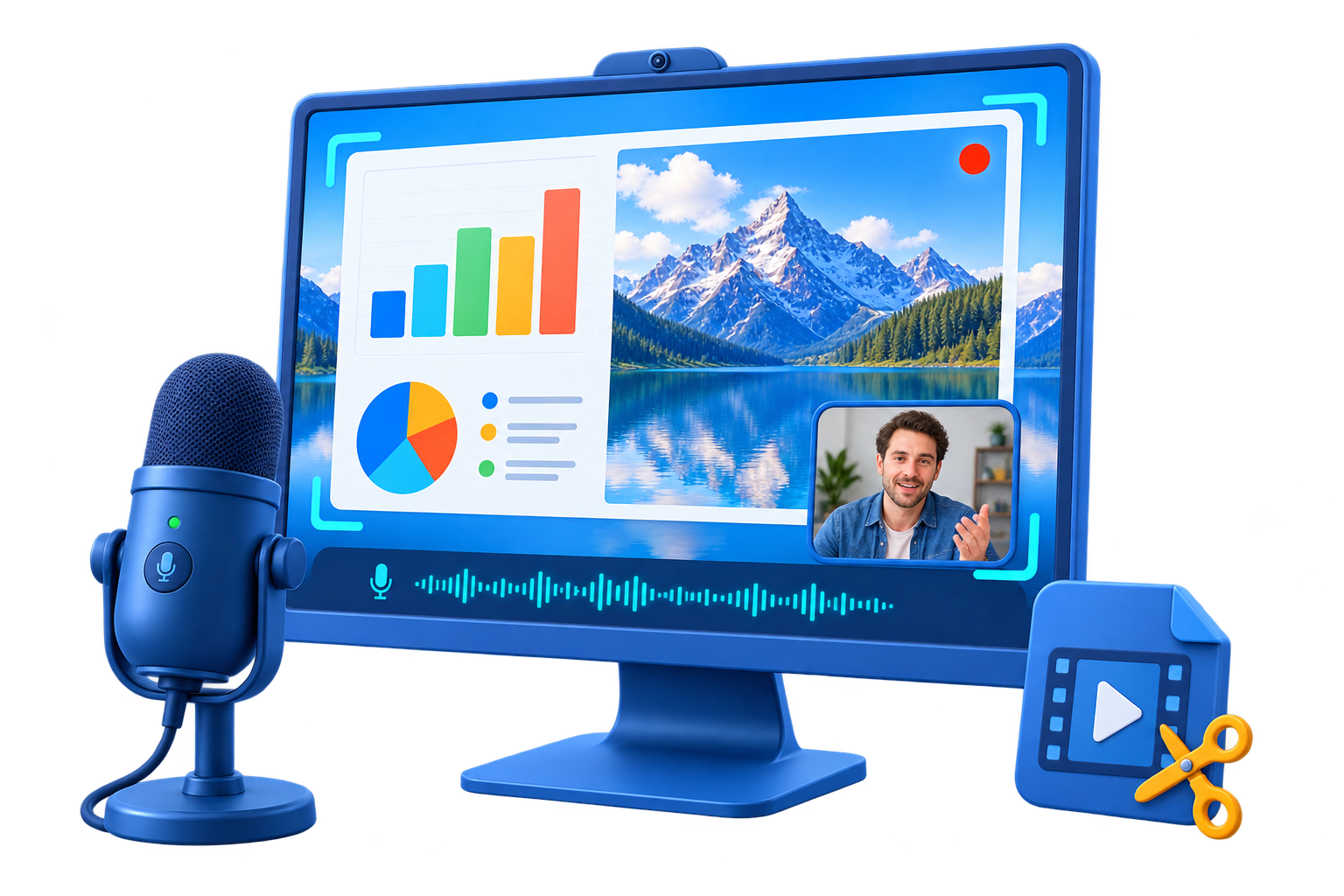
One suite, two different ways to collect video
A downloader and a screen recorder solve different problems. The useful part of combining them is choosing the cleaner source for each project rather than recording every video or attempting to download every page.
Use Online Download for a permitted source file
Paste the supported video address when the content is yours, the owner allows downloads, or you otherwise have permission to save it. A direct source usually avoids cursor movement, notifications, playback buffering, and other screen-recording artifacts.
Use Recorder for visible activity and narration
Record a screen, application window, region, webcam, computer sound, and microphone when the job is to preserve a software demonstration, lesson, webinar, support procedure, or other authorized on-screen event.
The Online Download and Recorder workspaces are separate tools inside Screen Recorder Pro. Downloading does not happen through the recording button, and recording is not presented as a substitute for an available authorized source file.
Download or record? Choose by the source
| Situation | Better starting point | Why |
|---|
| Your own uploaded video or an owner-enabled download | Direct download | Preserves the supplied file without capturing the player interface. |
| Software walkthrough, live lesson, webinar, or narrated demonstration | Screen recording | Preserves interaction, timing, cursor activity, voice, and optional webcam. |
| A platform provides official offline viewing only | Use the platform option | Official offline copies may remain inside the platform rather than becoming ordinary media files. |
| No owner permission or download option is available | Do not assume reuse rights | A missing download button can reflect the owner's settings or platform rules. |
| You need both a source clip and a fresh explanation | Download, then record | Keep the clean permitted source and capture the new narration or demonstration separately. |
Use GiliSoft Screen Recorder Pro for permitted downloads and new recordings
Download GiliSoft Screen Recorder Pro to save an owner-provided source file where permitted, record a new demonstration when interaction matters, and prepare either result in one Windows suite.
- Download authorized online source media directly when available
- Record cursor movement, narration, webcam, and live interaction
- Cut, convert, subtitle, or add audio before delivery
Method 1Use the Online Download workspace
Start here when the source is available for authorized downloading and you want the original video file for review, editing, conversion, or an internal media project.
Save a permitted online video by address
- Confirm that you own the video, have the creator's permission, or the service provides a download option for it.
- Open Screen Recorder Pro and choose Online Download.
- Paste the supported video address and start the download.
- Review the completed file before moving into video conversion or editing.
YouTube officially permits creators to download their own uploads and provides account-based offline viewing in supported cases. Vimeo states that a video can be downloaded when its owner enables downloads. Those platform controls remain relevant even when a desktop downloader is available.
Online Download is a distinct workspace for permitted source-video retrieval
Method 2Record activity that a source file cannot show
Screen recording is the right choice when the value lies in the interaction: what was clicked, explained, demonstrated, presented, or shown live.
Capture screen, webcam, and sound
- Choose the full screen, an application window, or a selected region.
- Select computer sound, microphone, or both sources.
- Enable webcam, cursor emphasis, live annotation, scheduling, or automatic splitting only when the session needs them.
- Make a short test, then record the authorized lesson, demo, meeting, or walkthrough.
- Review the saved file before editing or conversion.
Record on-screen activity with the visual and audio sources the project requires
Prepare downloaded and recorded media in one workspace
Once the source files are local, the same suite can handle the practical work that usually follows collection.
Trim and join
Remove unwanted starts, endings, pauses, or setup screens and combine related sections into a cleaner sequence.
Convert for delivery
Prepare video for another format, device, archive, upload destination, or playback requirement.
Work with audio
Cut or join audio, add or remove a soundtrack, reduce silence, or prepare narration used by the finished video.
Add text and subtitles
Prepare captions, subtitle assets, labels, or supporting text for tutorials, lessons, demonstrations, and internal media.
Move from Recorder or Online Download into video, audio, text, and export tools
Practical screen recorder and downloader workflows
Check permission before collecting online video
Technical availability and permission are not the same thing. Before downloading or recording third-party media, check who owns it, what the platform permits, and how the resulting file will be used.
Prefer the owner's download option
If a platform or creator provides a download control, use that approved route and keep any supplied attribution, license, or usage conditions with the file.
Keep private and licensed material controlled
Do not redistribute a downloaded or recorded file merely because it can be saved locally. Limit access to the people and purpose covered by the permission.
Record your own activity cleanly
Close private tabs and notifications, use a dedicated browser profile when appropriate, and confirm that no confidential information enters the capture.
Retain source details
Record the page address, owner, permission, download date, and project purpose so the local media can be reviewed later.
Screen recorder with downloader FAQ
Does Screen Recorder Pro really include a downloader?
Yes. Online Download is shown as a separate workspace alongside Recorder, Video, Audio, and Text tools.
Should I download a video or record it?
Download a permitted source file when one is available. Record when the authorized project is about live activity, narration, interaction, or a session that has no supplied source file.
Can every web video be downloaded?
No. Support varies by service and page, and owners may disable downloads. Platform rules and content rights still apply.
Can I edit a downloaded file afterward?
Yes. Open the local file in the relevant video, audio, text, or conversion tool when the format is supported.
Can I combine a downloaded clip with a screen recording?
Yes, provided you have permission to use both sources. Keep the clean source and the new recording separate until the edit is assembled.
What should I test before a long capture?
Check the recording area, computer sound, microphone, webcam, output folder, free disk space, and a short playback sample.
Official references used for this guide