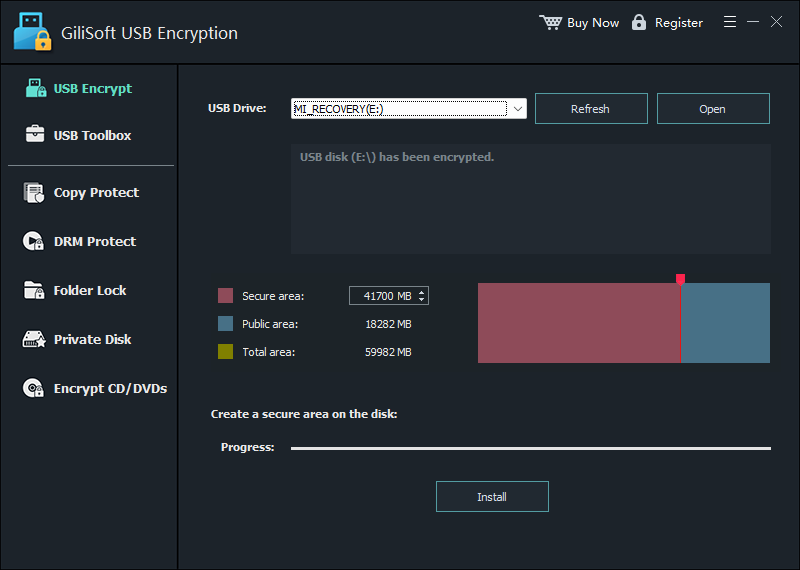
 Create the secure area
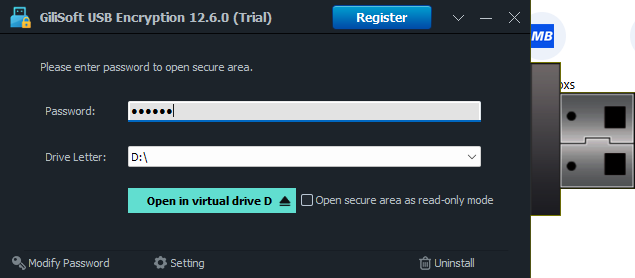 Open with password
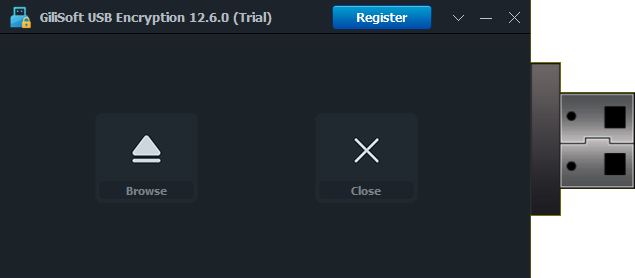 Browse secure area
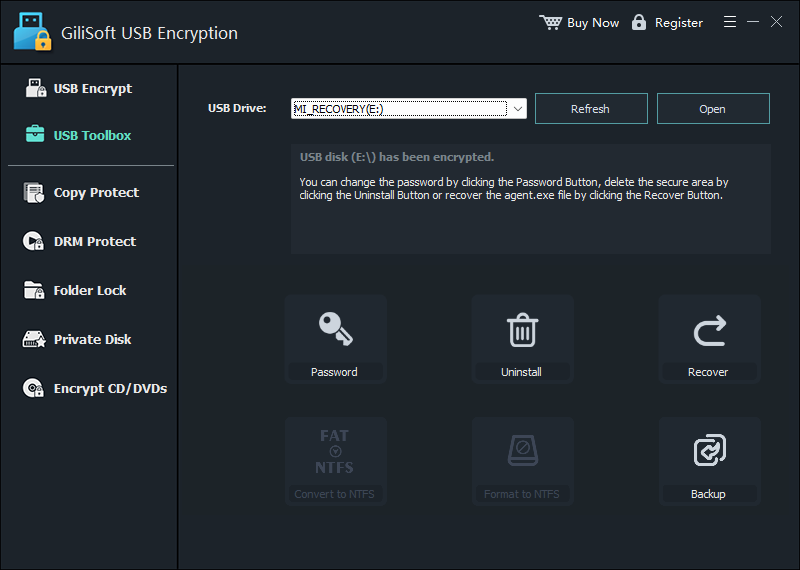 Password and recovery tools
Hide Files, Folders, and Drives
Keep private content out of ordinary Windows browsing on local disks and supported external storage.

GiliSoft USB Encryption protects confidential data stored on thumb drives, USB flash drives, memory cards, and removable disks.
Updated July 27, 2026 | USB flash drive security and encryption guide
Thumb drives often move between personal PCs, office computers, classrooms, service desks, and client sites. Without protection, anyone who opens the drive can browse ordinary files.
GiliSoft USB Encryption creates a password-protected secure area while preserving a public area for files that can remain open. This is the most complete method on this page when one removable drive must carry both confidential and shareable data.

This method divides the removable drive into a public area and a password-protected secure area. Public instructions or ordinary transfer files remain available, while confidential documents, photos, backups, and records stay inside the protected area.
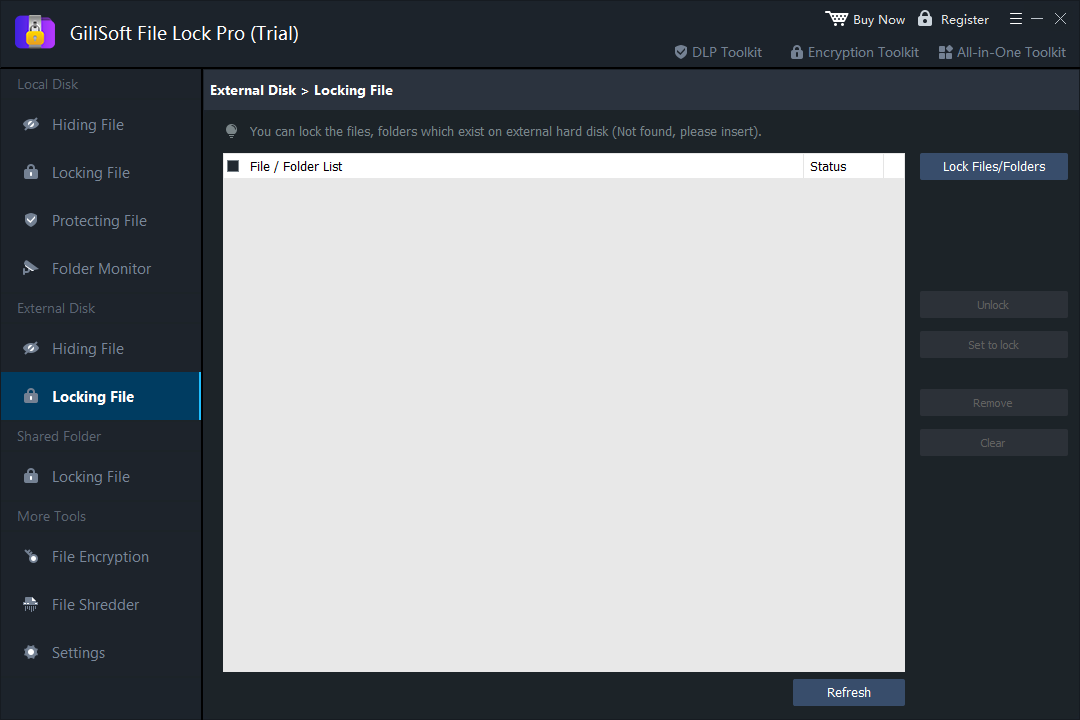
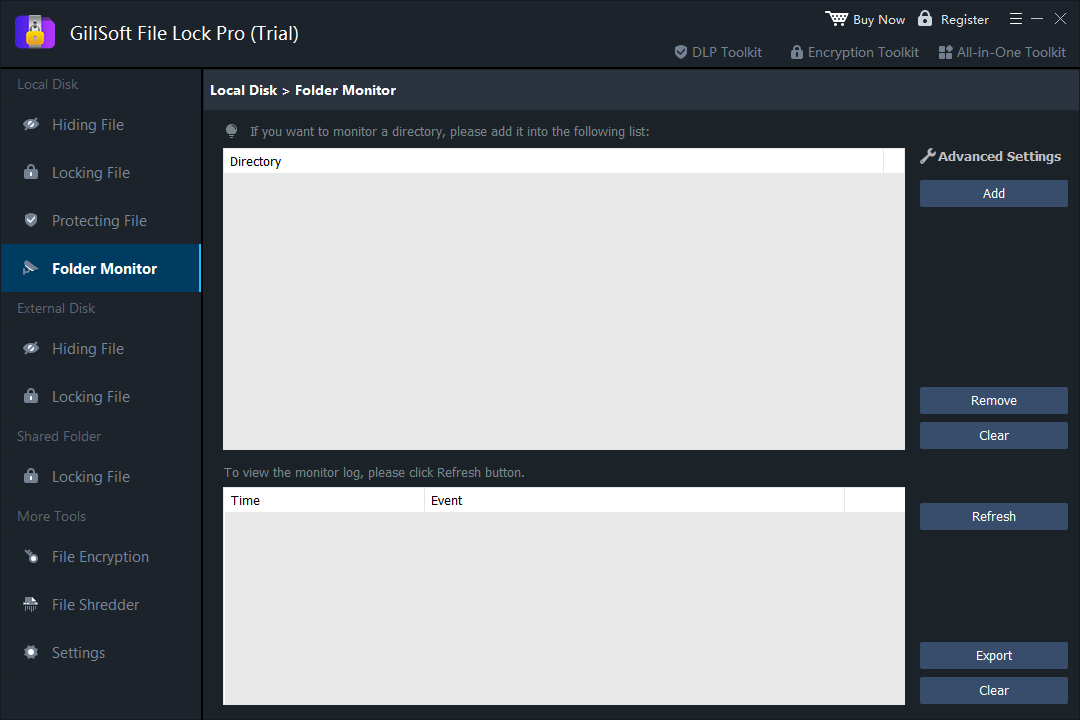
When private data also lives on the Windows PC, an external hard drive, or a shared folder, GiliSoft File Lock Pro brings those locations into one protection interface. Hide sensitive items from ordinary browsing, lock access to files and folders, monitor selected folders, and review activity records without moving everything into a USB secure area.
Use it for personal photos, work documents, project folders, removable-drive files, and shared folders that should remain under controlled access on Windows.

Keep private content out of ordinary Windows browsing on local disks and supported external storage.
Apply password-controlled access to files, folders, drives, and shared folders that should stay visible but protected.
Watch selected folders and review recorded file activity when changes need to remain traceable.
Strengthen the protection setup with stealth options, exclusion lists, password settings, and program logs.
BitLocker To Go encrypts the removable drive and requires a password or recovery key before its protected contents can be opened. It is a suitable built-in choice when the Windows edition supports it and the whole drive should follow one encryption policy.
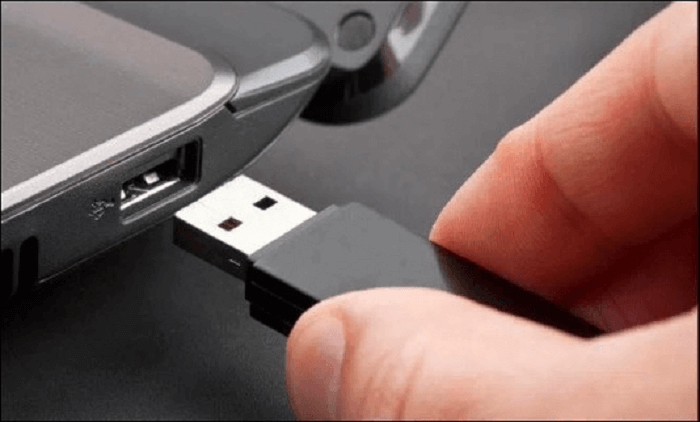 Insert the thumb drive and verify its drive letter before changing encryption settings.
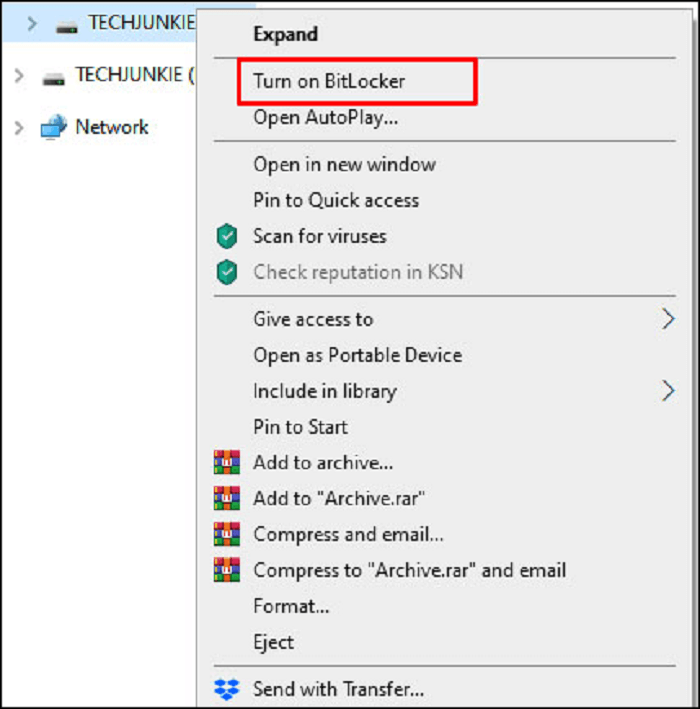 Open the removable-drive menu and start BitLocker for the correct device.
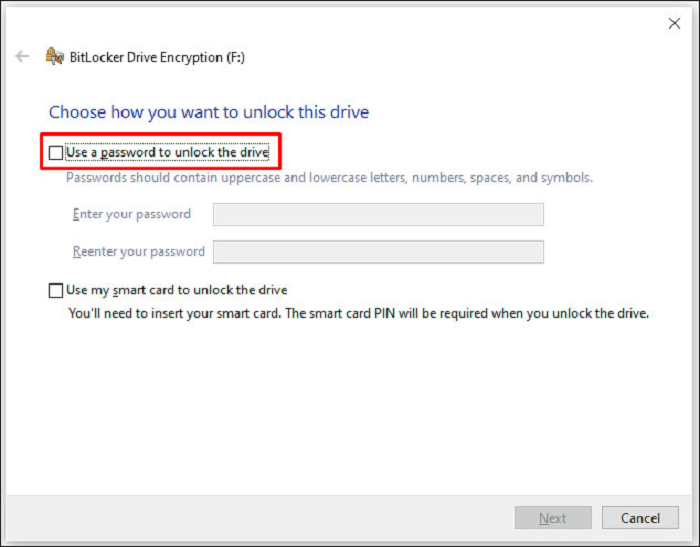 Set the unlock password and preserve the recovery key separately.
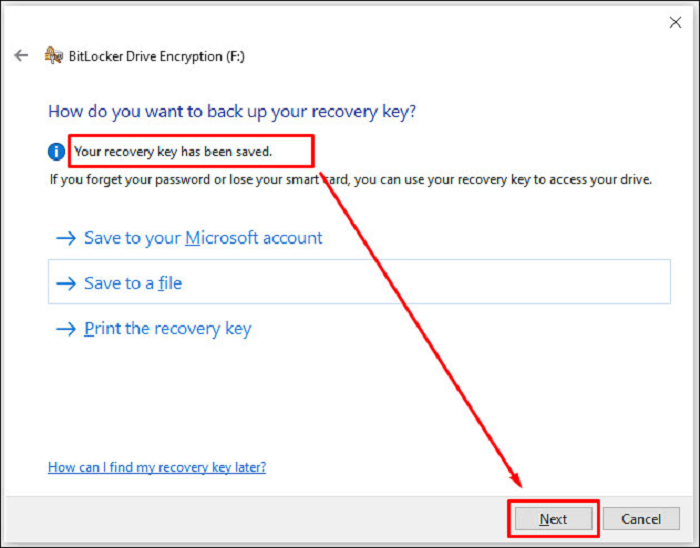 Review the unlock choice and continue through the removable-drive encryption setup.
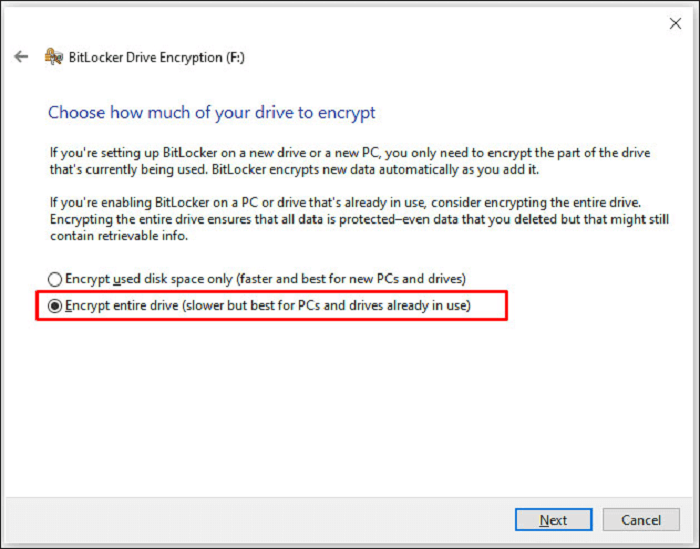 Choose the encryption scope based on whether the drive already contains private data.
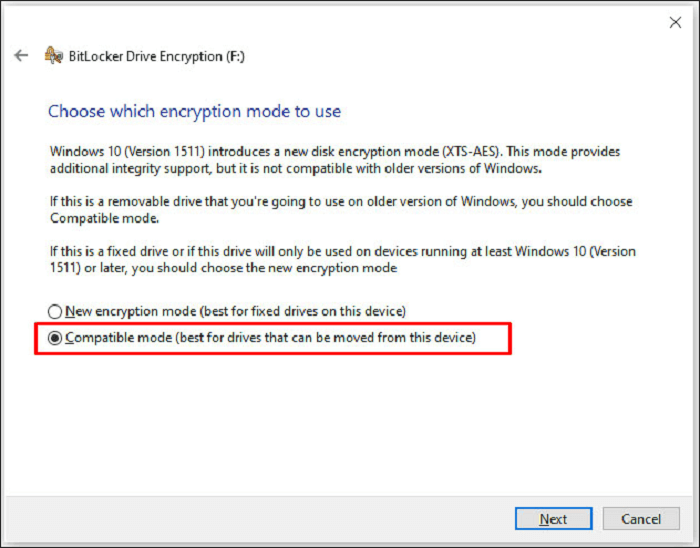 Select the compatible mode when the thumb drive must open on supported older Windows PCs.
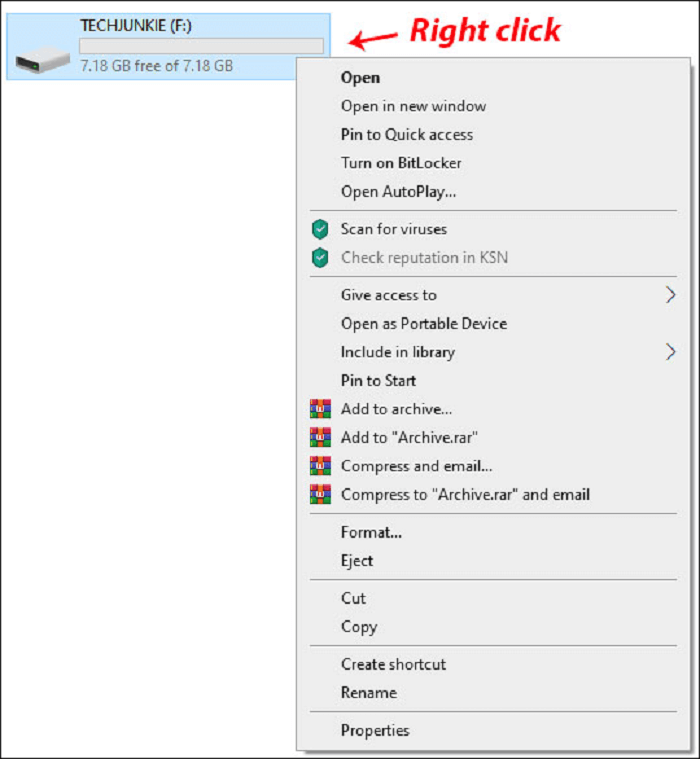 Return to the drive menu to confirm that BitLocker protection is available for the device.
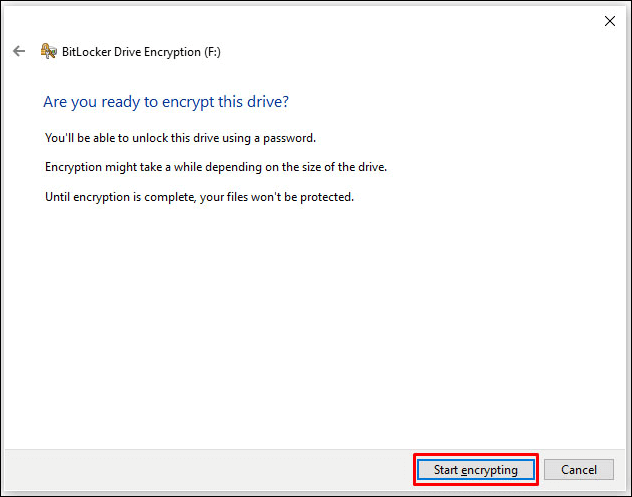 Start encryption and keep the drive connected until completion.
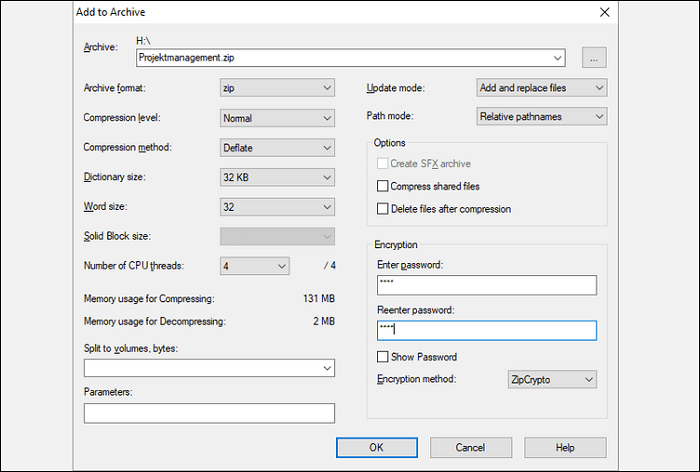
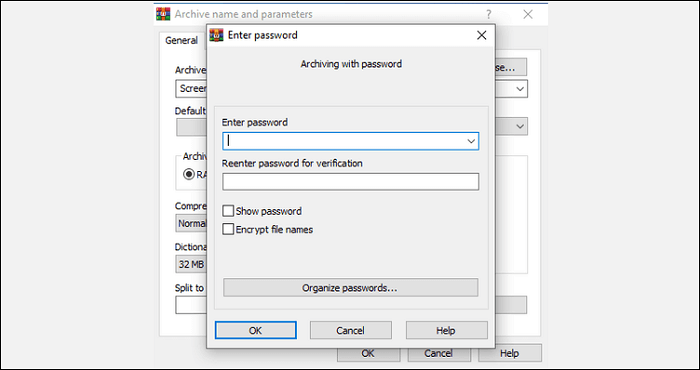
When only a few files need protection, an encrypted 7Z, ZIP, or RAR archive may be sufficient. This method does not secure the whole drive or create a public-and-private storage layout; it protects only the files placed inside the archive.
| Method | Best for | Protection scope | Main consideration |
|---|---|---|---|
| GiliSoft USB Encryption | Mixed public and confidential files on one removable drive | Password-protected secure area plus public area | Best match for an everyday portable secure-storage workflow |
| BitLocker To Go | Supported Windows environments using built-in drive encryption | Encrypted removable drive | Windows edition support and recovery-key management matter |
| Encrypted archive | A small number of selected files | Files placed inside the archive only | Manual archive creation and extraction are required |
Keep a verified copy of irreplaceable data before changing partitions, creating a secure area, or encrypting the whole drive.
Check the capacity, drive letter, and label so another removable disk is not selected by mistake.
Use a strong password and store recovery information in a separate approved location.
Verify that the protected drive can be opened on the Windows PCs where it will actually be used.
Store sensitive files inside a secure area that requires the correct password before opening.
Use the public area for non-sensitive files that other users can open without a password.
Focus on the files stored on the thumb drive itself, not just permissions on one Windows computer.
Secure the drive before travel, handoff, classroom use, client delivery, or shared-office storage.
Best when the removable drive needs a password-protected secure area for confidential files. View USB Encryption.
Best when a company PC should block USB devices, removable drives, phones, or external storage access. View USB Lock.
Best when selected folders on a USB drive need folder-level lock, hide, protect, or read-only rules. View File Lock Pro.
Best when internal drives, partitions, USB drives, or SD cards need broader data-at-rest protection. View Full Disk Encryption.
Share public deliverables while keeping source files, quotes, contracts, or internal notes protected.
Carry private files between office, home, hotel, and client-site Windows PCs with password protection.
Protect exported records, spreadsheets, photos, and project backups stored on removable media.
Keep ordinary files in the public area and manager-only or finance-only files in the secure area.
For cross-platform planning, read password protect USB flash drive on Windows and Mac.
For thumb-drive-focused encryption, see how to encrypt a thumb drive.
Compare removable-drive options in USB Encryption vs BitLocker.
View the full feature overview on GiliSoft USB Encryption.
Yes. GiliSoft USB Encryption supports Windows USB storage workflows and creates a password-protected secure area for private files.
No. Securing a flash drive protects files on the removable drive. Blocking USB ports controls whether devices can be used on a computer.
Yes. Use the public area for normal files and the secure area for confidential files.
Use USB Encryption for secure storage on the USB drive itself. Use File Lock Pro for folder-level rules such as lock, hide, protect, or read-only control.
Create a password-protected secure area for confidential files while keeping ordinary files available in the public area.
Buy USB Encryption