
USB Encryption vs BitLocker: Quick Verdict
| If you need... | Better starting point | Why |
|---|---|---|
| A private area and a normal public area on one USB drive | GiliSoft USB Encryption | You decide how much space becomes the password-protected secure area; the rest remains public. |
| Encryption for the complete removable volume | BitLocker To Go | BitLocker treats the removable drive as a protected BitLocker volume. |
| A USB encryption option on Windows Home | GiliSoft USB Encryption | Microsoft's Manage BitLocker interface is available on Pro, Enterprise, and Education, not Windows Home. |
| Central policy and recovery-key administration | BitLocker To Go | Organizations can configure removable-drive rules and escrow recovery information through Microsoft management systems. |
| Cross-platform use without host software | Hardware-encrypted USB | Some hardware-encrypted drives handle authentication and encryption on the device itself. |
The Core Difference: Secure Area vs Entire Volume
The products should not be compared as if they create the same storage layout. GiliSoft USB Encryption divides available USB capacity into two practical areas: a private secure area opened through password verification and a public area that remains available for normal file exchange. This is useful when one drive must carry a presentation, catalog, installer, or handoff document alongside confidential material.
BitLocker To Go is Microsoft's BitLocker implementation for removable data drives such as USB flash drives, SD cards, and external hard disks. It protects the removable volume and unlocks it with a password or smart card. The user must also preserve a recovery password or recovery key outside the protected drive.
| Comparison point | GiliSoft USB Encryption | BitLocker To Go |
|---|---|---|
| Protection layout | Password-protected secure area plus normal public area | BitLocker-protected removable volume |
| Best fit | Mixed private and public USB use | Whole-volume protection and Windows policy |
| Windows edition | Dedicated Windows application | Manage BitLocker requires Pro, Enterprise, or Education |
| Unlock method | Secure-area password | Password or smart card; recovery information for exceptional access |
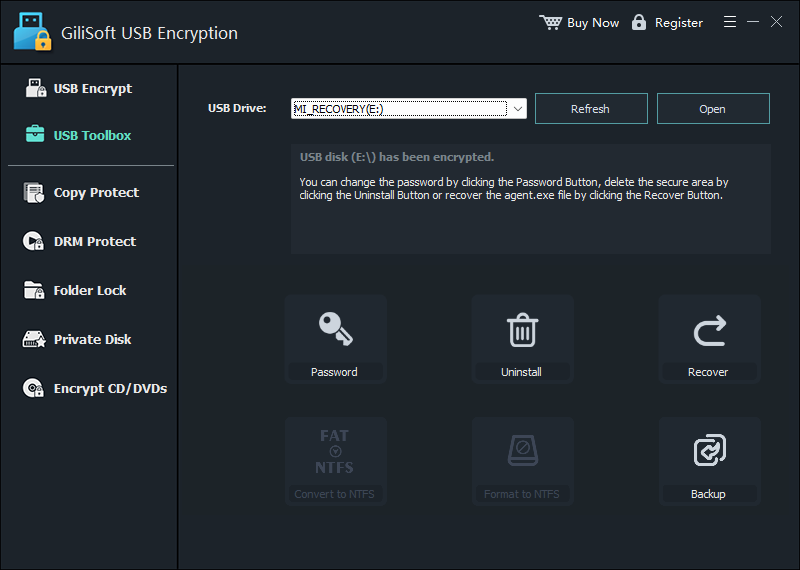
| Recovery workflow | Password, backup, recovery, and secure-area management tools | 48-digit recovery password/key; organizational escrow can be configured |
| Public sharing on the same device | Built into the public-area layout | The protected volume must be unlocked before its files are read normally |
| Enterprise enforcement | Best for individual or small-team USB preparation | Microsoft policy can require protection or make unprotected removable drives read-only |
| Cost | Separate commercial license | Included with supported Windows editions |
How GiliSoft USB Encryption Works
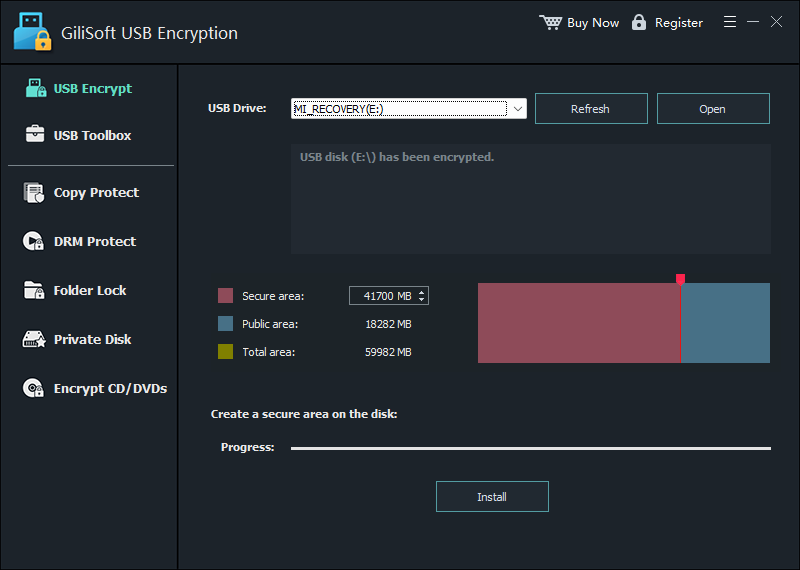
Create a secure area on an ordinary USB flash drive, external disk, or supported removable medium, then mount that area only when private files are needed.
Insert the removable drive, verify its drive letter and capacity, and keep a backup of important files.
Open GiliSoft USB Encryption, select the correct device, and choose the capacity assigned to the Secure area.
Install the secure area and create its password. Capacity outside the secure area remains the Public area.
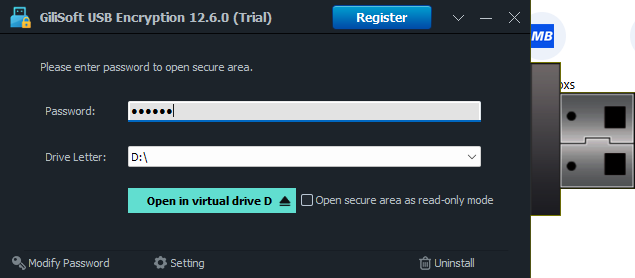
Open the secure area, assign a virtual drive letter, and copy confidential files into the mounted private space.
Close the secure area and safely eject the USB drive. Reconnect it and verify that private files require the password.
How BitLocker To Go Works
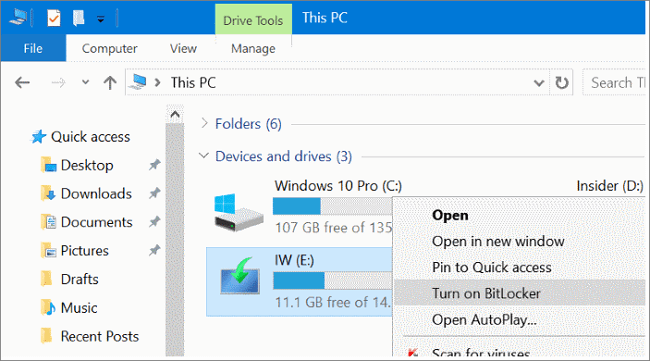
Use the Windows BitLocker control panel to encrypt a removable data drive and protect access with a password or smart card.
Sign in with an administrator account, search for Manage BitLocker, and locate the device under Removable data drives - BitLocker To Go.
Select Turn on BitLocker, choose a supported unlock option, and create a strong password if password unlocking is used.
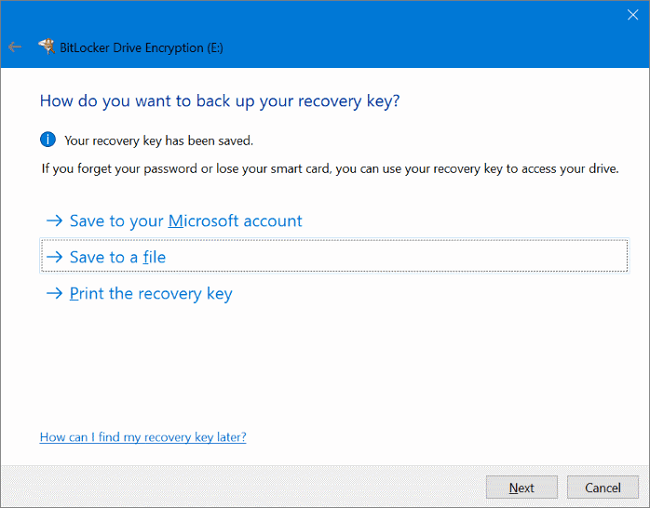
Back up the recovery information to an approved location that is separate from the USB drive.
Choose used-space-only or full-drive encryption according to the data history and organizational policy, then start encryption.
After completion, eject and reconnect the drive. Confirm normal password access and confirm that the recovery material can be located.
Which Option Fits Your Situation?
Personal USB drive with private and shareable files
GiliSoft is the clearer fit when the same device must hand over public documents while private records remain behind a password. The public-area design avoids unlocking the confidential area just to share ordinary files.
Windows Home computer
Choose GiliSoft when you need a dedicated USB encryption interface but the PC does not include Manage BitLocker. Test the protected drive on every Windows computer that will need private-area access.
Company-managed Windows environment
BitLocker To Go is usually the stronger operational fit when IT already manages BitLocker recovery and removable-drive policy. Microsoft policy can require BitLocker protection before write access is allowed, which makes compliance easier to audit across managed computers.
Regulated or cross-platform portable storage
Neither comparison choice automatically solves every compliance or compatibility requirement. A hardware-encrypted USB may be more appropriate when encryption must operate independently from the host OS, recognized validation is required, or the same protected device must work across Windows, macOS, and Linux. Confirm the exact model and policy requirements before purchase.
Security, Recovery, and Compatibility Checklist
Encryption protects confidentiality; it does not replace a second copy when media fails or is lost.
Do not keep a BitLocker recovery key or GiliSoft recovery information only on the protected USB.
Confirm the unlock method before travel, client delivery, or an urgent presentation.
Files placed in GiliSoft's public area are intentionally outside the password-protected secure area.
Close the secure area, save open documents, and eject the drive before unplugging it.
Encryption protects stored data. To block or whitelist USB devices on company PCs, use USB Lock.
USB Encryption vs BitLocker FAQ
Is BitLocker the same as USB encryption software?
BitLocker To Go is one form of USB drive encryption. The practical difference here is layout and management: GiliSoft creates a password-protected secure area alongside a public area, while BitLocker To Go protects the removable volume and integrates with Windows recovery and policy tools.
Does BitLocker To Go work on Windows 11 Home?
Microsoft's manual BitLocker Drive Encryption interface is available on Windows Pro, Enterprise, and Education, not Windows Home. A Home PC may be able to read some BitLocker-protected media, but it cannot be treated as the normal management environment described in Microsoft's setup instructions.
Can I keep public files on a BitLocker USB drive?
You can store any files on a BitLocker-protected drive, but the volume normally must be unlocked before those files are available. GiliSoft's secure-area design is more direct when the same USB device needs a separately accessible public area.
Which option is better if the USB drive is lost?
Both are intended to prevent ordinary unauthorized access while protection is closed and credentials remain secret. The better choice is the one you can configure correctly, test, recover, and use consistently. Hardware-encrypted USBs may add device-level controls for higher-assurance requirements.
Can GiliSoft USB Encryption and BitLocker be used together?
Do not layer encryption casually. It complicates compatibility and recovery. Choose one primary protection design for the drive, document it, and verify the restore path before storing important data.
Does USB encryption stop employees from connecting unapproved drives?
No. Drive encryption protects data stored on the media. Device-control software such as GiliSoft USB Lock is used to block, allow, or whitelist removable devices on Windows computers.
Research Sources
- Microsoft Support: BitLocker Drive Encryption
- Microsoft Learn: BitLocker FAQ and BitLocker To Go
- Microsoft Learn: Configure BitLocker removable-drive policy
- CISA: Protect data stored on devices and removable media
- Kingston: Hardware vs software encryption in secure USBs
Microsoft documentation was used for Windows editions, BitLocker To Go, recovery, unlock, and policy behavior. CISA guidance informed the backup and removable-media recommendations. Kingston's technical overview informed the separate hardware-encryption scenario. GiliSoft descriptions and screenshots were checked against the current USB Encryption product interface.