

Temporary USB Device Access on Windows
Let an employee request short-term access to a specific USB device without turning a device-specific exception into a permanent, all-device allowance.
How Does Temporary USB Access Work?
This approach is intended for organizations that normally restrict removable storage but occasionally need an employee to use a particular drive for a defined business task. Authorization is tied to the device being requested; it should not be presented as a password that opens every USB device or changes the organization's general policy.
A Device-Specific Request and Authorization Flow
- Identify the device. The employee provides the device and the business reason for needing it. Agree how the deployment will identify the physical USB device.
- Request temporary access. The user contacts the designated administrator and asks for a temporary password for that device.
- Check the request. The administrator verifies the requester, device identity, task, and required access before providing authorization.
- Use the authorized device. The approved device receives the access defined in the enterprise configuration; other devices remain subject to the normal USB policy.
- End the exception. Follow the agreed validity period or administrator end/revocation procedure, then verify the device no longer has temporary access where required.
- Record and review. Document the request and outcome using the organization's agreed process and any logging included in the custom scope.
The exact prompts and administrator steps depend on the approved customization. The steps above describe a policy workflow, not a claim that every screen or mechanism is already present in the standard product.
Decide These Controls Before Deployment
Specify how a particular USB device is distinguished from another drive, including replacement-device handling.
Define which employees can request access and which administrator roles may issue or authorize it.
Clarify whether the exception permits read, write, or another defined action, and whether it applies to one managed PC or more.
Set the intended time window and confirm whether access ends automatically, is revoked by an administrator, or uses another agreed method.
Specify which request, device, administrator, and access events need to be recorded and how long records are retained.
Plan for a forgotten password, urgent business access, a lost device, and a user who needs a replacement drive.
Temporary Access vs. Other USB Controls
| Control | Best suited to | How it differs |
|---|---|---|
| Device-specific temporary access | A one-off or time-bounded business need in a custom enterprise deployment | A user requests a temporary password from an administrator for an identified device; project scope defines the duration and end procedure. |
| Permanent USB allow list | Company drives that should remain approved for recurring work | An administrator maintains trusted-device entries; this is not the same as temporary password access. |
| Block USB storage | PCs where removable storage should normally be unavailable | Sets a general device policy; it does not by itself provide a device-specific temporary-password request flow. |
| USB encryption | Protecting files stored on removable media if it is lost | Encrypts data on the drive; it does not decide whether a USB device may connect to a managed PC. |
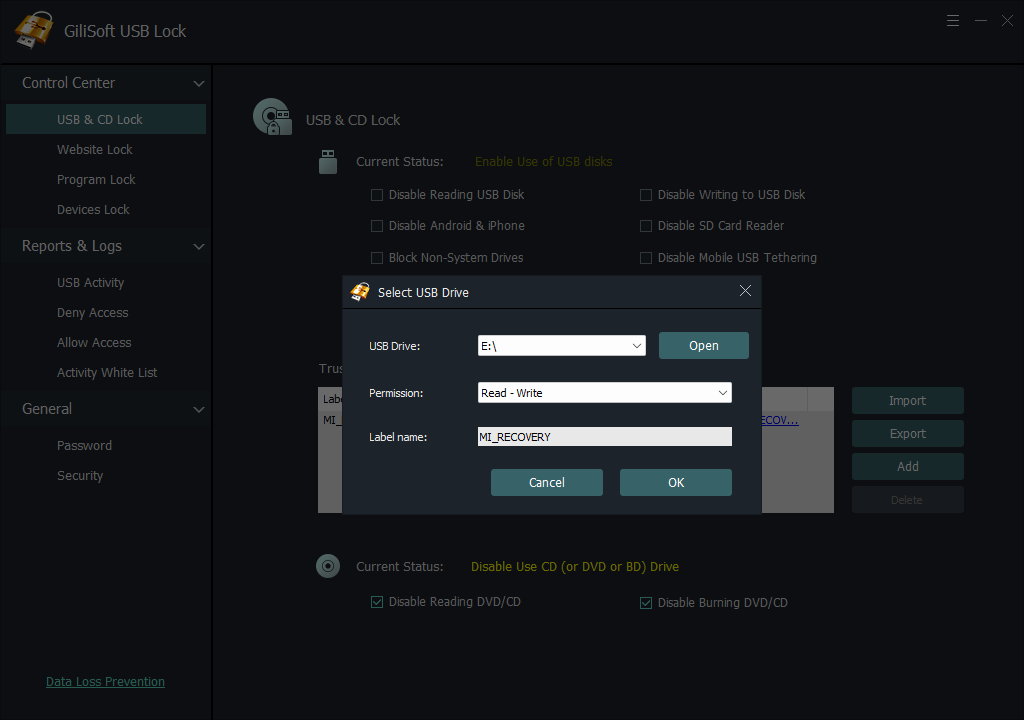
GiliSoft USB Lock provides standard Windows controls for USB devices and trusted-device lists. The temporary-password workflow described here is for enterprise customization. For a reusable trusted-device setup, see the USB Lock whitelisting guide.
Discuss a Custom USB Lock Deployment
To assess a temporary USB access project, describe the user request path, device identification method, administrator roles, target Windows environment, access duration, revocation expectations, and audit requirements. GiliSoft can review these requirements and confirm which parts need custom development.
Need temporary access by device?
Send the endpoint count, Windows versions, device identification requirements, who issues passwords, intended access period, end/revocation procedure, logging needs, and rollout method.
Discuss temporary USB access customizationRelated USB Control Guides
Review standard USB device controls and trusted-device options for Windows PCs.
Compare device categories, policy methods, and enterprise deployment requirements.
Learn when an ongoing list of approved devices is a better fit.
Understand the difference between blocking storage and authorizing an exception.
Temporary USB Access FAQ
Can a user temporarily access a USB device on a managed Windows PC?
Yes, through an enterprise-customized workflow. The user requests a temporary password from an administrator; the administrator authorizes the identified device. Users do not self-authorize unless a separately agreed custom design provides that behavior.
Is temporary USB access included in the standard USB Lock edition?
No. Device-specific temporary password access is available through GiliSoft USB Lock enterprise customization. Contact GiliSoft to scope the requested behavior.
Does the temporary password automatically expire?
That behavior must be confirmed in the custom requirements. The access period and how it ends should be specified before deployment; automatic expiration is not assumed on this page.
Will the password allow every USB drive?
The intended workflow is device-specific: authorization is for the identified device, not a blanket allowance for all removable storage. Confirm the device-identification method during project scoping.
Does USB device authorization encrypt files?
No. It controls device access on a managed Windows PC. For data-at-rest protection, review GiliSoft USB Encryption.
What should I send to discuss enterprise customization?
Provide endpoint count, Windows versions, device identity requirements, requester and administrator roles, the access period, the end or revocation procedure, logging needs, and rollout method.
Plan temporary access without opening every USB port
Discuss a device-specific temporary-password workflow for your GiliSoft USB Lock enterprise deployment.