
USB Port Lock Software for Windows PCs
Block unauthorized removable storage and phone transfers while approved company USB drives continue working on office, school, lab, and shared Windows computers.
What Is USB Port Lock Software?
A useful USB lock does more than switch every connector off. Most offices still need keyboards, mice, printers, licensed dongles, and approved storage. The practical goal is to close risky data-transfer paths while preserving devices that belong to normal work.
USB Lock Controls That Matter
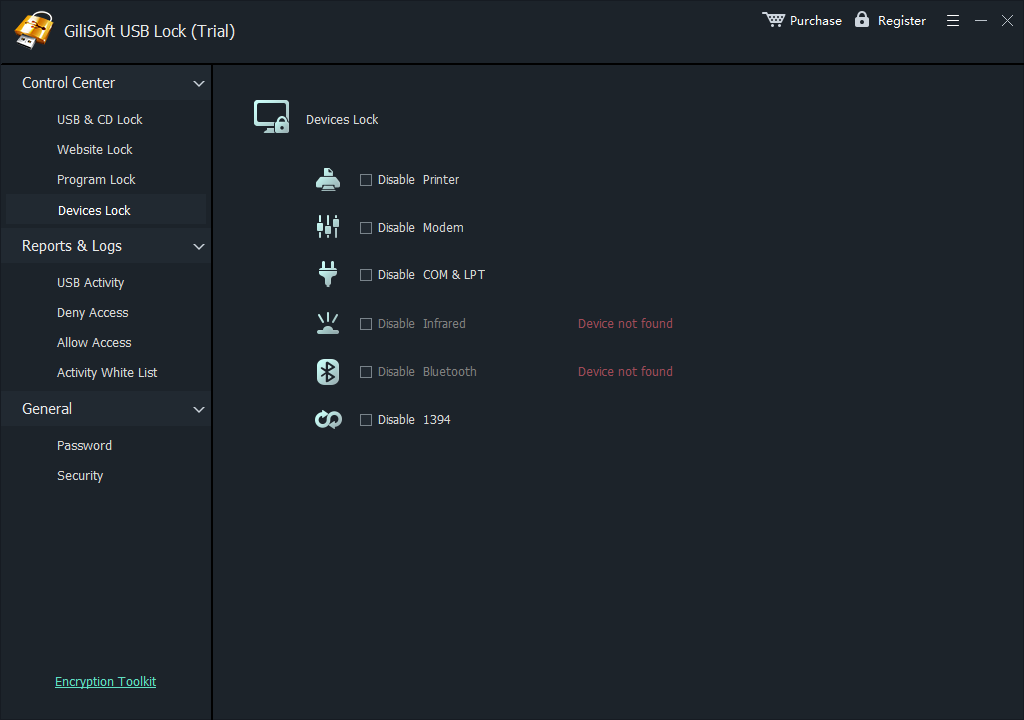
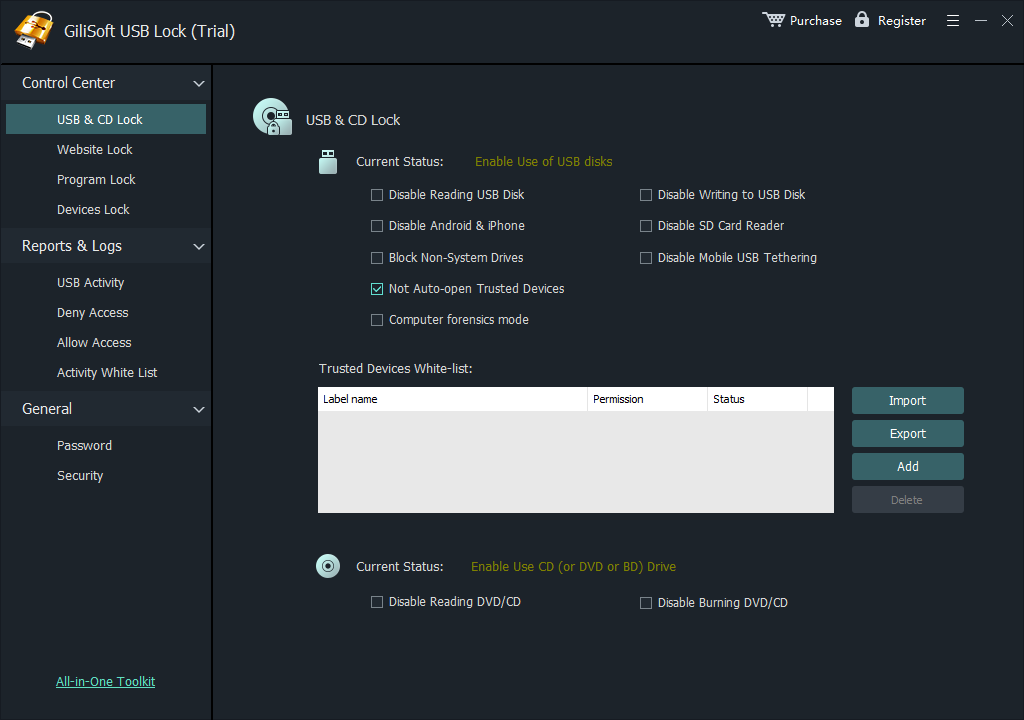
GiliSoft USB Lock groups the controls administrators typically need on shared and business Windows computers:
- USB and SD storage: block personal flash drives, portable disks, and memory cards.
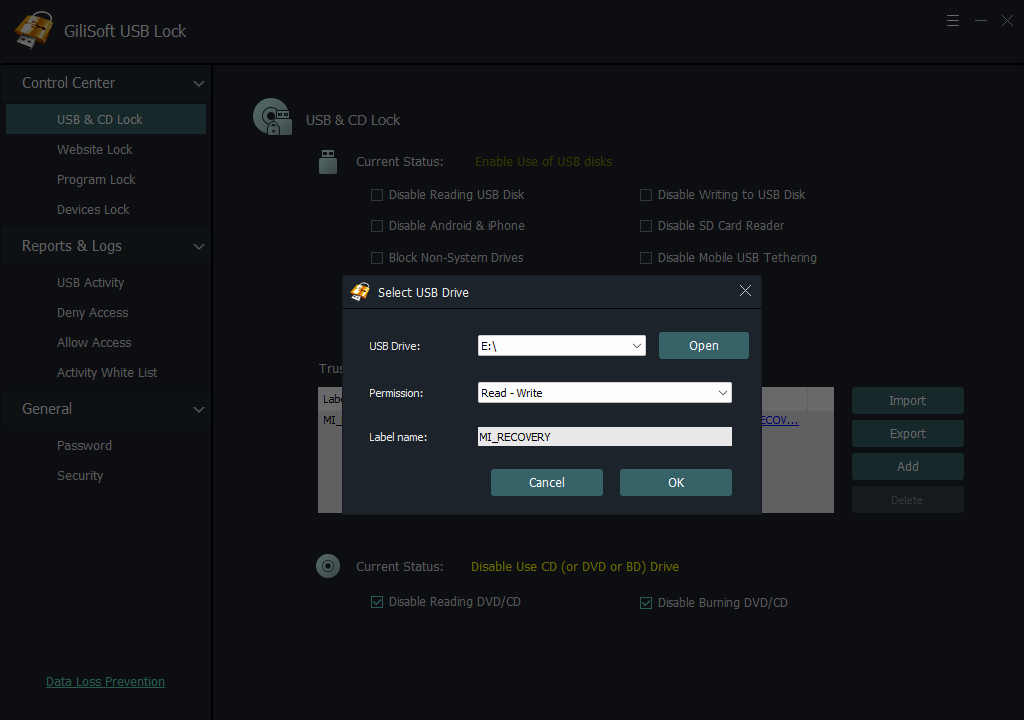
- Trusted-device whitelist: allow named company drives without opening access to every device.
- Phone transfer: restrict Android and iPhone USB data channels.
- USB tethering: stop unmanaged phone-based internet connections.
- Additional media: control CD/DVD and selected peripheral categories when required.
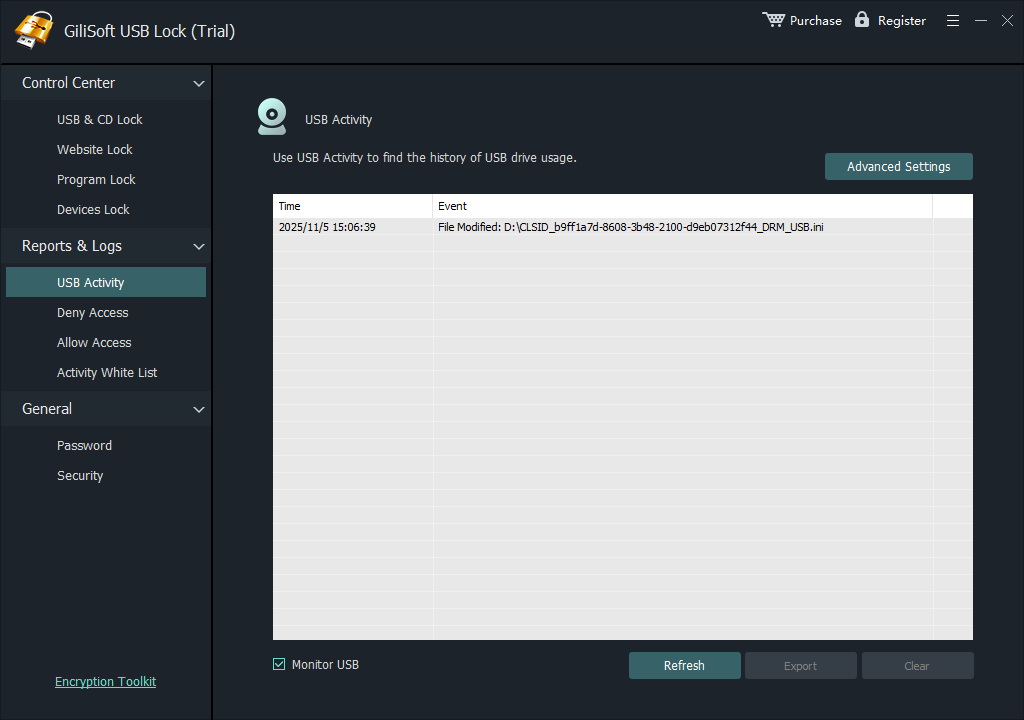
- Access records: review allowed and blocked activity during testing or investigation.
Control USB Access Without Closing Every Port
GiliSoft USB Lock is designed for computers where removable-media access needs a clear local policy. Administrators select the device categories to restrict, add trusted drives that should remain available, protect configuration access with a password, and review activity after testing.

One place for blocking, trusted devices, and access review
Use the same interface to control removable storage, maintain a whitelist, restrict phone transfer, review logs, and protect settings from unauthorized changes.
How to Configure USB Port Lock Software
- Install GiliSoft USB Lock on a test PC, then set the administrator password and recovery email.
- Open USB & CD Lock and enable the USB/SD storage restriction.
- Enable only the additional phone, tethering, optical-media, or peripheral restrictions your environment requires.
- Insert each approved company drive and add it to the trusted-device whitelist.
- Connect an unknown drive and an approved drive, then review the log to verify both results.
- Export the tested whitelist and import it on similar Windows computers when appropriate.
See the illustrated USB whitelist instructions for exporting and importing approved-drive rules.
Where USB Port Lock Software Fits
- Shared office PCs: prevent visitors or staff from using personal storage while approved work drives remain available.
- Schools and labs: reduce unapproved file transfer on classroom and training computers.
- Front-desk and service PCs: close unnecessary storage and phone-transfer paths on public-facing systems.
- Media handling stations: allow designated delivery drives while blocking unknown removable media.
- Small Windows fleets: reuse tested whitelist settings without building a full endpoint-management stack.
- Larger deployments: ask GiliSoft to evaluate custom development and deployment requirements.
Need USB control for a larger deployment?
Send the endpoint count, Windows versions, device categories, whitelist rules, administrator requirements, logging needs, and deployment method. GiliSoft can evaluate custom development for the project.
Discuss USB Lock customizationUSB Port Lock, USB Encryption, or Physical Port Lock?
If you are comparing software methods specifically for blocking USB storage on Windows, see the separate USB port blocking software guide. This page focuses on software-based port control versus drive encryption and physical connector locks.
| Need | Use | What it does |
|---|---|---|
| Control which devices can transfer data on a Windows PC | GiliSoft USB Lock | Blocks selected device channels, allows trusted drives, and records access activity. |
| Protect files stored on a removable drive | GiliSoft USB Encryption | Creates a password-protected secure area on the drive. |
| Make an unused connector physically unavailable | Physical USB port lock | Occupies or covers the connector but provides no whitelist or access log. |
USB Port Control Guides
- Block USB storage devices on Windows
- Allow only approved USB devices
- Block files from being copied to USB
- Block USB ports on company computers
- Block phone and USB transfer on a PC
- Control removable-media access
USB Port Lock Software FAQ
What does USB port lock software block?
GiliSoft USB Lock can restrict USB and SD storage, phone data transfer, USB tethering, CD and DVD channels, and selected peripheral categories on Windows PCs. Administrators choose the channels that are relevant to each computer instead of treating every USB-connected device the same way.
Can approved company USB drives remain available?
Yes. Insert an approved drive and add it to the trusted-device whitelist. The approved drive can continue working while unknown removable storage remains restricted.
Can USB Lock settings be reused on other computers?
Yes. After testing the rules on a representative Windows PC, export the USB whitelist and import it on similar computers. Verify the result on every hardware or Windows configuration used in the deployment.
Can GiliSoft support a larger Windows deployment?
Yes. GiliSoft can evaluate customization for larger deployments based on endpoint count, Windows versions, whitelist rules, controlled device categories, logging requirements, administrator roles, and the preferred deployment method.
Does USB port lock software disable keyboards and mice?
Not when the restriction targets removable storage rather than every USB-connected peripheral. Test each selected category before wider deployment, especially where printers, phones, card readers, or specialized equipment are connected by USB.
Is USB control the same as USB encryption?
No. USB control decides which devices and access operations are permitted on a PC. USB Encryption protects data stored on a removable drive with a password-protected secure area.
Research Sources
- Microsoft Learn: removable-storage access policies
- Microsoft Learn: device control policies in Defender for Endpoint
- Microsoft Learn: device control events and reports
Lock risky USB transfer paths and keep trusted drives working
Test GiliSoft USB Lock on Windows. For a larger rollout, send GiliSoft your device rules, endpoint count, and deployment requirements.