

How to Add a Watermark to Video on Mac
A useful watermark identifies the publisher without obscuring the video. Placement must survive scene changes, platform crops, captions, and other interface overlays.
Quick answer
Import an authorized logo or create text in GiliSoft Video Editor Pro for Mac, place it within safe margins, set restrained size and opacity, extend it over the required duration, and review every scene before export.
Choose the Watermark Purpose
| Situation | Recommended approach | Check carefully |
|---|---|---|
| Brand identification | Use a small consistent logo or name | Safe margins and legibility |
| Draft or review status | Use clear text across the intended review range | Do not confuse draft and final files |
| Ownership deterrence | Use visible but restrained placement | A watermark is not access control or DRM |
Step-by-Step Mac Workflow
- Prepare the watermark asset
Use a clean authorized logo, preferably with transparency, or finalize the exact text and spelling.
- Place it on the correct track
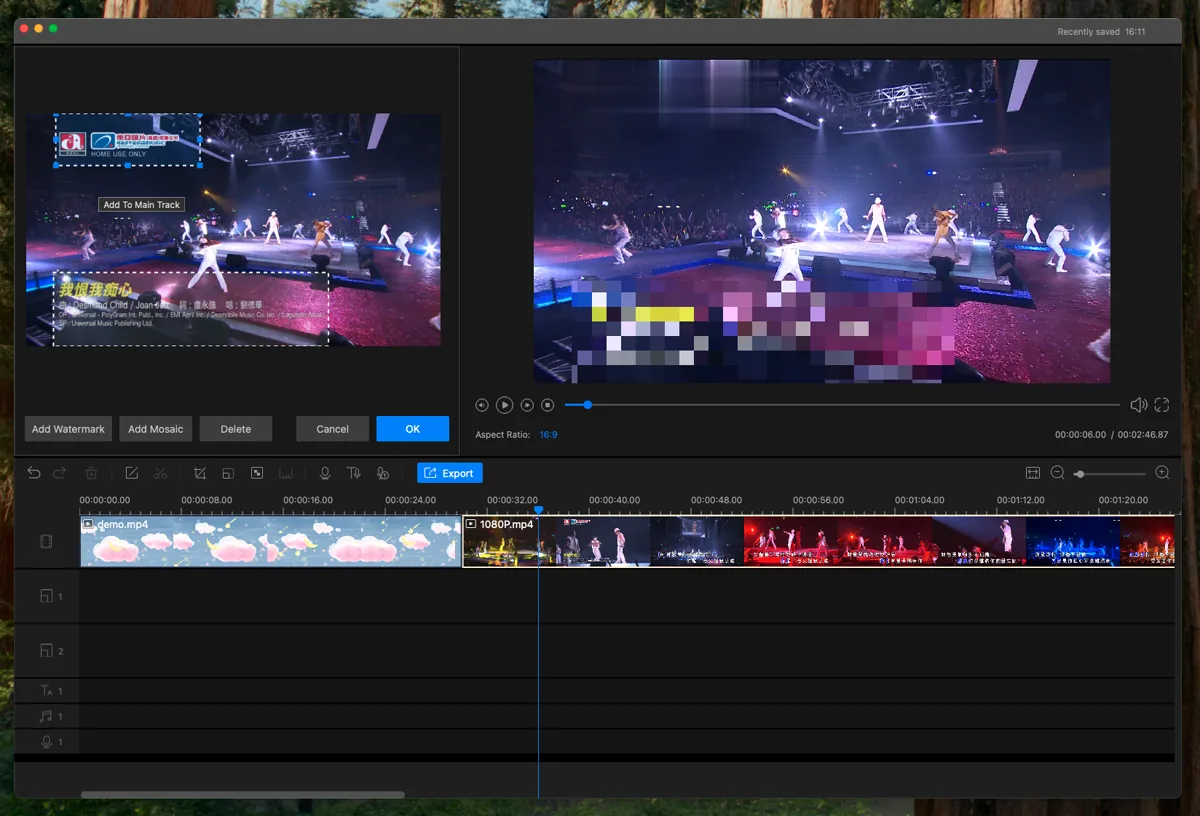
Add the watermark or overlay, resize it, and position it away from captions, faces, controls, and platform UI.
- Set duration and visibility
Extend it across the required timeline range and choose opacity that remains visible on both light and dark scenes.
- Export and inspect representative scenes
Check the opening, scene changes, crops, fast motion, captions, and ending on the final destination frame.
See the Video Editor Pro for Mac user guide for the complete timeline, effects, audio, text, privacy, and export workflow.
Video Editor Pro for Mac Interface
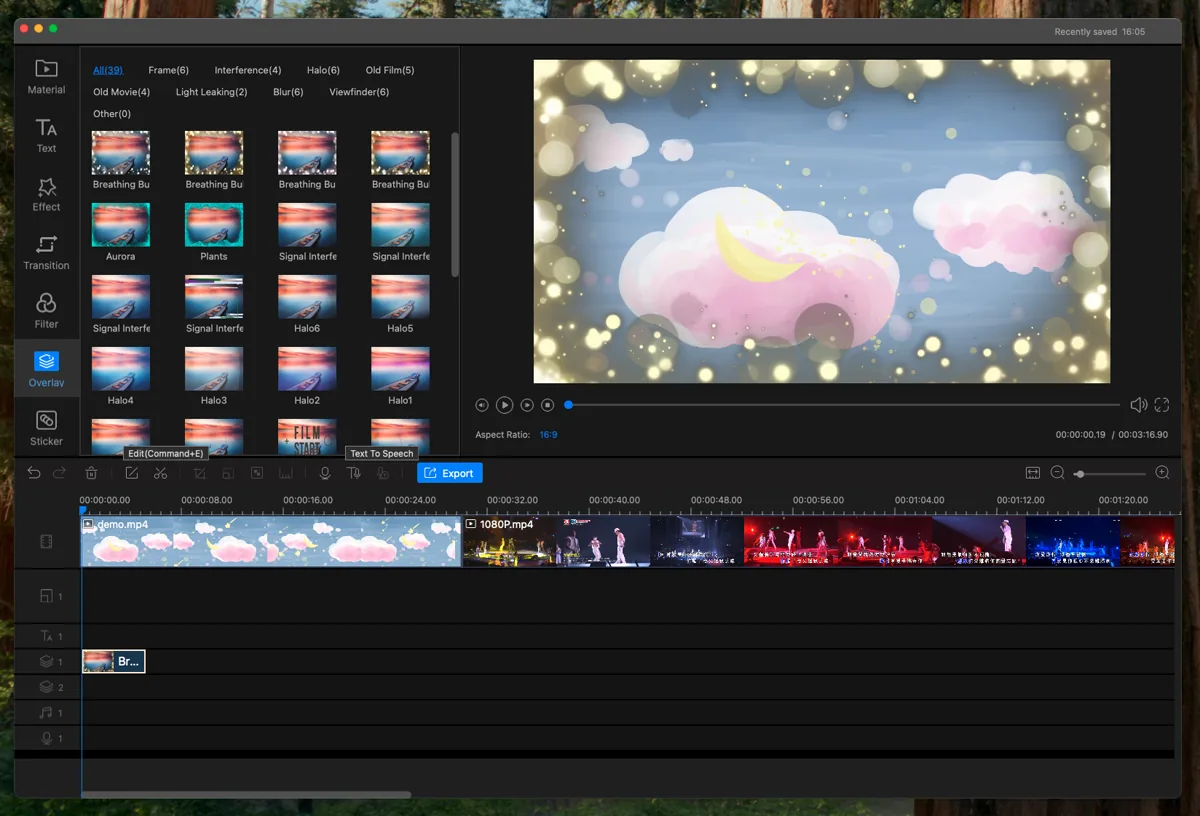
These real product screenshots connect the workflow to the current Mac editing interface.
Review Before Export
- Keep the source media and project until the finished export has been approved.
- Watch the complete timeline once without stopping and note every visible or audible issue.
- Test the rendered file outside the editor and on the intended destination device or service.
- Confirm reuse rights for video, music, logos, fonts, and other third-party material.
Frequently Asked Questions
Where should a video watermark be placed?
Use a safe corner or deliberate central draft mark, then test against changing backgrounds and platform overlays.
Can I add a transparent logo?
Yes. A clean transparent asset usually blends better than a logo with a white rectangle.