
Clarify What “Audio Compression” Means
Quick answer: For a smaller file, change the codec, bitrate, channels, duration, or a combination of them. Dynamic-range compression is a different process that changes level variation; it does not necessarily create a meaningfully smaller file.
| Goal | Relevant control | Tradeoff |
|---|---|---|
| Reduce a WAV recording for delivery | Encode to MP3 | Smaller file with lossy compression |
| Make an existing MP3 smaller | Lower bitrate or shorten duration | Another lossy generation may reduce quality |
| Remove unneeded material | Trim start, end, or sections | Reduces duration without changing the remaining content |
| Reduce stereo voice file | Use mono only when appropriate | Not suitable when stereo information matters |
| Even out loud and quiet parts | Dynamic processing in an editor | Different goal from file-size compression |
Set a Measurable Size and Quality Target
Start with the upload limit, storage budget, duration, playback device, and content type. “As small as possible” is not a useful target without a minimum acceptable listening quality.
Measure the source
Record duration, format, bitrate, channels, sample rate, and file size.
Protect the master
Compress a copy and never overwrite the only high-quality source.
Match the content
Spoken voice, music, ambience, and archival recordings need different tests.
Check destination limits
Confirm accepted formats and maximum size before choosing settings.
Reduce Audio File Size in 6 Steps
Duplicate or back up the source
Create a working copy and preserve the original audio.
Add the audio files
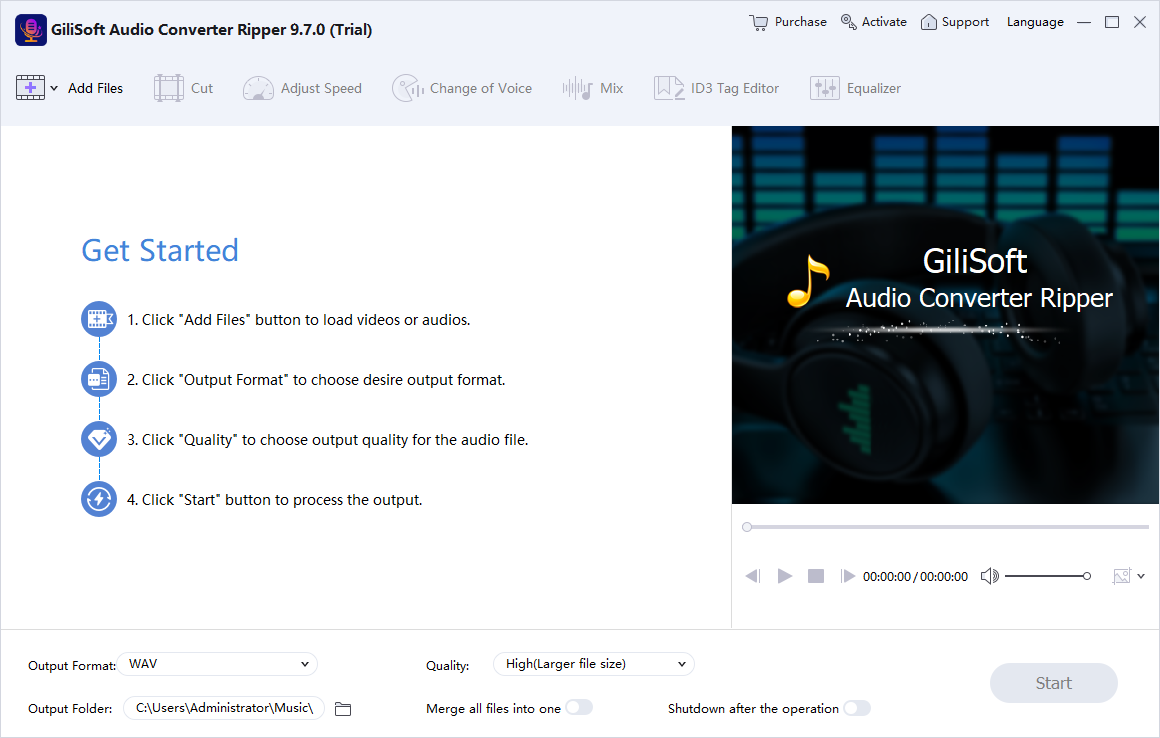
Open GiliSoft Audio Converter Ripper and add one file or a batch.
Choose the target format
Select MP3 or another supported format accepted by the destination.
Set conservative output options
Choose bitrate, channels, and sample rate based on the real content and delivery need.
Run a representative test
Compare file size, speech clarity, music detail, noise, and playback on the destination device.
Compress the batch and verify
Check every completed file for duration, corruption, metadata, and whether it meets the size limit.
Reduce Size in the Least Destructive Order
Trim first
Removing unneeded duration avoids spending bits on audio nobody needs.
Choose the right codec
A compatible compressed format may reduce size more efficiently than minor setting changes.
Lower bitrate carefully
Large reductions can introduce metallic speech, smeared music, or noisy high frequencies.
Avoid repeated encoding
Return to the best source for every new export instead of recompressing a compressed copy.
Important: A file that meets the numerical size limit can still fail the project if speech is unclear, music is damaged, metadata is missing, or the destination cannot play the format.
Compress Audio Files with Controlled Output Settings
GiliSoft Audio Converter Ripper combines batch format conversion with trimming, joining, fades, speed, volume, equalizer, compression settings, and ID3 editing. It is useful when file-size reduction must fit into a wider audio preparation workflow.
- Keep one lossless or highest-quality source outside the delivery folder.
- Test the quietest and most complex passages, not only the introduction.
- Measure the final size and replay the exact uploaded or copied file.
Troubleshoot Common Audio Workflow Problems
- The result is small but sounds poor: Raise the bitrate or choose a better source and rerun the export.
- The file is still above the limit: Trim unneeded duration and review format, bitrate, and channel count.
- Voice is difficult to understand: Avoid aggressive bitrate reduction and test mono only when the recording is truly mono-compatible.
- Music loses stereo width: Keep stereo channels and reduce size elsewhere.
- The destination rejects the file: Use a format and extension explicitly accepted by that service or device.
- Metadata disappeared: Restore ID3 tags after conversion and verify them in the destination player.
Do Not Replace the Only Master with a Compressed Copy
Keep a verified source for future editing and new delivery formats. Re-encoding an already compressed file cannot recover missing information and may compound artifacts.
Frequently Asked Questions
Is audio file compression the same as dynamic-range compression?
No. File-size compression changes encoding and storage; dynamic-range compression changes the relationship between quieter and louder levels.
What setting most directly affects MP3 size?
Duration and bitrate are major factors, while channels and other encoding choices also matter.
Can I compress several files at once?
Yes. Test one representative file, then apply the chosen output profile to a batch.
Will converting WAV to MP3 reduce size?
Usually significantly, because WAV commonly contains uncompressed PCM while MP3 uses lossy compression.
Can I make an MP3 smaller without quality loss?
Removing unneeded duration can help, but lowering bitrate or re-encoding generally introduces another lossy step.
Why should I keep the original?
The master supports future editing and lets you create new outputs without repeatedly recompressing an already compressed file.