

How to Block Online Entertainment at Work
Restrict streaming, gaming, social media, shopping, and other distracting websites on workplace Windows PCs while approved business sites and applications remain available.
Can Online Entertainment Be Blocked Without Disabling the Internet?
Yes. Block the destinations that interrupt work and preserve the websites, programs, and services each role actually needs.GiliSoft WebLock can restrict selected websites and services, password protect policy changes, provide temporary authorized access, and record intercepted attempts.
A complete internet shutdown is rarely practical. Email, CRM, support portals, payment systems, cloud documents, vendor sites, and communication tools still need access. Define which entertainment categories create a problem, identify legitimate exceptions, and test the policy on the actual workplace computer.
Decide What Should Be Restricted
Do not treat every category as universally non-work. Marketing may need social networks, recruiting may need professional communities, and support may need video or chat platforms. Build rules around job responsibilities and document exceptions.
Start with the sites causing a measurable problem. A focused rule is easier to explain, test, and maintain than an oversized blacklist assembled from guesses.
Compare Ways to Block Entertainment Websites
| Method | Best fit | Coverage | Administration |
|---|---|---|---|
| GiliSoft WebLock | Office, front-desk, training, and shared Windows PCs | Sites, services, approved programs, temporary access, and logs | Local Windows policy with password-protected settings |
| Edge or Chrome policy | Managed company browsers | Allowed and blocked URLs in the managed browser | Browser management, Group Policy, or device management |
| Microsoft Defender | Organizations using Defender for Endpoint | Web categories, custom indicators, groups, and reports | Central portal and supported licensing |
| Secure web gateway | Larger identity- or network-managed environments | Domains, URLs, categories, users, devices, and traffic | Central policy, routing, and deployment planning |
Direct Windows option: WebLock fits selected office PCs that need website restrictions and administrator-controlled exceptions without a separate cloud security platform.
Block Online Entertainment with GiliSoft WebLock
1. Choose the blocking mode
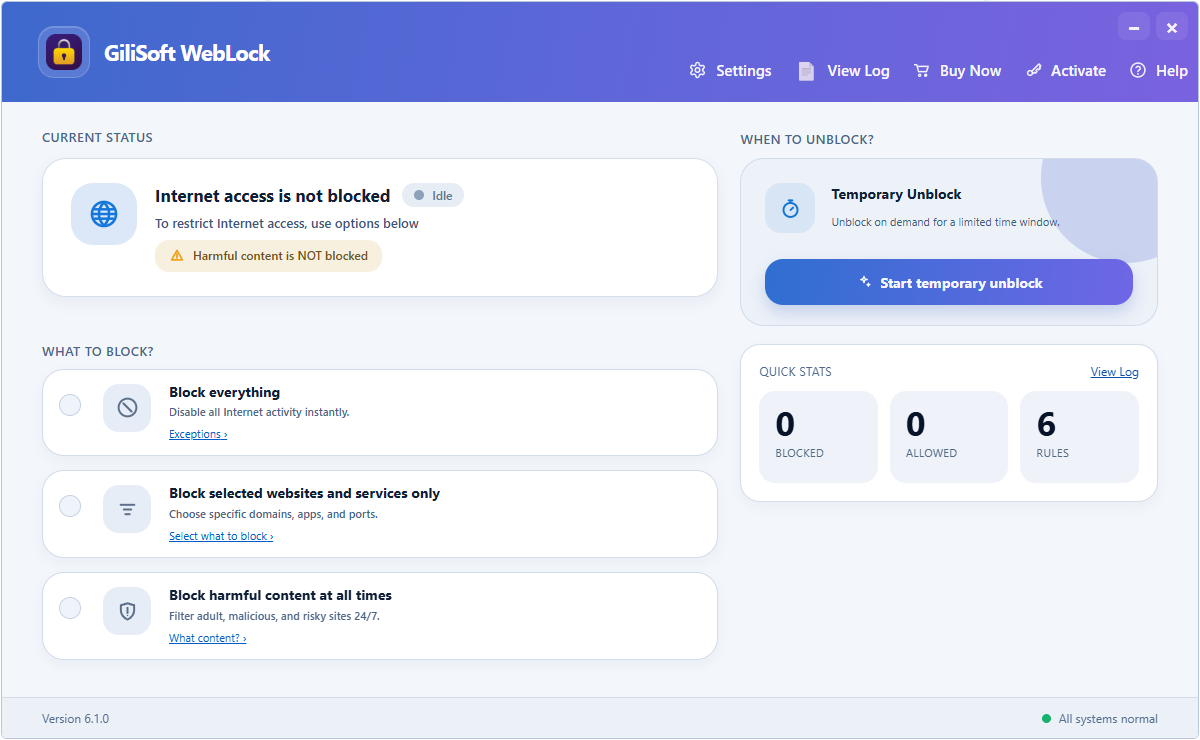
Block selected sites on ordinary office PCs, or use approved-only access on tightly controlled task stations.
- Open WebLock and enter the administration password.
- Choose Block selected websites and services only when normal business browsing must continue.
- Use a default-block model for reception, kiosk, training, or other narrowly assigned PCs.
- Keep harmful-content protection enabled where appropriate.
2. Add websites and preserve work access
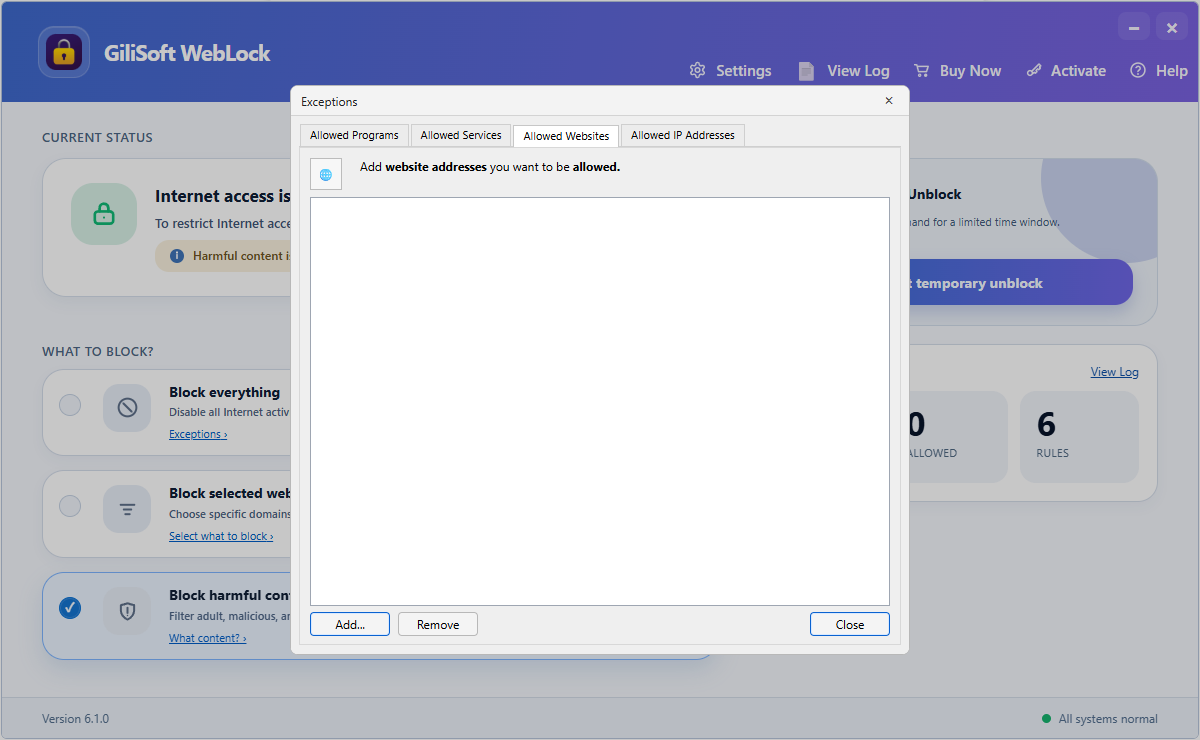
Add business destinations or exceptions, then test both blocked entertainment and permitted work pages.
Add domains used by streaming, gaming, social, shopping, or file-sharing services outside the employee's role. Where a platform is needed by one department, apply the exception only to the relevant computers.
3. Keep required applications online
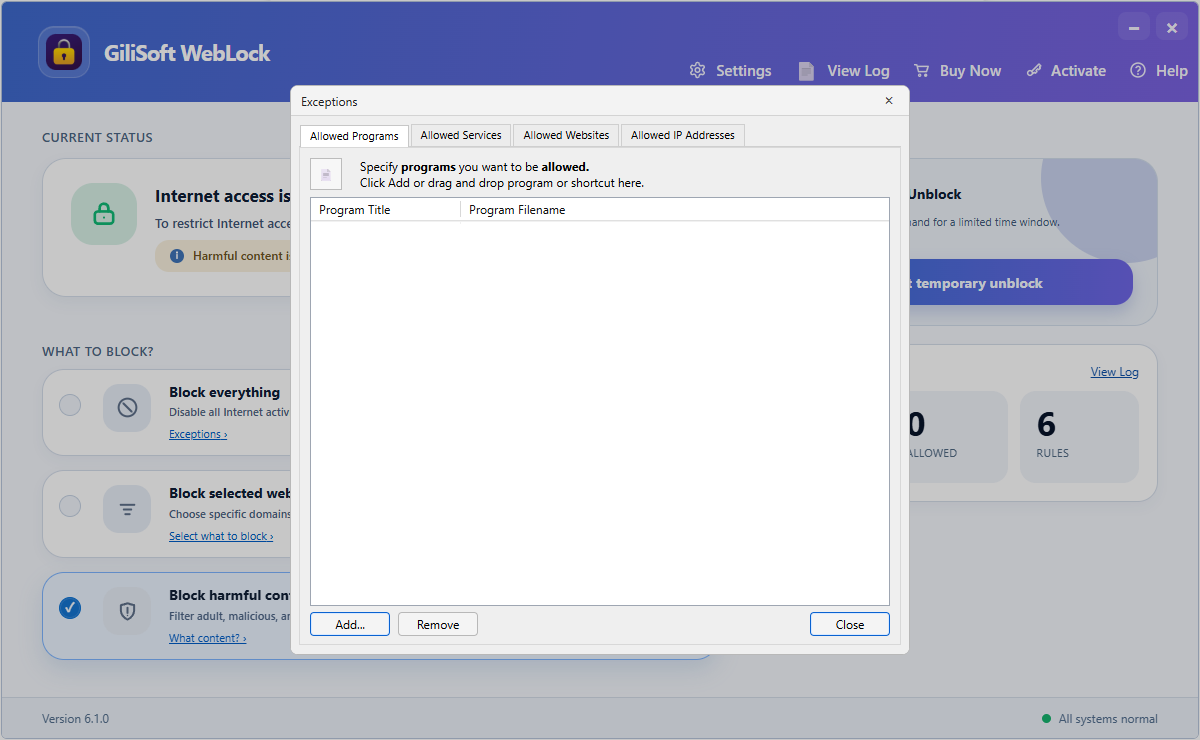
Keep approved desktop applications connected.
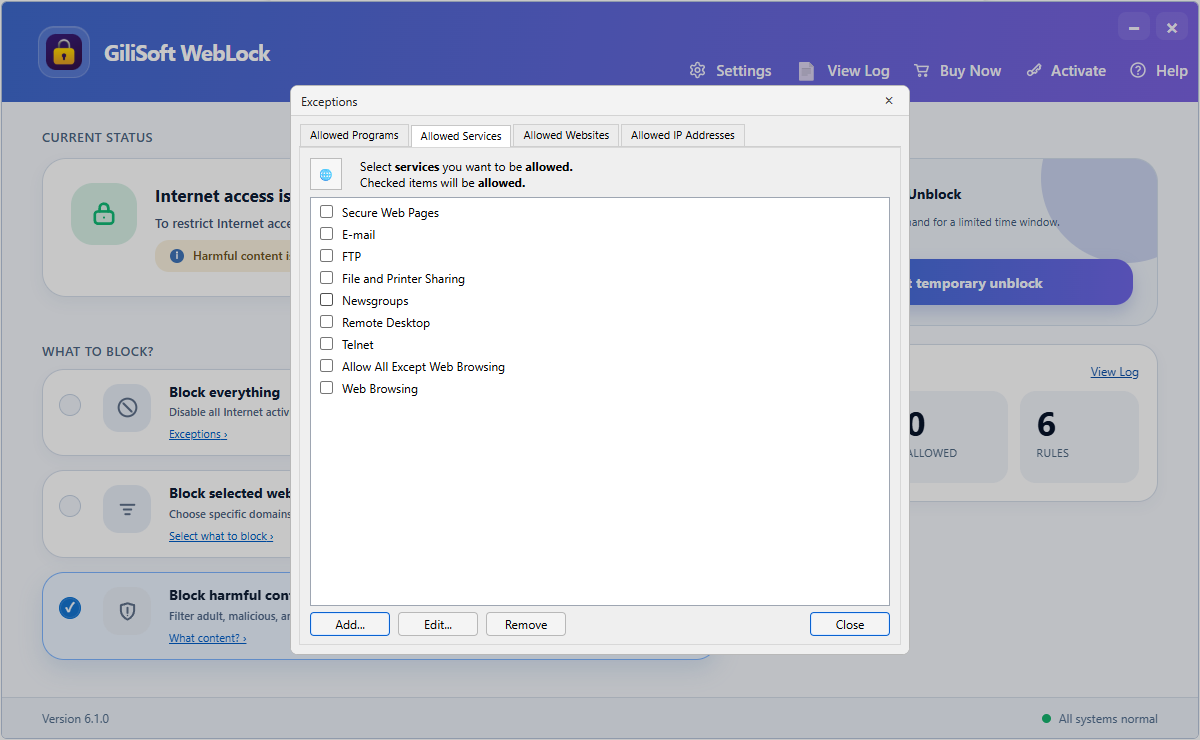
Allow a service only when a verified work application needs it.
4. Protect settings and review attempts
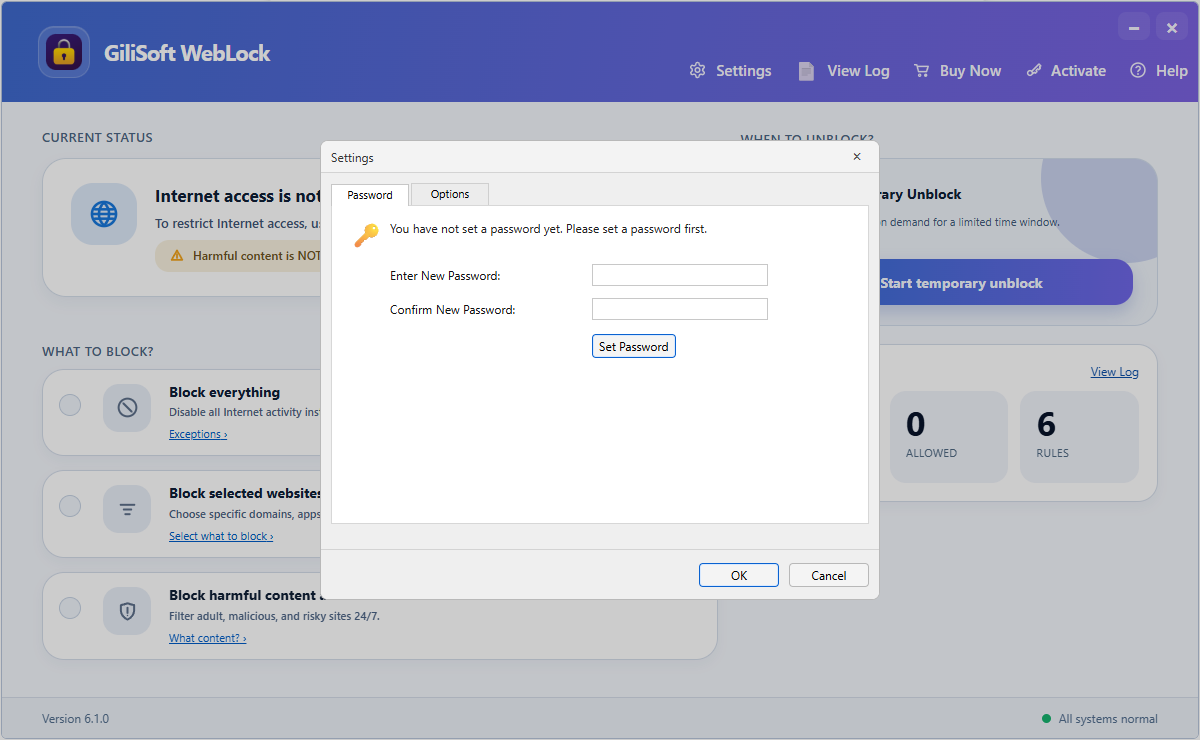
Require authorization before website rules can change.
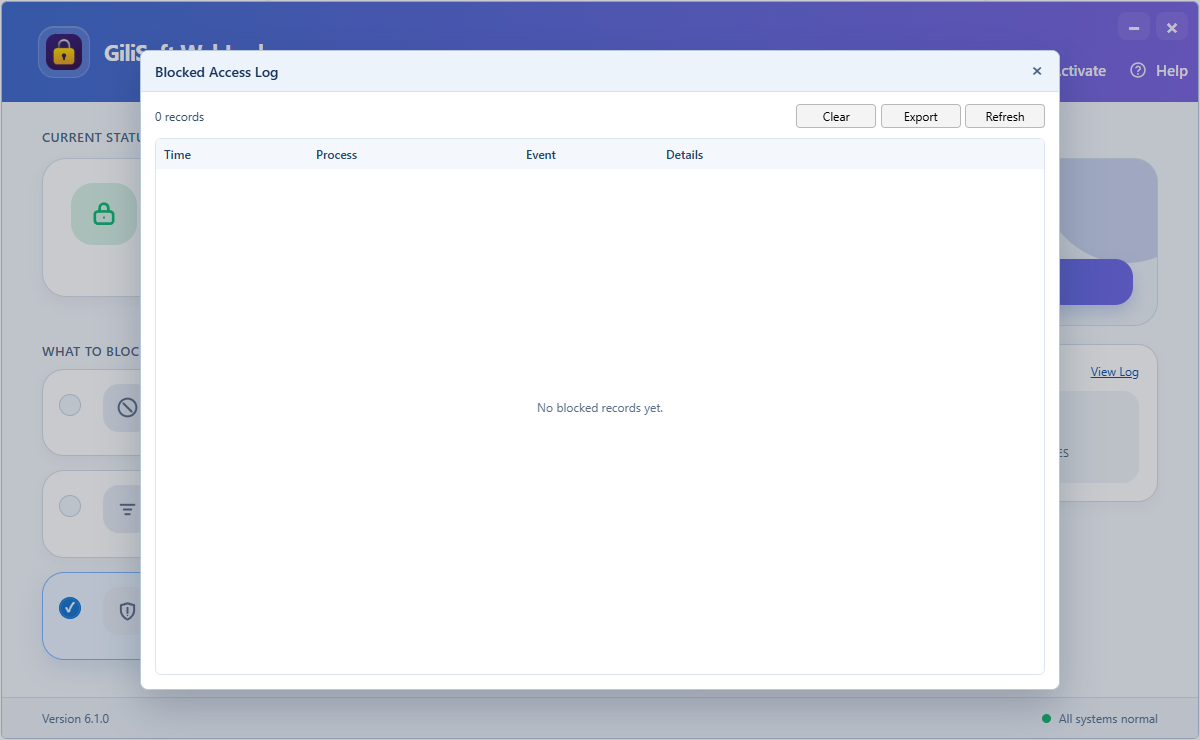
Review intercepted requests before approving an exception.
Logs distinguish a missing business dependency from repeated entertainment browsing. Temporary Unlock can provide supervised maintenance access without deleting the saved policy.
Browser Policies and Category Filtering
Managed Edge and Chrome
Microsoft Edge and Google Chrome support URL blocklists and allowlists through managed policy. This works when the requirement is limited to web navigation. Alternate browsers, desktop applications, background services, and non-web traffic may require endpoint or gateway controls.
Microsoft Defender and secure web gateways
Microsoft documents category filtering for leisure content such as online gaming, web chat, webmail, and social networking, plus high-bandwidth categories such as downloads, image sharing, and peer-to-peer traffic. Administrators can begin in audit-only mode before blocking. Secure web gateways add policies by user, device, domain, URL, and traffic type for larger environments.
Roll Out the Policy Without Interrupting Work
- Record the reason for each restriction
- Test with a representative user and PC
- Keep role-specific social or video exceptions
- Verify sign-in and cloud services
- Password protect policy changes
- Publish an exception-request process
- Review blocked events during the first week
- Recheck rules when responsibilities change
Tell employees which categories are restricted, why the policy exists, and how to request legitimate access. A clear policy is easier to follow and maintain.
Frequently Asked Questions
Can WebLock block streaming and gaming while keeping work sites open?
Yes. Use selected website restrictions while leaving required business sites and approved Windows applications available.
Should social media always be blocked at work?
No. Marketing, recruiting, communications, sales, and support roles may need specific platforms. Apply documented exceptions where needed.
What if a blocked site is needed temporarily?
An administrator can use Temporary Unlock or approve the specific destination after verifying the business need.
Can I review attempted access?
WebLock records intercepted access so administrators can troubleshoot legitimate dependencies and review repeated attempts.
Official References
Block Distracting Websites Without Disabling Work Access
Use GiliSoft WebLock to restrict selected entertainment sites, protect policy changes, and review blocked attempts.