

How to Restrict Internet Access on Windows
Block all internet traffic, restrict selected websites and services, or keep only approved business applications online on a Windows PC.
What Is the Best Way to Restrict Internet Access on Windows?
Match the restriction to the real task.Use GiliSoft WebLock when one Windows PC needs an administrator-controlled internet policy, Windows Defender Firewall when one executable must be blocked, browser policy when managed Edge or Chrome browsing is the only concern, and a secure web gateway when many users and devices need central control.
"Restrict internet access" can mean several different things: take a shared PC completely offline, block a distracting website, prevent one application from connecting, or allow only a short list of business resources. Starting with the narrowest rule that solves the problem reduces accidental disruption.
Choose the Level of Internet Restriction
Do not disconnect the network adapter if approved online work must continue. A policy with explicit exceptions is easier to operate than repeatedly disabling and enabling Wi-Fi or Ethernet.
Compare Windows Internet Restriction Methods
| Method | Best for | What it controls | Important detail |
|---|---|---|---|
| GiliSoft WebLock | Shared, work, study, kiosk, and front-desk Windows PCs | Default internet policy, websites, programs, services, IPs, temporary access, and logs | One local interface with password-protected administration |
| Windows Defender Firewall | Blocking one program or service | Outbound traffic by executable, port, protocol, address, and profile | Windows allows outbound traffic by default unless a blocking rule matches |
| Edge or Chrome policy | Managed browsers | URL blocklists and allowlist exceptions | Does not automatically govern other browsers or desktop application traffic |
| Secure web gateway | Larger organizations and remote users | DNS, network, HTTP, identity, device, and application policies | Requires central deployment, routing, and ongoing administration |
Practical choice for a Windows workstation: WebLock combines broad restrictions with narrow exceptions, so the PC can remain useful without leaving unrestricted internet access open.
Restrict Internet Access with GiliSoft WebLock
1. Select the default internet policy
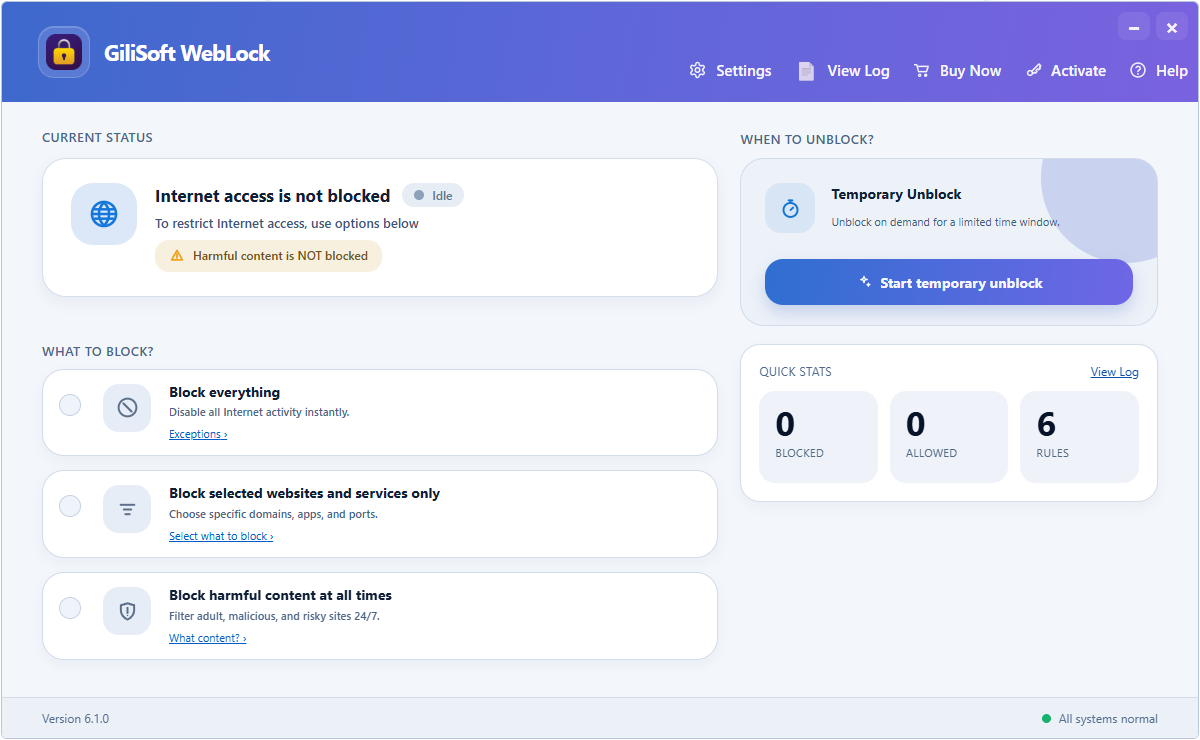
Choose Block Everything for a tightly controlled PC, or block selected websites and services when normal business access should continue.
- Open WebLock and enter the administration password.
- Choose Block Everything, block selected websites and services, or harmful-content filtering.
- Apply the policy on a test PC before using it on a production workstation.
- Test one permitted destination and one destination that should be blocked.
2. Preserve approved websites and applications
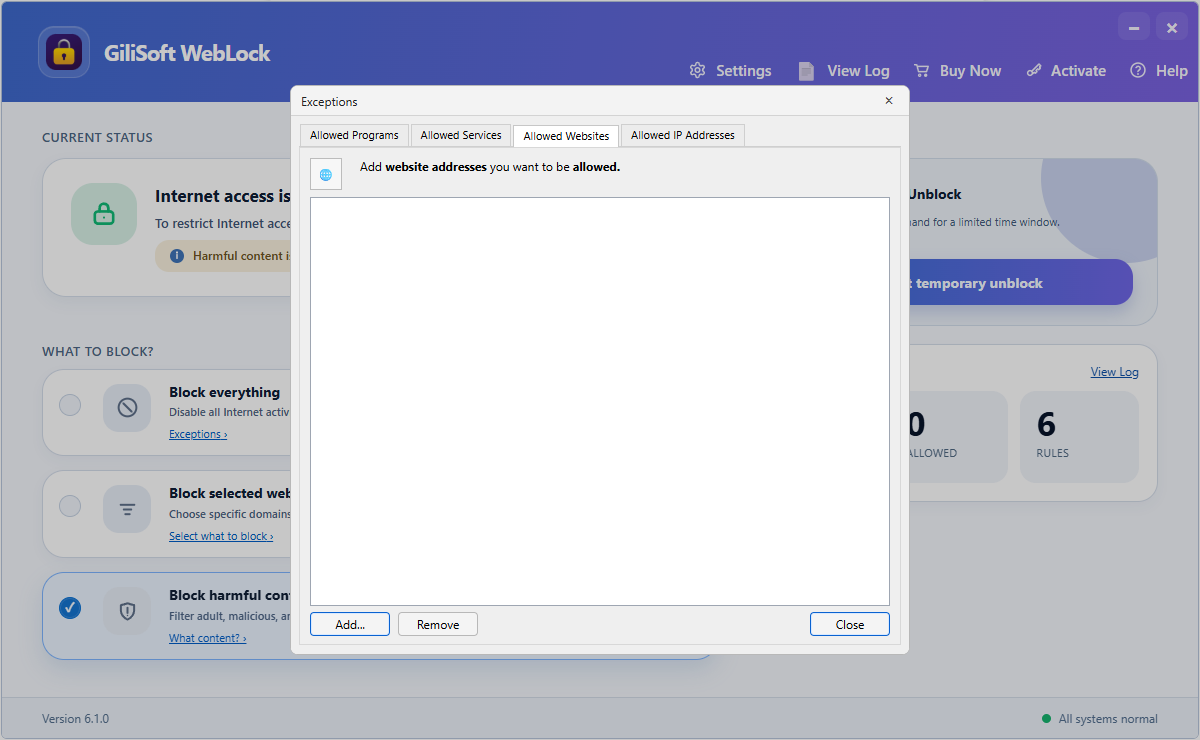
Keep company portals, cloud services, support pages, and other approved destinations available.
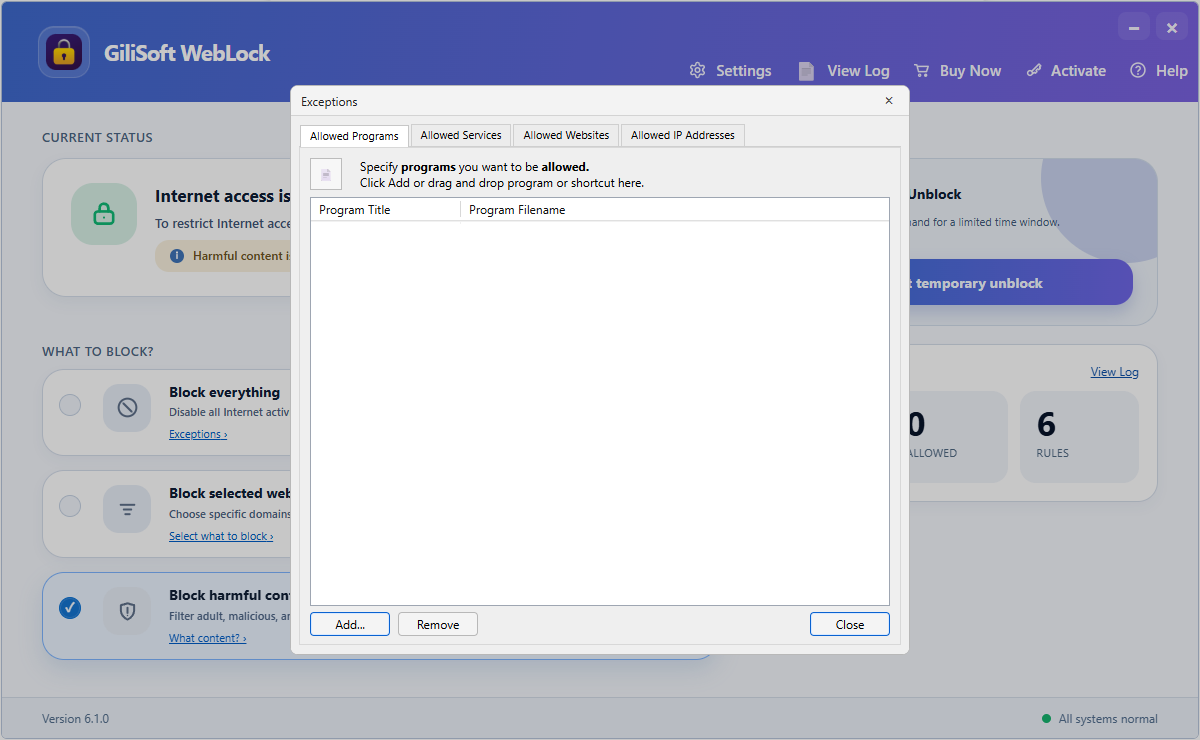
Allow the actual executable used by an approved Windows application.
Under a restrictive policy, add the resources the PC genuinely needs. If an allowed application still cannot connect, check whether it relies on a helper executable, service, or additional destination.
3. Allow required services and IP addresses
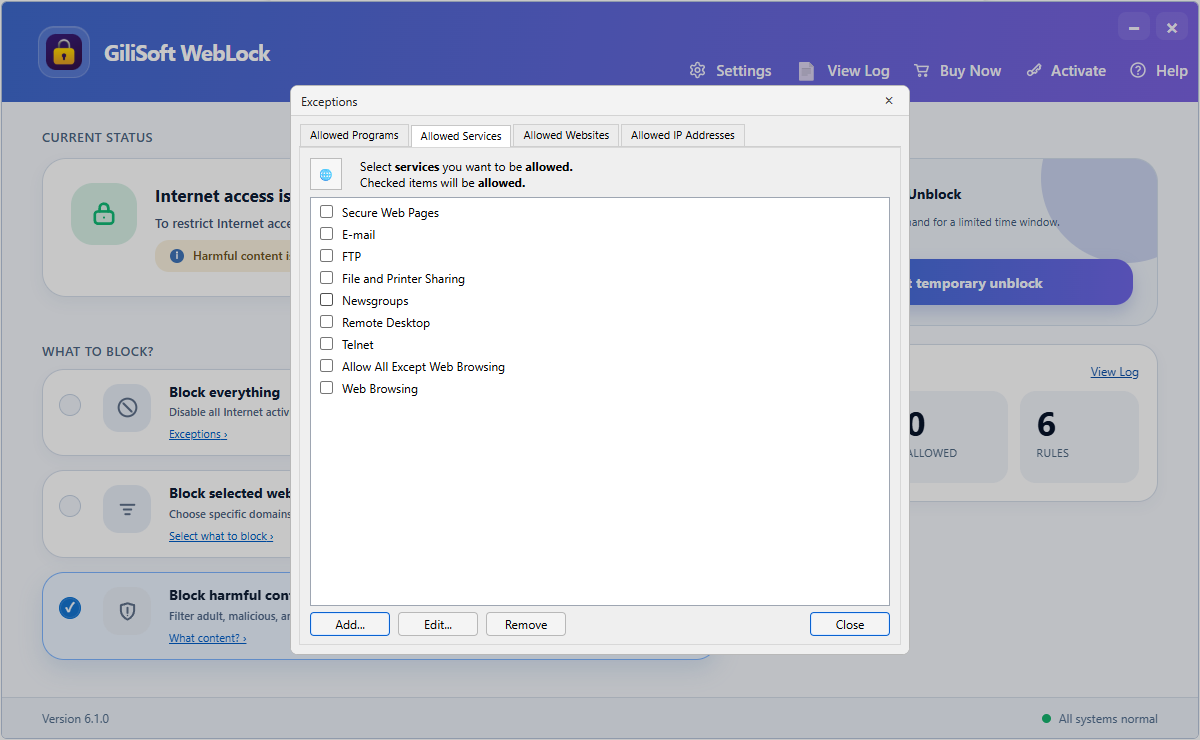
Preserve a verified service without opening general internet access.
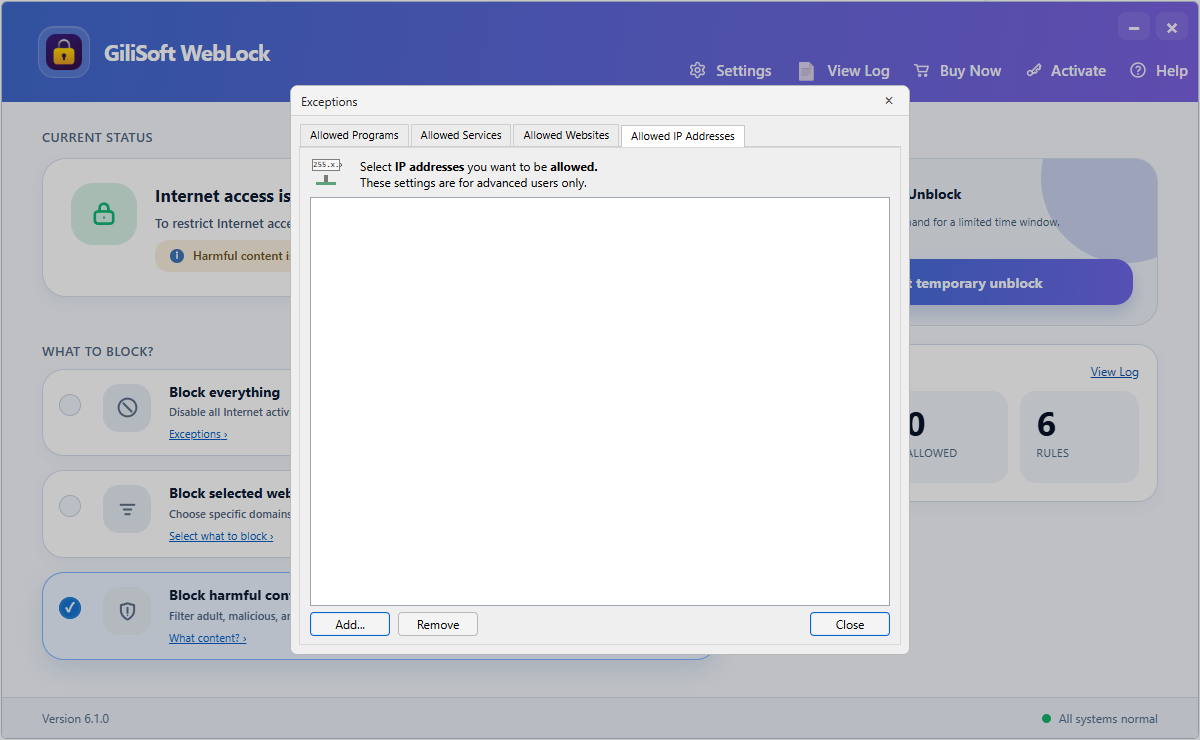
Permit a known destination IP when the application requires it.
4. Protect settings, use temporary access, and review logs
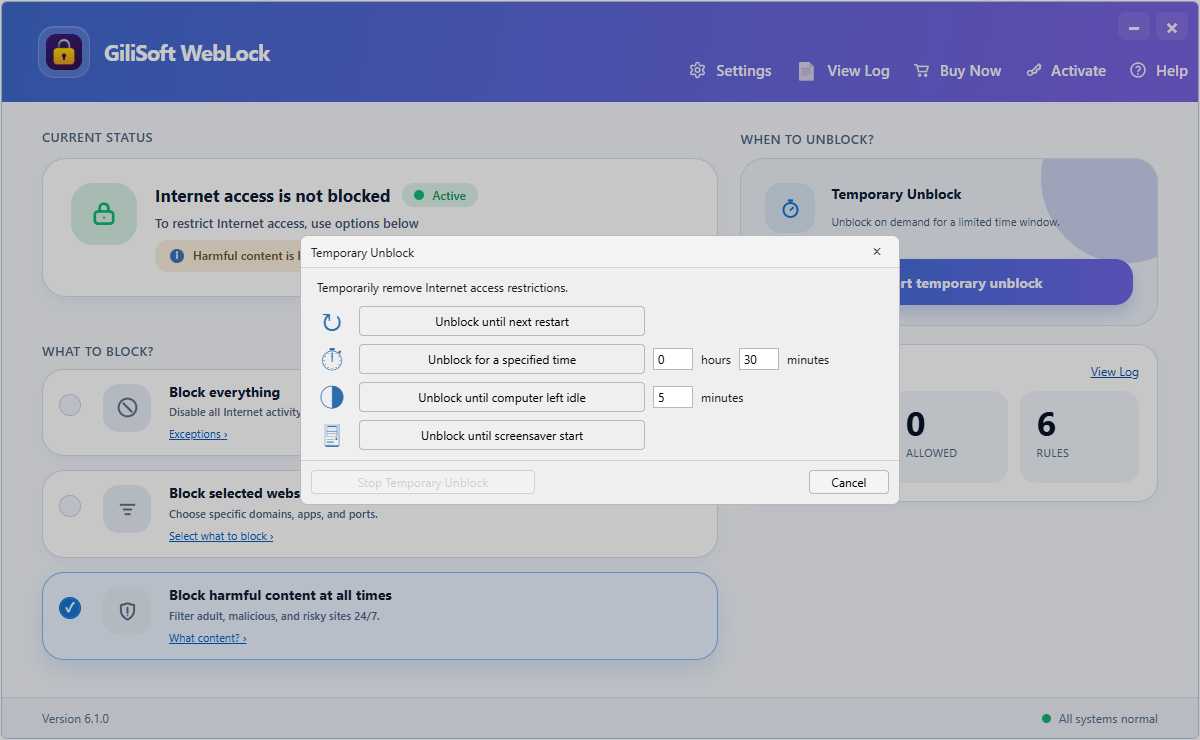
Pause restrictions until restart, for a selected period, until idle, or until the screen saver starts.
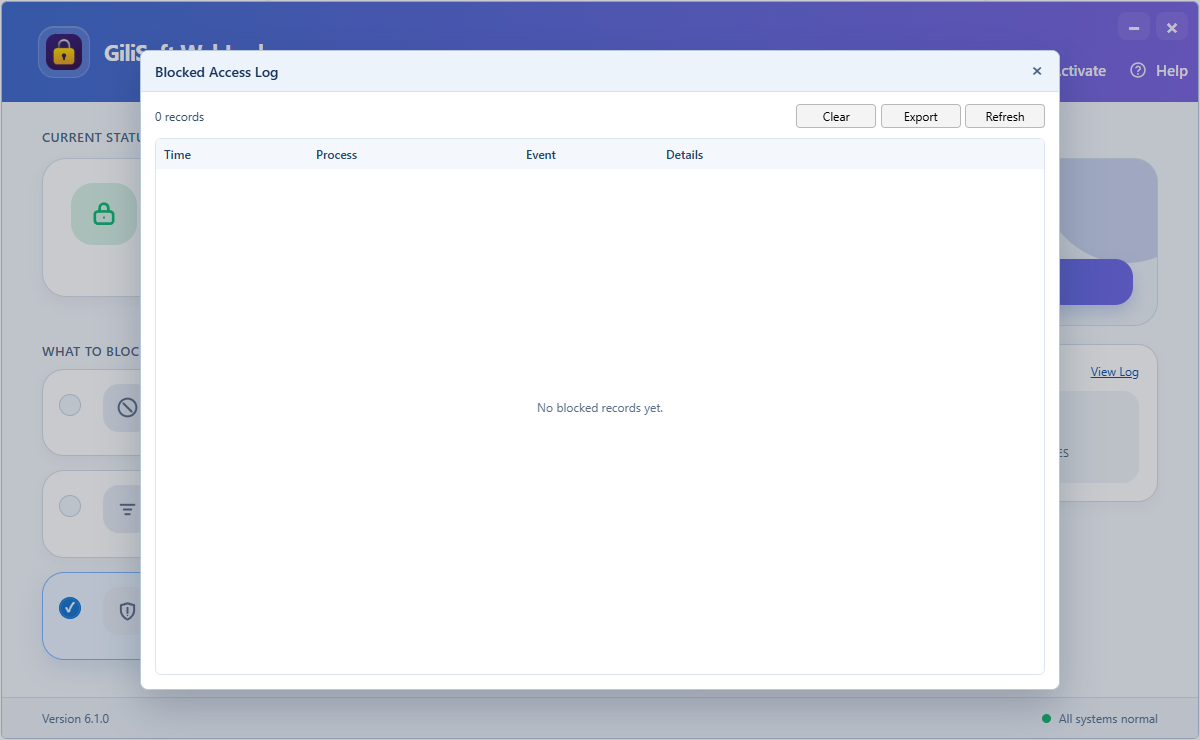
Review the event time, process, action, and details before approving a new exception.
Set the WebLock administration password before another user receives the PC. Use Temporary Unlock for approved maintenance instead of deleting the saved policy.
Block Internet Access for One Program with Windows Firewall
Microsoft documents outbound program and service rules in Windows Firewall with Advanced Security. This is useful when one executable must not send network traffic and the rest of the PC should remain online.
- Open Windows Defender Firewall with Advanced Security.
- Select Outbound Rules, then choose New Rule.
- Choose a custom or program rule and select the executable path.
- Select Block the connection, choose the applicable network profiles, name the rule, and finish.
- Launch the program and verify its online functions are blocked while other approved applications still connect.
Use the correct executable path. Some applications update into a new folder or use helper processes. Recheck the rule after application updates and do not assume a browser-only test proves that every background connection is blocked.
Restrict Websites in Managed Edge or Chrome
Microsoft Edge and Google Chrome support URL blocklists and allowlist exceptions through managed policy. Both vendors document a restrictive pattern in which all URLs are blocked and approved destinations are added as exceptions.
This approach is appropriate when the browser is managed and web navigation is the only requirement. It does not replace endpoint or gateway controls for another browser, desktop software, background services, or non-HTTP traffic.
Apply Internet Restrictions Without Breaking Approved Work
- List every website and application the PC needs
- Include sign-in, update, and support dependencies
- Test one representative Windows PC first
- Protect policy settings with an admin password
- Verify both approved and blocked activity
- Review logs before broadening an exception
- Use Temporary Unlock for maintenance
- Record who owns and reviews the policy
For company computers, explain what is restricted, who can authorize a change, and how a user reports a blocked business dependency. Large deployments can be discussed with GiliSoft for customized implementation requirements.
Frequently Asked Questions
Can WebLock disable all internet access but allow one program?
Yes. Start with a restrictive default policy, add the approved executable, then allow only the services, websites, or IP destinations that application requires.
Can I restrict websites without blocking the whole internet?
Yes. Choose selected website and service restrictions so approved browsing and Windows applications remain available.
How do I temporarily restore access?
Use WebLock Temporary Unlock. Restrictions can resume after restart, after a selected duration, when the PC becomes idle, or when the screen saver starts.
Can users change the internet rules?
WebLock settings can be protected with an administration password so ordinary users cannot casually alter the policy.
Is Windows Firewall enough for company-wide internet control?
Firewall rules are useful for specific programs, ports, and destinations. Centralized user, device, URL, and traffic policies usually require managed browser, endpoint, or secure web gateway administration.
Official References
Control Internet Access on This Windows PC
Use GiliSoft WebLock to apply the right default policy, preserve approved access, protect changes, and review blocked events.