

How to Password Protect Internet Access on Windows
Protect the internet rules on a shared, family, study, or work PC so ordinary users cannot restore unrestricted browsing without the administrator password.
Can You Put a Password on Internet Access in Windows?
Yes, but first identify what the password should protect.A Wi-Fi password controls which devices join the wireless network. A router administrator password protects the router configuration. For an already connected Windows PC, GiliSoft WebLock protects the local internet rules with an administrator password so another user cannot simply turn unrestricted access back on.
Windows does not provide one built-in switch that asks for a password before every browser session or application connection. A practical shared-PC setup is to create the required internet policy, preserve approved resources, and password protect the policy itself.
Choose the Right Type of Internet Password
A saved Wi-Fi password is not a browsing policy. Once the PC is connected, the user can normally browse and run internet-enabled applications unless separate Windows, browser, router, or WebLock rules restrict that activity.
Compare Ways to Password Protect Internet Access
| Method | What the password protects | Best use | Does it control an already connected user? |
|---|---|---|---|
| GiliSoft WebLock | Internet-control settings on the Windows PC | Shared PCs, study computers, front desks, kiosks, and workstations | Yes, through saved website, program, service, IP, and default-access rules |
| Wi-Fi security key | Joining the wireless network | Keeping unknown devices off the Wi-Fi network | No, not after the password is saved and the PC is connected |
| Router admin password | Router configuration | Protecting SSID, Wi-Fi security, DNS, and router-wide controls | Only through controls available in that router |
| Windows Firewall | Windows administrator access to firewall rules | Blocking a specific executable, address, port, or protocol | Yes, when the correct outbound rules are configured |
Best fit for one Windows PC: use WebLock when the goal is understandable password-protected internet control, approved exceptions, temporary access, and a record of blocked attempts in one interface.
Password Protect Windows Internet Rules with WebLock
1. Set the administrator password
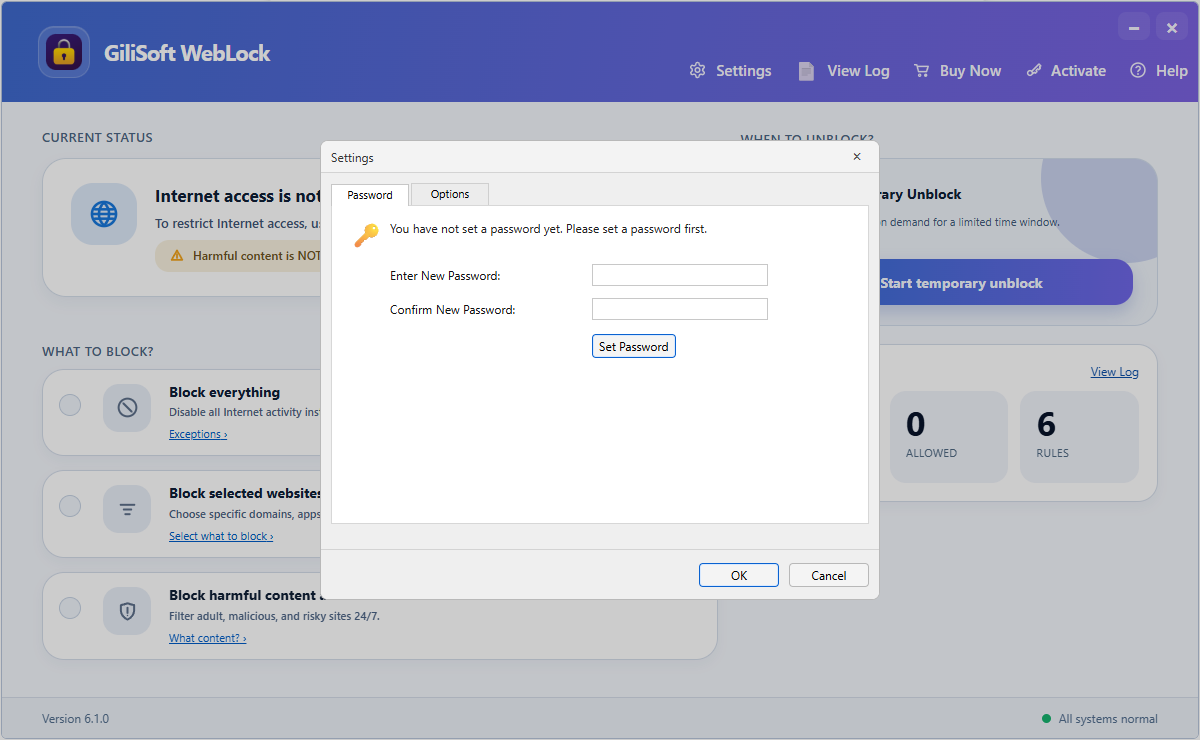
Use a password known only to the person responsible for changing internet restrictions and approved exceptions.
- Open GiliSoft WebLock and go to the password settings.
- Create a password that ordinary PC users do not know.
- Store the recovery information securely before handing over the computer.
- Close and reopen WebLock to confirm that protected settings require the password.
2. Choose what the PC may access
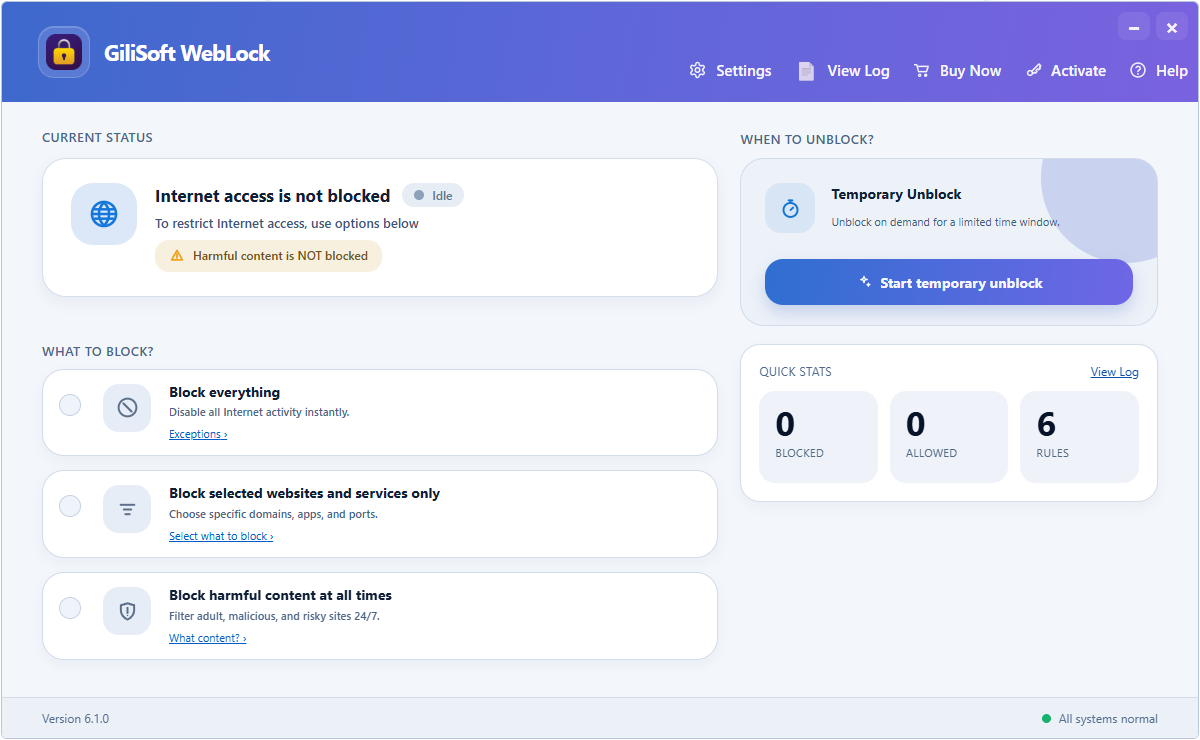
Select a strict default policy for a controlled PC or block only selected websites and services when general access should remain available.
Choose the policy that matches the computer's real job. A front-desk PC may need only a few company portals, while a family or study PC may need ordinary access with selected websites and online services restricted.
3. Add approved websites and programs
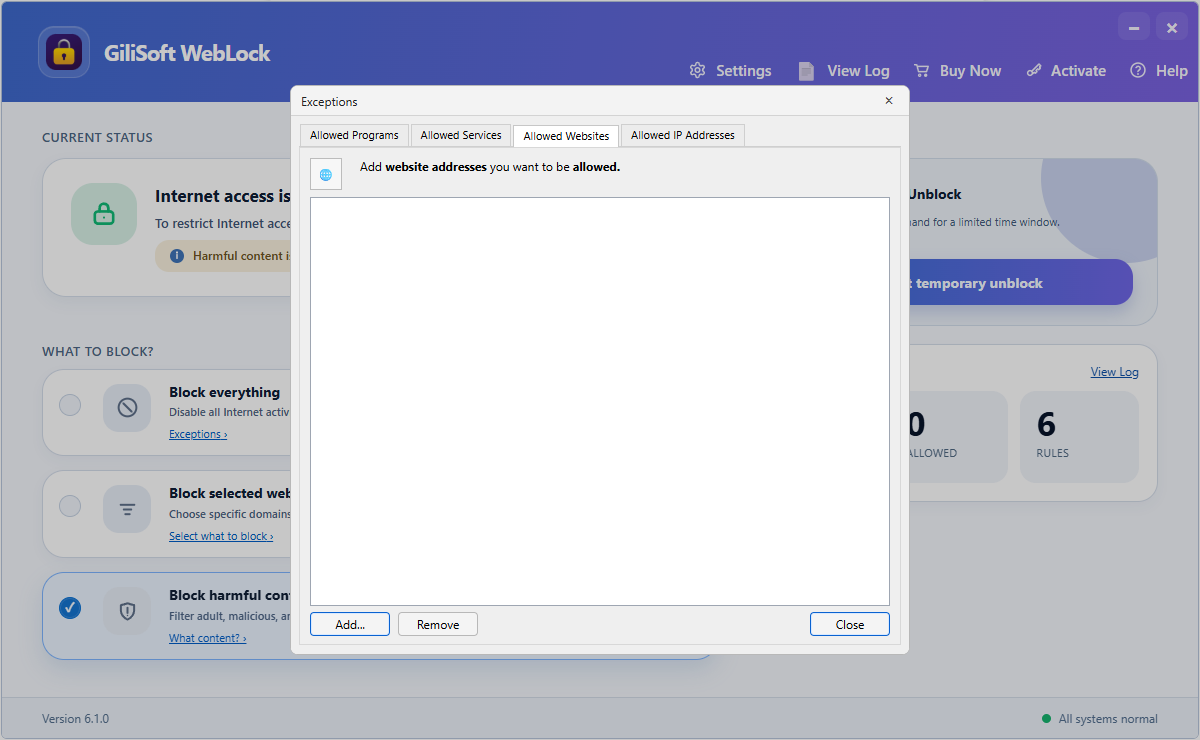
Allow company portals, learning systems, payment pages, or other verified destinations.
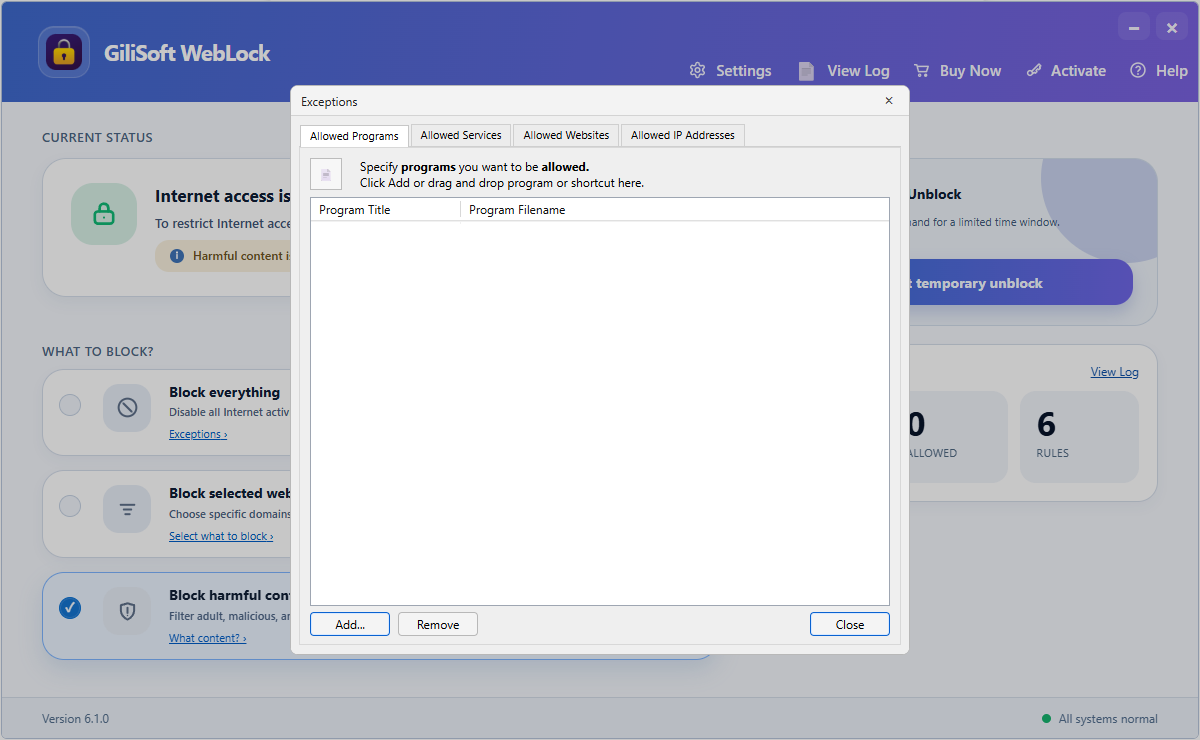
Keep required Windows applications online while the broader internet policy remains active.
If an approved application still fails, check whether it uses another executable, service, website, or IP address. Add only the dependency you have verified rather than opening general access.
4. Use Temporary Unlock for approved access
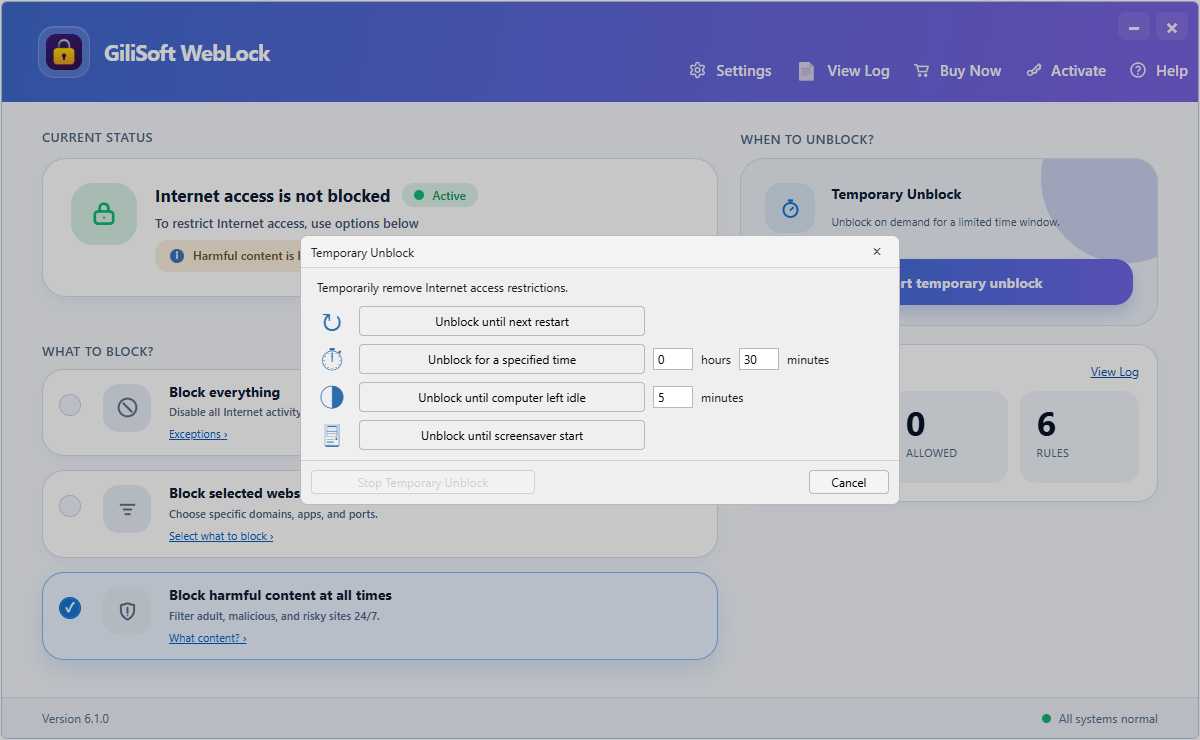
Pause restrictions until restart, for a selected duration, until the computer becomes idle, or until the screen saver starts.
Temporary Unlock is useful for software maintenance, a supervised browsing session, or a short support task. The saved policy remains intact and can resume automatically.
5. Review blocked attempts
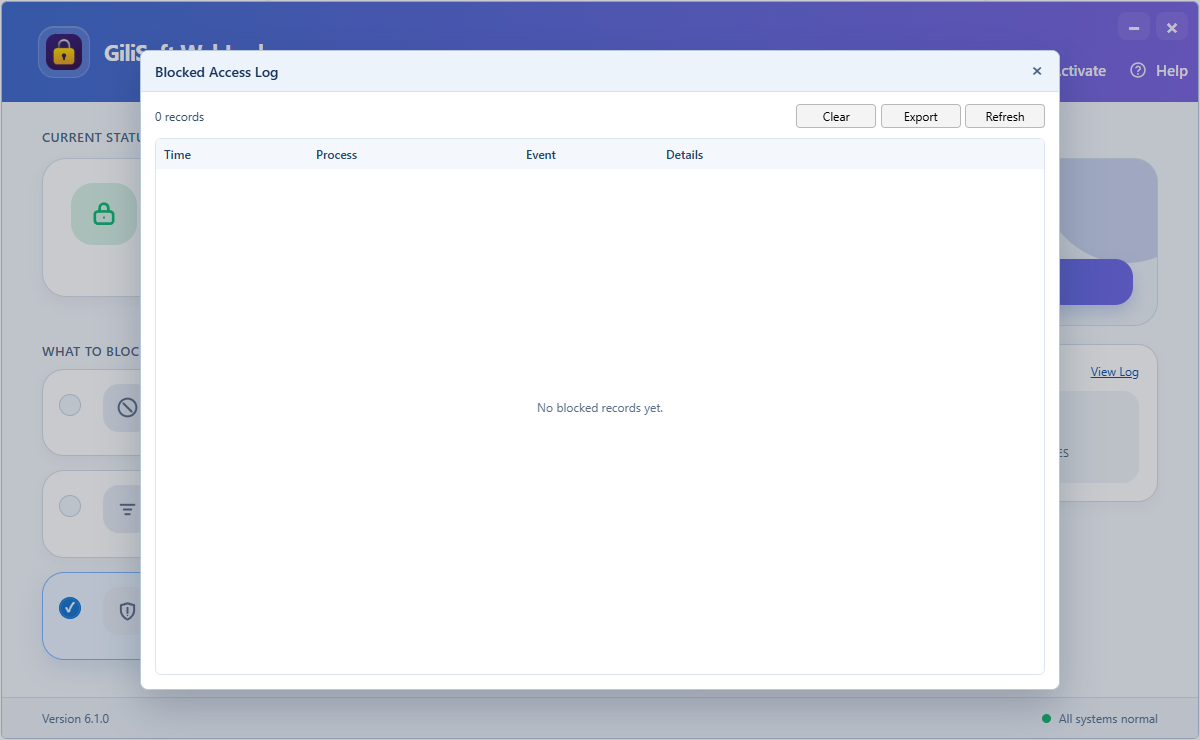
Use the event time, process, action, and details to decide whether a blocked request is expected or needs a narrow exception.
Where Password-Protected Internet Rules Are Useful
Shared family or study PC
Keep the intended browsing rules active when several people use the same Windows account or computer. The administrator can approve a temporary exception without sharing the policy password.
Reception, kiosk, and front-desk PC
Allow the booking system, company website, payment portal, and support tools while preventing unrelated browsing or application access.
Workstation with a focused role
Keep the websites and Windows programs required for one job while reducing access to entertainment, downloads, or unapproved services.
Computer used by guests
Protect the saved policy before guests receive access, then review blocked events instead of relying on browser history alone.
Test the Policy Before Other Users Sign In
- Confirm the WebLock password is required
- Open every approved website and program
- Test one website that should be blocked
- Check required sign-in and update services
- Test Temporary Unlock and automatic resume
- Reconnect Wi-Fi and restart the computer
- Review the blocked-attempt log
- Record who may authorize policy changes
Frequently Asked Questions
Can I require a password before internet access works?
WebLock protects the administration of the access policy. Depending on the saved rule, users can have no internet access, limited access, or approved access without knowing the administrator password.
Will changing the Wi-Fi password restrict someone already using the PC?
It may disconnect the PC until the new password is entered, but after the PC reconnects it does not control browsing destinations or applications. Use a local access policy when the user should remain connected but restricted.
Can I allow one website or program while everything else is blocked?
Yes. Add the approved website, executable, service, or IP address as an exception and test all dependencies before deployment.
Can access be restored for a short time?
Yes. Temporary Unlock can resume the saved policy after restart, a selected duration, idle time, or the screen saver.
Does this replace the router password?
No. Keep a strong router administrator password and secure Wi-Fi. WebLock addresses a different task: controlling internet use on the Windows PC after it is connected.
Official References
Keep the Internet Policy Under Administrator Control
Use GiliSoft WebLock to password protect the rules, preserve approved access, grant temporary access, and review blocked attempts on a Windows PC.