
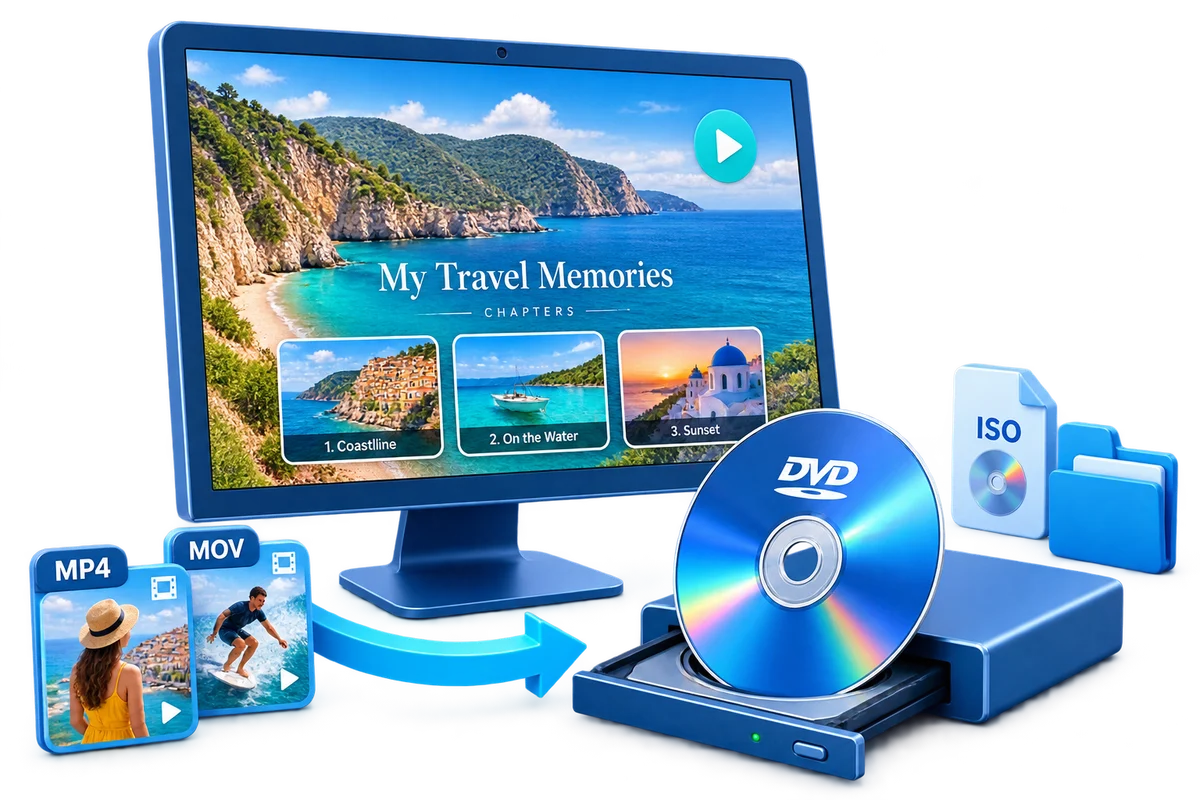
Choose the Output by How It Will Be Used
| Goal | Best choice | Why |
|---|---|---|
| One family event | Single title with chapters | Jump to ceremony, speeches, or activities |
| Several dates or occasions | Title menu | One button per event |
| Disc for older relatives | Simple large-button menu | Prioritize readability and predictable playback |
| Long-term preservation | Original files plus ISO | Keep camera masters separately from the viewing DVD |
Prepare Before Creating the DVD
Back up originals
Copy camera and phone files to at least one separate location.
Remove accidental footage
Trim blank starts, camera movement, and unwanted endings.
Name events consistently
Use dates and short event names for menu labels.
Ask before sharing
Respect the privacy of everyone shown in personal recordings.
How to Burn Home Videos to DVD: Step by Step
Collect the final clips
Place the chosen home videos in a local project folder and verify playback.
Arrange the story
Order clips by date, event, or the sequence viewers should follow.
Make light corrections
Trim distractions, correct rotation, and add only useful captions or subtitles.
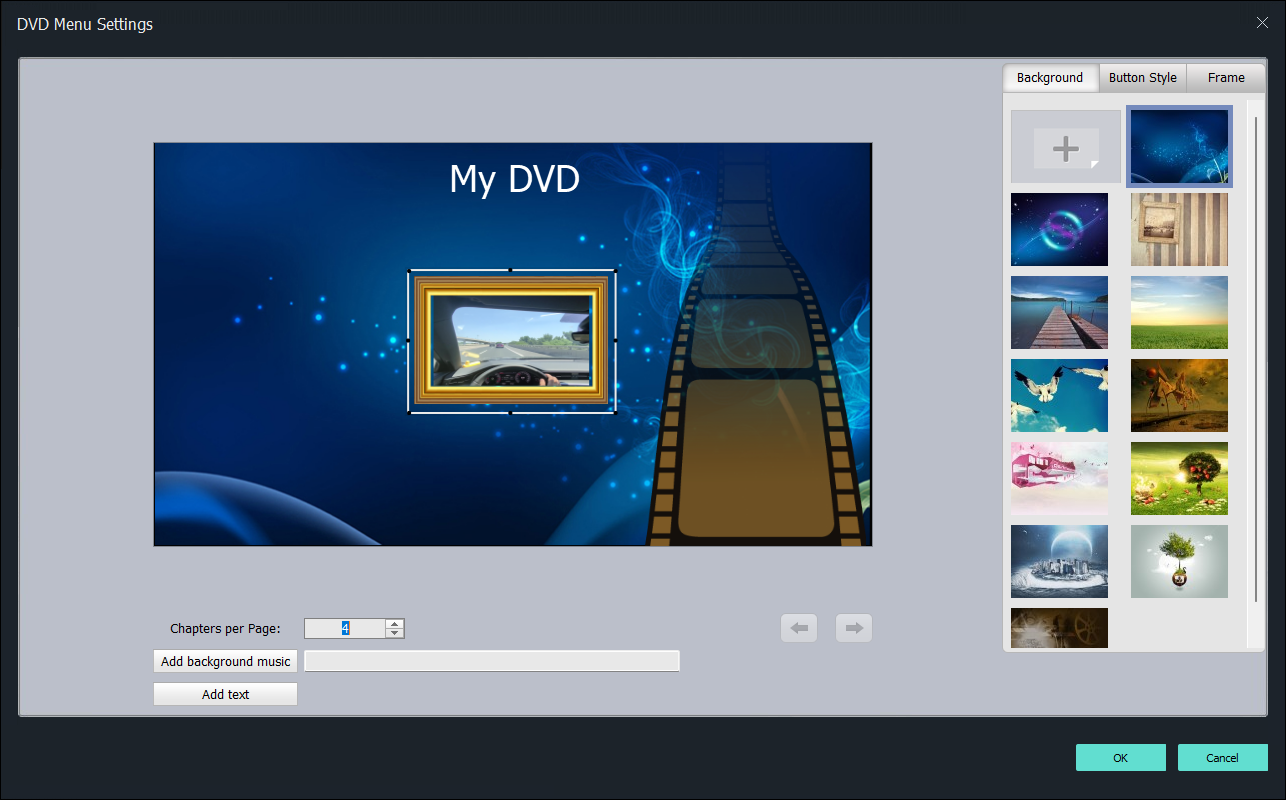
Build a simple menu
Use a calm background, large labels, and a small number of choices per page.
Preview as a family viewer
Check every title, chapter, and return-to-menu action.
Create an ISO and disc
Keep the ISO master, burn reliable media, label it, and test the target player.
Make a Family DVD Easier to Watch
Lead with the event
Use names such as Graduation 2026 instead of camera filenames.
Keep menus quiet
A clear family photo and readable labels work better than busy decoration.
Split long recordings
Useful chapters prevent repeated fast-forwarding.
Store more than the disc
Keep original files and an ISO because recordable media is not the only archive.
Author the Complete Project with GiliSoft Movie DVD Creator
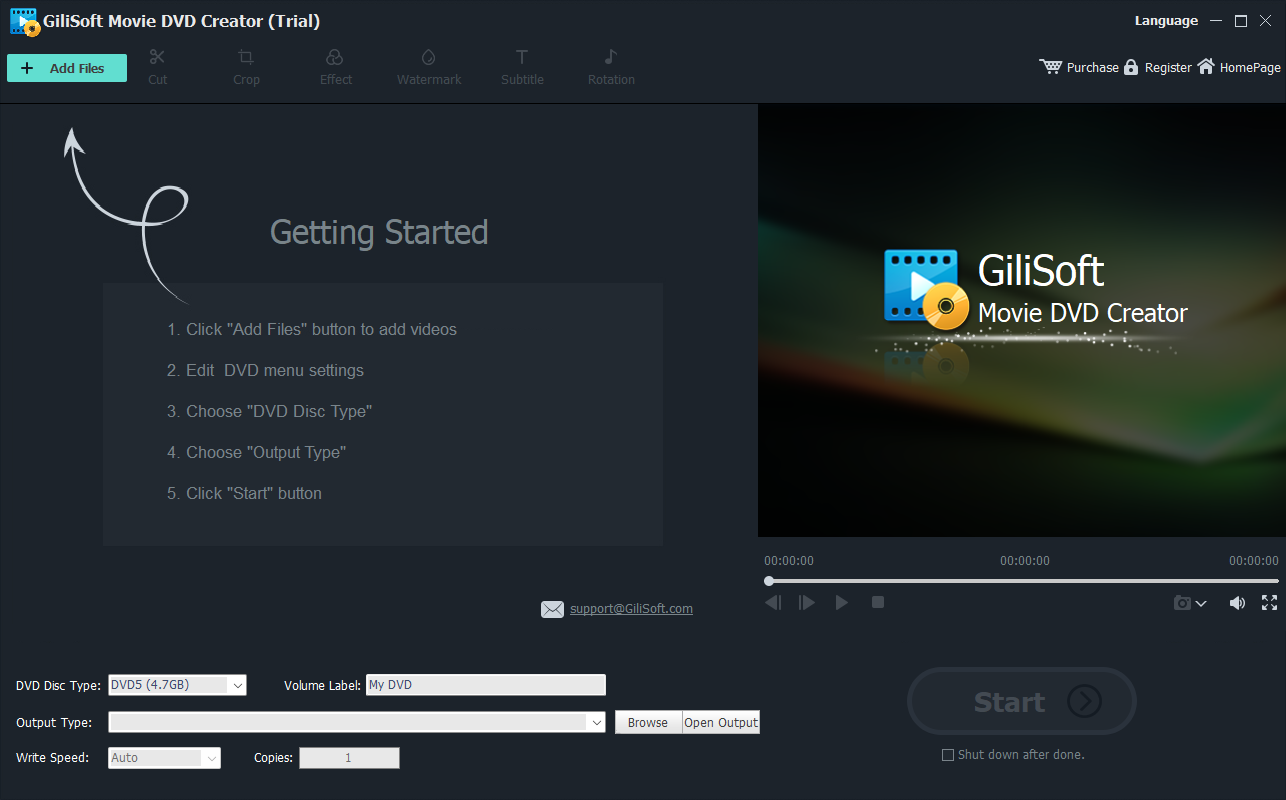
GiliSoft Movie DVD Creator keeps source preparation, titles, chapters, menu design, PAL or NTSC selection, preview, and disc, ISO, or DVD-folder output in one workflow. It is intended for creating DVD-Video, not merely copying loose video files to optical media.
Troubleshooting
- A phone video is sideways: correct rotation before building the menu.
- Dates are confusing: use one consistent date format and chronological order.
- Labels are too small on a TV: shorten the wording and use fewer buttons.
- The disc stops during a title: test the source, recreate an ISO, and try reliable media.
- A replacement disc is needed: burn it from the saved ISO rather than rebuilding the project.
Create Discs Only from Authorized Video
Use recordings you own or have permission to copy and distribute. DVD creation does not override copyright, privacy, licensing, or technical protection.
Frequently Asked Questions
Should I keep the original home-video files?
Yes. The DVD is a viewing copy; preserve the original-resolution camera files separately.
How should I organize several family events?
Use one title per event and short labels arranged chronologically.
Can I add chapters to a long ceremony?
Yes. Place chapters at meaningful points such as arrivals, speeches, and performances.
Should I use background music on the menu?
Use it sparingly and only when you have permission to include the recording.
Is an ISO useful for home videos?
Yes. It preserves the authored layout and makes replacement discs easier.
How do I share private family recordings responsibly?
Get permission from the people involved and control who receives the disc or image.