
Choose the Right Workflow First
| Approach or project | Best fit | What to protect |
|---|---|---|
| Product demo | Show one workflow or outcome | Screen footage, callouts, narration, and a concise next step |
| Training video | Teach a repeatable task | Chapters, captions, examples, and a controlled pace |
| Sales or marketing video | Explain value without losing credibility | Strong opening, proof, brand consistency, and clear delivery |
| Internal update | Communicate decisions efficiently | Focused message, readable data, and accessible captions |
Prepare Before Editing
A short preparation pass prevents avoidable rework after timing, text, audio, or output choices have already been made.
Write a one-sentence objective
Define what the viewer should understand or do after the video.
Collect approved assets
Use current logos, colors, screenshots, product names, and authorized music.
Set a review owner
Decide who approves factual accuracy, brand presentation, captions, and the final export.
How to Complete the Workflow on Windows
Follow the steps in order and delay decorative work until the structure and essential sound are stable.
Create a brief and delivery specification
Record the audience, objective, duration, frame shape, resolution, deadline, and approvers.
Organize footage and approved assets
Separate screen recordings, camera clips, narration, logos, images, music, and subtitle material.
Build the message before styling
Arrange the strongest explanation, remove repetition, and make each section support the objective.
Add narration, text, subtitles, and branding
Keep speech clear and apply consistent placement, typography, colors, and logo treatment.
Run factual and visual review
Verify product steps, names, numbers, claims, captions, permissions, and the requested action.
Export a review copy and final master
Collect time-coded feedback, resolve it in one project, then test the approved deliverable.

Keep Business Video Production Consistent
Use a project brief
A short approved brief prevents late disagreement about purpose, audience, and duration.
Standardize repeated elements
Use consistent opening, title, logo, caption, color, and closing rules across a series.
Review facts and accessibility
Check names, numbers, interface steps, captions, and visual contrast before approval.
Archive the approved package
Keep the project, sources, licenses, subtitle files, and final master together.
Where Video Editor Pro Fits
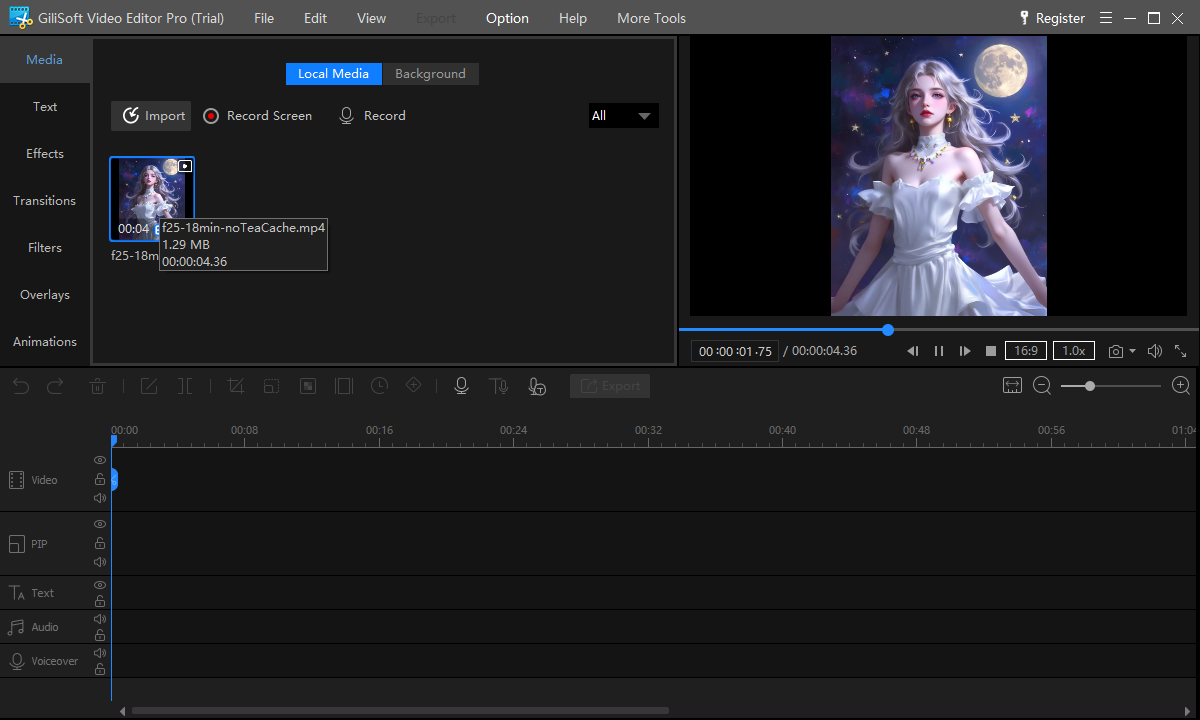
GiliSoft Video Editor Pro fits teams that need local Windows editing with a multitrack timeline and focused tools for video, audio, text, subtitles, overlays, transitions, and export. Test it with a complete representative project and your actual review process.
Review the GiliSoft Video Editor Pro product page for the current feature overview or use the Video Editor Pro user guide for task-level instructions.
Troubleshooting and Quality Checks
- Feedback conflicts: return to the approved objective and assign one final decision owner.
- Branding feels heavy: reduce decorative elements and protect the product or speaker as the main subject.
- Narration is unclear: rebalance music and replace weak lines instead of adding more visual effects.
- Captions contain errors: proofread names, numbers, acronyms, and product terminology manually.
- Revisions break timing: finish structural changes before final subtitles and precise overlays.
Approve the Message, Then Approve the File
A business video can be technically correct and still communicate the wrong thing. Review purpose and facts first, presentation second, and the actual exported file last.
Frequently Asked Questions
What business videos can I edit on Windows?
Common projects include product demos, training, onboarding, sales clips, support explanations, presentations, and internal updates.
Can I add a logo and brand text?
Yes. Use consistent placement and restrained sizing so branding does not cover the subject or interface.
Can a team review the same project?
The editor is a local desktop workflow. Export review copies and consolidate time-coded feedback before changing the master project.
Should business videos include subtitles?
They are useful for accessibility, silent viewing, localization, and technical clarity, but still require careful proofreading.
Can I use screen recordings and camera footage together?
Yes. Match framing, color, audio, and pacing so mixed sources feel intentional.
How should I evaluate the trial?
Use a representative project with approved assets, captions, narration, and your real delivery settings.