How Should Text and Music Work Together in a Video?
Quick answer
Text should identify, explain, or reinforce information the viewer needs. Music should support pacing and tone without masking speech, alerts, or important natural sound.
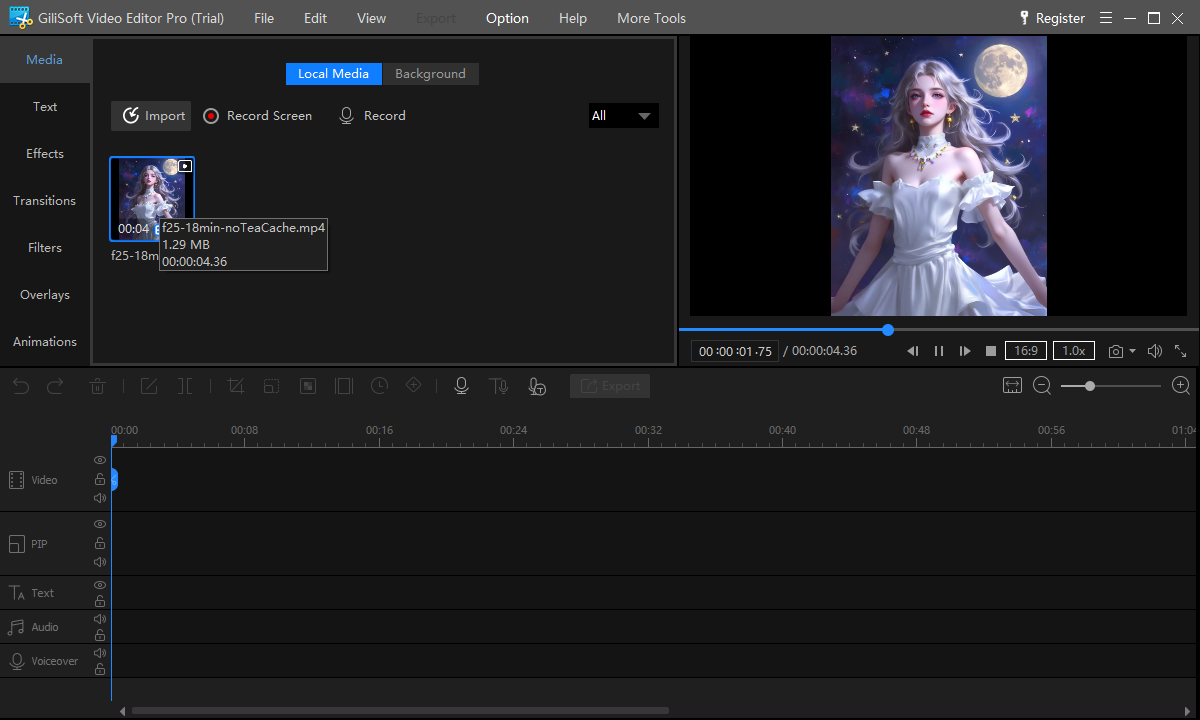
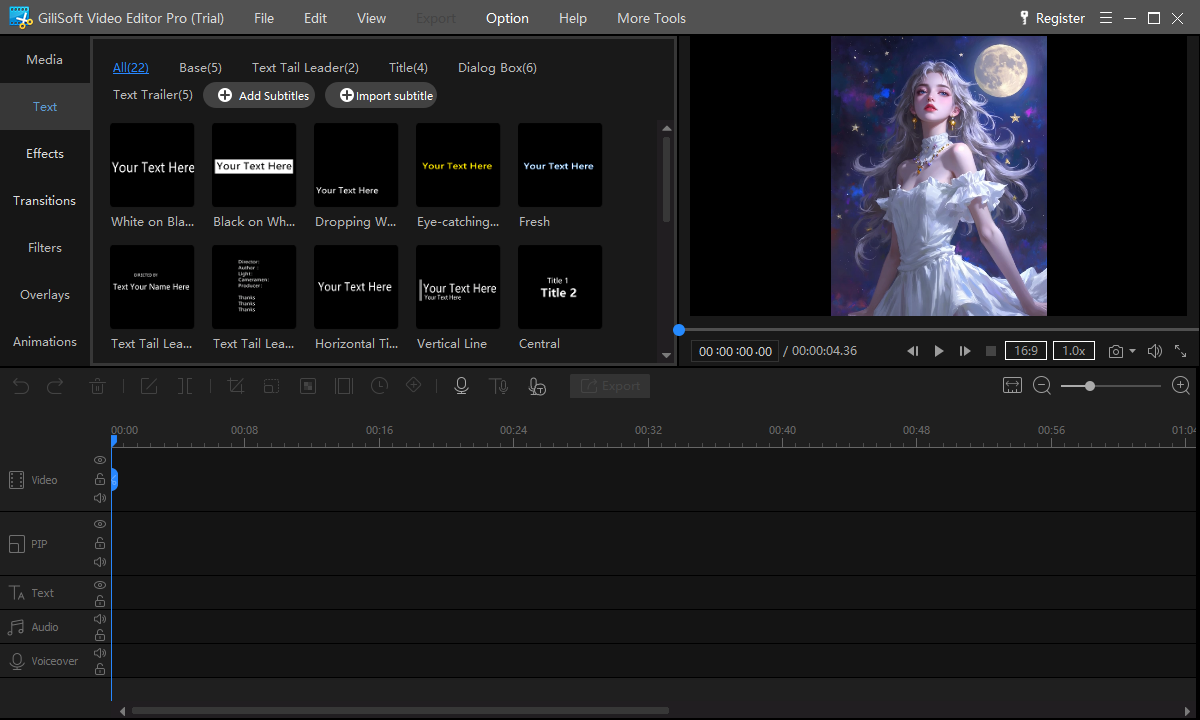
GiliSoft Video Editor Pro lets Windows users combine video, text, subtitles, music, voiceover, and other audio on a timeline, then adjust timing and presentation before export.
Complete the main cut first. Add text after scene timing is stable, then mix voice and music while watching the actual picture. This prevents captions from drifting and avoids rebuilding audio fades after every structural change.
Choose the Right Text and Audio Element
Each element should have one clear job. Avoid using a title as a paragraph or background music as a substitute for clear narration.
Communication need
Best starting point
Common mistake
Name the video or section
Short title or chapter heading
Displaying a long sentence before the viewer sees the subject
Identify a speaker or product
Lower third with a name and concise role
Covering the face, captions, or important interface controls
Represent speech and important audio
Timed captions or subtitles
Publishing automatic output without checking names, numbers, and timing
Explain what the viewer cannot see clearly
Narration, voiceover, or a short callout
Repeating every visible word without adding useful context
Support pace or mood
Licensed background music mixed below essential sound
Choosing a track first and cutting the whole message around it
How to Add Text and Music to a Video on Windows
Use this order to keep speech clear, text synchronized, and revisions manageable.
The multitrack workspace keeps footage, text, music, and voiceover aligned with the same edit.
Finish the main picture edit
Arrange clips, remove mistakes, set the pace, and confirm the final duration. Keep dialogue and important source audio aligned with the correct scenes.
Add narration or voiceover
Place speech on its own track, remove unusable sections, and listen for noise, clipped words, sudden level changes, or timing that conflicts with the picture.
Create titles and essential on-screen text
Add the video title, section headings, speaker labels, short instructions, and final action. Keep text concise, readable, and visible long enough to understand.
Add and verify subtitles
Create subtitle text or import a subtitle file after the main timing is stable. Correct wording, speaker names, technical terms, numbers, synchronization, and line breaks.
Add licensed music and sound effects
Trim the track to the required section, align important beats only where useful, and add fades at natural boundaries. Keep source and license information with the project.
Mix, preview, and export
Lower music beneath narration, check quiet and loud sections, listen on speakers and headphones, then export a test and verify the complete text and audio presentation.
Test with real dialogue, titles, and music
Use representative narration, subtitle text, licensed music, and the devices your audience normally uses.
Choose a suitable text style for the information hierarchy
Edit wording, timing, font treatment, color, and placement while previewing the scene
Keep essential text away from the edge and from other important visual content
Use focused text and speech utilities
Access supported subtitle extraction, document-to-video, and text-to-speech workflows
Review generated wording, pronunciation, timing, and visual layout before publishing
Use focused tools when the job does not require a full multitrack edit
Place music, narration, and sound on separate tracks
Align audio with the exact scene, action, or title it supports
Trim unwanted sections and keep dialogue independent from background music
Preview the complete mix whenever picture timing changes
Handle common audio corrections and conversions
Open available music, source-audio, silence, voice, noise, and conversion tools
Use a focused utility for an isolated correction instead of rebuilding the project
Retain an untouched source copy before destructive audio processing
Review picture, text, and audio in one timeline
Check whether titles and subtitles appear with the correct footage
Balance music and voice while watching the scene at normal speed
Keep the project organized so later text or audio revisions remain manageable
Practical Ways to Combine Text and Music
Product demonstrations
Use concise feature labels, verified captions, voiceover, and low background music without covering the interface.
Tutorial and training videos
Combine step headings, commands, subtitles, narration, and restrained music that does not compete with instruction.
Interviews and testimonials
Add speaker names, roles, selected quotations, captions, and short music beds between sections.
Presentation videos
Turn slides and narration into a paced video with readable headings, supporting music, and a clear closing action.
Social video clips
Use large concise text, captions for muted viewing, and music licensed for the intended platform and use.
Personal and event videos
Add names, dates, locations, short messages, music, and natural sound while preserving important spoken moments.
Make Video Text Readable
Text must remain understandable over moving and changing backgrounds. W3C guidance highlights font choice, size, and contrast as practical considerations for overlay text.
Keep wording concise
Break information into a title and supporting line instead of shrinking a paragraph until it fits.
Protect contrast
Choose text and background treatment that remain distinct over both bright and dark parts of the footage.
Allow reading time
Preview at normal speed and leave the text visible long enough for a new viewer, not only the editor, to understand.
Use consistent placement
Keep titles, lower thirds, and subtitles inside safe margins and away from faces, controls, logos, and other text.
Text and Music Review Checklist
Review the complete exported file, not only the timeline. Check both muted playback and audio playback on representative devices.
Text accuracy
Confirm names, titles, dates, prices, commands, numbers, spelling, punctuation, and the final call to action.
Text presentation
Check contrast, size, line breaks, duration, safe margins, subtitle timing, and overlap with other visible elements.
Speech clarity
Listen for noise, clipped words, sudden level changes, music masking speech, and effects that distract from essential sound.
Music edit and license
Verify the correct track and version, clean start and end points, fades, attribution, platform terms, and proof of permission.
Use Music You Are Allowed to Publish
Finding a track online does not grant permission to use it. Confirm who owns the recording and composition, whether commercial use is allowed, which platforms are covered, whether attribution is required, and whether the license remains valid for client or advertising work.
YouTube states that tracks from its own Audio Library are known to it as copyright-safe for YouTube, while music described as “free” elsewhere can still cause claims. For other destinations, follow the terms supplied by the music owner or licensing service and retain the receipt, license text, attribution, and source URL with the project.
GiliSoft Video Editor Pro provides the Windows editing environment for combining text, subtitles, voiceover, music, and video. It does not supply legal rights to third-party music. Review the product page and Video Editor Pro User Guide for the wider workflow.
Evaluate text and audio with your real project
Test title readability, subtitle timing, voice clarity, music levels, fades, focused audio tools, and final export.
Yes. You can add titles, subtitles, captions, music, voiceover, and other audio elements to a Windows video editing project.
How loud should background music be under speech?
There is no single value for every recording. Lower the music until every word remains clear through loud and quiet passages, then check speakers, headphones, and representative audience devices.
Should I add subtitles before finishing the edit?
Finish the main cut first. Add or finalize subtitles after clip timing is stable so later deletions do not create unnecessary synchronization work.
Can I use any royalty-free song?
No. “Royalty-free” does not mean unrestricted. Read the actual license for attribution, commercial use, platform, territory, duration, client-work, and redistribution conditions.
Why is text difficult to read over video?
The background may change in brightness or detail. Shorten the wording, increase contrast, adjust placement, and use a controlled background treatment when necessary.
Can I try GiliSoft Video Editor Pro before buying?
Yes. Download the trial and test text styles, subtitles, voiceover, music, audio tools, mixing, and export with your own media.