
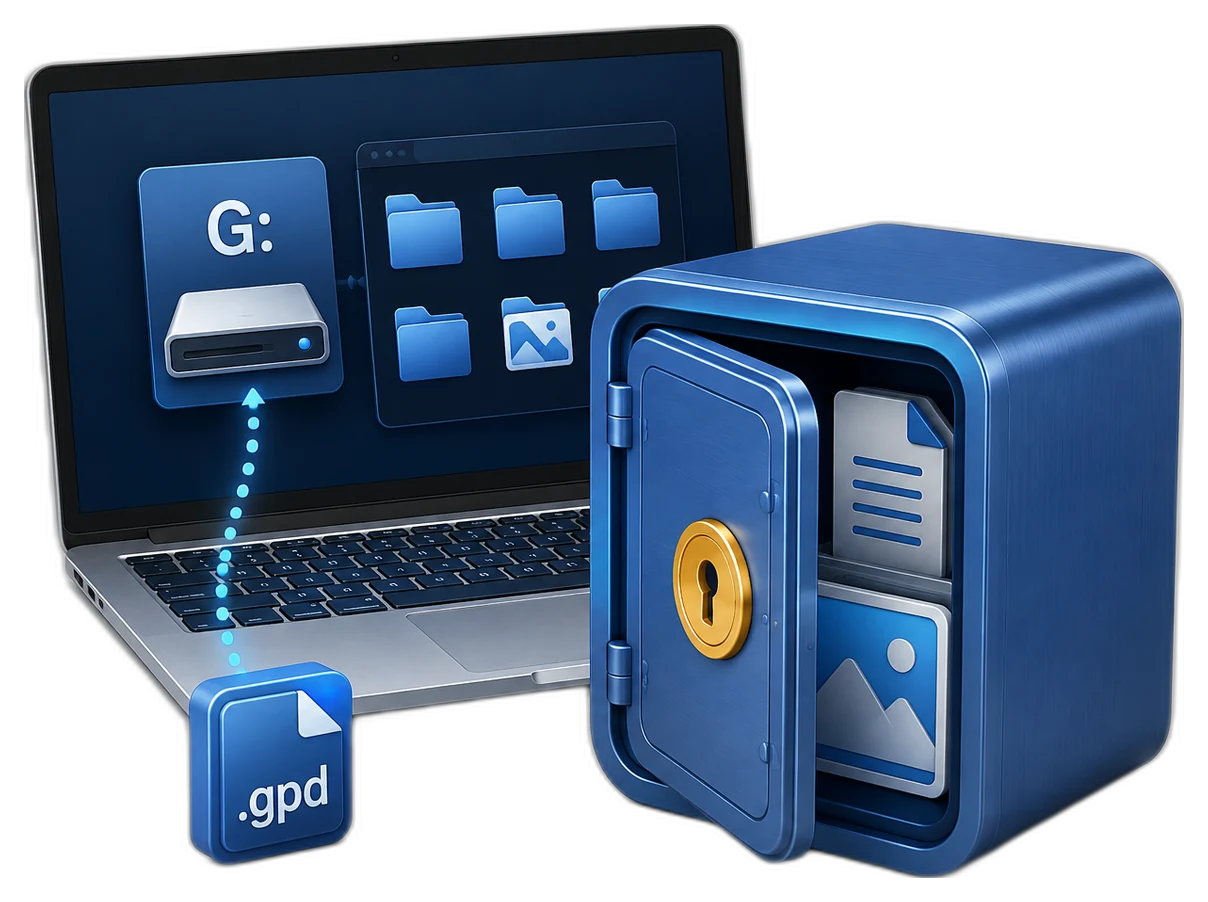
Plan the Virtual Disk Before You Create It
| Situation | Recommended approach | Why it fits |
|---|---|---|
| Container location | Stable local or approved external storage | The .gpd file must remain available and backed up |
| Maximum size | Current data plus expected growth | Avoid an undersized locker or an overcommitted host drive |
| Password | Long and unique | Protects access to the encrypted container |
| Backup destination | Separate controlled storage | Supports recovery after deletion or device failure |
Before You Click Create Locker
Check free space
Leave enough capacity on the host drive for the container and normal Windows operation.
Choose the file category
Decide exactly which confidential records belong in this locker.
Prepare the password
Create a unique value and an approved recovery record before migration.
Protect the original files
Keep verified source copies until the new locker and backup have been tested.
Create an Encrypted Virtual Disk in Six Steps
Open Encrypt Files
Start GiliSoft Private Disk and enter the workspace that lists private lockers.
Choose Create Locker
Start a new locker and select where the .gpd container will be stored.
Set the name and maximum size
Use a recognizable locker name and capacity that fits the host drive and expected data growth.
Create and confirm the password
Use a strong unique password and store recovery information separately.
Open the locker and add test files
Mount the new private disk, copy noncritical samples, and verify read and write behavior.
Close, reopen, and back up
Close all dependent windows, close the locker, reopen it to verify access, then back up the closed container.

Verify the New Disk Before Migrating Important Data
Open and close test
Confirm the drive appears only when the correct locker is opened.
Read and write test
Create, edit, rename, and reopen a noncritical sample file.
Capacity check
Confirm the planned files fit without exhausting the host drive.
Restore test
Copy the closed container to backup storage and confirm the recovery procedure.
Create the Locker with GiliSoft Private Disk
GiliSoft Private Disk uses a straightforward Create Locker workflow for encrypted .gpd containers. After creation, the locker can be opened as a private drive for normal file work and closed again so the protected files are no longer exposed through an ordinary drive view.
Troubleshooting
- Create Locker fails: verify the destination path, permissions, and available host-drive space.
- The new drive does not appear: reopen the locker and check for available drive letters.
- The locker closes with an in-use warning: close documents, previews, applications, and Explorer windows.
- The copied container will not open: copy only after the locker is closed and verify the complete file.
- Important files were moved too early: retain verified originals until open, close, reopen, and backup tests pass.
Security Boundaries to Remember
Protect the Windows session while the private disk is open. Closing the locker limits ordinary drive access, but no single application replaces operating-system updates, malware protection, access control, full-device security, backup, or an organization security policy.
Frequently Asked Questions
What file does GiliSoft Private Disk create?
It creates a .gpd encrypted locker that holds the protected private-disk data.
How large should the virtual disk be?
Allow for current files and expected growth while leaving sufficient free space on the host drive.
Can I change where the container is stored?
Close it first, copy the complete container carefully, reconnect it as needed, and verify access before removing the original.
Why test with sample files first?
It confirms that creation, mounting, writing, closing, reopening, and backup all work before important data is moved.
Does closing the locker erase it?
No. The private drive view closes, while the .gpd container and its files remain stored.
Should I delete the original files immediately?
No. Verify the protected copies and backup first, then follow the appropriate cleanup or retention process.