
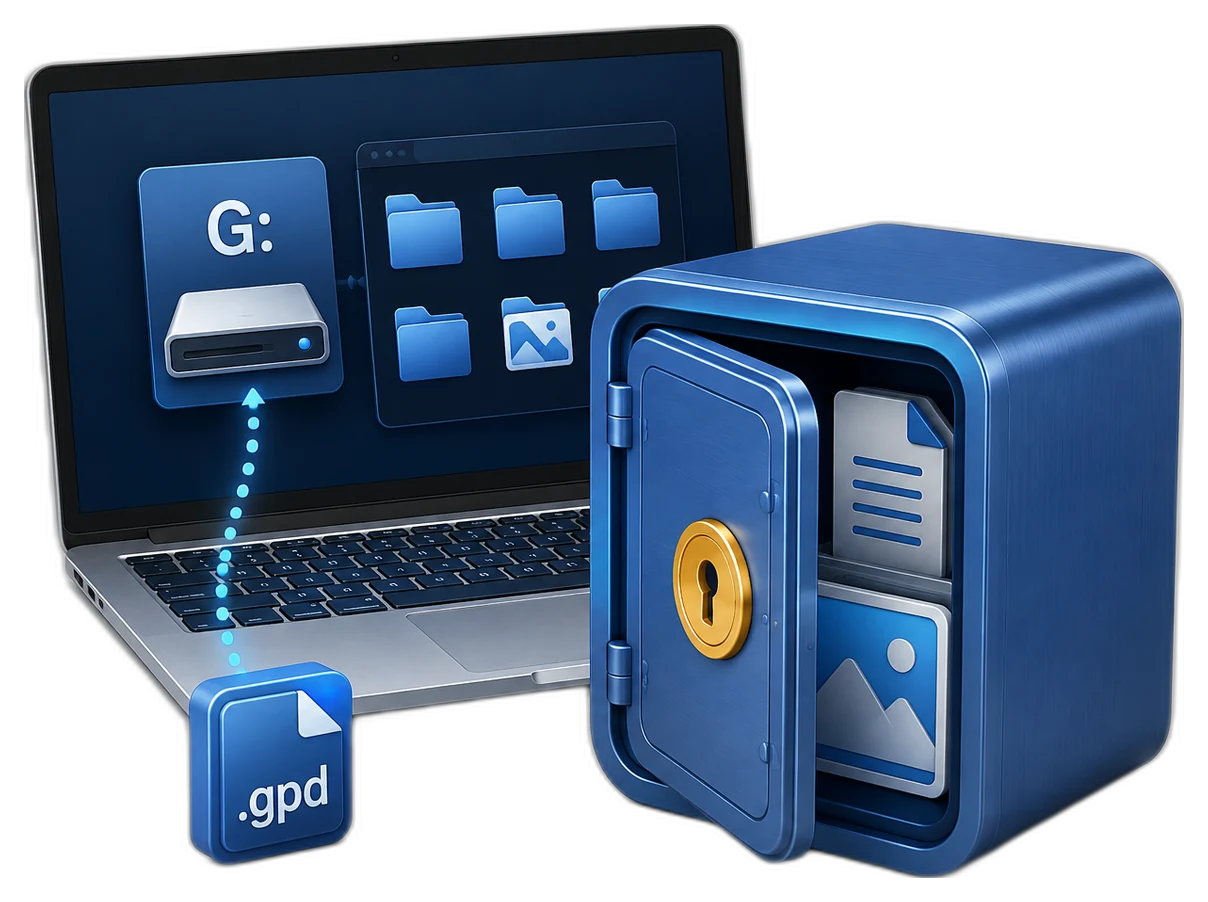
Understand What Hidden and Encrypted Each Accomplish
| Situation | Recommended approach | Why it fits |
|---|---|---|
| Encrypted and closed | Best normal state | Contents stay inside the protected container |
| Encrypted and open | Active work only | Files are available through the mounted private drive |
| Hidden but not encrypted | Visibility only | Not appropriate as the sole protection for confidential files |
| Encrypted with verified backup | Recommended for important data | Protects confidentiality and improves recoverability |
Plan the Hidden Disk Before Creating It
Choose a stable location
Do not place the only container where cleanup tools or other users may remove it accidentally.
Record the location
Authorized users must know where the container and its backup are stored.
Use a unique password
Avoid passwords reused for email, Windows sign-in, or other accounts.
Define the close routine
Saving files is not enough; close applications and then close the locker.
Create a Hidden Encrypted Disk: Step by Step
Create the encrypted locker
Open Encrypt Files, choose Create Locker, and set the .gpd location and maximum size.
Set a strong unique password
Use a long password and store it through an approved secure method.
Open the locker for private work
Mount the locker only when its protected files are needed.
Move confidential files inside
Organize the files in the private drive and verify they open correctly.
Close the locker after use
Close documents and Explorer windows, then choose Close Locker and confirm the drive is gone.
Apply visibility and backup controls
Use hiding only if appropriate, and back up the complete closed container to approved storage.

Hidden Storage Is Not a Security Boundary by Itself
Visibility is not encryption
A hidden location can still be discovered by administrators, tools, or a determined user.
Open storage is accessible
When the private disk is mounted and unlocked, protect the active Windows session.
Container location matters
Avoid temporary folders and locations likely to be synchronized or deleted unintentionally.
Backups need protection too
A copied container should remain encrypted and be stored with controlled access.
Combine Encryption and Lower Visibility with GiliSoft Private Disk
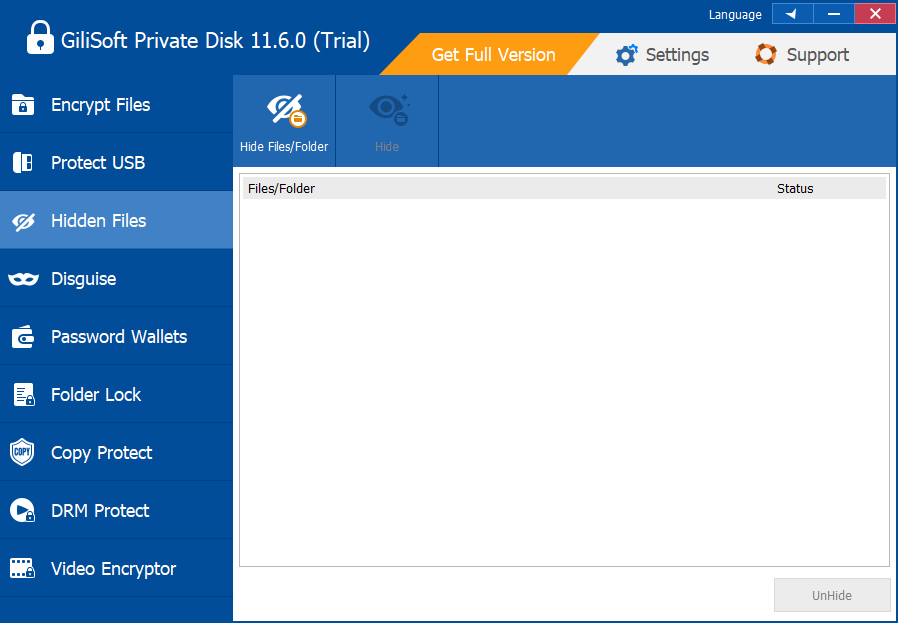
GiliSoft Private Disk creates encrypted lockers that open as a private drive and includes separate tools for hiding files or folders. This separation is useful: rely on the encrypted locker for confidentiality, and use lower visibility only when it supports the local workflow.
Troubleshooting
- The hidden container seems lost: check the recorded location and use the product workflow to restore visibility.
- The drive remains visible: close every file and window using it, then close the locker.
- A cleanup utility removed the container: restore from the verified backup and choose a safer location.
- Another user sees files during your session: lock Windows or close the private disk before stepping away.
- The backup is visible as an ordinary file: visibility is not the primary control; keep the backup encrypted and access-controlled.
Security Boundaries to Remember
Protect the Windows session while the private disk is open. Closing the locker limits ordinary drive access, but no single application replaces operating-system updates, malware protection, access control, full-device security, backup, or an organization security policy.
Frequently Asked Questions
Is a hidden encrypted disk invisible to everyone?
No. Hiding reduces casual visibility; administrators or specialized tools may still locate the container.
What actually protects the files?
The encrypted private disk and its password protect the contents; hiding is only an additional visibility measure.
Are files protected while the disk is open?
They are available to the active Windows session, so secure the session and close the disk when finished.
Can I hide an ordinary folder instead?
You can reduce visibility, but hiding alone is not equivalent to encrypted storage.
Should I back up a hidden container?
Yes. Record its location, close it, and copy the complete encrypted container to approved backup storage.
What if I forget where it is stored?
Use a secure inventory or recovery note that records the container path without exposing the password.