
For controlled Windows viewing, convert the MP4 into a password-protected GFX or EXE package with GiliSoft Any Video Encryptor. For transferring the original MP4, use an AES-encrypted archive. For local storage, use EFS, BitLocker, or a VeraCrypt container. These approaches encrypt different layers and do not provide the same protection after unlocking.
What Is Actually Being Encrypted in an MP4 Workflow?
The ISO Base Media File Format organizes timed media into a box-based structure for playback, editing, download, and streaming. It also defines structures for protected streams, but consumer MP4 files do not gain a universal cross-player password prompt simply because their extension is .mp4.
In practice, MP4 encryption is implemented at one of three layers:
The MP4 is placed inside a protected package and opened through a password-aware player.
The MP4 bytes are encrypted inside an archive or by the Windows file system.
The drive or mounted container holding the MP4 is encrypted as one protected volume.
Compare Five Ways to Encrypt MP4 Files
| Method | Best use | Original MP4 after opening | Recipient requirement |
|---|---|---|---|
| GFX or EXE protected package Best for viewing | Private previews, courses, demos, offline delivery | Stays inside protected playback | Compatible Windows workflow |
| 7z AES-256 archive | Secure transfer or storage of the original file | Becomes open after extraction | Archive tool and password |
| Windows EFS | Private MP4 files under one Windows account | Opens transparently for the authorized account | Supported Windows edition and NTFS |
| BitLocker drive | Large video collections on a drive or USB device | Files are open while the drive is unlocked | Drive unlock and recovery planning |
| VeraCrypt container | Reusable cross-device encrypted video vault | Files are open while the container is mounted | VeraCrypt and the container password |
Encrypt MP4 for Password-Protected Playback
Use this method when the recipient should watch the video without receiving an ordinary MP4 that opens in any media player.
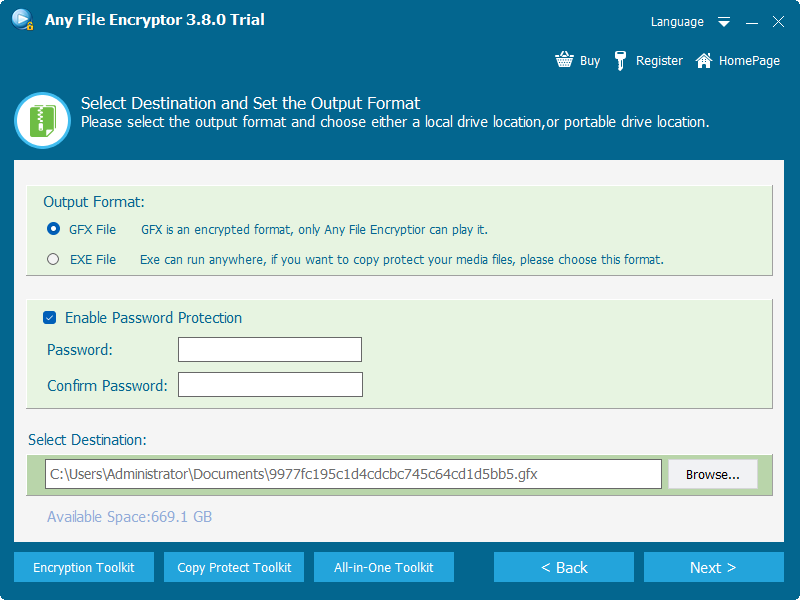
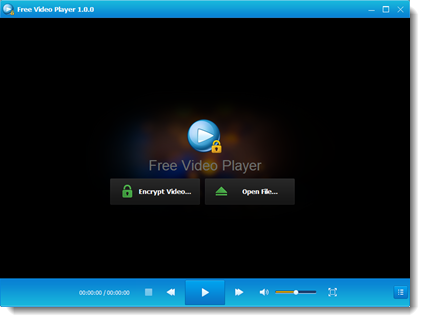
GiliSoft Any Video Encryptor places MP4 and other supported files into GFX or EXE output. The protected package asks for a playback password. GFX is intended for the GiliSoft player workflow, while EXE provides self-contained Windows output and can optionally be bound to an authorized USB device.
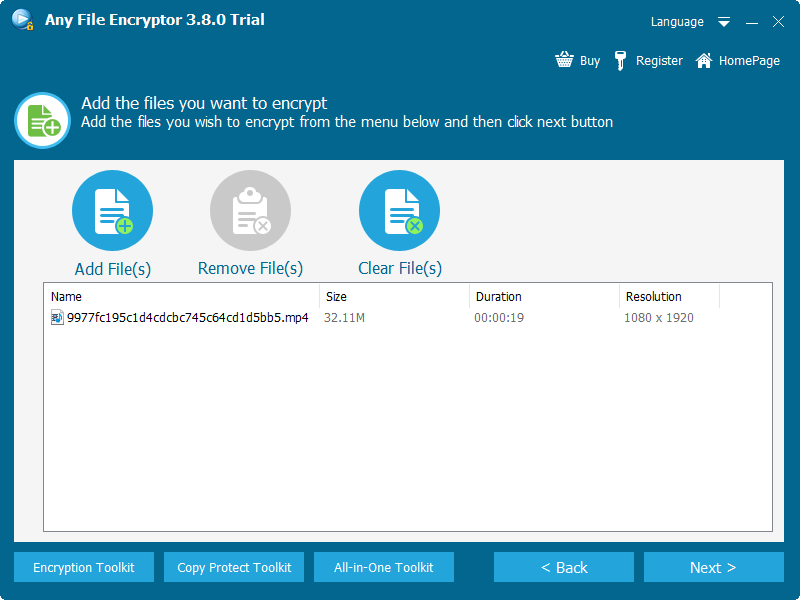
Keep a verified backup of the original MP4, then add the source file to Any Video Encryptor.
Choose GFX output for protected player playback or EXE output for a self-contained Windows package.
Enable password protection and enter a long, unique passphrase.
Review screenshot, Save As, and USB-binding options according to the delivery requirement.
Export the protected package and test video, audio, seeking, and password entry on a separate Windows PC.
Choose GFX when
You want a dedicated encrypted-player workflow and consistent protected playback.
Choose EXE when
You want self-contained Windows delivery or need to bind playback to an authorized USB drive.
Encrypt an MP4 Inside a 7z Archive
Use this method when the recipient is allowed to extract and keep the original MP4.
The official 7-Zip specification states that the 7z format supports AES-256 encryption. It can also encrypt archive filenames, which prevents the MP4 name from being visible before authentication.
Right-click the MP4 or its folder and add it to a new 7z archive.
Select AES-256 encryption, enter a unique passphrase, and enable filename encryption.
Open the completed archive and extract a test copy to verify the password.
Send the archive and password through separate channels, then remove unneeded extracted copies.
This protects storage and transfer, but it does not control playback after extraction. The recipient receives an ordinary MP4 and can use it like any other video file.
Encrypt MP4 Files with Windows EFS
Use EFS when MP4 files should remain private under a specific Windows account on an NTFS volume.
Microsoft describes EFS as cryptographic protection for individual files and directories on NTFS volumes. The encryption is transparent to the authorized user, which makes local playback convenient, but it is not designed as a simple password package for sending to another person.
Place the MP4 inside a dedicated folder on an NTFS drive.
Open Properties, choose Advanced, and enable Encrypt contents to secure data.
Apply encryption to the folder and its contents so later files inherit the setting.
Back up the EFS certificate and private key. Microsoft documents the cipher /x option for this purpose.
Encrypt the Drive That Stores the MP4 Library
Use BitLocker when many MP4 files live on one internal drive, external drive, or removable device.
BitLocker protects a volume at rest. It is a strong fit for an archive disk or physical USB handoff, but once the drive is unlocked, applications and authorized users see normal MP4 files. Store the recovery key separately from the encrypted media.
A portable drive containing many videos, project files, subtitles, and documents.
Copying a video out of an unlocked drive creates an ordinary copy unless another protection layer is applied.
Create a VeraCrypt Container for MP4 Files
Use an encrypted container when a changing video library should mount as a temporary virtual drive.
VeraCrypt's official beginner tutorial describes creating an encrypted file container, mounting it with a password, and using the mounted volume like a disk. This is flexible for local archives, but the viewer needs VeraCrypt and must dismount the volume after use.
Create a standard encrypted container large enough for the current MP4 collection and expected growth.
Mount the container with its password and copy the MP4 files into the virtual drive.
Play and update the videos while mounted, then close applications and dismount the volume.
Back up the container and keep its password and recovery information away from the same storage device.
Does MP4 Encryption Change Video Quality or File Size?
Encryption is not the same as video conversion. File-level encryption and protected packaging can operate on the existing MP4 bytes without decoding and re-encoding the video. In that case, resolution, bitrate, frame rate, codec, audio tracks, and subtitle tracks remain unchanged.
The workflow encrypts, archives, or packages the original MP4 without transcoding.
The workflow also compresses, resizes, changes codec, lowers bitrate, or exports a newly encoded video.
Encryption headers, package files, players, and archive metadata add overhead even when the media stream is unchanged.
Large 4K files and slow USB drives may affect opening or seeking even though the encoded quality is intact.
What Happens After the MP4 Is Unlocked?
| Method | While locked | After authorized opening |
|---|---|---|
| GFX/EXE package | The raw MP4 remains behind protected playback | Viewer watches through the controlled player |
| 7z archive | The MP4 and filename can be encrypted | The extracted MP4 is ordinary and unprotected |
| EFS | NTFS stores the file encrypted | The authorized Windows account opens it transparently |
| BitLocker | The whole volume is encrypted at rest | Files are ordinary while the volume is unlocked |
| VeraCrypt | The container is encrypted at rest | Files are ordinary while the virtual drive is mounted |
Which MP4 Encryption Method Should You Choose?
Use protected GFX or EXE playback so the recipient does not receive a plain MP4.
Use an AES-encrypted archive and accept that protection ends after extraction.
Use EFS for individual files or BitLocker for the entire drive.
Use VeraCrypt when a mounted container fits your cross-device routine.
Use drive encryption or combine a protected EXE package with USB binding.
Choose Video DRM Protection for device licensing, revocation, and traceability.
MP4 Encryption Safety Checklist
- Keep a verified, unencrypted source backup before creating any protected output.
- Use a long, unique passphrase and avoid storing it beside the encrypted file.
- Back up EFS certificates, BitLocker recovery keys, and container credentials separately.
- Test the exact recipient operating system, player, archive utility, and USB device.
- Confirm that audio tracks, subtitles, seeking, and full-screen playback work after protection.
- Delete temporary extracted copies when an AES archive was used only for secure transfer.
MP4 Encryption FAQ
Can an MP4 file have a password?
Not through a universal field supported by common players. Add a protected player package, encrypted archive, encrypted file system, drive, or container.
Will encryption lower MP4 quality?
No, not when the file is encrypted without transcoding. The encoded video and audio streams remain unchanged.
Can VLC open a password-protected MP4?
VLC can open ordinary compatible MP4 files, but it does not provide a universal password prompt for arbitrary encrypted MP4 packages. Use the player or unlock workflow required by the protection method.
Can Windows 11 encrypt an MP4 without extra software?
EFS can encrypt individual files on supported editions and NTFS volumes. BitLocker can protect a drive. Feature availability differs by Windows edition.
Is encrypting an MP4 the same as DRM?
No. File encryption protects data or opening. DRM can also manage licensing, authorized devices, revocation, watermarking, and post-delivery policy.
Can several MP4 files be encrypted together?
Yes. Add multiple videos to a protected package, archive a folder, or place the collection inside an encrypted volume.
Sources and Further Reading
- MPEG: ISO Base Media File Format overview
- 7-Zip: 7z format and AES-256 encryption
- Microsoft Learn: Windows file encryption and EFS
- Microsoft Learn: Cipher command and EFS certificate backup
- Microsoft Learn: BitLocker overview
- VeraCrypt: Beginner's tutorial