
When another person should watch an MP4 but should not receive a normal open video, create password-protected GFX or EXE output with GiliSoft Any Video Encryptor. Use an AES-encrypted archive only when the recipient may extract and keep the original MP4. Use EFS, BitLocker, or VeraCrypt for private storage rather than controlled recipient playback.
Can You Put a Password Directly on an MP4 File?
Not in a universal way. MP4 is a container for timed media such as video, audio, and metadata. Common players understand the media structure, but they do not share one standard password prompt for ordinary MP4 files.
The password experience therefore comes from the protection layer around the MP4:
The viewer enters a password in a compatible protected player or Windows package. The open MP4 is not delivered separately.
The viewer enters a password to extract the MP4 from an archive, then watches the resulting ordinary file.
The MP4 stays inside an encrypted Windows account, drive, or mounted container until that storage is unlocked.
Four Questions to Answer Before Protecting the Video
Who will watch it?
Confirm whether playback is for you, one customer, a class, a partner, or a changing group of recipients.
Where will it play?
Check the Windows version, whether installation is allowed, and whether the video must work without internet access.
What may happen afterward?
Decide whether extraction, copying, screenshots, Save As, and transfer to another device are acceptable.
How will access be recovered?
Keep the source MP4 and record the password, recovery key, or authorized device information separately.
Choose the Right MP4 Password Method
| Method | Best for | What the viewer gets after unlocking | Main limitation |
|---|---|---|---|
| GFX or EXE protected playback Best for sharing | Private previews, lessons, demos, offline delivery | Protected playback rather than a separately delivered MP4 | Windows-oriented recipient workflow |
| 7z AES-256 archive | Securely transferring the original MP4 | An ordinary extracted MP4 | Protection ends after extraction |
| Windows EFS | Private files under one Windows account | Transparent access for the authorized account | Not a simple recipient password package |
| BitLocker drive | Many videos stored on one PC or removable drive | Ordinary MP4 files while the drive is unlocked | Protects the volume, not playback behavior |
| VeraCrypt container | A reusable encrypted local video library | Ordinary MP4 files while the container is mounted | Requires container software and mounting |
Method 1: Password Protect MP4 for Controlled Playback
GiliSoft Any Video Encryptor converts supported media into protected GFX or EXE output. Use GFX for the dedicated protected-player workflow. Use EXE when you need self-contained Windows delivery or optional binding to an authorized USB drive.
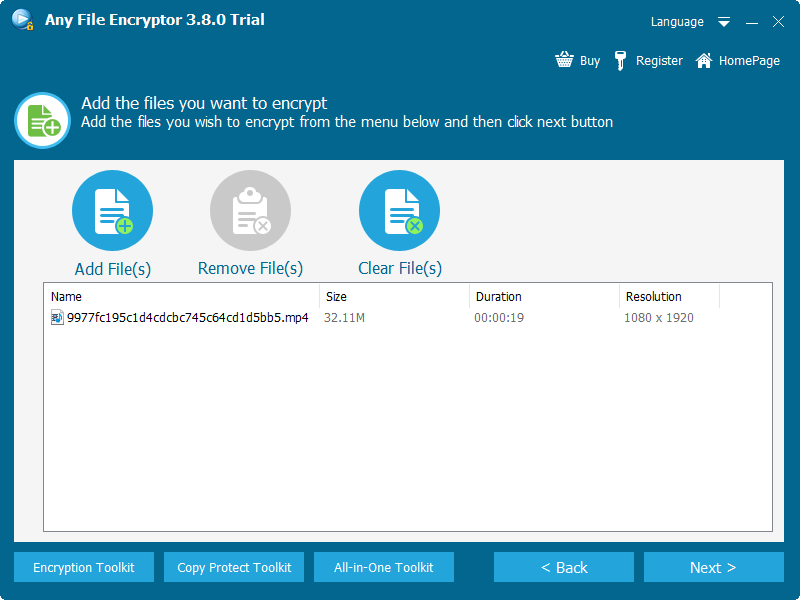
Keep a verified backup of the original MP4, then add the video to Any Video Encryptor.
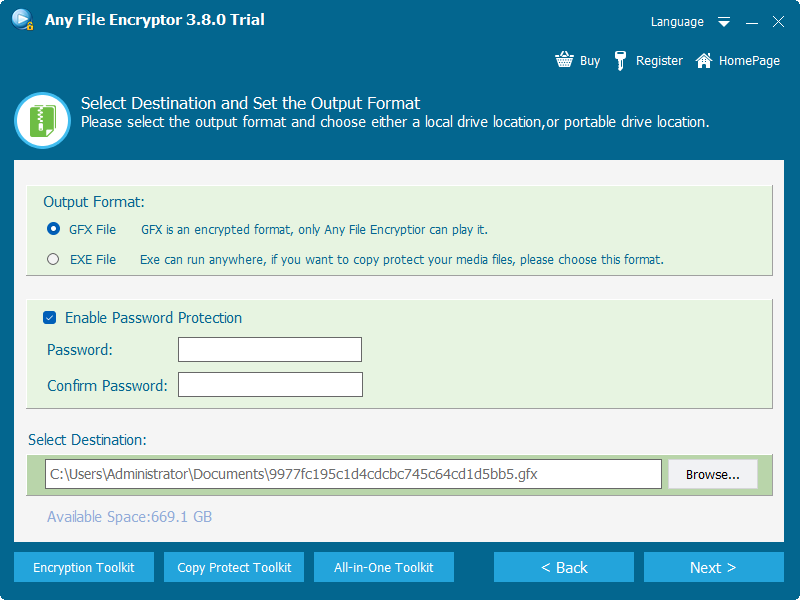
Choose GFX for protected-player output or EXE for a self-contained Windows package.
Enable password protection and enter a long, unique passphrase that is not reused elsewhere.
Review screenshot, Save As, and USB-binding options according to the recipient and delivery medium.
Export the protected file and test password entry, video, audio, seeking, full screen, and closing behavior on another Windows PC.
Choose GFX when
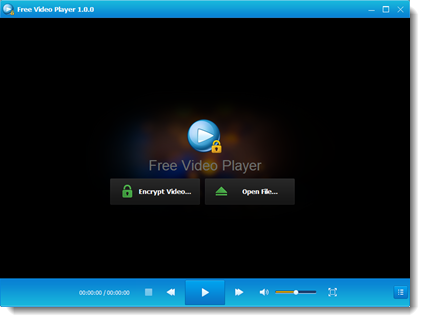
You want a consistent encrypted-player workflow and will explain how the recipient opens the protected file.
Choose EXE when
You want a self-contained Windows package or need playback to remain linked to an authorized USB drive.
Test the Recipient Experience Before Delivery
A protected file is useful only when the intended viewer can open it reliably. Test the exact exported copy, not merely the source video.
Testing on the authoring computer can hide missing components or permission differences.
If the recipient will be offline, disconnect the network and verify the entire opening process.
Play, pause, seek, switch to full screen, adjust volume, and close and reopen the file.
Verify capitalization and keyboard layout, and test one incorrect password before the correct one.
For USB-bound EXE output, safely eject, reconnect, and confirm expected playback behavior.
Keep the original MP4 and project settings until the recipient confirms successful playback.
Method 2: Put the MP4 in a Password-Protected 7z Archive
The official 7-Zip format documentation specifies AES-256 encryption and supports encrypted archive headers. This is a practical choice when the recipient is allowed to receive the original MP4 after entering the archive password.
Add the MP4 or its folder to a new 7z archive.
Select AES-256, enter a unique passphrase, and enable filename encryption when the title is sensitive.
Open the finished archive and extract a test copy to confirm the password and video integrity.
Send the archive and password through separate channels, then remind the recipient that the extracted MP4 is no longer protected by the archive.
Methods 3-5: Protect MP4 Files Kept in Local Storage
Windows EFS for one Windows account
Microsoft describes EFS as cryptographic protection for individual files and folders on NTFS volumes. It is convenient for local account-based access, but Microsoft also notes that file encryption is not available in Windows Home editions. Back up the EFS certificate and key before relying on it.
BitLocker for an entire video drive
Microsoft describes BitLocker as full-volume encryption that protects data against offline access when a device or drive is lost. It is suitable for a library of MP4 files stored on one drive, but the videos behave like ordinary files while the volume is unlocked. Keep the 48-digit recovery key in a separate safe location.
VeraCrypt for a mounted video container
VeraCrypt can create an encrypted file container that mounts as a virtual drive. Its documentation explains that files are decrypted in memory while being read from the mounted volume. Once mounted, MP4 files open normally, so this method protects stored data rather than controlling the viewer after unlock.
Create and Deliver the Password Carefully
NIST guidance emphasizes password length and recommends long passphrases. For an MP4 delivery password, prioritize a unique phrase that is long enough to resist guessing and practical enough for the recipient to enter accurately.
Do not reuse an email, account, Wi-Fi, or company-wide password.
Do not include the password, client name, or predictable date pattern in the protected filename.
For sensitive delivery, do not put both in the same email thread or chat message.
Confirm the person and destination before disclosing the password.
Store the source MP4, password, output type, and any USB-binding details in an approved secure location.
If a password is exposed, create and redistribute a new protected package instead of trusting the old one.
Does Password Protection Reduce MP4 Quality?
Adding a protection layer does not inherently change the encoded video and audio streams. A protected package, encrypted archive, encrypted file system, or encrypted drive can preserve the original MP4 bytes. Quality changes only when the workflow re-encodes the media.
Quality should remain unchanged when
The MP4 is wrapped, archived, or encrypted without transcoding its video and audio streams.
File size can still change because
The output may add a player, metadata, protection overhead, or archive structure. MP4 content is already compressed, so additional archive compression is often limited.
What the Password Protects After Opening
| Protection layer | Protected before opening | Behavior after successful unlock |
|---|---|---|
| Protected GFX or EXE playback | Yes | Playback remains inside the protected Windows workflow and configured restrictions continue to apply. |
| AES archive | Yes | The extracted MP4 is an ordinary file. |
| EFS | Yes, outside the authorized account context | The authorized Windows account opens the MP4 transparently. |
| BitLocker or VeraCrypt | Yes, while locked or unmounted | MP4 files behave normally while the storage is unlocked or mounted. |
Which Method Should You Use?
Use protected GFX or EXE playback when the recipient should watch without receiving a normal MP4.
Use an AES-encrypted archive when extraction and reuse are explicitly allowed.
Use EFS when supported, or an encrypted container when account-independent mounting is preferable.
Use BitLocker for volume-level protection and maintain a verified recovery key.
Password-Protected MP4 FAQ
Can VLC or another common player ask for an MP4 password?
Common players do not provide one universal password prompt for ordinary MP4 files. A compatible protected package or encrypted storage layer must supply the authentication step.
Can I email a password-protected MP4?
You can email a protected package or encrypted archive if it fits the provider's attachment limits. For larger files, use an approved transfer service and share the password separately.
Can the recipient play the protected MP4 without internet?
Protected GFX or EXE output is intended for offline Windows delivery, but you should test the exact package on an offline computer before sending it.
Will archive encryption stop screen recording?
No. Once extracted, the MP4 is ordinary video. Use a protected playback workflow when screenshot or Save As restrictions matter.
Is EFS the same as assigning an MP4 password?
No. EFS connects access to a Windows account and encryption certificate rather than presenting a portable password dialog to every recipient.
What if the MP4 password is forgotten?
Recovery depends on the chosen method. Preserve the original MP4 and securely record the password, recovery key, EFS certificate, or container details before deleting any unprotected source.
Sources and Further Reading
- MPEG: ISO Base Media File Format
- 7-Zip: 7z format and AES-256 encryption
- Microsoft Support: Encrypt a file or folder
- Microsoft Support: BitLocker overview
- VeraCrypt: Create and use an encrypted container
- NIST: How to create a good password