
How to Convert PDF to Word and Excel on Windows
A PDF is useful for sharing a finished document, but less convenient when you need to revise its paragraphs or calculate with its tables. Use Word output for document editing and Excel output for working with rows, columns, and values.
Quick Answer
In GiliSoft Formathor, open PDF Tools > PDF to File, add your PDF, and choose Word or Excel under Type. Confirm the available Format and Output folder, then select Convert. Open the exported file and check its structure before editing or calculating.
Choose Word or Excel Before You Convert
| Source content | Output to choose | What to check |
|---|---|---|
| Letters, contracts, manuals, and paragraphs | Word | Paragraph flow, headings, lists, and page breaks |
| Statements, price lists, invoices, and tables | Excel | Column boundaries, numbers, dates, and repeated headers |
| A report with both prose and tables | Choose by the next task | Use Word for revision; use Excel for table analysis |
| Scanned or photographed pages | Text recognition, then suitable output | Recognition accuracy and reconstructed structure |
If the original Word document or workbook is available, use that instead. It is more likely to retain editing structure, formulas, and source formatting than a conversion from PDF.
Check your source first
- Try selecting and copying a short sentence. If it pastes correctly, the page likely has a usable text layer. A scan can also have an existing OCR layer.
- Check more than one page: a PDF may mix digital text and scanned pages.
- Keep the source PDF unchanged and save converted files to a separate folder.
- Test one representative document before converting a larger collection.
How to Convert PDF to an Editable Word Document
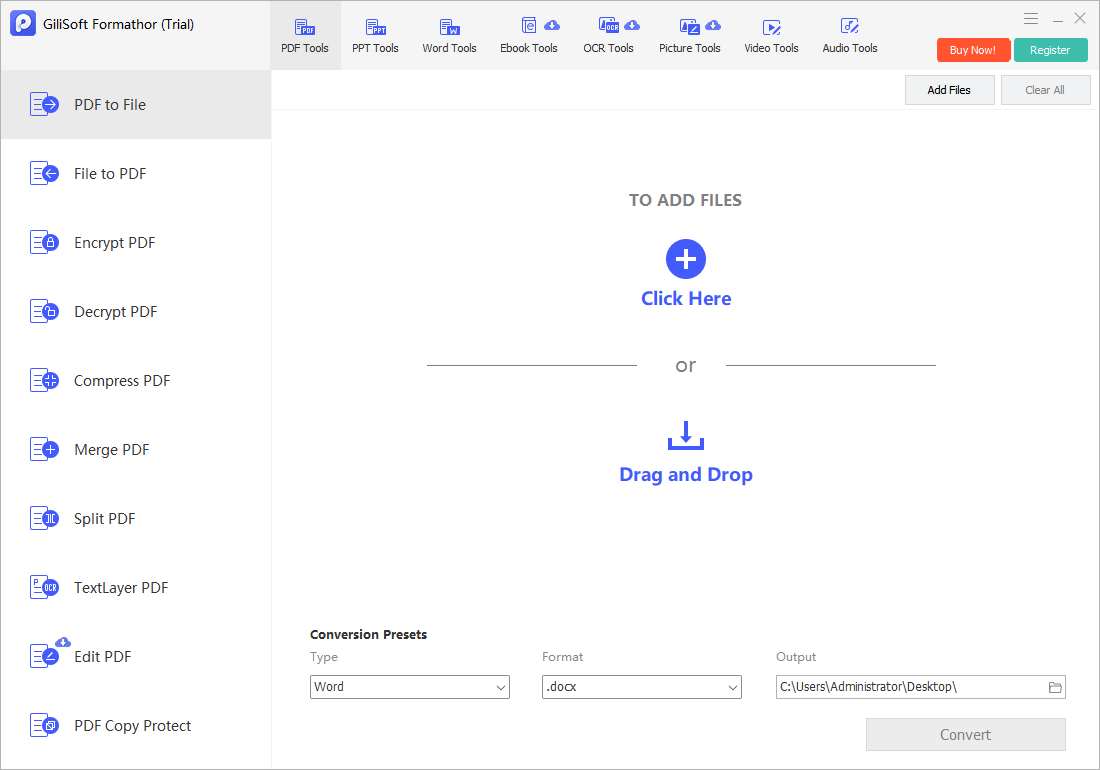
Choose this route when you need to revise wording, update a report, or reuse paragraphs. The screenshot below shows the actual Word conversion settings.
- Open PDF to File.
Launch GiliSoft Formathor, select PDF Tools at the top, and choose PDF to File from the left panel.
- Add your PDF.
Click Add Files or use the drop area. Start with one file so you can evaluate the result before a larger task.
- Choose Word and confirm the format.
Under Conversion Presets, set Type to Word. The screenshot shows .docx under Format. Confirm the format your editing application supports.
- Set the destination and convert.
Choose an Output folder separate from the original and click Convert.
- Open and revise the exported document.
Inspect headings, paragraph order, bullets, tables, and page breaks in Word or another compatible editor. Correct the structure before making extensive text changes.
How to Convert PDF Tables to Excel
Use Excel output when you need to filter a list, compare quantities, or calculate totals. A worksheet should contain usable cells, not merely a visual copy of the PDF table.
- Use the same PDF to File workspace.
In Formathor, choose PDF Tools > PDF to File and add the PDF that contains your tables.
- Choose Excel as the output type.
Change Type from Word to Excel, then check the spreadsheet formats available in Format. Choose the format required by your spreadsheet application.
- Convert to a separate output folder.
Set Output, select Convert, and open the exported workbook. For a long report, test a representative source before committing to a large conversion task.
- Inspect rows, columns, and cell values.
Check whether descriptions and amounts have landed in the correct columns. Look for repeated page headers, merged cells, wrapped rows, blank rows, and numbers stored as text.
- Validate calculations before reuse.
Check dates, negative amounts, decimal separators, and leading zeros against the PDF. Recreate any required formulas and compare calculated totals with the source.
The screenshot in the Word section shows the shared conversion workspace, not an Excel-specific settings screen. Check the options exposed by your installed version rather than assuming a particular worksheet-per-page or table-detection mode.
Example: converting a statement
Keep reference numbers such as 001245 as identifiers, not quantities. Confirm whether 1,234.50 is read as the intended amount and whether 03/04/2026 means March 4 or April 3 in the source. Formatting a cell does not correct a value that was recognized incorrectly.
What If the PDF Is Scanned?
When a page contains only an image, ordinary format conversion may leave the text uneditable. OCR recognizes characters, but recognizing words and reconstructing a spreadsheet are different tasks.
- Check whether the PDF already has usable selectable text before running OCR again.
- For PDF sources, review the TextLayer PDF task and the supported options in your installed version. Test a copy and verify the resulting text layer.
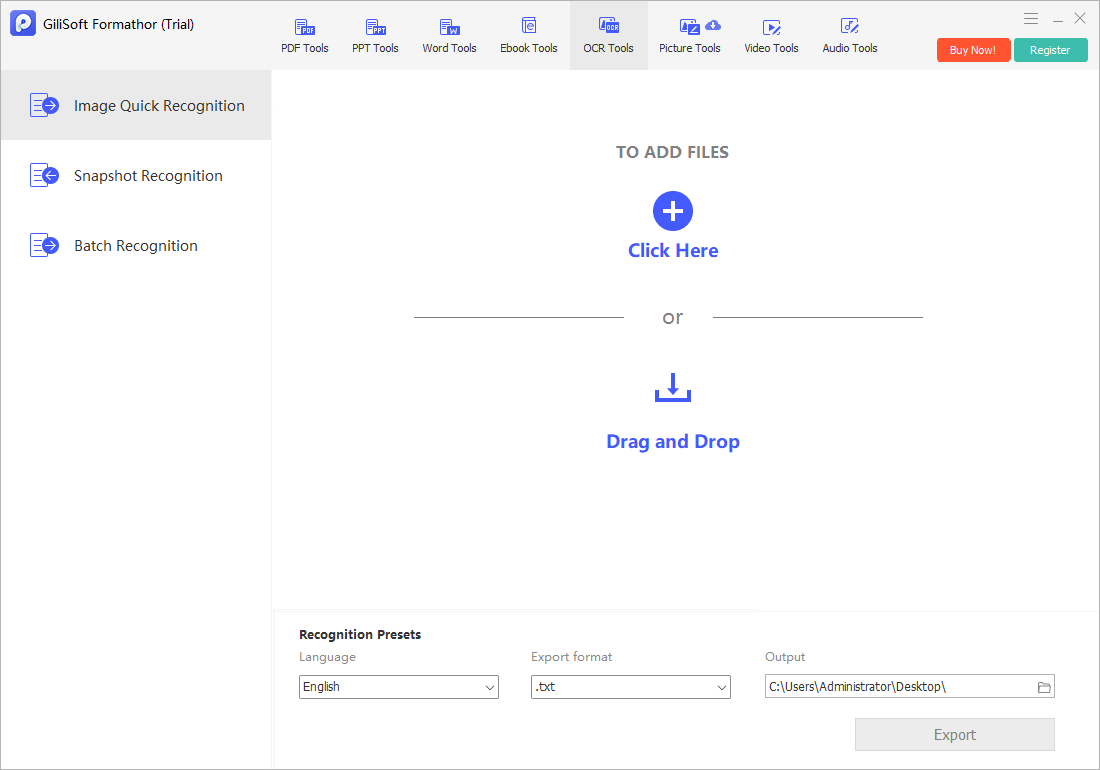
- For supported image sources, OCR Tools provides recognition workflows. Choose the correct Language, an available Export format, and an Output folder.
- Proofread names, dates, numbers, and punctuation. A text export alone does not preserve the original Word formatting or Excel table structure.
Use a clear, upright source whenever possible. If the scan is blurred or a table has weak column boundaries, manual correction may still be necessary. Keep the original visible beside the converted file during review.
Review the Converted Word or Excel File
| Check | Word output | Excel output |
|---|---|---|
| Reading structure | Paragraph order, headings, lists, columns | Rows, columns, table boundaries, repeated headers |
| Important details | Names, references, footnotes, special characters | Dates, decimals, negative values, leading zeros |
| Editable content | Text can be revised without breaking the page | Values occupy usable cells and have correct data types |
| Final use | Save a working copy, then export a PDF when ready | Validate values before sorting, formulas, or reporting |
For distribution after editing, create a new PDF and check it independently. See how to create PDF files from Office documents.
Fix Common PDF Conversion Problems
Word text is broken into boxes or short lines
The converter is reconstructing a fixed page layout. Check paragraph breaks, columns, and text boxes before editing. For a heavily designed page, reusing the text in a clean document may be more practical than preserving every position.
Excel columns run together or headers repeat
Check the original table boundaries and whether page headers were imported as data. Correct repeated headings, wrapped rows, and merged cells before filtering or calculating. Test OCR accuracy if the source is scanned.
Numbers are recognized as text
Look for spaces, currency symbols, or unexpected decimal separators. Compare the source first, then convert genuine numeric values to the appropriate cell type. Preserve codes and account identifiers as text when leading zeros matter.
The result contains pictures instead of editable text
Check the source text layer and OCR route. The presence of a .docx or spreadsheet extension does not itself guarantee that scanned text was recognized.
The PDF cannot be converted
Confirm that the source opens in a PDF viewer, that any required password is available, and that the output folder is writable. Test another unprotected file to distinguish a document-specific problem from a setup problem.
PDF to Word and Excel FAQ
Should I convert my PDF to Word or Excel?
Choose Word for paragraphs, letters, contracts, and document editing. Choose Excel for tables that need sorting, filtering, or calculations. A mixed report may need both outputs for different tasks.
Will the converted file look exactly like the PDF?
Not always. PDFs describe fixed page layouts, while Word and Excel use editable structures. Review fonts, paragraphs, columns, images, and page breaks before using the output.
Can I convert a scanned PDF to editable text?
A scan needs text recognition when it has no usable text layer. Use an appropriate OCR or TextLayer PDF workflow, check the recognized text, and then test the required Office output. Recognition does not guarantee a correctly reconstructed table.
Will PDF to Excel restore the original formulas?
Do not expect it to. A PDF usually contains displayed values rather than the original workbook formulas. Rebuild needed calculations and compare totals with the source.
Why do numbers or dates look wrong in Excel?
OCR mistakes, spaces, currency symbols, leading zeros, and regional date or decimal formats can change how cells are interpreted. Check the values against the PDF before applying formatting or calculations.
Can I convert a password-protected PDF?
Only process documents you are authorized to use. Supply the required password or ask the owner for an unrestricted source copy if protection prevents conversion.