
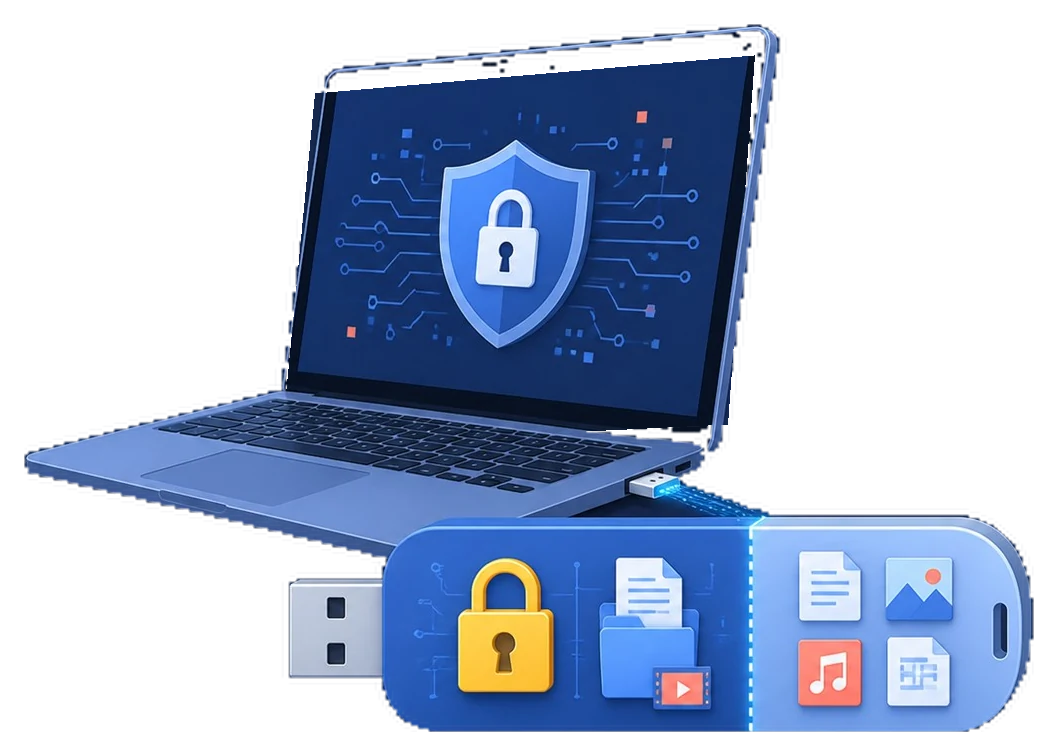
Quick Answer
Hidden Files and Protected Files Are Different
| Method | What it does | Privacy level |
|---|---|---|
| Windows Hidden attribute | Removes an item from the normal File Explorer view | Low; users can enable Hidden items |
| Renaming or changing the extension | Makes the file less obvious | Low; content remains readable |
| Password-protected secure area | Keeps private files inside closed protected storage | Appropriate for confidential files when configured and closed correctly |
| Whole-drive encryption | Protects the removable volume as one unit | Useful when every file must require authentication |
Prepare Before Moving Private Files
Make a verified backup
Keep another copy until the secure area and its recovery path have both been tested.
Find exposed copies
Check public folders, temporary exports, recycle locations, and duplicate filenames before sharing the drive.
Plan destination access
Confirm the receiving Windows PC can use the chosen secure-area workflow.
Hide USB Files Inside a Password-Protected Secure Area
Back up and identify the flash drive
Copy important files elsewhere, then confirm the target drive letter, label, and capacity.
Allocate a private secure area
Choose how much capacity should be password protected and how much should remain public.
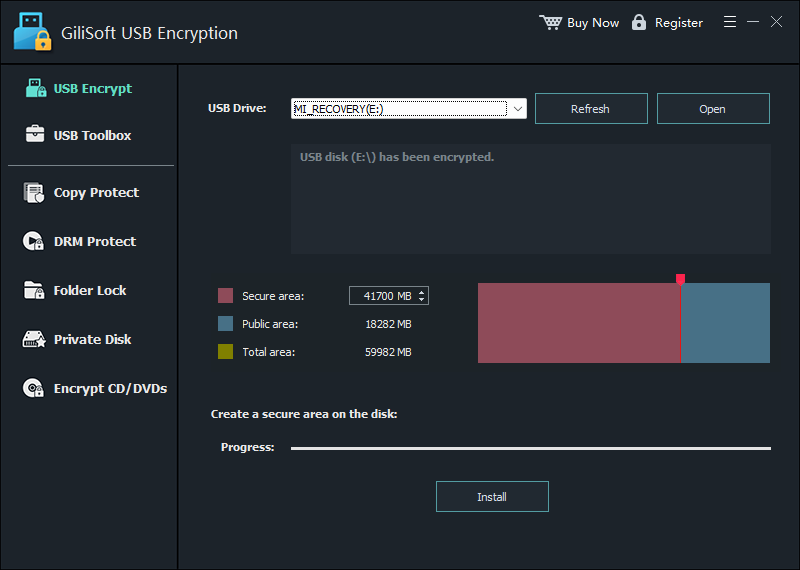 Select the correct flash drive and decide how much space remains public.
Create the secure area and password
Start installation, set a strong unique password, and keep the USB drive connected until setup finishes.
Open the secure area
Enter the password and mount the private area using an available drive letter.
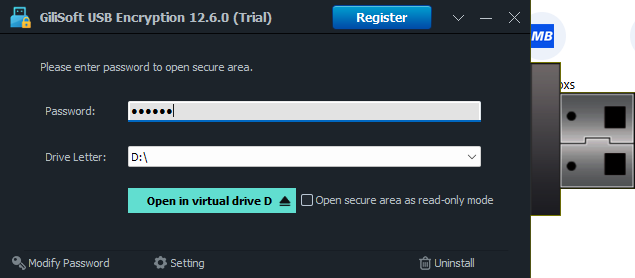 Enter the password and mount the secure area before moving private files.
Move private files into the mounted drive
Place confidential folders inside the secure area and remove unnecessary public copies.
Close and test the hidden state
Close the secure area, safely eject the device, reconnect it, and confirm private files are absent from the public view.
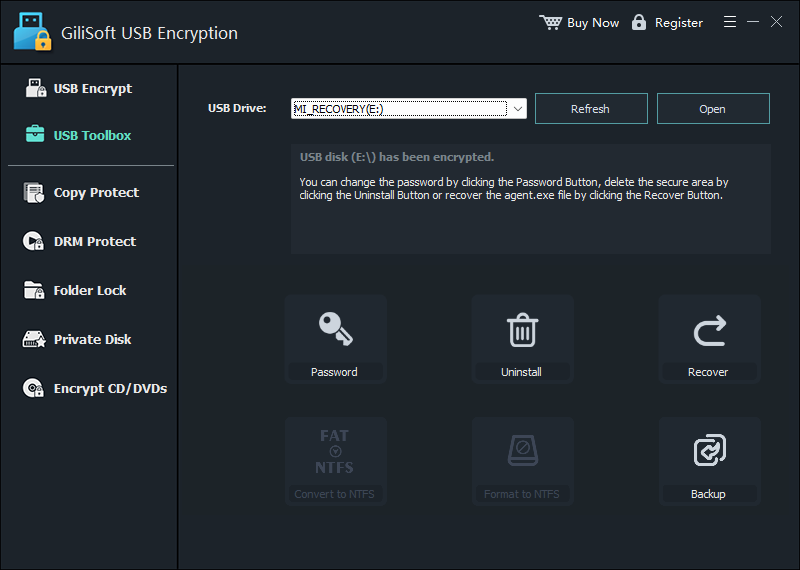 Review password, backup, recovery, and secure-area management options before relying on the drive.
Check What Another User Can See
Public drive
Only intentionally shareable files should remain visible before the secure area is opened.
Search results
Search the public drive for private filenames and extensions to catch exposed duplicates.
Cold reconnect
Safely eject and reconnect the device instead of testing only the still-open session.
Second Windows PC
Test the intended destination while following its software and administrator policy.
Common Privacy Mistakes
- Marking files Hidden and assuming they are encrypted.
- Moving files into the secure area but leaving original copies in public folders.
- Sharing the drive while the secure area is still mounted.
- Saving the password in a text file on the same USB device.
- Deleting the backup before testing password and recovery access.
- Assuming encryption prevents copying after an authorized user opens the files.
USB File Privacy FAQ
Does the Windows Hidden attribute protect USB files?
No. Hidden items can be revealed in File Explorer, and the attribute does not encrypt file contents. Use it only to reduce ordinary visual clutter.
Can I keep public and private files on the same flash drive?
Yes. GiliSoft USB Encryption can create a password-protected secure area while leaving separate public space for ordinary files.
Will filenames remain visible after I close the secure area?
Files stored inside the closed secure area should not appear through the ordinary public drive. Verify this after reconnecting the device.
Can I open the secure area on another computer?
The destination Windows computer must support the selected workflow and allow the required application or component. Test the actual destination PC before delivery.
What if I forget the password?
Use the recovery method prepared during setup. Without valid recovery information, properly protected data may become inaccessible.
Does a secure area stop malware or copying after unlock?
No. Once opened, authorized applications can access the mounted files. Encryption does not replace malware protection, access policy, or careful handling.