

Choose the Right SD Card Encryption Method
| Method | Best for | What it protects | Main tradeoff |
|---|---|---|---|
| GiliSoft USB Encryption Recommended for Windows | An SD card or USB memory card that needs public and private storage | Password-protected secure area beside a normal public area | The secure-area workflow is Windows-centered |
| BitLocker To Go | Supported Windows editions and managed PCs | The removable volume | Recovery-key and destination-PC planning are essential |
| VeraCrypt container | Advanced users needing an open-source encrypted vault | Selected files placed inside a mounted container | VeraCrypt must be available where the vault is opened |
| macOS Disk Utility | A Mac-centered card used as encrypted computer storage | An encrypted APFS volume | Device encryption requires erasing and reduces compatibility |
The SD Card Lock Switch Is Not Encryption
A full-size SD card often has a small side switch marked Lock. A microSD card may gain a similar switch only through its full-size adapter. That switch does not scramble the data and does not ask for a password.
The SD Association specification explains that the switch position is detected by the host socket; the card's internal circuitry does not know the switch position. A compliant host may treat the card as read-only, but another reader or adapter may behave differently.
Helps reduce accidental deletion, formatting, or editing when the reader honors the switch.
Makes protected data unreadable without the required password, key, or recovery method.
Will an Encrypted SD Card Still Work in a Camera?
Usually not. Cameras, dashcams, drones, audio recorders, handheld consoles, printers, and similar devices expect a compatible FAT32 or exFAT card and normally cannot display an encryption password prompt, mount a virtual drive, or unlock an APFS or VeraCrypt volume.
Keep the camera card in the device-supported format. Import the files to a computer promptly, verify the copy, and encrypt the archive or delivery card.
Use a separate SD or microSD card as encrypted computer storage through a reliable USB reader.
If a camera asks to format an encrypted card, cancel unless you intend to erase the protected structure. Formatting in the camera removes the encryption layout and its stored files.
Before You Encrypt an SD or MicroSD Card
Copy every important photo, RAW file, video, and document elsewhere, then open several files to verify the backup.
Confirm the drive letter, label, capacity, card reader, and free space before selecting a device.
Move the full-size adapter switch to the unlocked position if Windows reports the card as read-only.
List every Windows PC, Mac, camera, and mobile device that needs access.
Never store the only password or recovery key on the card being encrypted.
Avoid loose hubs and unreliable readers during formatting or encryption.
Encrypt an SD Card with GiliSoft USB Encryption
This route is designed for Windows users who want one memory card to contain ordinary public storage and a password-protected secure area.
Insert the SD or microSD card into a dependable USB reader. Open File Explorer and confirm its drive letter and capacity.
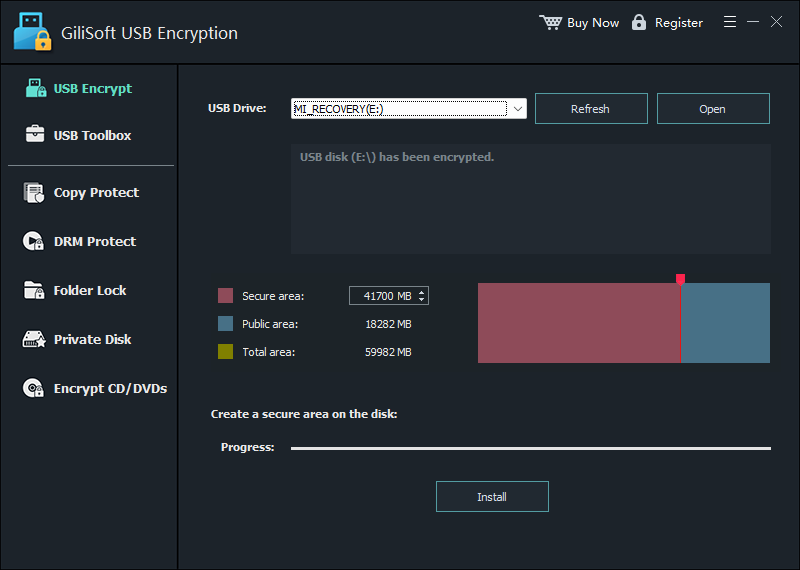
Back up the card, then open GiliSoft USB Encryption. Select Refresh if the card was connected after the application opened.
Select the correct card and allocate the Secure area. The remaining capacity becomes the Public area.
Choose Install, create a strong password, and leave the card connected while the secure area is prepared.
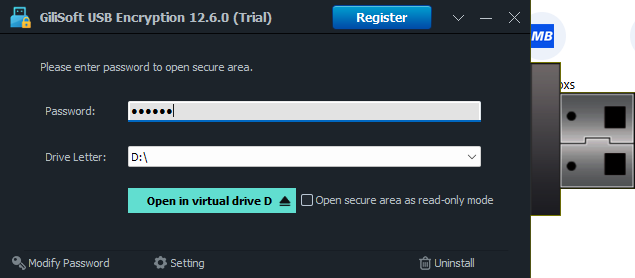
Open the secure area, enter the password, choose a virtual drive letter, and copy confidential files into the mounted drive.
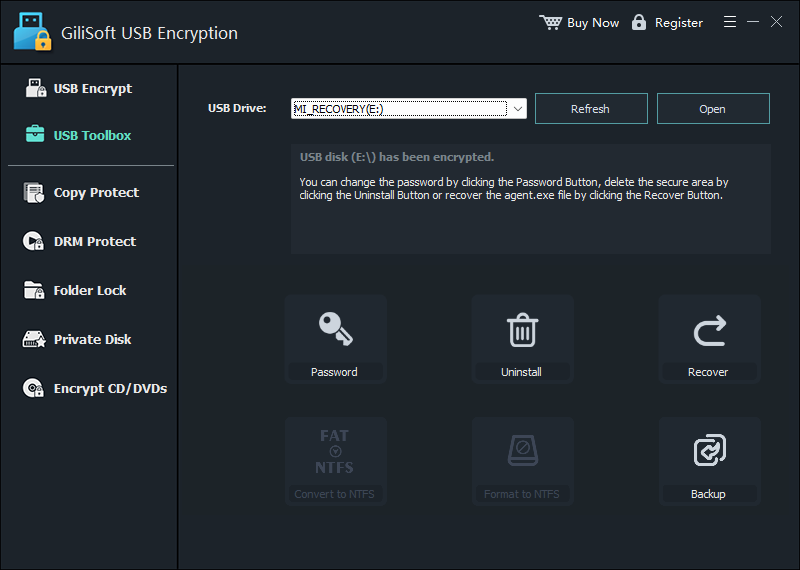
Close the secure area, safely eject the card, reconnect it, and verify that public files remain visible while private files require the password.
Encrypt the Entire SD Card with BitLocker To Go
Microsoft defines BitLocker To Go as BitLocker for removable data drives and explicitly includes USB flash drives, SD cards, and external hard drives formatted with supported file systems.
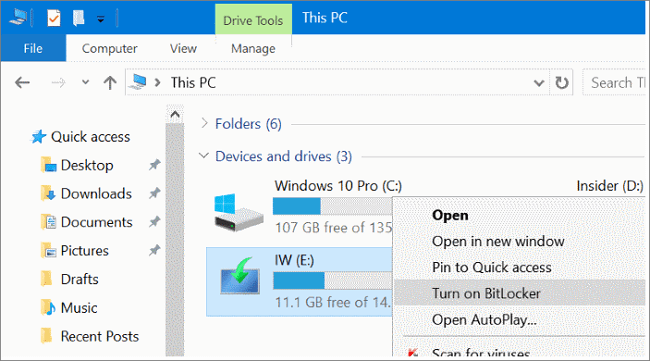
Connect the card through a reader, open Manage BitLocker, and locate it under Removable data drives - BitLocker To Go.
Choose Turn on BitLocker and select an available unlock method, normally a strong password for portable media.
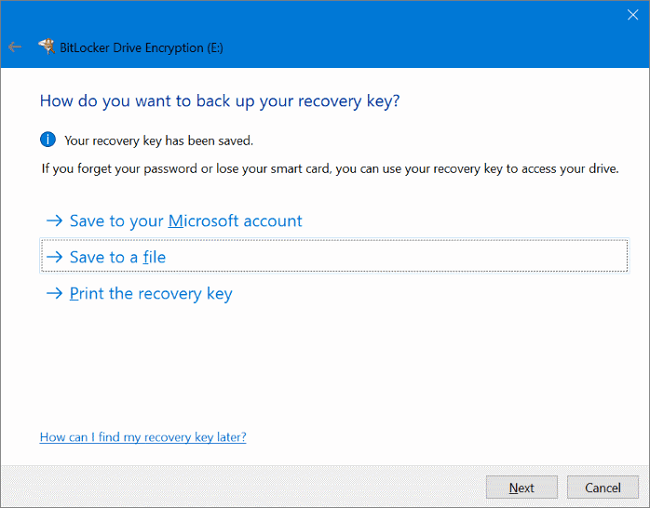
Save or print the recovery key somewhere separate from the encrypted card.
For a new empty card, used-space-only encryption is faster. For a previously used card that may contain deleted remnants, encrypt the entire drive.
Choose the removable-drive compatibility mode offered by the wizard, start encryption, and do not disconnect the reader.
After completion, eject and reconnect the card. Test both its password and your ability to locate the recovery key.
Create a VeraCrypt Container on the Memory Card
A VeraCrypt container is an encrypted virtual disk stored as a normal file. It is useful when only part of the card needs protection and you can install or run an approved VeraCrypt environment on destination computers.
Install VeraCrypt from its official website and select Create Volume.
Choose an encrypted file container and save the new container file on the SD card.
Set the volume size, encryption options, password, and file system according to the destination computers.
Mount the container to a drive letter, copy private files into it, and dismount it before removing the card.
Test the container on another approved computer before depending on it for travel or delivery.
Encrypt an SD Card on Mac with Disk Utility
Apple supports password-encrypted external storage, but Disk Utility's device-formatting path erases the selected card first and creates a Mac-centered encrypted volume.
Copy every needed file from the card to another verified location.
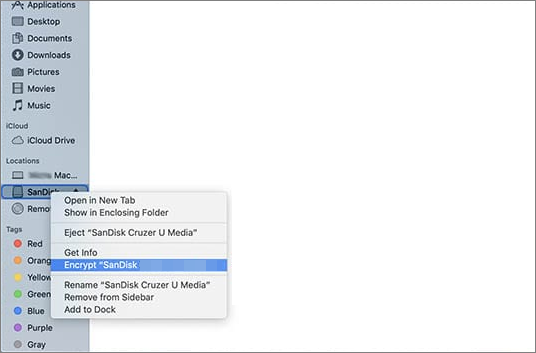
Open Disk Utility, choose View > Show All Devices, and select the physical card carefully.
Choose Erase, select GUID Partition Map, and choose an encrypted file-system format such as APFS (Encrypted) where appropriate.
Create and confirm the password, finish erasing, and copy files back only after the encrypted volume mounts correctly.
Eject and reconnect the card, test the password, and confirm it works on every Mac that must open it.
Which Layout Fits Your SD Card?
| Real use case | Recommended layout | Why |
|---|---|---|
| Private transport plus ordinary file sharing on Windows | GiliSoft public area + secure area | Recipients can use public files without opening private storage |
| Company SD card used only on managed Windows PCs | BitLocker To Go | Whole-volume protection and policy-based administration |
| Selected private files on several desktop systems | Tested VeraCrypt container | Protects a portable vault rather than changing every public file |
| Mac-only archive card | Encrypted APFS | Native Mac password prompt and Disk Utility management |
| Camera capture card | Keep camera-compatible; encrypt after import | The camera usually cannot unlock computer encryption |
SD Card Encryption Troubleshooting
The SD card is read-only or write-protected
Check the adapter's physical switch, try a different reliable reader, inspect Windows policy, and test the card on another computer. Do not assume encryption caused the problem. A failing card controller can also force read-only behavior.
The card does not appear in the encryption tool
Reconnect the reader, choose Refresh, confirm the card appears in File Explorer or Disk Utility, and avoid card readers that expose unusual device modes. If the operating system cannot mount the card normally, repair or recovery should come before encryption.
The camera asks to format the card
Cancel if the encrypted files matter. The camera cannot understand the encrypted layout. Open the card on a compatible computer, recover or copy the files, then use a separate camera-formatted card for capture.
BitLocker To Go is unavailable
Check the Windows edition, file system, administrator or policy restrictions, and whether the reader exposes the card as a supported removable data drive. GiliSoft offers a clearer secure-area alternative for ordinary Windows users.
The card disconnects during setup
Stop using the reader or hub, preserve the backup, and check the card's health. Repeated disconnects during writes are a storage-integrity problem, not merely an encryption inconvenience.
Security Checklist After Encryption
Eject, reconnect, and verify the password prompt before trusting the card.
Verify that no private files were accidentally left in an unencrypted public area.
Keep recovery keys, passwords, and ownership records away from the card.
Close the secure volume and safely eject the reader to reduce corruption risk.
Encryption does not protect against card wear, controller failure, or accidental deletion.
Software, policy, and operating-system changes can affect access later.
SD Card Encryption FAQ
Does the SD card Lock switch encrypt files?
No. It is a write-protection signal. It can discourage changes when honored by the reader, but it does not hide or encrypt the data.
Can BitLocker To Go encrypt an SD card?
Yes. Microsoft explicitly includes SD cards among BitLocker To Go removable data drives when the device and file system meet its requirements.
Can I encrypt a microSD card?
Yes, when a computer recognizes it through a built-in slot or USB reader. A microSD-to-SD adapter does not itself encrypt anything.
Can I encrypt the card without deleting its files?
Some Windows workflows can operate on an existing supported volume or create a secure area. Disk Utility device encryption erases the selected storage first. Back up every method regardless.
Can I use the encrypted card in Android?
Do not assume desktop-encrypted cards will work in Android. Android storage behavior varies by version and manufacturer, and adopted storage may be tied to one device. Test only with replaceable data.
What happens if I forget the password?
Use the recovery mechanism created during setup. Without the correct password, key, or supported recovery record, properly encrypted files may be unrecoverable.
Research Sources
- Microsoft Learn: BitLocker FAQ and BitLocker To Go
- Microsoft Learn: Configure removable-drive BitLocker policies
- SD Association: SD standards and write-protect switch
- Apple Support: Encrypt a storage device with Disk Utility
- Apple Support: Protect removable media with encryption
- VeraCrypt: Official container tutorial
- CISA: Protect data stored on removable devices
Official documentation was used for supported removable media, write-protect behavior, recovery planning, destructive formatting warnings, and compatibility. GiliSoft steps and images were checked against the current USB Encryption interface.