
Direct System Audio vs. a Manual Virtual-Device Setup
Soundflower-style workflows route application output through a virtual audio device. A recorder with direct system-audio capture removes that manual routing step, although privacy permission and source testing remain necessary.
| Approach | Setup | Main consideration |
|---|---|---|
| GiliSoft direct System Audio | Select System Audio and approve macOS access | Simpler source selection without building a manual virtual-device route. |
| Microphone near speakers | Select Microphone and play through speakers | Captures room noise, echo, and lower-quality acoustic playback. |
| Manual virtual-audio routing | Create and manage virtual input/output devices | Requires extra routing and can interrupt normal monitoring if configured incorrectly. |
| Built-in voice recording | Select a physical microphone | Useful for voice, but not equivalent to direct internal system audio. |
Record Mac Internal Audio Without Soundflower
Remove old routing from the active setup
If an earlier virtual device is still selected, return Mac Sound output to the normal speakers, headphones, or intended device.
Open GiliSoft Audio Recorder for Mac
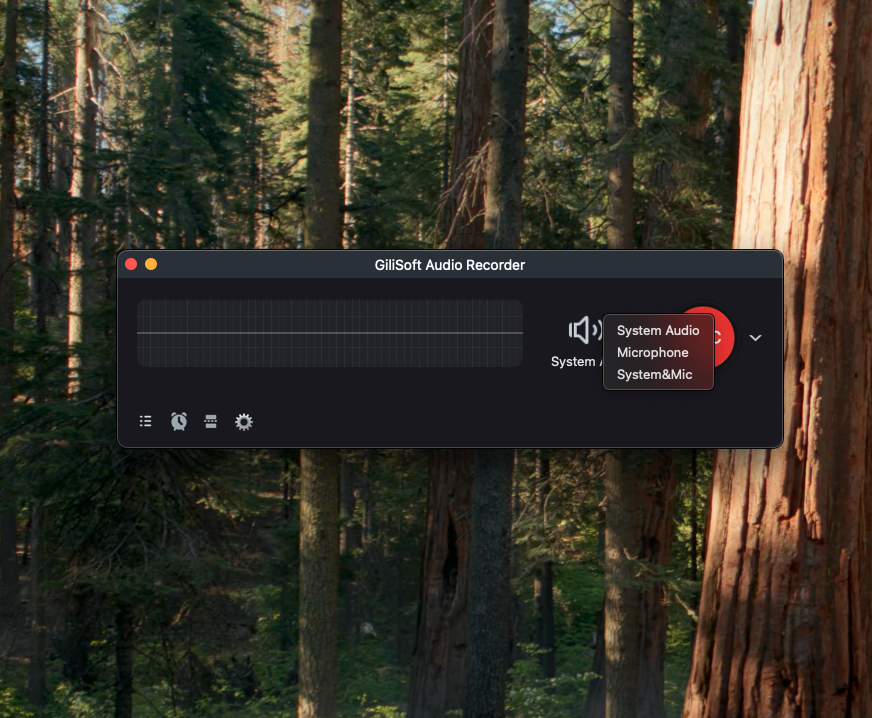
Use the audio-source menu rather than creating an aggregate or multi-output device.
Select System Audio
Choose System Audio for direct app and browser sound. Use System & Mic only when narration is required.
Approve macOS access
Allow the app under Privacy & Security > Screen & System Audio Recording and reopen it when requested.
Test normal playback
Record 10 seconds from an ordinary authorized source and confirm that both Mac playback and the saved file behave as expected.
Record and review
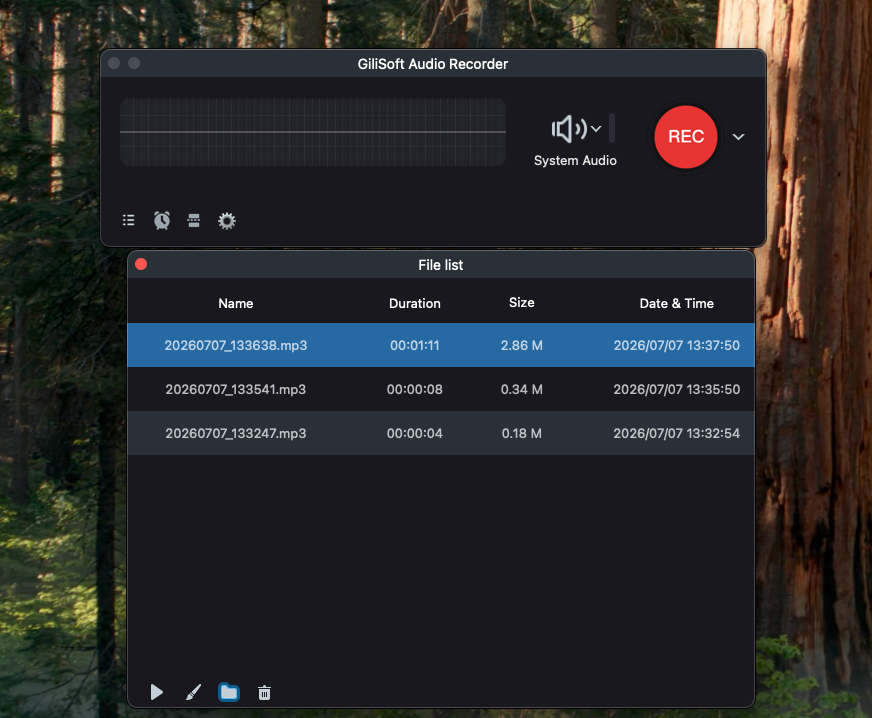
Complete the session and verify the original file before conversion, editing, or distribution.
Why a Direct Workflow Is Easier to Maintain
Fewer routing mistakes
The recording source is chosen in the recorder rather than across several Audio MIDI devices.
Normal listening remains clearer
You do not need to remember which virtual device currently owns Mac output.
Simpler troubleshooting
Permission, source choice, output routing, and test playback can be checked in a direct order.
Less legacy dependency
The workflow does not depend on maintaining Soundflower specifically.
If the Direct System Audio Test Is Silent
- Confirm that System Audio is selected in GiliSoft Audio Recorder.
- Allow the application under Screen & System Audio Recording in macOS Privacy & Security.
- Return Mac output from an old virtual device to the intended speakers or headphones.
- Restart the recorder and source application after changing permissions or output routing.
- Test ordinary authorized content; protected playback may restrict capture.
Frequently Asked Questions
Do I need Soundflower to record internal audio with GiliSoft?
No. The GiliSoft workflow uses its System Audio source and does not require a manual Soundflower routing setup.
Does macOS permission still apply?
Yes. Direct capture still requires the appropriate Screen & System Audio Recording permission.
Why can I no longer hear Mac playback?
An old virtual audio device may still be selected as the output. Choose the intended speakers, headphones, or interface in Sound settings.
Is QuickTime microphone recording the same as internal audio capture?
No. Choosing a physical microphone records voice and room sound; it does not directly capture all Mac application output.
Can I add narration without Soundflower?
Yes. Choose System & Mic, allow microphone access, use headphones, and test both sources.
Can every application be recorded?
No. Applications and protected services may restrict capture. Record only authorized audio and do not bypass protection.
More Mac Audio Recording Guides
Continue with the source, scheduling, or troubleshooting guide that matches the next recording task.