
When to Record Computer Audio and Microphone Together
Mixed recording is useful only when both sources add information. If the session needs no narration, System Audio alone produces a cleaner result.
| Audio setup | Best for | Main consideration |
|---|---|---|
| System Audio only | Playback, webinars, streams, and app sound without commentary | Avoids room noise and microphone echo. |
| Microphone only | Voice notes, interviews, and narration without playback | Requires microphone permission and input-level testing. |
| System & Mic | Tutorials, meetings, lessons, demos, and live commentary | Needs headphones and balanced source levels. |
Record Computer Audio and Mic on Mac: Step by Step
Prepare headphones and microphone
Use headphones so computer playback does not enter the microphone. Keep the microphone at a consistent distance.
Check both macOS permissions
Allow the application under Screen & System Audio Recording and Microphone in Privacy & Security.
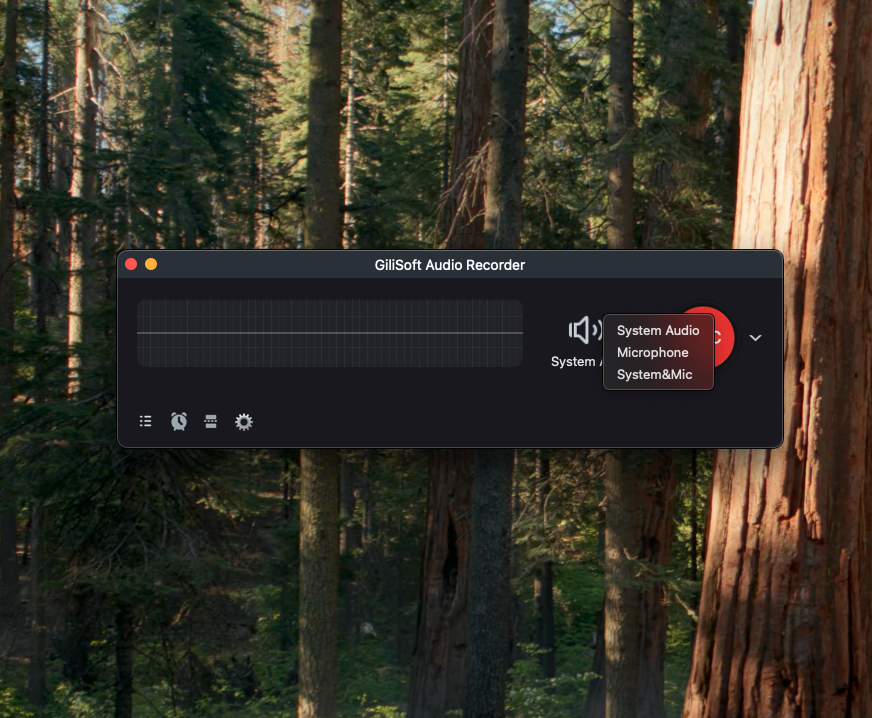
Select System & Mic
Open the source menu in GiliSoft Audio Recorder for Mac and choose the combined source.
Balance playback and voice
Set the app playback to a moderate level and test narration at normal speaking volume.
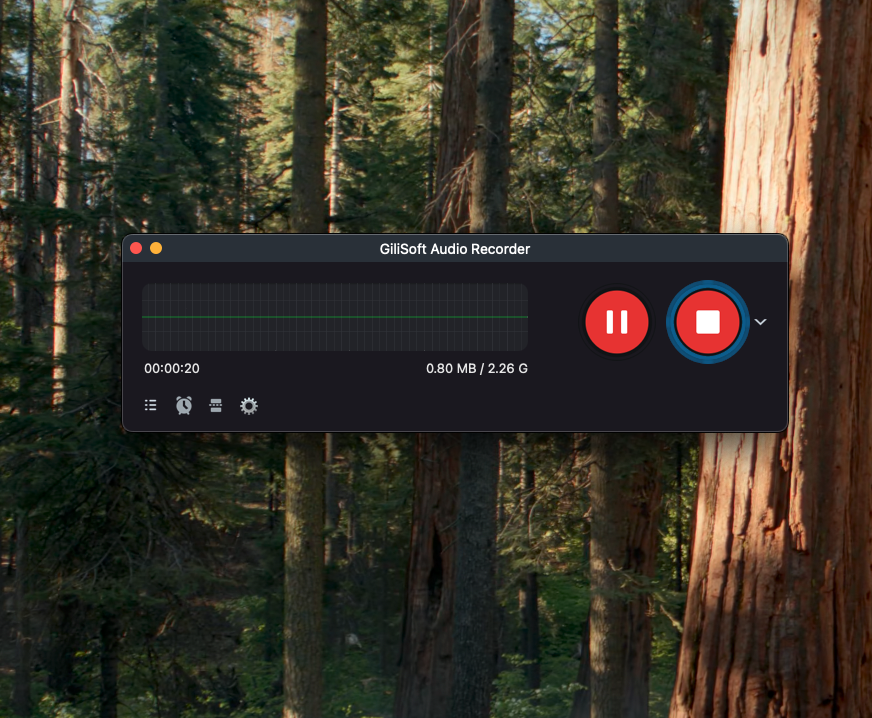
Record and review all parts
Check a saved test for computer audio, voice, echo, distortion, and synchronization before the complete session.
Balance Computer Sound and Voice
Keep narration intelligible
Lower application playback when it competes with speech rather than raising microphone gain excessively.
Use headphones
Headphones are the simplest way to prevent speaker playback from creating echo in the microphone.
Keep microphone position stable
Moving closer and farther away changes voice level and tone throughout the recording.
Test sources separately first
Confirm system audio and microphone independently, then combine them for the final test.
Fix Missing, Quiet, or Echoing Sources
- Missing computer sound: confirm System & Mic and system-audio permission.
- Missing voice: confirm microphone permission, input choice, mute state, and Mac input level.
- Echo: stop using speakers, switch to headphones, and reduce monitoring or duplicate audio paths.
- Quiet narration: move the microphone closer and raise input gradually without clipping.
- Unbalanced playback: lower the source application before changing the overall Mac output.
Frequently Asked Questions
Can Mac record computer audio and microphone at the same time?
Yes. GiliSoft Audio Recorder for Mac provides a System & Mic source for authorized mixed recording.
Which permissions are required?
System audio requires Screen & System Audio Recording access, while microphone narration requires Microphone access in Privacy & Security.
Why do I hear echo in the recording?
Speaker playback may be entering the microphone, or the sound may be monitored through more than one path. Use headphones and simplify routing.
Should I raise the microphone volume to maximum?
No. Excessive input level can increase noise or distortion. Use a normal microphone distance and raise the level gradually.
Can I save the result as WAV?
Yes. WAV is useful for an uncompressed workflow, while MP3 and M4A are more compact for everyday use.
Can I record a meeting with both sources?
Technically yes when the application allows it. Inform participants and follow applicable consent, privacy, and retention requirements.
More Mac Audio Recording Guides
Continue with the source, scheduling, or troubleshooting guide that matches the next recording task.