
Check macOS System Audio Access and Routing
Recent macOS versions let users control which applications may record the screen and system audio. Output devices can also change when headphones, displays, AirPlay, USB, or Bluetooth devices connect.
| Check | Where to look | What to confirm |
|---|---|---|
| System-audio permission | Privacy & Security > Screen & System Audio Recording | GiliSoft Audio Recorder is allowed to capture authorized system audio. |
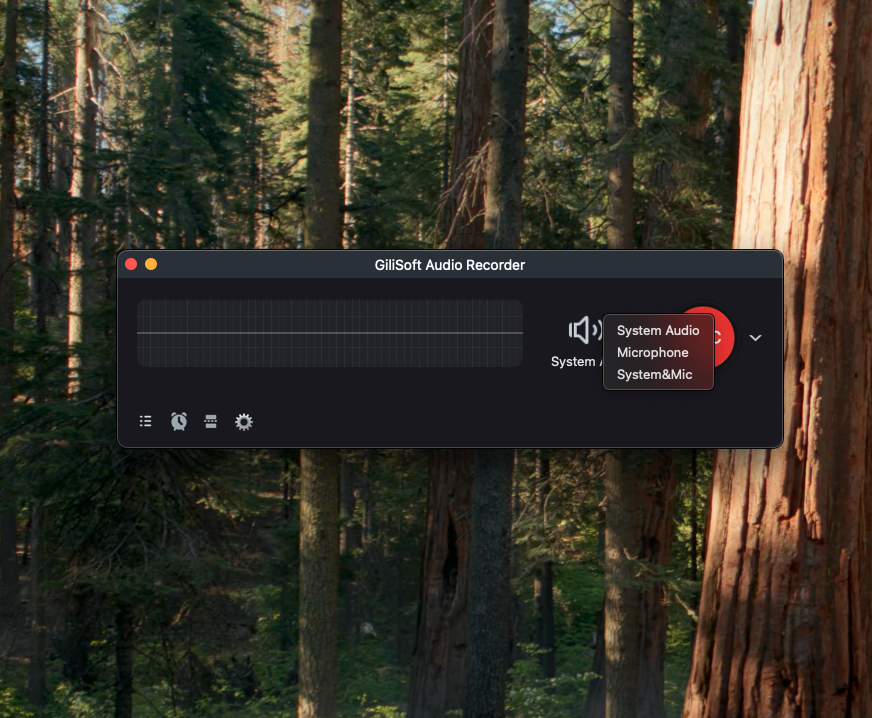
| Recorder source | Audio source menu | System Audio is selected, not Microphone only. |
| Mac output | System Settings > Sound > Output | Playback is routed to the intended active device. |
| Application volume | Source application and Mac volume | The app is playing and neither level is muted. |
| Privacy indicator | Control Center | macOS may show a purple indicator while system audio is being recorded. |
Record Mac System Audio: Step by Step
Confirm normal playback
Play the target content and confirm that the Mac can hear it through the intended speakers or headphones.
Select System Audio
Choose System Audio in the recorder. Do not select Microphone when the goal is direct computer sound.
Review Privacy & Security
Allow the recorder under Screen & System Audio Recording. Reopen the application if permission changes do not take effect immediately.
Silence unrelated applications
Use Focus and close apps that could create notification or interface sounds during capture.
Test and record
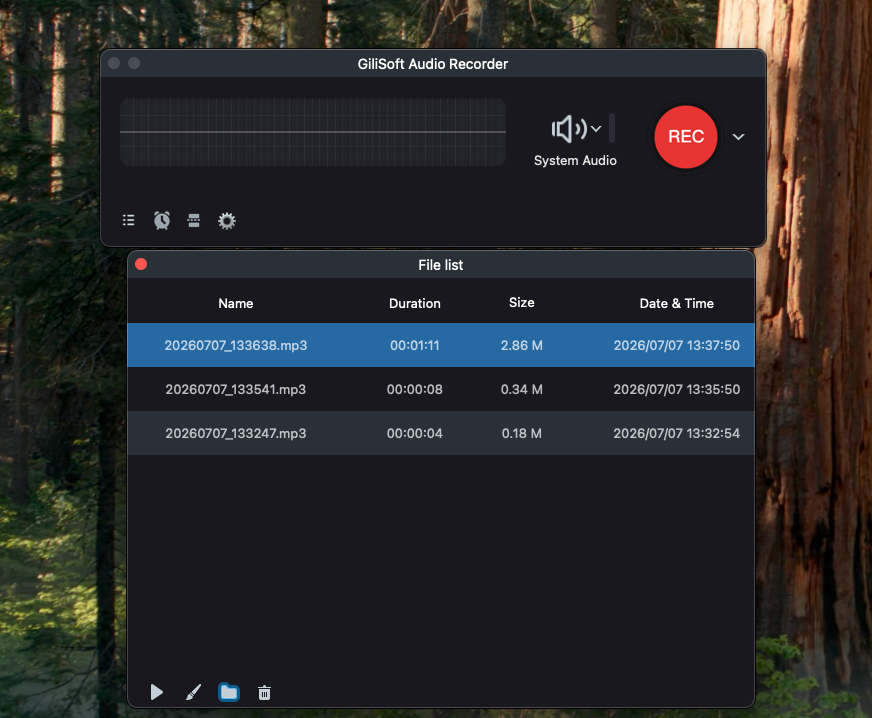
Capture 10 seconds, play the saved result, then start the full recording only after system sound is present.
System Audio Routing Checklist
Watch for device changes
A connected display, headset, USB interface, Bluetooth device, or AirPlay target can change output routing.
Keep the source audible
An application muted at its own control may remain silent even when Mac output volume is raised.
Restart after permission changes
Some applications need to reopen before a newly granted system-audio permission becomes active.
Test ordinary content first
A normal local or browser sound test separates configuration issues from protected playback restrictions.
Why Mac System Audio May Record Silence
- The recorder is set to Microphone instead of System Audio.
- Screen & System Audio Recording permission is missing or was changed without reopening the app.
- The source application or Mac output is muted.
- Sound is routed to another display, headset, interface, Bluetooth device, or AirPlay destination.
- The source uses protected playback or does not permit recording.
Frequently Asked Questions
Where is system audio recording permission on Mac?
Open System Settings > Privacy & Security > Screen & System Audio Recording and review access for the recording application.
Why does changing permission not work immediately?
macOS may require the affected application to close and reopen before a new privacy permission becomes active.
Why can I hear audio but the recording is silent?
The wrong recorder source may be selected, or the source may be using an output path that changed after a device was connected.
Can system audio be recorded without the microphone?
Yes. Select System Audio and leave Microphone off for a clean computer-audio recording.
What does the purple privacy indicator mean?
Apple documents a purple indicator when system audio is being recorded. Control Center can show which application is using it.
Does system audio recording work with every service?
No. Protected players and services may restrict capture. Record only when authorized and do not bypass protection.
More Mac Audio Recording Guides
Continue with the source, scheduling, or troubleshooting guide that matches the next recording task.