
Quick Answer: What Does "Lock an SD Card" Mean?
The phrase can mean four different things. A camera owner may only want to stop accidental deletion, while another user needs a password before private photos can be opened. Those jobs require different methods.
| Your goal | Best method | What it protects | Important limitation |
|---|---|---|---|
| Stop a camera or PC from overwriting files | SD lock switch | Requests read-only behavior from the host | No password or encryption; Micro SD cards have no switch of their own |
| Make the card read-only in Windows | DiskPart | Sets the selected disk's read-only attribute | Anyone with administrator access can clear it |
| Lock or hide selected folders | GiliSoft File Lock Pro | Chosen photos, videos, folders, or the removable drive on Windows | Access control is not the same as whole-card encryption |
| Protect data if the card is lost | BitLocker To Go or encrypted storage | The removable volume and its stored data | The camera may not recognize an encrypted card |
Before You Change Anything on a Camera Card
- Copy irreplaceable photos first. Work on a verified backup, especially before changing attributes, file systems, or encryption.
- Identify the correct disk by capacity. DiskPart commands act on the selected disk; selecting the wrong one can affect another drive.
- Separate capture from archive. A card currently used inside a camera should stay in a file system the camera supports. Protect an archive or delivery copy when possible.
- Test the reader and adapter. A loose SD adapter switch can slide into the locked position when inserted, causing confusing write-protection errors.
Use the Lock Switch on a Full-Size SD Card
Standard SD, SDHC, and SDXC cards normally have a small lock tab on the left edge. Move it toward the Lock marking before inserting the card. A Micro SD card has no physical tab; only a full-size adapter may provide one.
- Safely eject the card from the camera or Windows PC.
- Slide the side tab to Lock on the full-size SD card or adapter.
- Reconnect the card and test by creating a small disposable file. Reading should still work while writing is refused.
Set a Micro SD Card to Read-Only with DiskPart
When the card has no physical switch, Windows can set the selected disk's read-only attribute. This is useful for an archive card that should be browsed without casual edits, but it does not prevent reading or require a password.
- Open Windows Terminal or Command Prompt as administrator.
- Run diskpart, then list the connected disks.
- Match the memory card by capacity and select the correct disk number.
- Set the read-only attribute, exit DiskPart, and test with a disposable file.
diskpart
list disk
select disk N
attributes disk set readonly
attributes disk
exit
Replace N with the memory card's disk number. To remove the attribute later, select the same disk and run:
attributes disk clear readonly
Password-Protect Photos and Video Folders with File Lock Pro
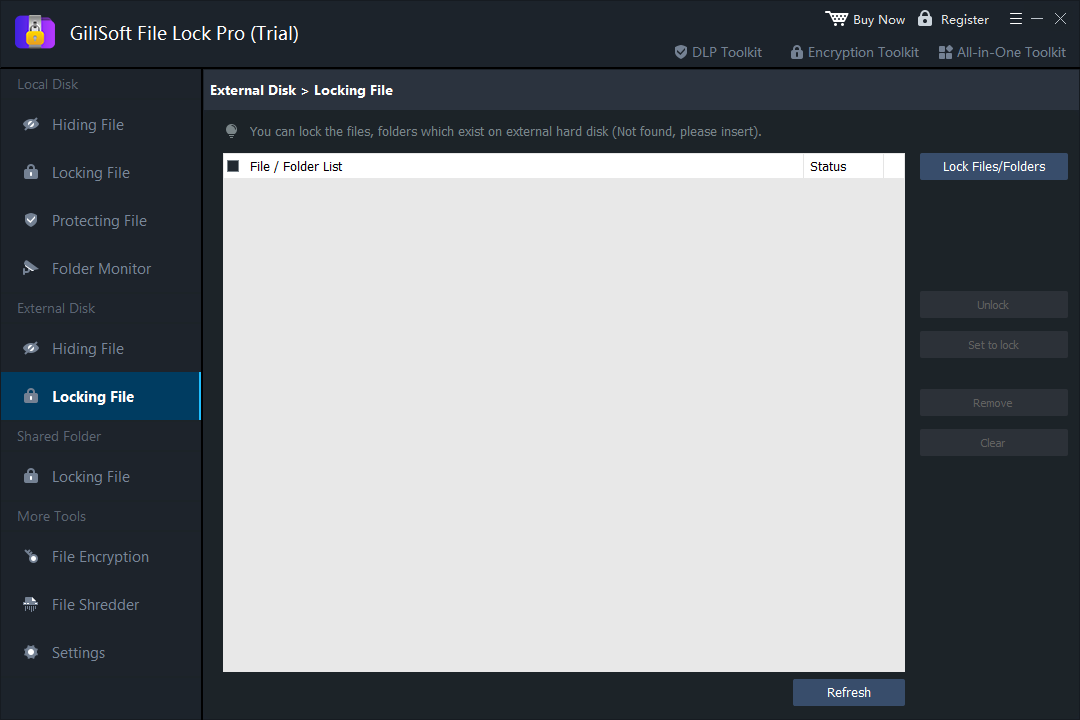
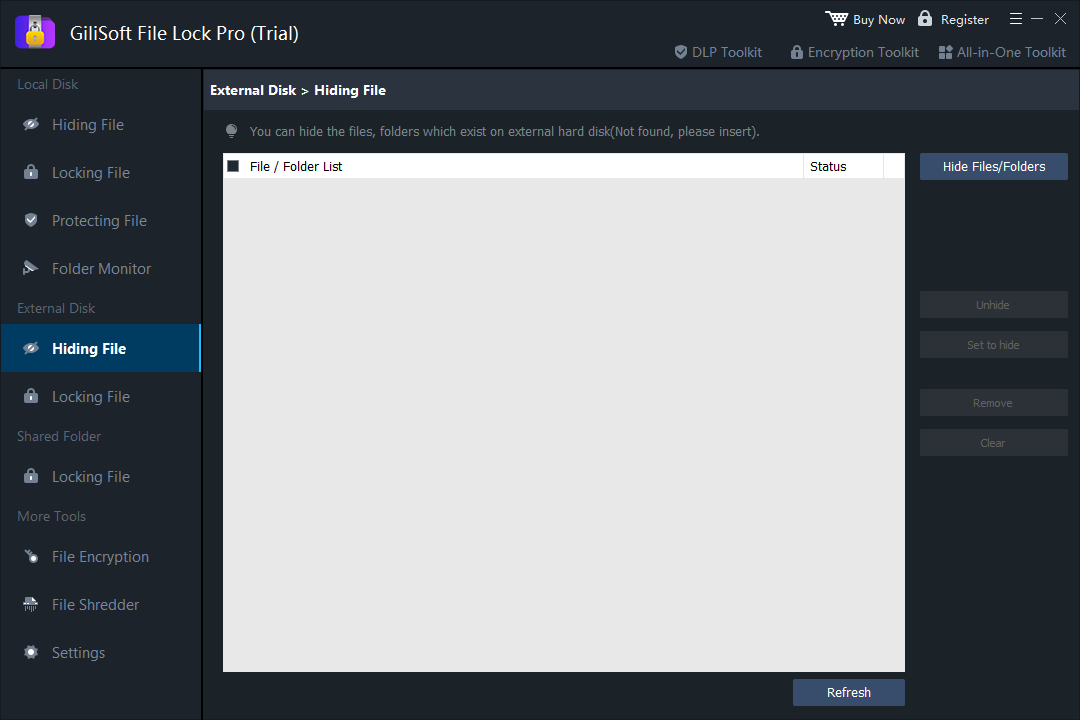
Use this route when the memory card contains both shareable and private content. GiliSoft File Lock Pro can keep chosen folders visible but inaccessible, hide them from normal browsing, or restrict reading, writing, renaming, and deletion on a Windows PC.
- Insert the card through a reliable reader and confirm its drive letter in File Explorer.
- Open File Lock Pro and choose External Disk > Locking File or Hiding File.
- Select the private photo, RAW, video, client, or delivery folder on the card.
- Apply the action, eject and reconnect the card, then verify the protected and public folders separately.
Encrypt the Memory Card When Physical Loss Is the Risk
Encryption is the stronger choice when someone could remove the card and connect it to another computer. On supported Windows editions, BitLocker To Go lists recognized removable drives under Removable data drives. You choose an unlock method and save a recovery key before encryption begins.
- Back up the card and connect it directly through a dependable reader.
- Open Manage BitLocker and locate the card under removable data drives.
- Select Turn on BitLocker, choose the unlock option, and save the recovery key somewhere separate.
- Complete encryption and test unlock and recovery before moving important files back.
If you prefer a password-protected secure area on supported removable storage, compare GiliSoft USB Encryption. Test it with the exact card reader and destination PC before relying on it.
Which Method Should You Use?
Card stays in the camera
Use the physical switch only when you need temporary write protection. Keep the active card camera-compatible.
Archive should not be edited
Use DiskPart read-only mode, then keep another verified backup because the attribute can be cleared.
Only some folders are private
Use File Lock Pro to lock, hide, or protect selected folders while leaving public media available.
The card may be lost or stolen
Use encryption and store the recovery key separately. Do not depend on a lock tab or read-only attribute.
Why Is My SD Card Locked or Write-Protected?
If Windows refuses to save, delete, or format files even though you did not intentionally lock the card, check these causes in order:
- The full-size SD card or adapter switch is in the locked position.
- The adapter switch is loose and moves while entering the reader.
- The disk has a Windows read-only attribute that can be inspected with DiskPart.
- The card has entered a protective read-only state because its flash storage is wearing out or corrupted.
- The card reader, cable, port, or host device is reporting the card incorrectly.
Micro SD and Camera Memory Card FAQ
Does a Micro SD card have a lock switch?
No. A Micro SD card has no physical lock tab. A full-size SD adapter may include a write-protect switch, but it does not encrypt data.
Can I password-protect only one folder on an SD card?
Yes. File Lock Pro is intended for selective Windows folder protection, so public folders can remain available while a private folder is locked or hidden.
Is read-only mode the same as encryption?
No. Read-only mode limits changes; it does not stop another person from reading or copying the files. Encryption is required when the stored data itself must be unreadable without a key.
Can I use BitLocker on Windows Home?
The Manage BitLocker interface for manually encrypting drives is provided on Windows Pro, Enterprise, and Education. Windows Home does not include that BitLocker Drive Encryption management feature.
Will locking a card erase my photos?
The SD switch, DiskPart read-only attribute, and File Lock Pro folder workflow do not require formatting. Encryption and file-system changes should still begin with a verified backup.
Should I format an SD card on Windows or in the camera?
For an active capture card, use the camera's own format function after backing up the files. This gives the camera the file structure it expects.