

A RAR file can hold many documents, photos, videos, project files, or business records in one compressed archive. Compression makes the collection easier to store and send, but a normal RAR archive is not private until access protection is added.
This guide explains three different ways to protect a RAR file: add a password while creating the archive, use Windows account-based encryption, or apply GiliSoft File Lock Pro to an existing .rar file and its original source folder.
What Is a RAR File, and What Does a RAR Password Protect?
RAR and ZIP are archive formats created by compression software. A single RAR file may contain dozens or hundreds of source files, making it useful for packaging a project, reducing storage use, or sending a collection as one item.
 A RAR archive combines many source files into one compressed package.
A password-encrypted RAR archive prevents extraction and viewing without the password. It does not automatically hide the archive, protect uncompressed copies left elsewhere, or stop someone from deleting the archive itself. Those are separate protection goals.
.rar file out of ordinary File Explorer and search views.Method 1. Add a Password When Creating the RAR File with WinRAR
If you are creating a new RAR archive, adding the password inside the compression program is the most direct method. The encrypted archive can then be moved or sent as one password-protected file.
- Select the files or folder you want to compress, right-click the selection, and choose Add to archive.
- Choose RAR as the archive format and configure the archive name and compression options.
- Select Set password, enter a strong password twice, and enable filename encryption if that option is appropriate for the archive.
- Create the archive, open it again, and test the password before deleting or moving any unprotected source files.
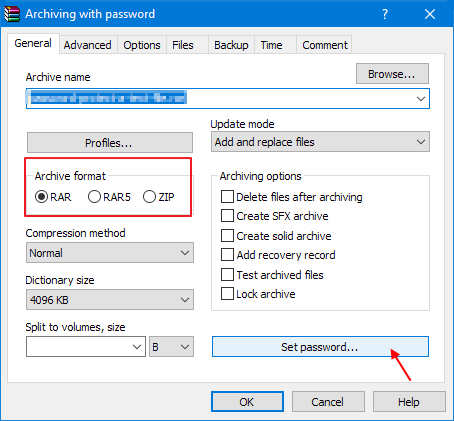 Open the archive options and choose Set password.
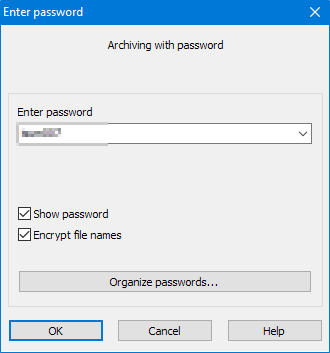 Enter the archive password and confirm the encryption settings.
Method 2. Encrypt an Existing RAR File with Windows EFS
Windows Encrypting File System can encrypt an existing RAR file under the current Windows account. This is account-and-certificate-based protection rather than a portable archive password.
- Right-click the RAR file and select Properties.
- On the General tab, choose Advanced.
- Enable Encrypt contents to secure data, confirm the change, and apply it to the file.
- Back up the Windows encryption certificate and recovery key to a separate protected location.
Method 3. Lock an Existing RAR File with GiliSoft File Lock Pro
File Lock Pro protects an existing RAR file without pretending to be the archive creator. It is useful when the archive must be hidden from normal browsing, blocked from opening, protected from changes, or encrypted into a separate protected GFL or EXE package.
Lock the RAR file directly
- Open GiliSoft File Lock Pro and enter the master password.
- Select Local Disk > Locking File.
- Choose Lock Files/Folders and add the
.rararchive. - Confirm the file appears in the protected list, then test it from File Explorer.
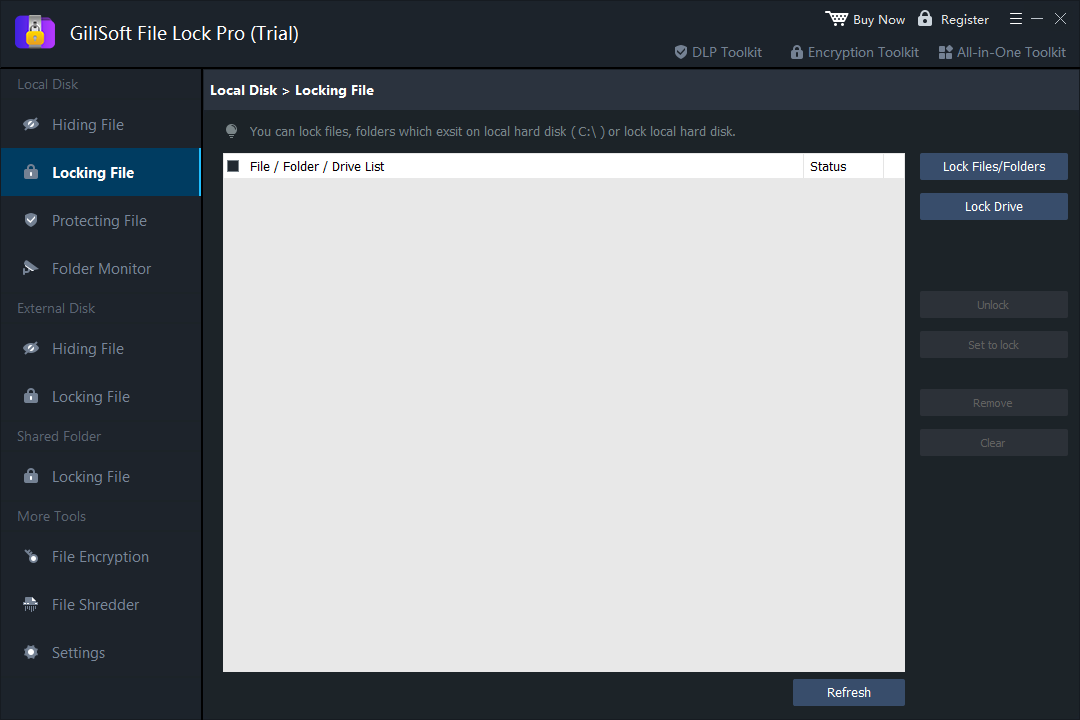 Add an existing RAR file to the password-controlled locking list.
Encrypt the archive into a protected package
Open More Tools > File Encryption, add the RAR file, and choose the protected output that fits your storage or delivery needs.
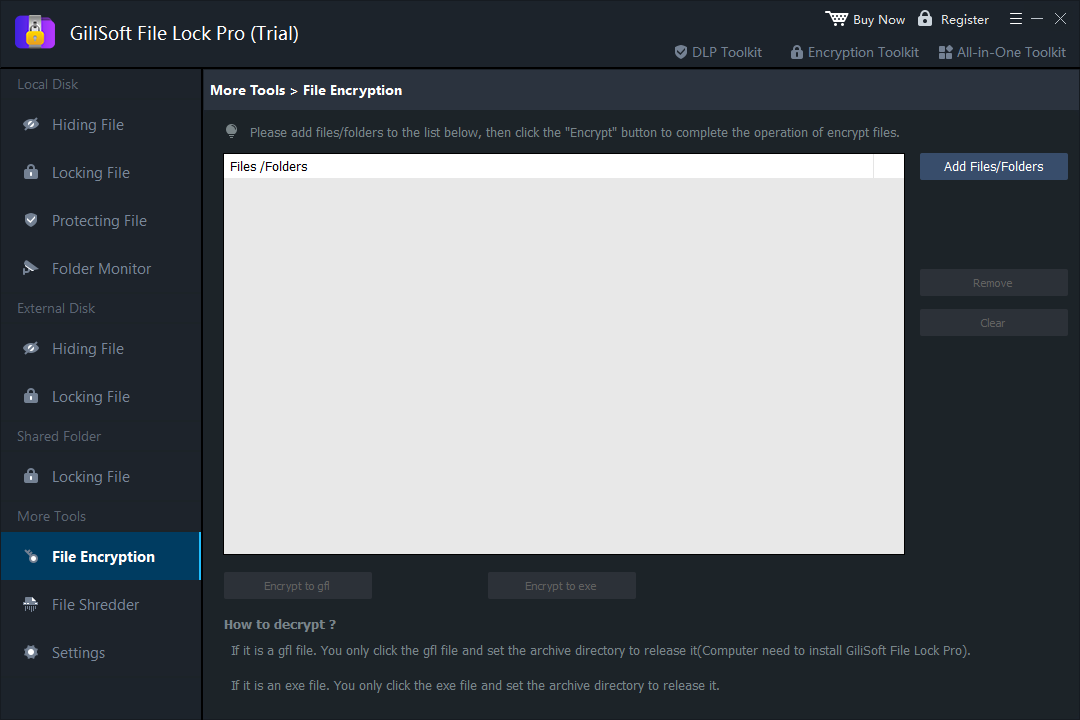 Create a protected package from an existing RAR file or folder.
Protect the archive and the original source files
File Lock Pro can apply separate rules to the .rar archive and to the uncompressed folder that was used to create it, reducing the chance that an exposed duplicate remains behind.

Which RAR Protection Method Should You Choose?
| Method | Main protection | Best use | Portable password |
|---|---|---|---|
| WinRAR password | Encrypts archive contents | Creating and sharing a new protected RAR | Yes |
| Windows EFS | Encrypts the existing file for a Windows account | Local account-based storage | No |
| GiliSoft File Lock Pro | Hide, lock, protect, or package the existing RAR | Local privacy and control over archives plus source folders | Yes, when using a protected package |
For a RAR file that will be emailed or transferred, an archive password is straightforward. For a RAR file stored on a shared Windows computer, File Lock Pro adds the stronger local controls that the archive format itself does not provide.
Frequently Asked Questions
Does changing a RAR file extension protect it?
No. Renaming the extension only obscures the file type. It does not encrypt the contents or add access control.
Can File Lock Pro create a RAR archive?
This guide uses WinRAR or another archive utility to create the .rar file. File Lock Pro protects the completed archive and its source files through hiding, locking, change protection, or protected packages.
What happens if I forget the RAR password?
Strong RAR encryption is designed to resist unauthorized recovery. Keep the password in a secure password manager and verify it before removing unprotected originals.
Should I delete the original folder after creating the protected RAR?
Only after testing the archive and confirming that a separate protected backup exists. If the original folder must remain, lock or encrypt it as well.
Protect existing RAR files and source folders
Use GiliSoft File Lock Pro to hide, lock, protect, or encrypt archives stored on a Windows PC.
View GiliSoft File Lock Pro