
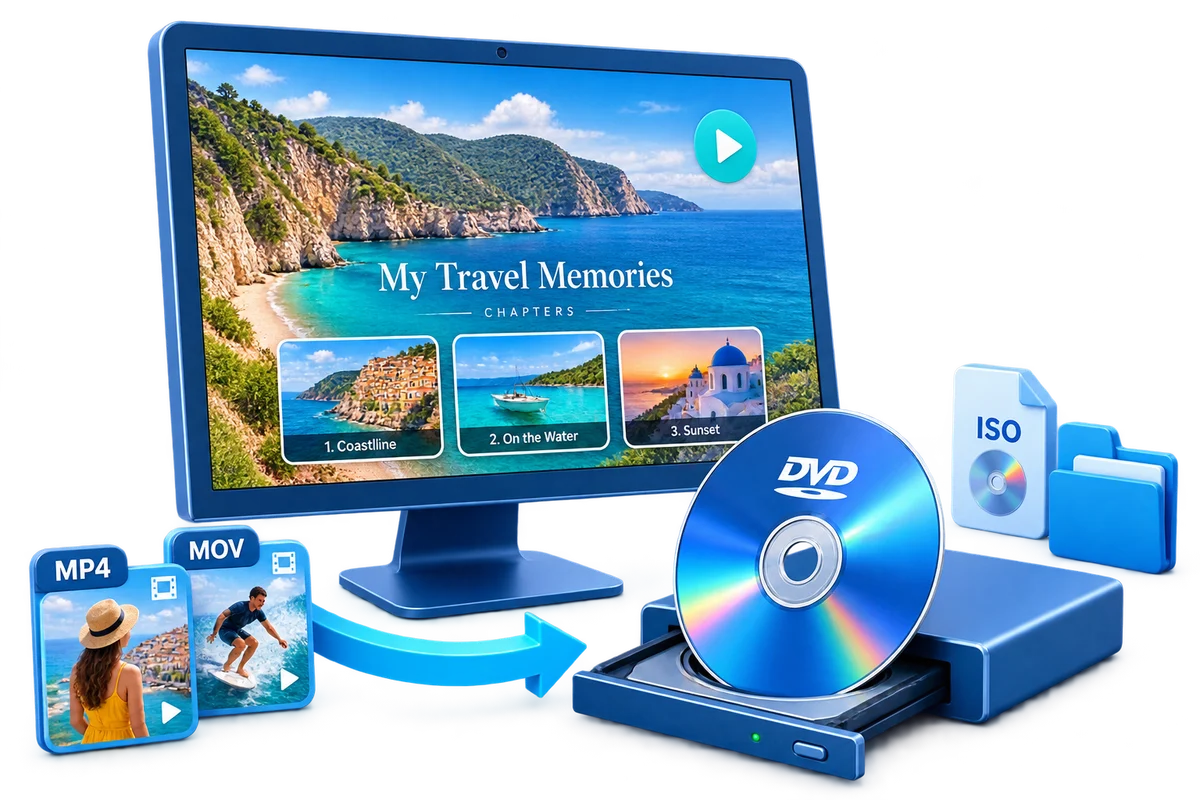
Choose the Output by How It Will Be Used
| Goal | Best choice | Why |
|---|---|---|
| PC has no optical drive | Create ISO first | Author and verify now, burn later |
| External USB writer available | Physical DVD | Connect directly and confirm Windows detection |
| Several movie clips | Title menu | Separate buttons and predictable order |
| One long movie | Simple title with chapters | Keep the opening menu uncluttered |
Prepare Before Creating the DVD
Check the USB writer
Use its supplied cable and a direct port when possible.
Confirm writable media
A DVD-ROM reader cannot burn blank discs.
Copy sources locally
Avoid authoring directly from cloud placeholders or unstable removable storage.
Reserve working space
Encoding and image creation need temporary disk capacity.
Movie DVD Maker for Windows 11: Step by Step
Verify the Windows 11 hardware
Confirm the writer appears and accepts the selected blank media.
Import the movie files
Add local sources and arrange their title order.
Prepare video and navigation
Complete needed edits and define chapters.
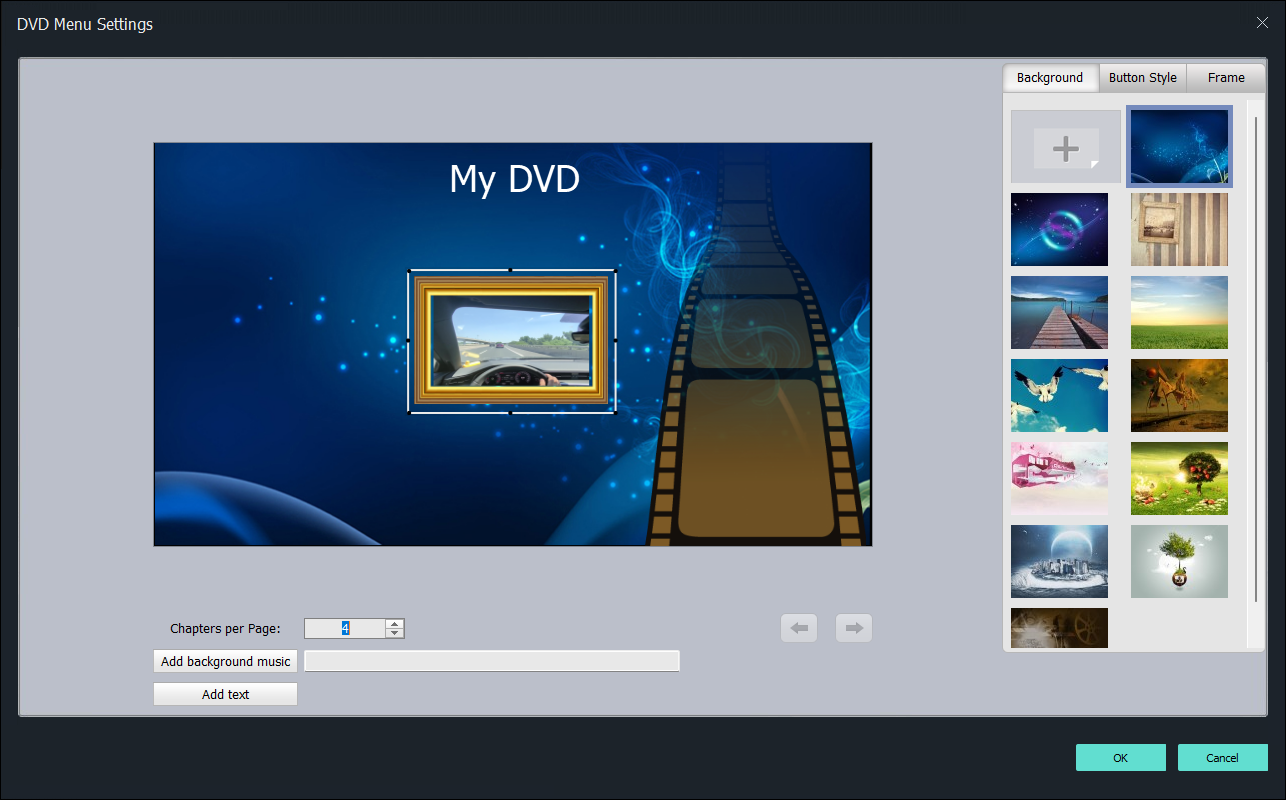
Design the DVD menu
Use readable labels and a layout suited to television navigation.
Choose output and standard
Select disc, ISO, or folder plus the correct PAL or NTSC setting.
Preview, create, and test
Check every route and verify the completed result on the destination player.
Windows 11 DVD Creation Checks
Drive recognition
Resolve USB, cable, or driver issues before a long encode.
Power stability
Avoid unpowered hubs when an external writer disconnects.
Data disc distinction
File copying does not create the same structure as DVD-Video.
ISO-first option
Separate authoring from hardware burning for easier diagnosis.
Author the Complete Project with GiliSoft Movie DVD Creator
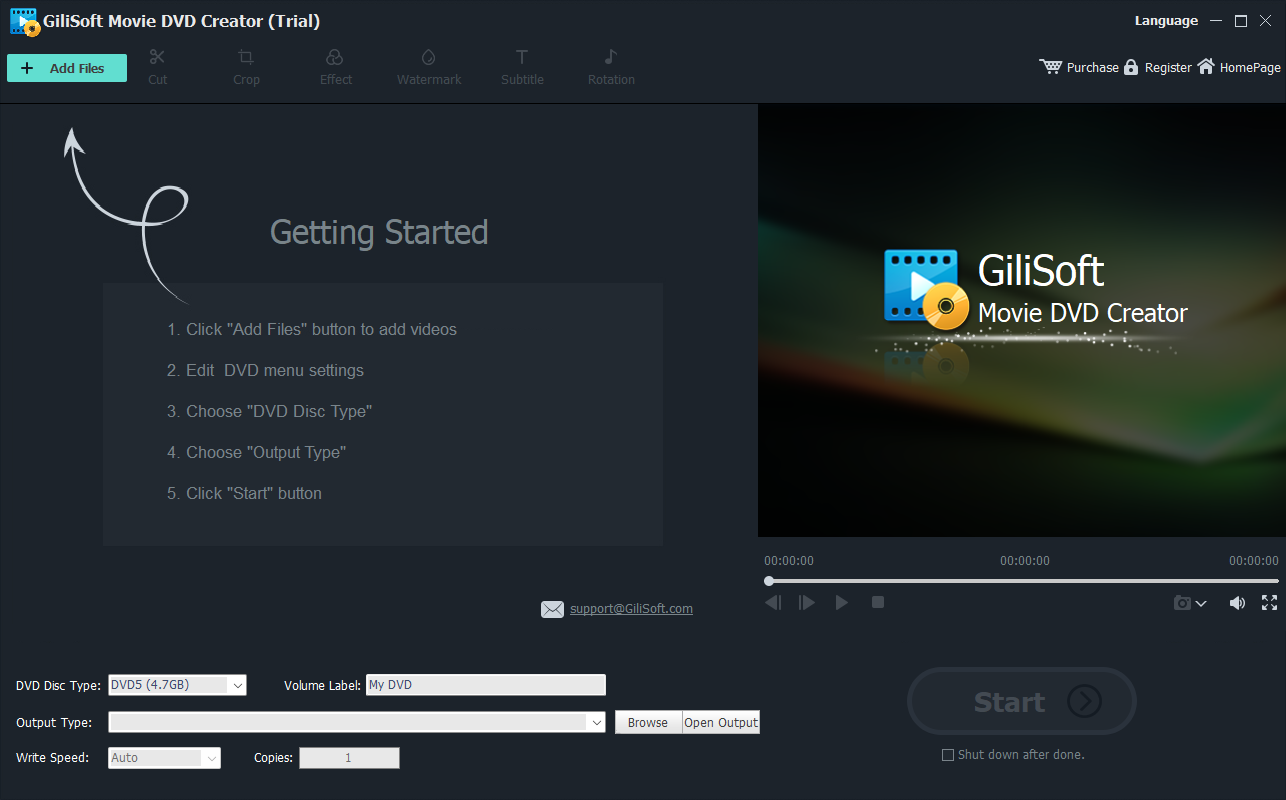
GiliSoft Movie DVD Creator keeps source preparation, titles, chapters, menu design, PAL or NTSC selection, preview, and disc, ISO, or DVD-folder output in one workflow. It is intended for creating DVD-Video, not merely copying loose video files to optical media.
Troubleshooting
- The external writer disconnects: use a direct port, supplied cable, and stable power.
- Windows sees the drive but not the disc: verify supported media and try a new blank.
- The menu preview works but the disc does not: check media, write speed, and final playback standard.
- The project exceeds capacity: remove extras or use compatible higher-capacity media.
- The picture shape is wrong: verify source and project aspect-ratio settings.
Create Discs Only from Authorized Video
Use recordings you own or have permission to copy and distribute. DVD creation does not override copyright, privacy, licensing, or technical protection.
Frequently Asked Questions
Does Windows 11 include Windows DVD Maker?
No. Use dedicated authoring software for menu-based DVD-Video.
Can I use a USB DVD writer?
Yes. Confirm that Windows recognizes the writer and that it supports the blank media.
Can I create a project without a writer?
Yes. Output an ISO or DVD folder and burn it later.
Can I add chapters to a movie?
Yes. Use chapters for useful scene or topic entry points.
Why does copying a movie file not work on every player?
A data DVD depends on file and codec support; authored DVD-Video is intended for standard players.
How should I test the disc?
Start from the opening menu and check every title, chapter, and return action on the target player.