
Plan Password Access Before Important Files Go In
| Situation | Recommended approach | Why it fits |
|---|---|---|
| Personal confidential files | One unique passphrase | Avoid reuse with Windows or online accounts |
| Small authorized team | Documented access owner and recovery process | Prevents informal password sharing |
| Portable container | Secure password method separate from USB | Avoid keeping password beside the media |
| Irreplaceable records | Encrypted backup plus tested recovery | Password protection cannot recover failed storage |
Build a Safer Password and Recovery Routine
Use length and uniqueness
Prefer a long memorable passphrase or password-manager-generated value.
Do not store it beside the disk
A text file on the same USB drive defeats the separation.
Define authorized access
Know who may unlock the container and how access changes are handled.
Test before migration
Confirm open, save, close, reopen, and backup behavior with noncritical files first.
Create a Password-Protected Virtual Disk: Step by Step
Choose the locker purpose
Define the file category, owner, storage location, and expected capacity.
Create the encrypted container
Use Create Locker and set the .gpd path and maximum size.
Set a strong unique password
Create and confirm the password without reusing a personal or work account credential.
Test with noncritical files
Open the locker, add sample files, close it, and confirm they return after reopening.
Move confidential files carefully
Copy files into the private disk and verify them before removing approved plain copies.
Close, back up, and review
Close the locker after use and keep a verified encrypted-container backup with controlled access.

The Password Is Only One Part of Protection
Open session
An unlocked mounted disk is available to the active Windows session.
Host computer
Malware or an untrusted administrator can create risks beyond the locker password.
Recovery
A forgotten password or damaged container can make data unavailable without a plan.
Backup copy
The encrypted container needs the same inventory and retention care as the original.
Use Password-Controlled Storage with GiliSoft Private Disk
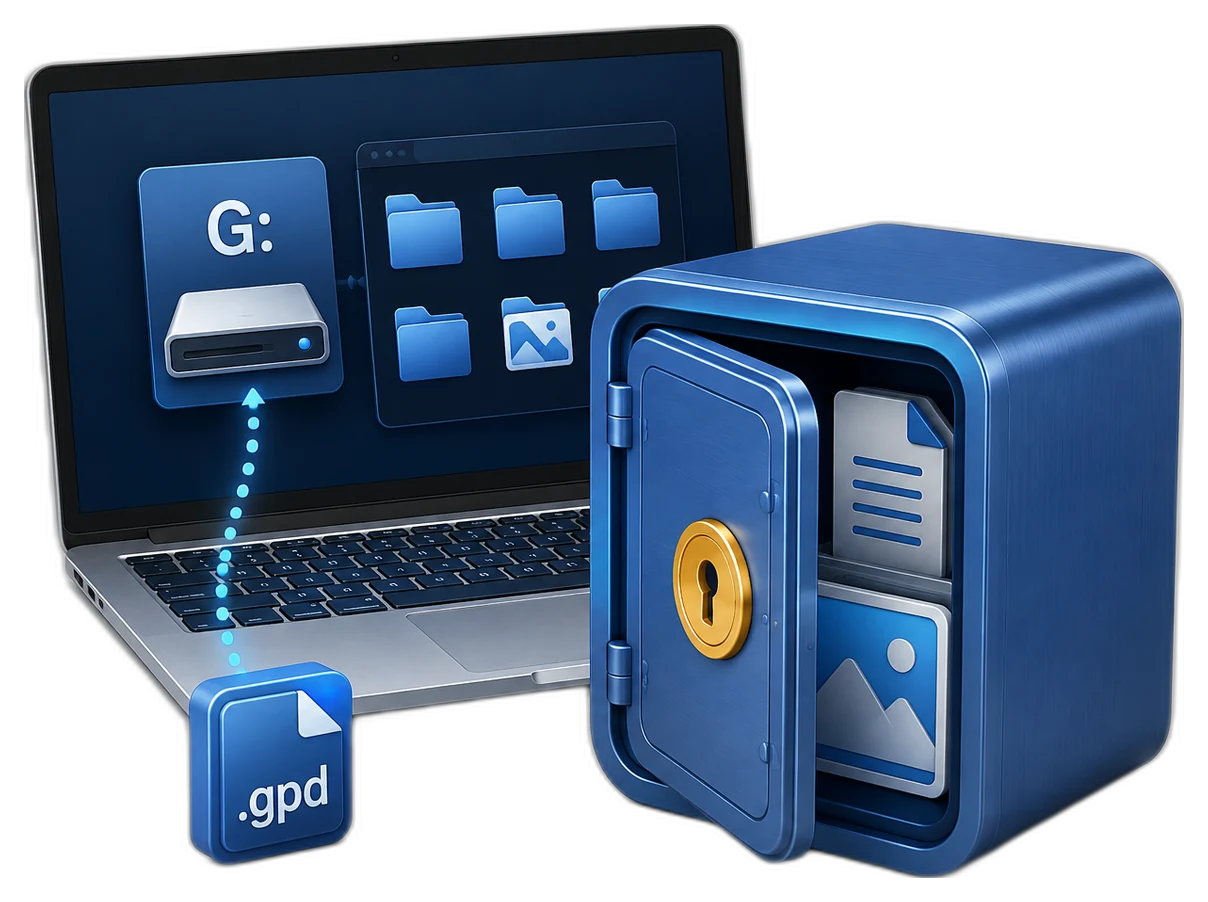
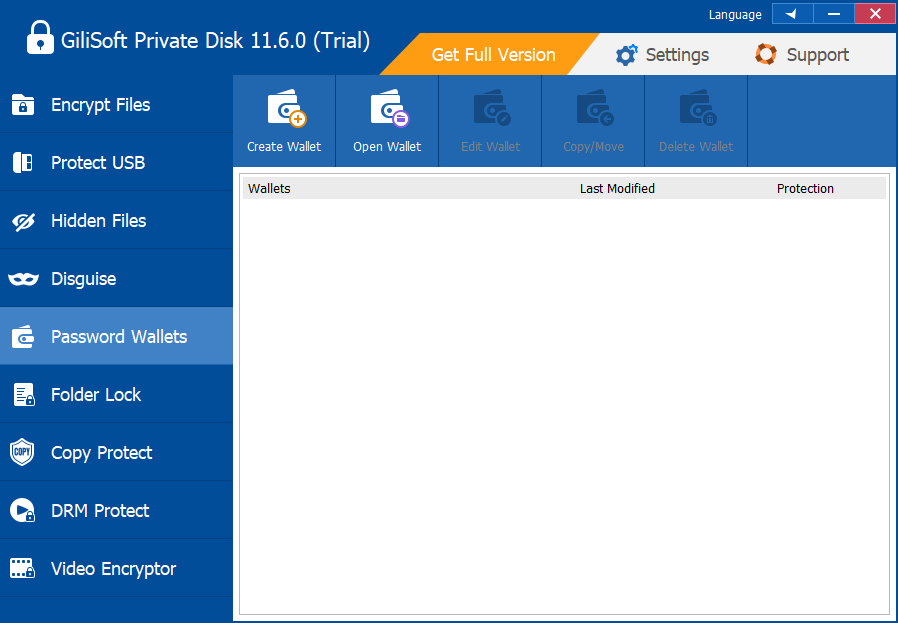
GiliSoft Private Disk centralizes confidential files inside a password-protected .gpd locker. Instead of protecting folders one by one, you can open one encrypted workspace, complete the task, and close it again when access is no longer needed.
Troubleshooting
- The password is rejected: check keyboard layout and caps state before attempting recovery procedures.
- Users share the password in chat: move credentials to an approved password-management process.
- The disk stays open overnight: add closing the locker to the end-of-day checklist.
- The only password holder is unavailable: define authorized recovery ownership before storing business-critical files.
- The container backup is outdated: schedule backups after important changes while the locker is closed.
Security Boundaries to Remember
Protect the Windows session while the private disk is open. Closing the locker limits ordinary drive access, but no single application replaces operating-system updates, malware protection, access control, full-device security, backup, or an organization security policy.
Frequently Asked Questions
What makes a good private-disk password?
Use a long unique password or passphrase that is not reused for Windows, email, or other accounts.
Can I save the password on the same USB drive?
That weakens separation. Store recovery information through an approved method away from the container.
Is the disk protected while it is open?
The encrypted container is unlocked for the active session, so secure the computer and close the disk when finished.
Can several people share one password?
It is possible operationally, but individual accountability and controlled recovery are better for business use.
What if I forget the password?
Recovery may be limited, so establish and test the password and recovery process before moving irreplaceable data.
Should I change the password regularly?
Change it when policy requires, access ownership changes, or exposure is suspected, and verify access afterward.