
Choose the Output That Matches the Next Task
| Source and goal | Recommended output | Check after conversion |
|---|---|---|
| Edit paragraphs, headings, lists, and document structure from a PDF | PDF to Word / DOCX | Page breaks, columns, styles, fonts, headers, and footnotes |
| Reuse tables or analyze values from a PDF report | PDF to Excel / XLSX | Rows, columns, merged cells, number formats, and missing formulas |
| Repurpose PDF pages for a presentation | PDF to PowerPoint / PPTX | Slide boundaries, editable objects, images, text boxes, and layout |
| Share a Word, Excel, or PowerPoint file with stable page appearance | Office to PDF | Page range, print area, notes, links, fonts, bookmarks, and accessibility |
| Recover text from photographed or scanned pages | OCR or text-layer PDF first | Recognition language, reading order, characters, tables, and searchable text |
Prepare the Source Before Conversion
Identify native or scanned PDF
Try selecting text. If the page behaves like one image, plan an OCR step before expecting editable text.
Keep the best original
Use the native DOCX, XLSX, or PPTX whenever it exists; converting back from PDF reconstructs rather than restores the authoring file.
Remove access blockers
Confirm you are authorized to convert the document and resolve legitimate open passwords or permission restrictions first.
Define the review criteria
Decide whether text flow, table accuracy, slide structure, visual fidelity, or final PDF stability matters most.
Convert PDF and Office Files: 6 Steps
Identify the source and the real editing goal
Confirm whether the input is a native PDF, scanned PDF, Word document, Excel workbook, or PowerPoint presentation, then choose the format that supports the next task.
Open the matching Formathor workspace
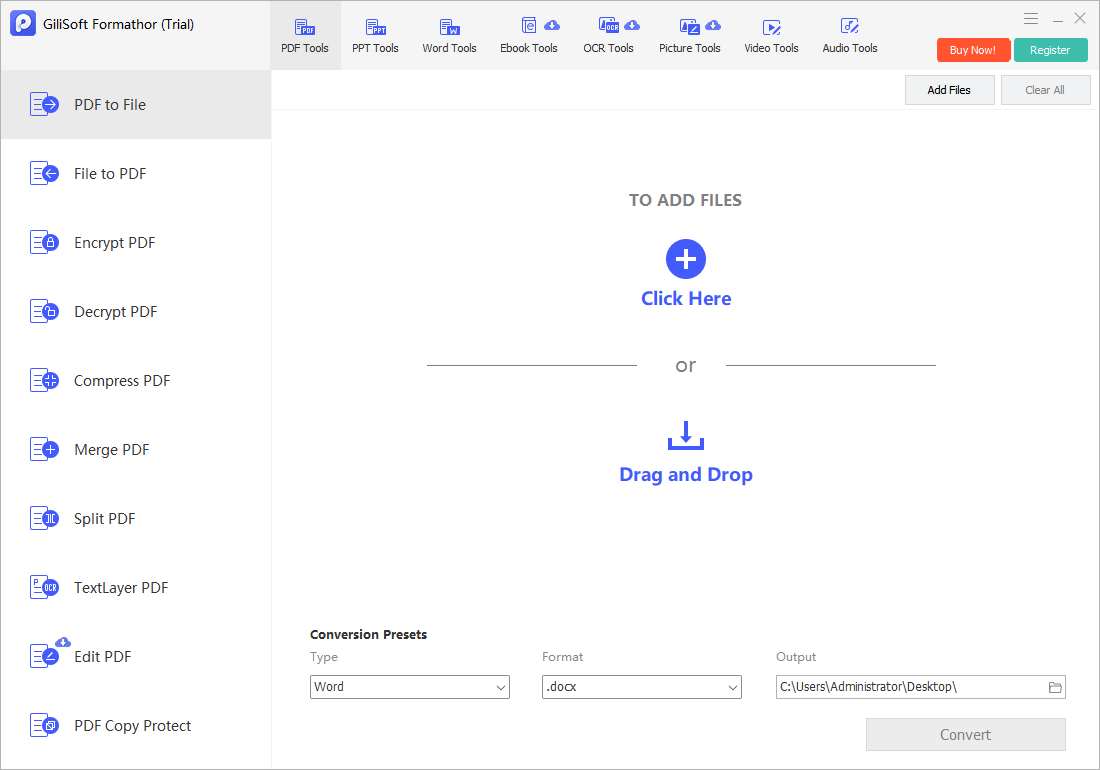
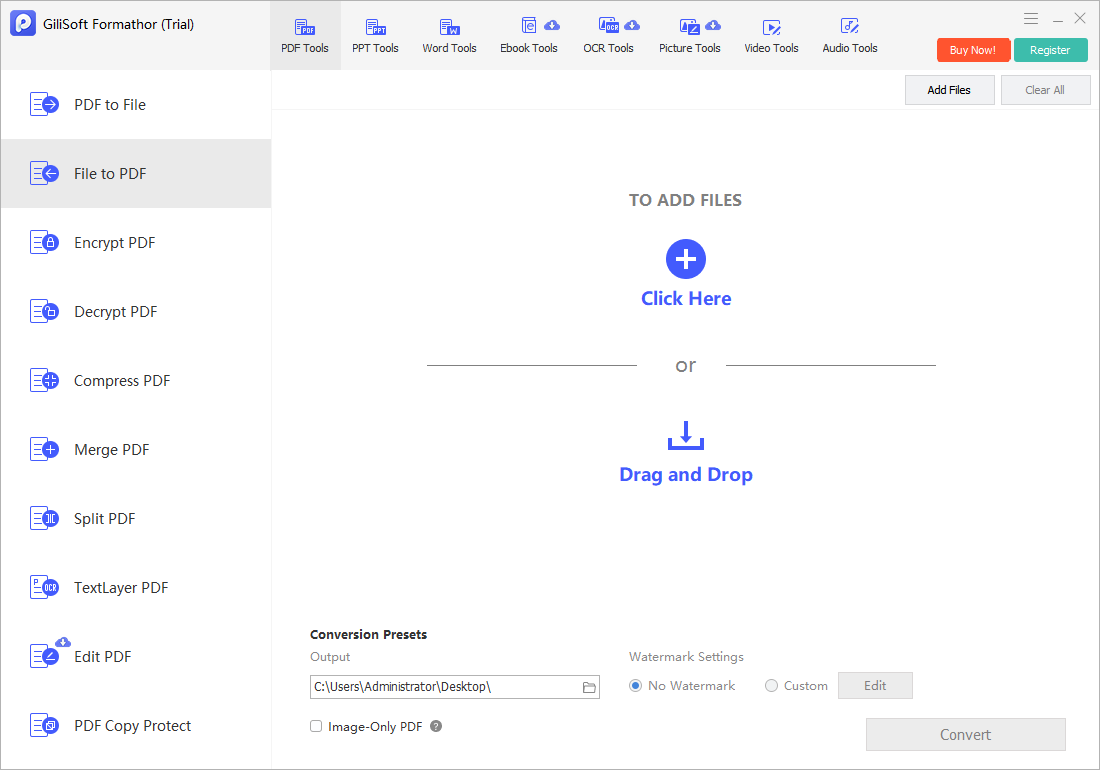
Use PDF to File for PDF-to-Word, Excel, or PowerPoint jobs; File to PDF for Office-to-PDF output; or the relevant Word and PPT tool for another supported route.
Add the approved source files
Select Add Files or drag the documents into the workspace. Check filenames, versions, page counts, and whether password protection blocks conversion.
Choose output format and recognition options
Select DOCX, XLSX, PPTX, PDF, or another supported target. For scanned pages, use an OCR or text-layer workflow before expecting editable text.
Set the output folder and convert
Save results to a separate folder, preserve the originals, confirm available space, and run a small representative batch before processing a large archive.
Open and verify every converted format
Check Word page flow, Excel tables, PowerPoint slide structure, PDF page ranges, fonts, images, links, and accessibility before distributing or replacing source files.
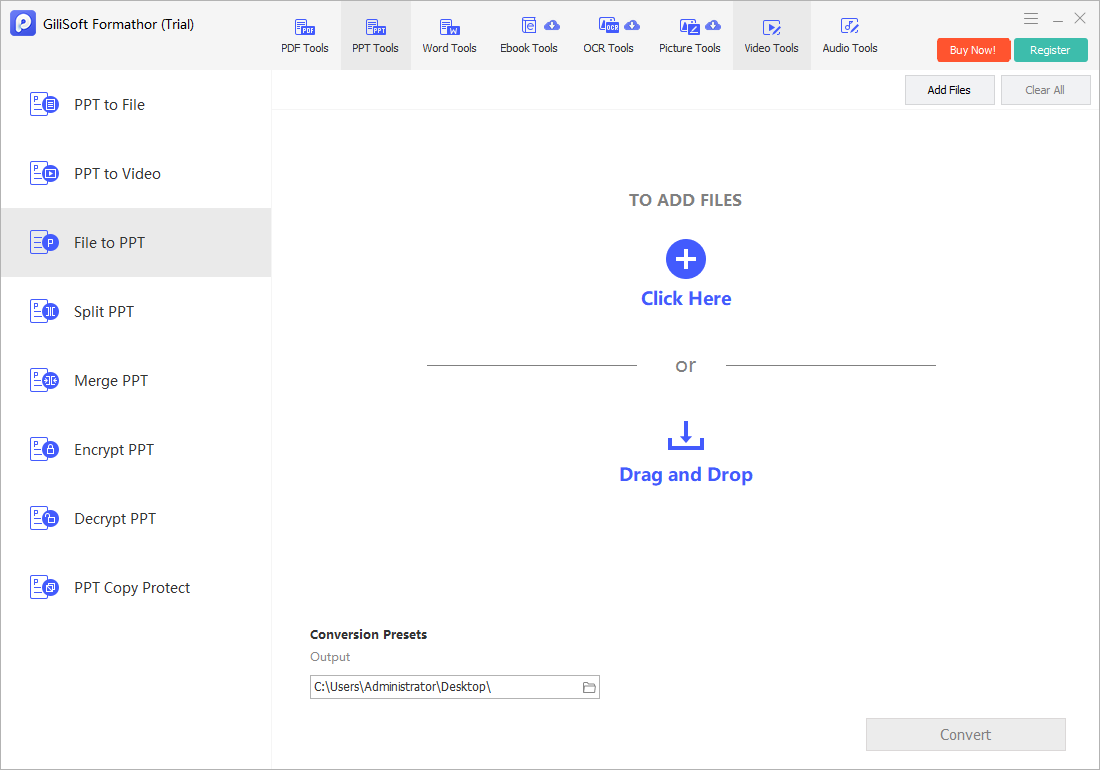 The PowerPoint workspace also supports file-to-PPT preparation, but slide boundaries and editable elements still require review.
Review Each Output Format Differently
Word output
Inspect paragraph flow, styles, columns, page breaks, headers, lists, footnotes, and substituted fonts.
Excel output
Check table boundaries, merged cells, dates, decimal separators, formulas, hidden rows, and sheet organization.
PowerPoint output
Verify slide dimensions, text boxes, reading order, image quality, editable objects, and whether speaker content was preserved.
PDF output
Confirm page range, sheet print areas, links, bookmarks, embedded fonts, image resolution, forms, and accessibility tags.
Convert Office Documents Locally with GiliSoft Formathor
GiliSoft Formathor brings PDF-to-file, file-to-PDF, Word, PowerPoint, OCR, image, and eBook workflows into one Windows application. It is useful when daily document work spans several formats and the converted files should stay on the PC instead of being uploaded to separate online converters.
- Convert PDFs to editable Word, Excel, PowerPoint, and other supported file types.
- Create PDFs from Office documents and continue with merge, split, compression, encryption, or text-layer preparation.
- Use dedicated Word, PPT, OCR, image, and eBook tools when the task extends beyond one PDF conversion.
Troubleshoot Conversion Problems
- The output contains images instead of editable text: run OCR or create a text-layer PDF before exporting the scanned pages.
- Word page breaks have moved: review styles, columns, text boxes, fonts, and manual breaks after PDF reflow.
- Excel tables are split or shifted: check merged cells, wrapped text, repeated headers, number formats, and multi-page tables.
- PowerPoint slides are difficult to edit: complex PDF pages may become grouped graphics or separate positioned objects rather than the original slide structure.
- The PDF contains blank or clipped spreadsheet pages: correct the Excel print area, orientation, scaling, and selected sheets before conversion.
- Fonts or symbols changed: install the required fonts when licensed, choose a suitable substitute, and compare representative pages before batch processing.
Keep Confidential Office Files in a Local Workflow
Contracts, reports, financial workbooks, presentations, and scanned records may contain private or regulated information. Local conversion reduces unnecessary uploads, but you should still use controlled folders, preserve source permissions, review metadata and comments, remove temporary exports, and verify the intended recipient before sharing results.
Frequently Asked Questions
Can one tool convert PDF, Word, Excel, and PowerPoint files?
Yes. GiliSoft Formathor provides PDF-to-Office, Office-to-PDF, and additional document conversion workflows in one Windows application.
Can a scanned PDF be converted into editable Word or Excel content?
A scanned PDF contains page images, so OCR or text recognition is required before the text or tables can become editable. Results still need review.
Will the converted file look exactly like the original?
Not always. Complex columns, unusual fonts, forms, charts, merged cells, animations, and scanned pages may require manual correction after conversion.
Should I convert PDF to Word, Excel, or PowerPoint?
Choose Word for flowing text and document editing, Excel for tables and data review, and PowerPoint for slide-oriented reuse or presentation preparation.
Can Word, Excel, and PowerPoint files be converted to PDF?
Yes. Office-to-PDF output is useful for stable viewing and sharing, but you should verify page ranges, sheet print areas, notes, links, fonts, and accessibility.
Should I delete the source files after conversion?
No. Keep the originals until the converted output has been reviewed, approved, backed up, and accepted by the people who will use it.