
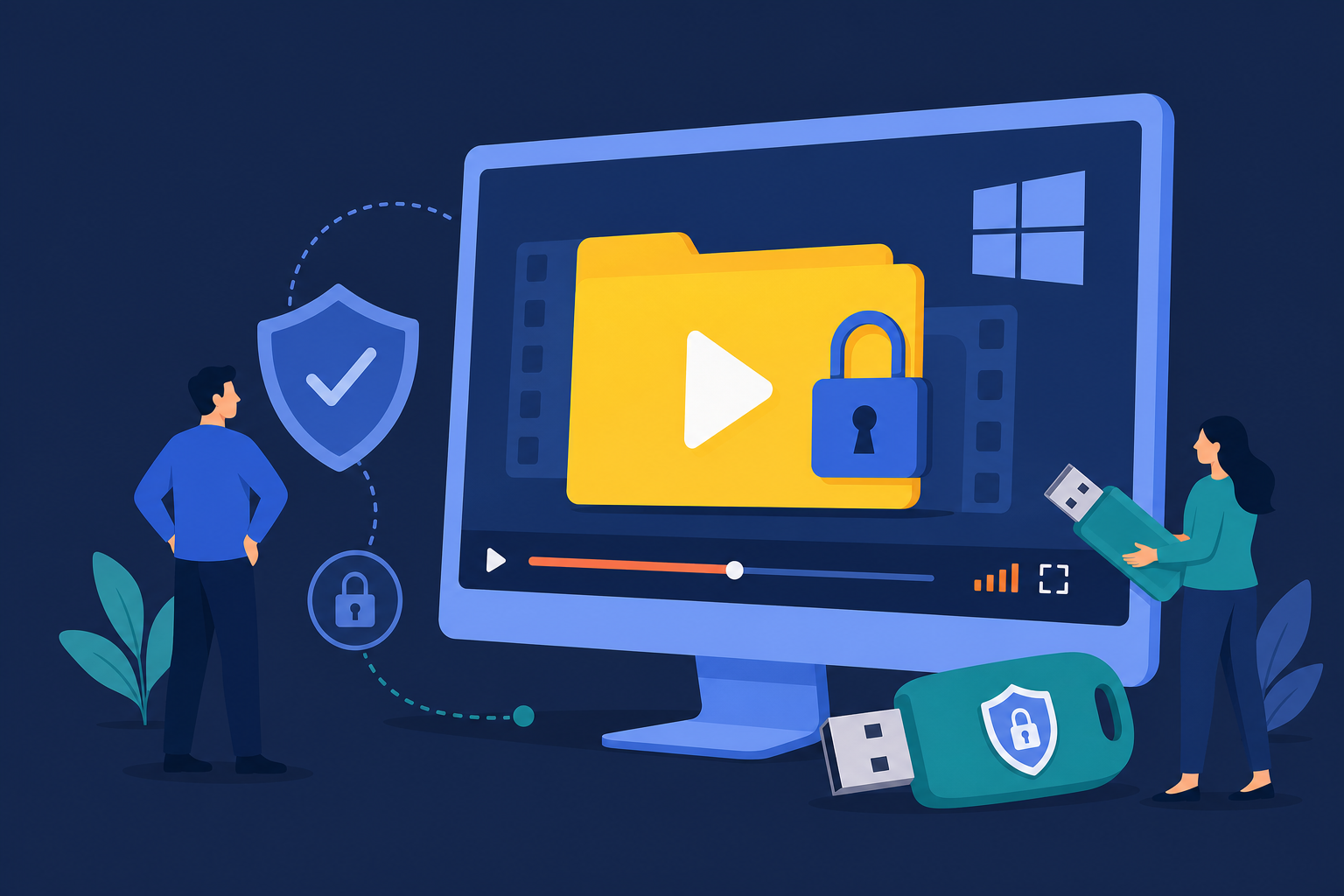
The Quick Answer
USB sharing works without a network connection, account, or cloud upload. The weakness is that a plain MP4, MOV, AVI, or WMV remains an ordinary reusable file. Anyone who can open the drive can usually copy the video to another computer before returning the USB.
Protecting the video differs from encrypting the whole drive. Microsoft calls removable-drive encryption BitLocker To Go. It protects the volume while locked. GFX or EXE protection is more suitable when the video package itself should retain a playback password after it is copied elsewhere.
Why Plain USB Video Sharing Falls Short
The source is immediately reusable
Open media can be copied, renamed, uploaded, or played elsewhere without another authorization step.
Drive and file protection are different
After an encrypted USB is unlocked, its ordinary videos can still be copied unless the files themselves are protected.
Large projects expose format limits
FAT32 cannot hold one file larger than 4 GB. Long lessons and high-bitrate videos may require exFAT or NTFS.
Recipient testing matters
Test the protected package from USB on a clean recipient-style Windows PC, not only on the creator computer.
CISA recommends encrypting sensitive information stored on removable media and keeping a separate backup. NIST likewise treats removable-storage encryption as part of a broader data-protection plan. The practical decision is whether to protect the drive, the video package, or both.
Decide What Must Stay Protected
The video itself
Use GFX or EXE when the protected file should keep asking for authorization after it leaves the original USB drive.
The whole USB drive
Use BitLocker To Go when every file should stay hidden until the removable volume is unlocked.
Playback on one USB
Use USB-bound EXE output when a Windows package should stop opening after it is copied away.
Several stored files
An AES archive can protect storage, but the recipient must extract the video before normal playback.
Compare Four USB Video Protection Methods
| Method | Best for | Playback | Important detail |
|---|---|---|---|
| GFX | Password-protected delivery | Protected player | Use for output above 4 GB |
| USB-bound EXE | Windows package tied to one drive | Self-running package | EXE output is limited to 4 GB |
| BitLocker To Go | Encrypting the entire USB | Unlock drive, use normal player | Keep recovery information safely |
| AES archive | Storage or transfer | Extract first | Extracted video is ordinary media |
Prepare the USB Drive
- 1Back up the drive.Formatting removes existing data, so keep the source video elsewhere.
- 2Check the largest output.If it may exceed 4 GB, avoid FAT32 and EXE output.
- 3Choose a suitable file system.exFAT is practical for large files and Windows/macOS transfer; NTFS fits Windows-focused delivery.
- 4Confirm the recipient environment.Check Windows access, software policy, and whether the drive also needs a public area.
Protect the Video Package with Any Video Encryptor
- 1Add the source videos.Import the MP4, AVI, WMV, MOV, or other supported media you intend to deliver.
- 2Choose GFX or EXE.Use GFX for protected-player playback and larger packages. Use EXE for self-running Windows delivery below 4 GB.
- 3Set a playback password.Do not print it on the USB label or store it beside the protected file.
- 4Encrypt to a local folder first.Copy the verified output to the USB after encryption finishes.
- 5Test the recipient experience.Open from USB, enter the password, seek through the video, close it, reconnect, and test again.
Bind an EXE Package to the USB Drive
- 1Insert the intended USB drive before configuring EXE output.
- 2Select EXE and device binding, then choose the connected USB as the authorized device.
- 3Create and test the package on the authorized USB drive.
- 4Run a negative test.Copy the EXE elsewhere and confirm it does not open without the authorized USB.
FAT32, exFAT, or NTFS?
| Format | Use it when | Watch for |
|---|---|---|
| FAT32 | Compatibility with older devices matters | Maximum individual file size is 4 GB |
| exFAT | Large files and Windows/macOS transfer | Very old devices may not recognize it |
| NTFS | Windows-focused delivery | macOS normally cannot write without extra support |
Microsoft describes exFAT as the successor to FAT32 and designed it to support very large files and storage devices. For a large GFX package, exFAT is usually the practical starting point unless the recipient environment requires NTFS.
Final Delivery Checklist
The original remains in a verified backup.
GFX is used above 4 GB.
The file opens after reconnecting USB.
A bound EXE fails away from its USB.
Audio, seeking, and ending were checked.
The recipient knows how to open it.
Give the Recipient Clear Opening Instructions
Tell the recipient whether the package is for Windows and whether a protected player is used.
Do not place the password in a text file beside the protected video.
If binding is enabled, make clear that the authorized drive must remain connected.
Use one clear package name and remove outdated test exports.
Microsoft recommends using Safely Remove Hardware before unplugging USB storage to reduce the chance of data loss. For repeated distribution, keep one known-good master package and copy from that verified source.
Common Problems
The file will not copy to the USB
Check whether the drive is FAT32 and the output exceeds 4 GB. After backing up the drive, use exFAT or NTFS, or create a smaller file.
The EXE opens only from the original USB
That is expected when USB binding is enabled.
A managed PC blocks the EXE
Some organizations block unknown executable files. Confirm policy before delivery and use GFX with an approved player where appropriate.
Frequently Asked Questions
Can I just password-protect the entire USB?
Yes. BitLocker To Go protects the removable volume. Use GFX or EXE when the video should retain protection after being copied from the drive.
Can I encrypt video larger than 4 GB?
Yes. Use GFX and a file system that accepts large individual files, such as exFAT or NTFS.
Does USB-bound EXE run on macOS?
No. EXE output is for Windows. Confirm platform and player requirements before delivery.
When should I use DRM?
Choose Video DRM Protection for licensing, revocation, dynamic watermarking, or account-based distribution.
Sources and Further Reading
- CISA: Protect data stored on devices
- CISA: Risks of portable devices
- Microsoft Support: BitLocker Drive Encryption
- Microsoft Support: Back up a BitLocker recovery key
- Microsoft Learn: exFAT specification
- Microsoft Support: Safely remove hardware
- NIST SP 800-111: Storage encryption technologies
Related Guides
Encrypt video files with a password | Password protect video files | Encrypt MP4 files | Package videos as EXE | Encryption vs DRM