
Plan the Scheduled Recording Before Setting the Timer
A correct clock time is only one part of unattended capture. The Mac must remain awake and the audio source must be available when the plan starts.
| Preparation | What to verify | Risk if skipped |
|---|---|---|
| Audio source | System Audio, Microphone, or System & Mic | The recording may start with the wrong or silent source. |
| Start and stop | Date, time, time zone, and expected duration | The session may begin late or create an unnecessarily long file. |
| Mac power and sleep | Power adapter and prevent automatic sleep | The Mac may sleep before or during recording. |
| Source application | Open, signed in, audible, and ready | The timer can start while the intended content is unavailable. |
| Output folder and storage | Writable location with sufficient free space | Recording can fail or stop before completion. |
Schedule Audio Recording on Mac: Step by Step
Prepare and test the audio source
Choose System Audio, Microphone, or System & Mic and confirm it works in a normal short recording.
Set the scheduled start
Open the timer or scheduled-recording control and enter the required date and time carefully.
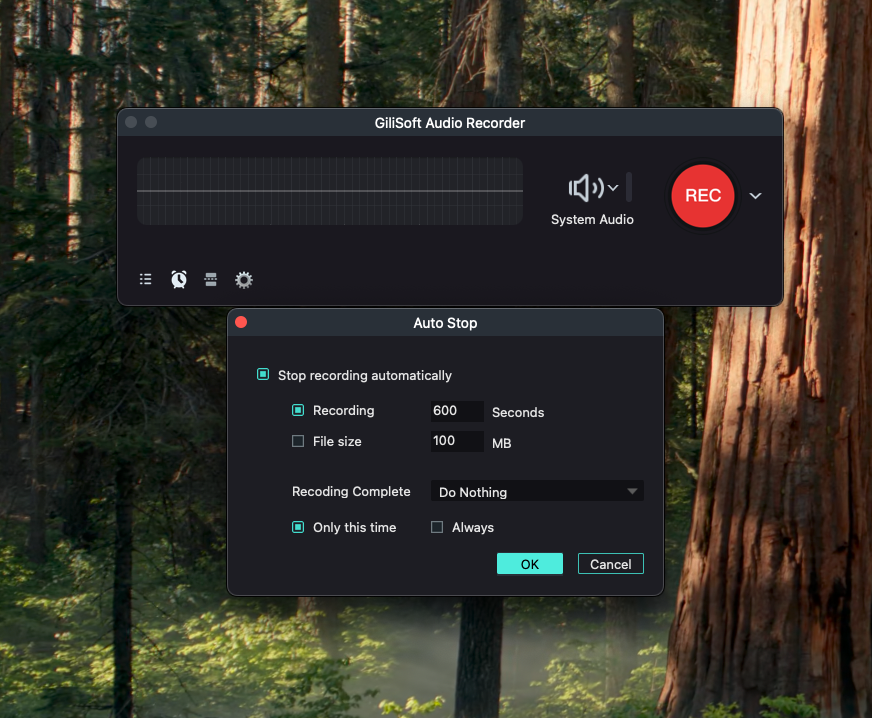
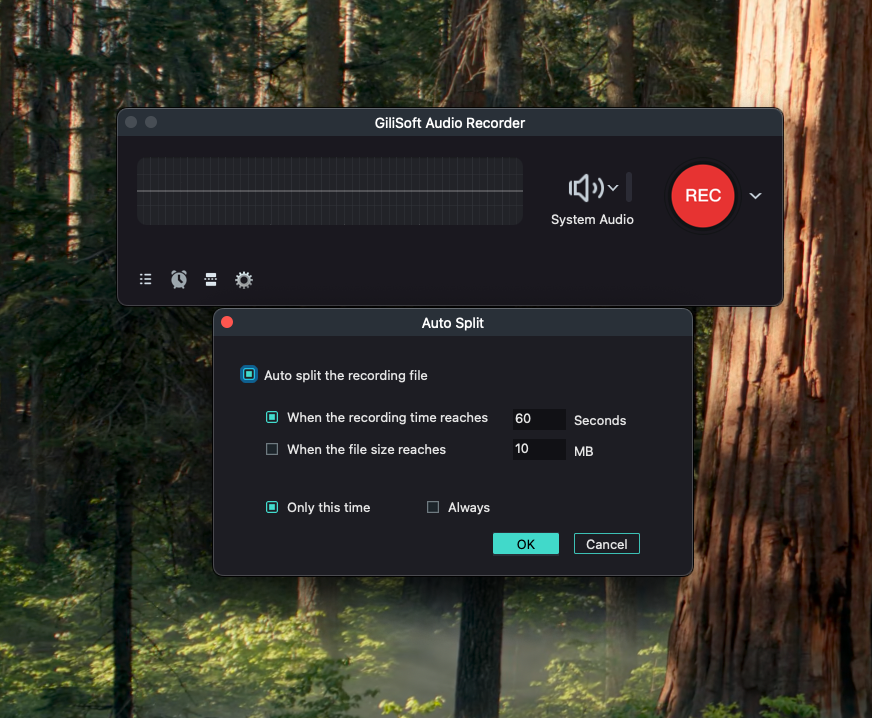
Configure automatic stop or splitting
Set a duration, file-size limit, or split rule appropriate for the planned session.
Prepare the Mac
Connect power, prevent automatic sleep, confirm storage, and keep the required account and application ready.
Run a scheduled rehearsal
Create a near-term test plan and verify that it starts, records sound, stops, and writes the file to the intended folder.
Review the completed recording
Check duration, sound, and file integrity as soon as possible after the scheduled session.
Make Scheduled Recording More Reliable
Keep the Mac awake
Apple provides an option to prevent automatic sleeping while connected to power on supported Macs.
Avoid last-minute updates
Do not schedule system updates or application restarts during the planned recording window.
Leave storage headroom
Long WAV recordings require substantially more space than compressed MP3 or M4A output.
Use a rehearsal
A short scheduled test validates the timer, source, permission, output folder, and stop rule together.
Why a Scheduled Recording May Fail
- The Mac slept, restarted, logged out, or lost power.
- The schedule used the wrong date, time, time zone, or recurrence setting.
- The source application was closed, signed out, paused, or muted.
- System-audio or microphone permission was missing.
- The output folder was unavailable or the disk ran out of space.
Frequently Asked Questions
Can an audio recording start automatically on Mac?
GiliSoft Audio Recorder for Mac provides planned recording and automatic stop controls. Test the complete setup before unattended use.
Must the Mac remain awake?
Yes. The Mac and required applications must be active when the recording begins. Connect power and review sleep settings.
Can I schedule system audio and microphone together?
Yes. Select System & Mic and confirm both macOS permissions before setting the timer.
How can I stop a scheduled recording automatically?
Set an automatic stop rule by duration or file size according to the controls available in the application.
Should I split a long scheduled recording?
Splitting can make long sessions easier to store, review, and recover if a later part is interrupted.
Can I schedule recording of any online content?
Only record content you are authorized to capture. Service restrictions, login state, and protected playback can still affect scheduled recording.
More Mac Audio Recording Guides
Continue with the source, scheduling, or troubleshooting guide that matches the next recording task.