
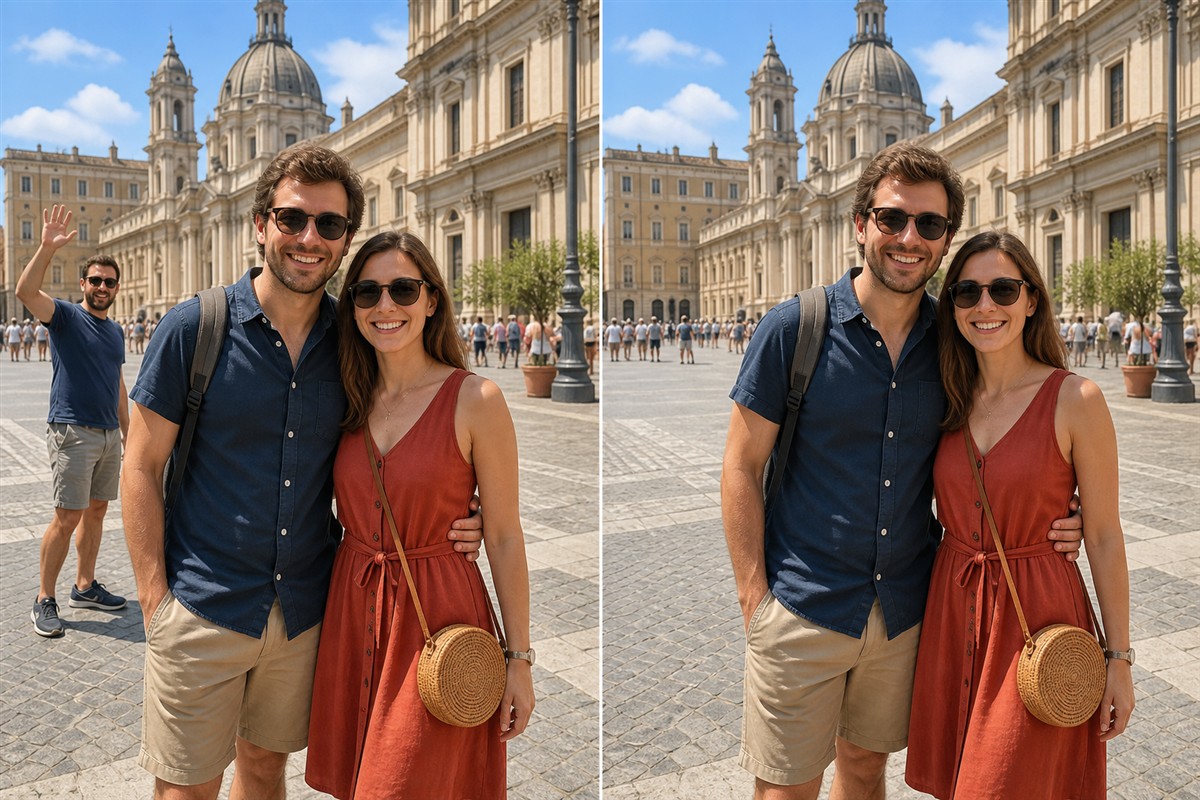
Can You Remove a Photobomber from a Photo?
Yes, especially when the unwanted person is separated from the main subject and stands over a background that can be reconstructed from nearby detail.
A distant tourist against sky, paving, grass, a wall, or soft background blur is usually practical. A foreground person crossing a face, hand, patterned outfit, railing, sign, or unique architecture is much harder because the image does not contain the hidden pixels needed for an exact restoration.
When Photobomber Removal Works Best
The key question is not simply how large the person is. Results depend on what the person covers, how cleanly the outline can be selected, and whether enough matching background remains visible.
Easier: distant and isolated
The person is smaller than the main subject, has space around the outline, and sits over repeatable sky, pavement, sand, grass, walls, or blur.
Harder: overlapping the subject
The photobomber crosses hair, a face, hands, clothing, a product, readable text, or another foreground detail that cannot be inferred reliably.
Easier: consistent light and texture
Nearby areas provide similar color, grain, perspective, and lighting for rebuilding the selected region.
Harder: crowds and mixed surfaces
A person spanning people, trees, railings, windows, and patterned paving requires several different repairs and careful edge protection.
Look beyond the person's outline
A believable edit may also require removing a cast shadow, reflection, bag, raised hand, footwear, footprints, or another disconnected part. Process these deliberately instead of drawing one oversized selection around the entire scene.
Why Removing a Person Is More Difficult Than Removing a Small Object
A flattened JPEG or PNG stores only what the camera captured in the final visible frame. If a person covers a doorway, another face, a street sign, or detailed clothing, those hidden pixels are not waiting behind the person in the file.
The missing area must be reconstructed
Adobe's person-removal workflow uses a selection and Content-Aware Fill, with controls for limiting the sampling area. Microsoft Photos offers local brush and mask controls for Generative Erase but notes that a result may not always match expectations. GIMP's Heal tool relies on a selected source area and warns that repeated healing can create smudging.
Human outlines demand closer inspection
Hair, fingers, translucent fabric, motion blur, and contact shadows create fine boundaries. After removal, check the main subject for clipped hair, softened shoulders, missing fingers, repeated paving, bent architecture, doubled people, or inconsistent light.
Editing principles consulted: Adobe's remove-a-person guide, Adobe Content-Aware Fill documentation, Microsoft Photos Generative Erase, and GIMP Heal documentation.
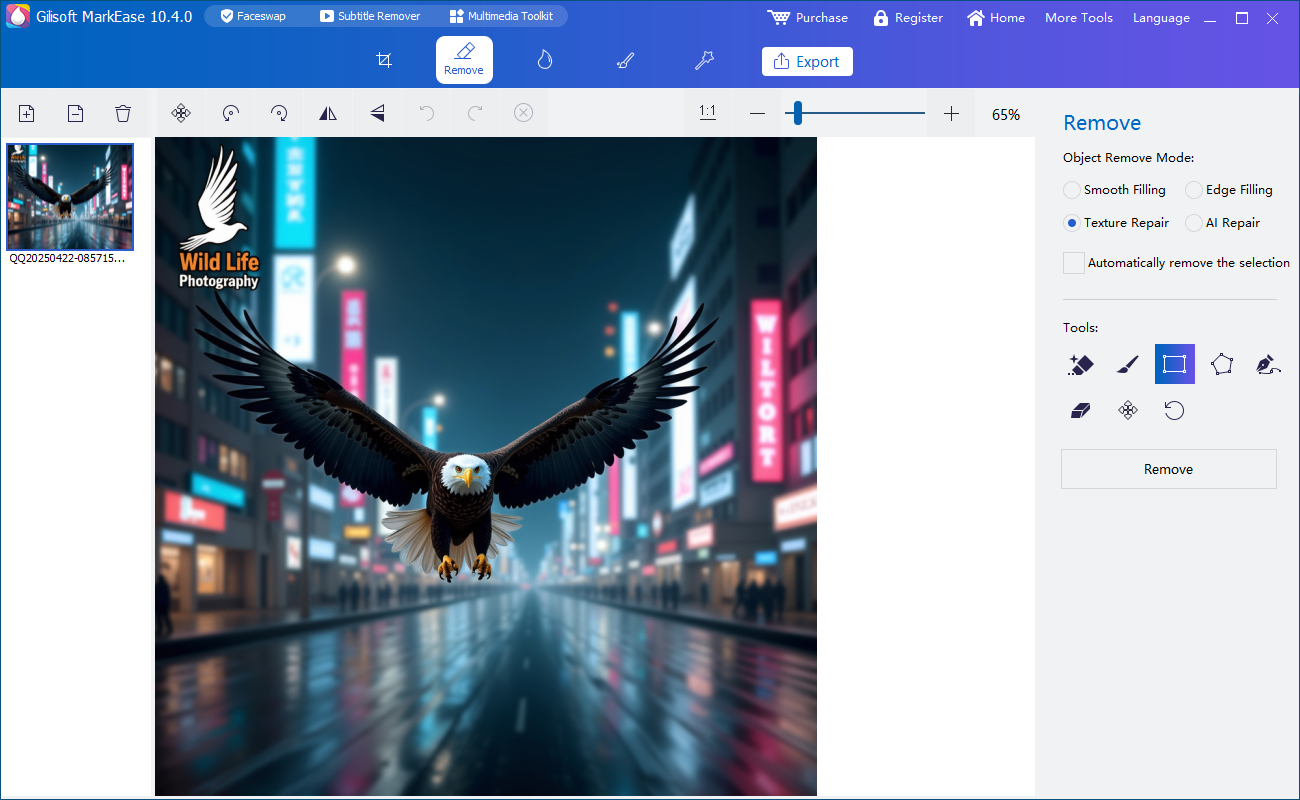
How to Remove a Photobomber with GiliSoft MarkEase
Test one representative image first. A travel photo with open paving is a different task from a wedding group photo where people overlap.
- Open the highest-quality authorized sourceUse the original camera file or best available export. Keep an untouched copy before editing.
- Identify the complete unwanted personZoom in and note hair, fingers, gaps between limbs, clothing edges, bags, shadows, reflections, and other connected traces.
- Select close to the visible silhouetteInclude pixels that belong to the photobomber without swallowing clean detail from the main subject or background.
- Repair different surfaces separatelyIf the person crosses paving, vegetation, a building, and sky, process those regions in smaller passes so each repair uses relevant nearby texture.
- Inspect the main subject and scene at 100%Check hair and shoulders first, then perspective lines, repeated patterns, crowd spacing, texture direction, blur, and lighting.
- Export a separate resultOpen the output outside MarkEase and compare it with the original at full resolution and at the final web, print, or presentation size.
Try the workflow on your own photo
GiliSoft MarkEase provides a focused Windows cleanup workflow for authorized photos. Test the trial on one difficult image before committing an entire album.
Download MarkEase TrialPhotobomber Removal vs Cropping and Other Options
| Method | Best use | Advantage | Trade-off |
|---|---|---|---|
| GiliSoft MarkEase cleanup | A background person with usable surrounding texture | Preserves the original framing and keeps the workflow focused | Reconstructs hidden background rather than recovering it exactly |
| Crop the photo | The person stands entirely on an expendable edge | Uses only authentic remaining pixels and is quick | Changes framing, dimensions, and sometimes the visual story |
| Choose another frame | A burst, Live Photo, or similar shot exists without the distraction | Preserves genuine subject and background detail | An alternative frame may have a weaker expression or composition |
| Manual clone and heal | Hair overlap, architecture, crowds, or complex perspective | Provides precise control over source texture and edges | Requires more editing time and experience |
| Retake the photo | The scene and subjects can be recreated | Captures real background information | Usually impossible for travel, events, and one-time moments |
Common Photobomber Removal Scenarios
Travel photos
Remove a distant passerby from a plaza, beach, viewpoint, or landmark while protecting paving lines, railings, and architecture.
Family and couple portraits
Clean a person behind the main subjects, paying special attention to hair, shoulders, hands, and contact shadows.
Events and celebrations
Use another frame when possible. Dense groups and overlapping clothing leave little reliable background for reconstruction.
People near the frame edge
Compare removal with a crop. Cropping may be more truthful and cleaner if it does not damage the intended composition.
Reflections in glass or mirrors
Treat the reflected person and the direct person as separate regions; reflected lighting and perspective may require different repairs.
Shadows and belongings
Remove a bag, shadow, raised hand, or footprint only when it clearly belongs to the unwanted person and its absence remains believable.
How to Make the Result Look Natural
Know when another method is better
If the person hides important facial detail, a unique landmark, meaningful event context, or most of the background, use another photo, crop, retake, or a skilled manual editor. A smooth fill is not the same as an accurate reconstruction.
Use Person Removal Responsibly
Removing an accidental background person can improve composition and protect privacy, but it can also alter what an image communicates. Keep the untouched source and avoid editing images whose documentary accuracy matters.
Photobomber Removal FAQ
What kind of photobomber is easiest to remove?
A small, distant, isolated person over repeatable sky, pavement, walls, grass, sand, or soft blur is generally the best candidate.
Can the hidden background behind a person be recovered exactly?
No. A flattened photo does not contain the covered pixels. The software reconstructs a plausible replacement from visible surrounding information.
What if the photobomber overlaps the main subject?
Use small selections and protect the main subject's edge. If the person hides facial, hair, hand, clothing, or product detail, another frame or manual editor may be more reliable.
Should the person's shadow and reflection be removed?
Yes, when they belong to the unwanted person. Bags, raised hands, footprints, and disconnected parts may also require separate selections.
Is cropping better than removing the person?
Crop when the distraction is confined to an expendable edge and the new framing still works. Use removal when cropping would cut important subjects or context.
Should I overwrite the original?
No. Keep the original and export the cleaned result as a separate file for comparison, audit, and recovery.


