Does Windows 7 have a built-in folder password feature?
Windows 7 offers EFS encryption on Professional and higher editions, but no direct folder password. File Lock Pro adds a real password prompt to any folder.

GiliSoft File Lock Pro
GiliSoft File Lock Pro is a folder / file locker which protects user's privacy and important data from theft, loss or leaks.

"How to provide password protection in Windows 7 folder? I want to create a secure folder with password-protected in my laptop which having windows 7 as OS. Please help me! How can I do this." (from Microsoft Community)
This is a real case from the Microsoft Community. Although a Windows password can make your files safe and secure, it's not enough. The password only offers a very basic level of protection. Thus, you must learn how to password protect files in Windows 7.
When you are sharing your laptop or computer with others, there's always a chance of human error - accidental deletion, mistaken modification, and more. To prevent this kind of error, you need to password protect some important files from information leaking.
What's more, you may encounter this kind of issue. You're sharing sensitive information over email with the wrong recipients. What's worse the spreadsheet contains personal information belonging to a lot of people. If this kind of file is leaking, what a pity. How can you minimize the risk? The answer is putting password protection on the file. Learn how easy it is to secure your files and folders with password protection and encryption.
When it comes to password protection in Windows 7/8/10, you must take GiliSoft File Lock Pro into account. With it, password-protecting a file is a 1-second yet 1-click job. This software has a very easy and intuitive interface, which allows you to go through all the features on the left panel. Besides, this software can hide, lock, protect, and encrypt files, folders, or even a whole hard drive in Windows 7 comprehensively.
Exclusive data protection features in Windows 7/8/8.1/10/11 include:
You can download this password-protecting software and secure your files and folders with encryption.
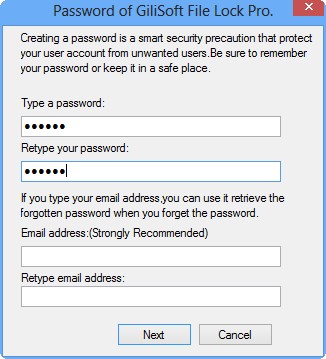
Step 1. Launch GiliSoft File Lock Pro, enter the valid email, and set password to register.
Step 2. Click Protecting File under the Local Disk. Select Protect File(s), Folder or Drive from the right panel.
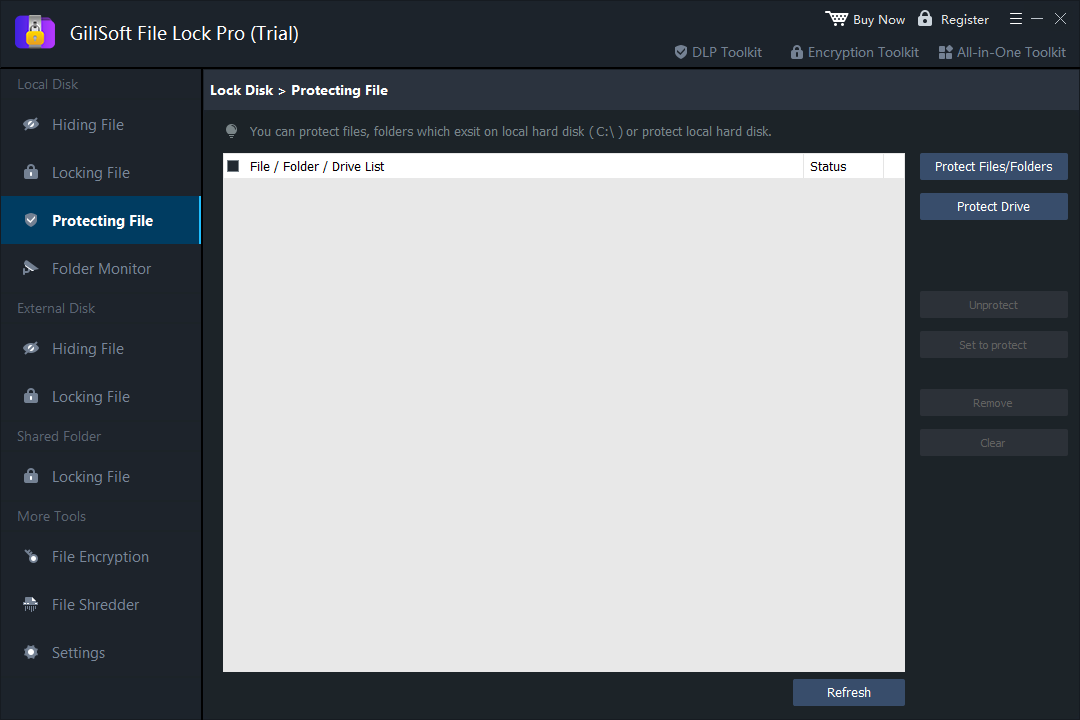
Step 3. Check and confirm the files, folder, and drive that you want to protect.
Notes: If you want to unprotect the selected files, folder, or drive, tick the target data and click on the Unprotect button.
Windows 7 has a built-in tool - Folder Properties. With it, you can encrypt your folders and all the files within them. To encrypt a file or folder in Windows 7, 8, or 10, follow these steps:
Step 1. Right-click the target folder that saves your essential files, select "Properties".
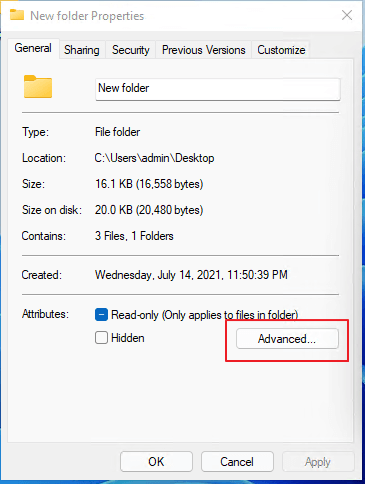
Step 2. Go to the "General" tab > Click "Advanced".
Step 3. Check "Encrypt contents to secure data" > Click "OK" to confirm.
Once you navigate to the encrypted folder, you will see a small yellow lock on the file icon. Also, when you add new content to that folder, it will automatically be password protected too.
This method works in almost all Windows versions. But the process is a little bit difficult for computer novices. Follow the steps below to password-protect your folders and files in Windows 7. First, copy the code below:
| cls @ECHO OFF title Folder Locker if EXIST "Control Panel.{21EC2020-3AEA-1069-A2DD-08002B30309D}" goto UNLOCK if NOT EXIST MyFolder goto MDMyFolder :CONFIRM echo Are you sure to lock this folder? (Y/N) set/p "cho=>" if %cho%==Y goto LOCK if %cho%==y goto LOCK if %cho%==n goto END if %cho%==N goto END echo Invalid choice. goto CONFIRM :LOCK ren MyFolder "Control Panel.{21EC2020-3AEA-1069-A2DD-08002B30309D}" attrib +h +s "Control Panel.{21EC2020-3AEA-1069-A2DD-08002B30309D}" echo Folder locked goto End :UNLOCK echo Enter password to Unlock Your Secure Folder set/p "pass=>" if NOT %pass%==YOUR PASSWORD HERE goto FAIL attrib -h -s "Control Panel.{21EC2020-3AEA-1069-A2DD-08002B30309D}" ren "Control Panel.{21EC2020-3AEA-1069-A2DD-08002B30309D}" MyFolder echo Folder Unlocked successfully goto End :FAIL echo Invalid password goto end :MDMyFolder md MyFolder echo MyFolder created successfully goto End :End |
Then, follow the steps to password protect your Windows files.
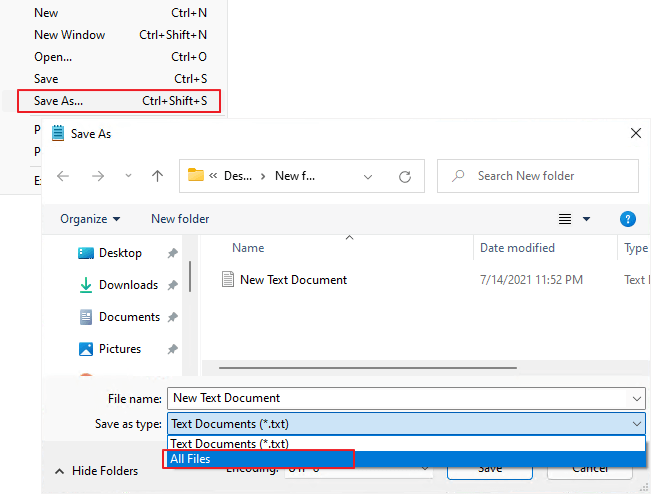
Step 1. Open a Notepad or .txt file or Text document, paste this code on a Notepad.
Step 2. Save the Notepad file as Lock.bat (.bat Is Must).
Step 3. Double-click the .bat file and a new folder will be created with the name MyFolder. Copy all your data you want to protect in that new folder named as MyFolder.
Step 4. Now double-click on the Lock.bat and when the Command Prompt appears, type Y and press "Enter".
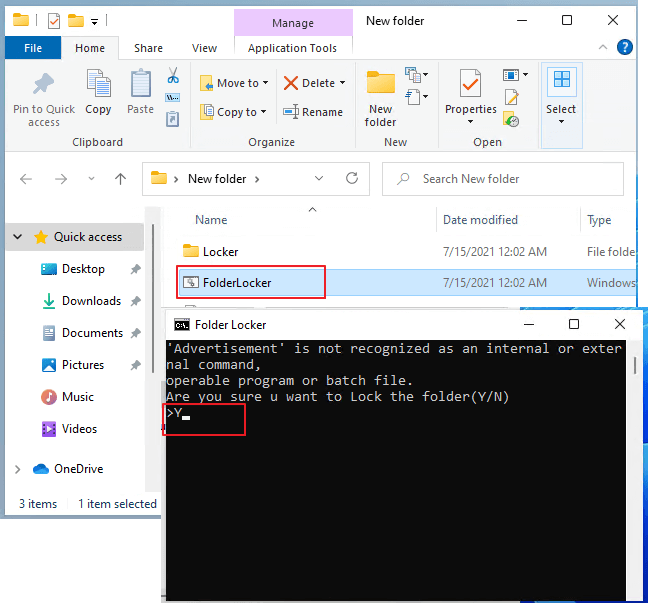
Now MyFolder will be hidden from your view. To access that folder double click on lock.bat. It will ask for a password - enter your password (replace YOUR PASSWORD HERE with a new password in the above code).
In fact, you can also set a password on your file if you are compressing it. Here, I'll show you how to compress and lock a folder using WinRAR.
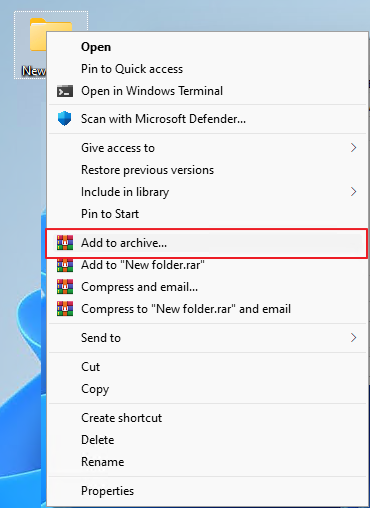
Step 1. Right-click the target folder, and select "Add to Archive".
Step 2. Set the archive name, format, compress level, size, etc.
Step 3. To add a password to lock the folder, click "Set password > Enter Password > OK".
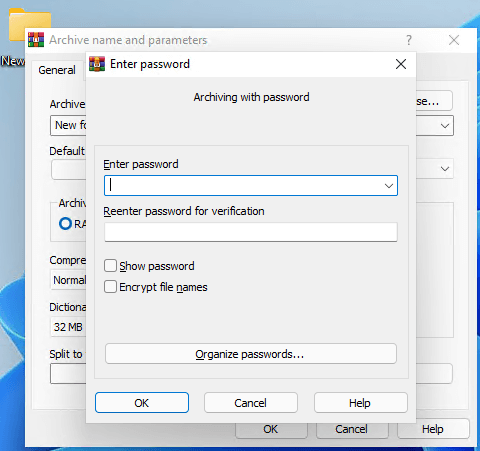
Your file/folder is now compressed, encrypted, and protected. Decompressing that file/folder is just as simple. All you need to do is input the password.
On this page, we briefly discussed the reason why you want to password protect your files in Windows 7. And you've got several solutions to protect your files with a password. If you are looking for an easy-to-use and professional folder protector, GiliSoft File Lock Pro is my recommendation. It works well on any version of Windows device.
Windows 7 offers EFS encryption on Professional and higher editions, but no direct folder password. File Lock Pro adds a real password prompt to any folder.
Yes. GiliSoft File Lock Pro runs on Windows 11/10/8/7, so you can use one tool across old and new PCs.
It only hides the folder and the password sits in plain text inside the script. Use it for casual privacy, not for sensitive documents.
A WinRAR password protects the archive only, and you must unzip to use the files. A folder lock keeps files usable in place while blocking unauthorized access.
Use GiliSoft File Lock Pro to password protect, hide, and encrypt files and folders on Windows 11/10/8/7 from one simple interface.