
Choose protection by what must remain controlled
| Method | Best use | What remains controlled | Recipient receives |
|---|---|---|---|
| GiliSoft Copy Protect | Mixed PDF and video delivery on USB | Opening, copying, printing, clipboard use, screenshots, Save As, device binding, watermark, expiry, and viewing limits | A controlled GCP or EXE package instead of the source folder |
| PDF password and permissions | A PDF the recipient may keep | Opening, printing, editing, and copying options supported by the PDF reader | The original PDF file |
| USB encryption | Lost or stolen removable media | Data at rest while the encrypted area is locked | Ordinary files after unlock |
| GiliSoft Video DRM Protection | Video-first paid or controlled playback | Playback passwords, device binding, dynamic watermarks, expiry, and password blacklist revocation | Protected video playback for supported desktop and mobile environments |
Put PDF and video in one package only when the rules match
Build a protected PDF and video USB package
- Create a clean release folder containing only the final PDFs, videos, captions, images, web pages, and supporting files intended for the recipient.
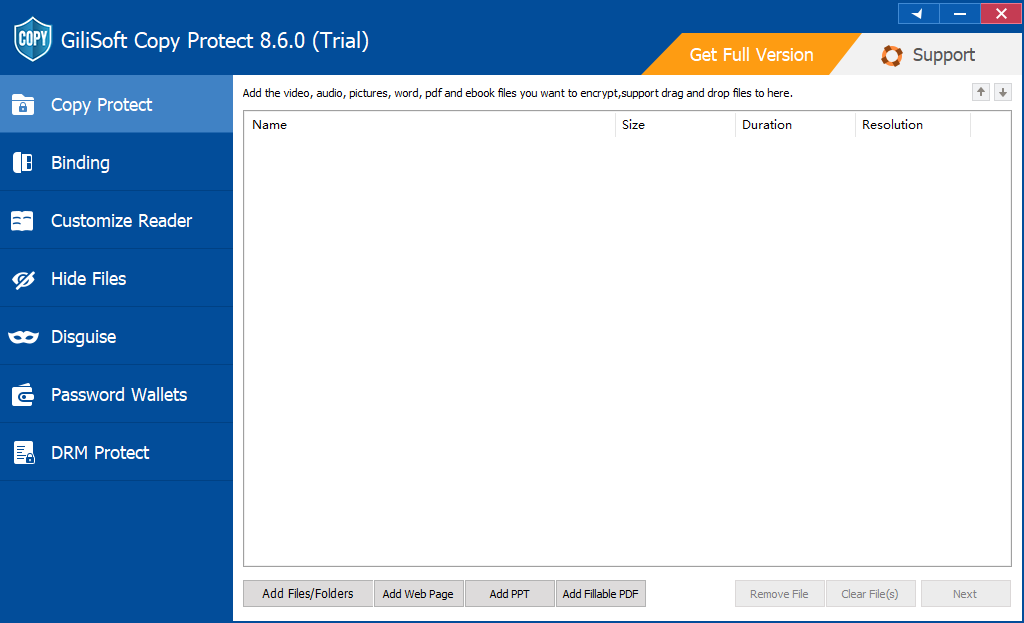
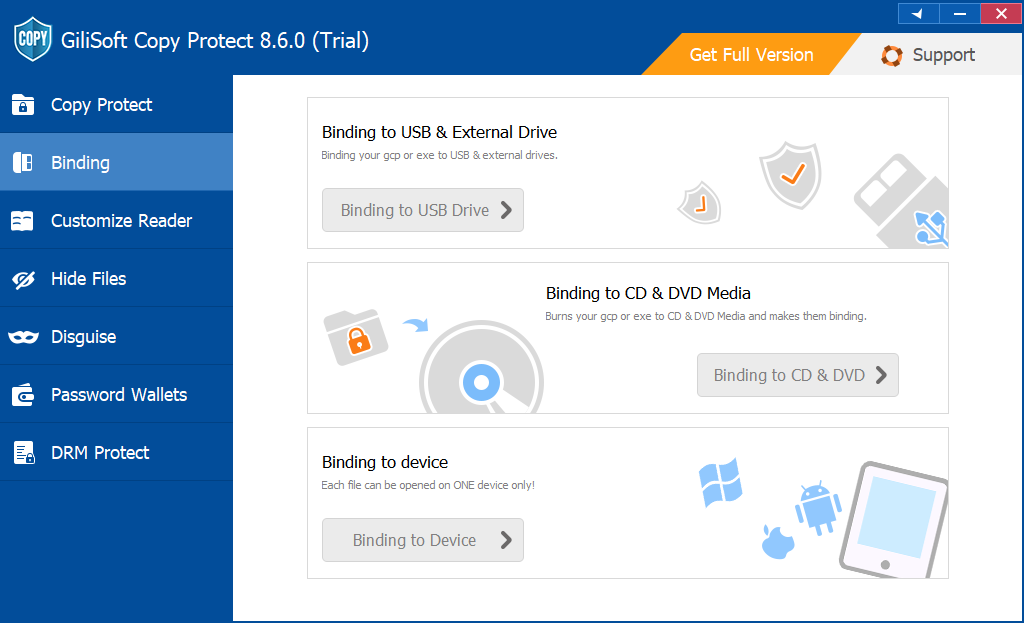
- Open GiliSoft Copy Protect and add the files or complete folders in the order the recipient should see them.
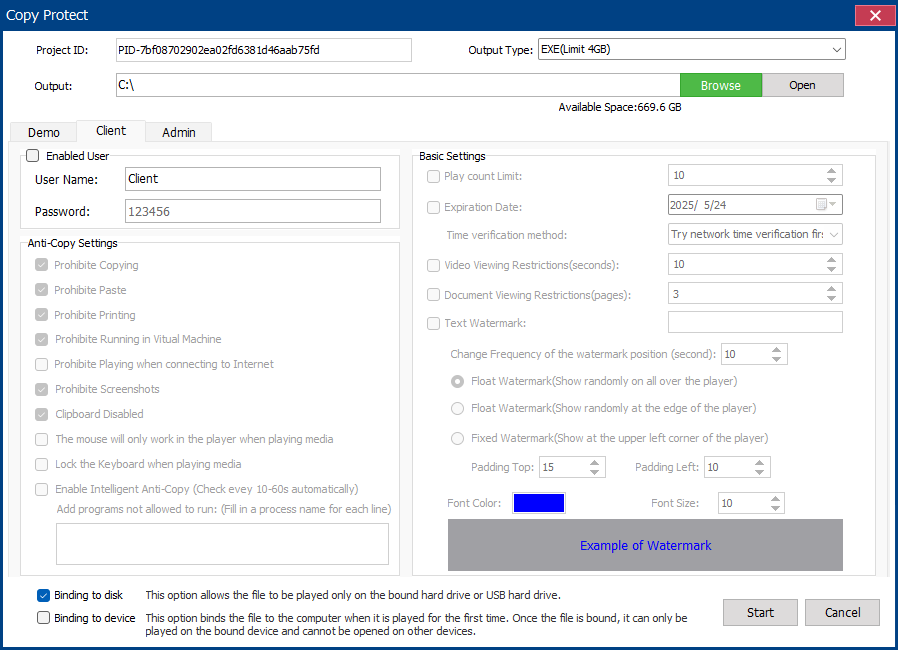
- Choose GCP for the standard protected-reader package. Choose EXE for a self-running Windows package when the completed output stays within the 4 GB EXE limit.
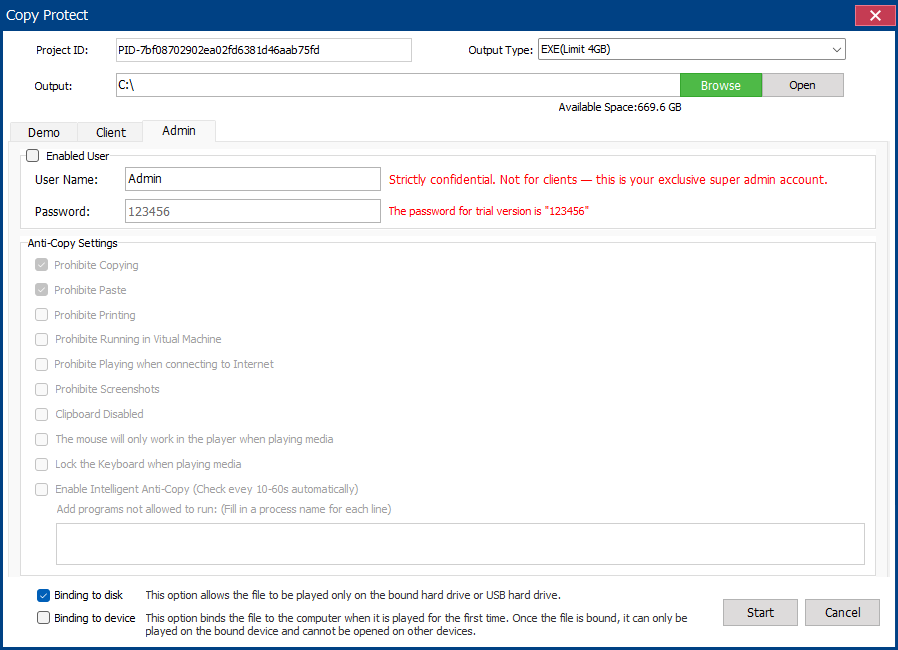
- Configure client permissions for copying, clipboard use, printing, screenshots, Save As, and virtual-machine playback.
- Add the recipient or company name as a visible watermark, then set an expiration date, viewing limit, password, and USB or PC binding where required.
- Build the package and test every PDF page, video, caption, link, password, print rule, screenshot rule, watermark, expiry, and relaunch action on another Windows PC.
Set PDF and video rules deliberately
For PDF documents
Decide whether the recipient may print, copy text, use the clipboard, take screenshots, or save content outside the package. Check searchable text, bookmarks, links, fonts, form fields, and page navigation before distribution. Permanently redact confidential material before protection; covering text with a shape is not redaction.
For video files
Check playback from beginning to end, including audio, captions, aspect ratio, and seeking. Apply recipient-identifying watermarks where redistribution must be traceable. If the business requirement is to revoke access after delivery, issue viewer-specific authorizations, or support protected playback beyond Windows, move the premium videos to GiliSoft Video DRM Protection.
Protect the delivered package, not just the USB drive
GiliSoft Copy Protect packages PDFs and videos for controlled offline viewing while the editable source library remains internal. It is the practical choice when one USB kit contains more than one file type.
Why USB encryption alone does not stop copying after unlock
Drive encryption protects the USB when it is lost, stolen, or not yet unlocked. Once an authorized person opens the encrypted area, its PDFs and videos normally behave like ordinary files. Use GiliSoft USB Encryption for data-at-rest protection and Copy Protect when the delivered files also need post-open usage rules.
Recommended setups
Release checklist before duplicating USB drives
- Remove drafts, editable masters, hidden attachments, personal metadata, and files not intended for recipients.
- Choose one package or separate releases according to the actual PDF and video permissions.
- Use GCP for larger protected libraries; use EXE only when the completed package stays within the 4 GB limit.
- Test on a clean Windows PC without relying on the authoring computer's cached files or codecs.
- Verify copy, print, screenshot, Save As, watermark, expiry, viewing limit, password, and device-binding behavior.
- Keep the source files and project settings in an internal archive so a replacement or revised release can be built.
Related PDF and video protection guides
USB PDF and video protection FAQ
Can one protected package contain both PDF and video files?
Yes. Copy Protect can organize PDFs, videos, presentations, audio, images, web pages, and supporting folders in one GCP or EXE package.
Should I choose GCP or EXE output?
Choose GCP for the standard protected-reader format and larger projects. Choose EXE for a self-running Windows package only when the complete output remains within the 4 GB EXE limit.
Can recipients print the PDF but not copy the video?
Use separate protected packages when permissions differ materially. This keeps a printable document workflow from weakening a view-only video release.
Is this the same as encrypting the USB drive?
No. USB encryption protects data while the drive is locked. Copy Protect controls common file-use actions after the recipient opens the protected package.
When should I use Video DRM instead?
Use Video DRM when video is the main paid product and you need viewer-specific passwords, dynamic watermarks, device authorization, expiry, blacklist revocation, or protected playback for supported desktop and mobile environments.
Official references
- Adobe: Restrict PDF printing, editing, and copying
- Microsoft: BitLocker FAQ
- NIST: Reducing cybersecurity risks from portable storage media
Deliver PDFs and videos without releasing the source folder
Create a controlled USB package, choose recipient permissions, and test the complete document and video experience before distribution.
View GiliSoft Copy Protect