

Why a Watermark Comes Back After Export
Use this workflow to determine whether the wrong source, incomplete time range, preview cache, or publishing version caused the mark to reappear. Keep the source, test the most difficult section, and verify the exported result.
Quick answer
Confirm that the exported file is the one you opened, not the source or an older cached copy. Check the selected time range for every appearance, especially intros, scene changes, and repeated overlays. Rename the result clearly, play it outside the editor, and replace the correct publishing asset.
Choose the Right Workflow
| Situation | Recommended approach | What to verify |
|---|---|---|
| Part of the mark remains | Expand the mask to include border, shadow, and longest frame | Review bright, dark, and moving scenes |
| Cleaned area flickers | Test a shorter difficult scene and another method | Frame-to-frame texture and motion |
| Mark reappears later | Extend or add the correct active interval | Every intro, scene, and repeated appearance |
| Export looks unchanged | Verify output path, file name, cache, and publishing asset | Play the exported file outside the editor |
Step-by-Step Workflow
- Verify the file and the goal
Open the actual source and define which authorized mark should disappear, where it appears, and what quality is acceptable.
- Inspect mask and time range
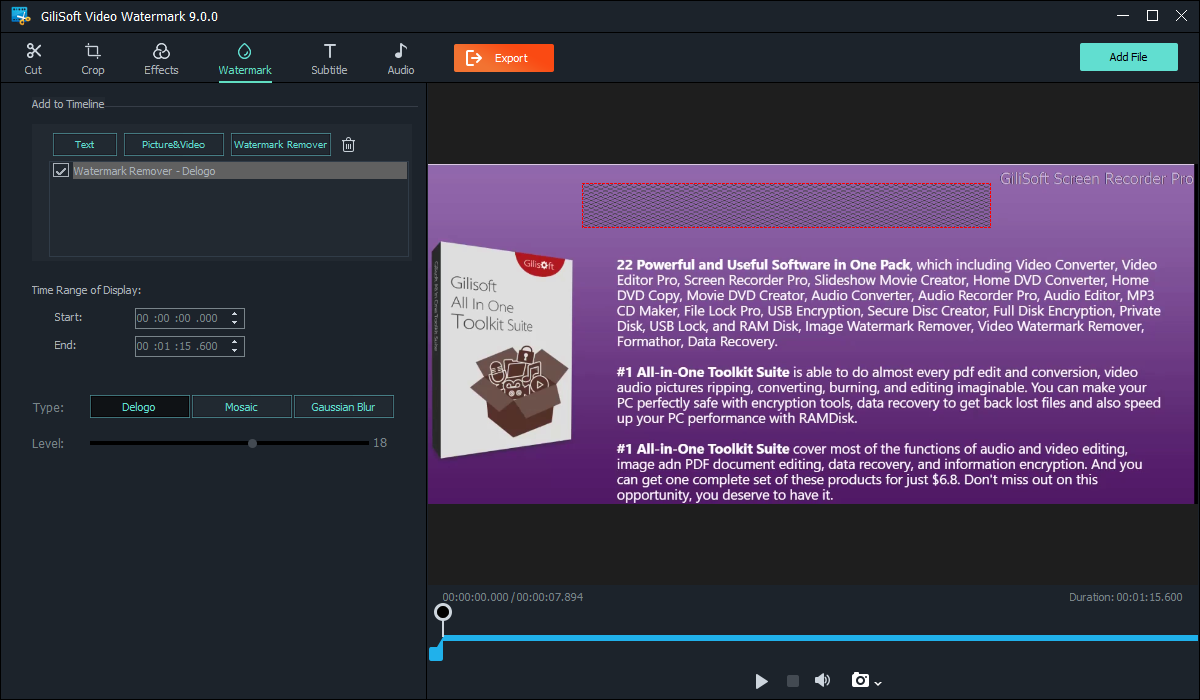
Include the full border, shadow, animation, and longest visible state, but keep the region no larger than necessary.
- Match the method to the scene
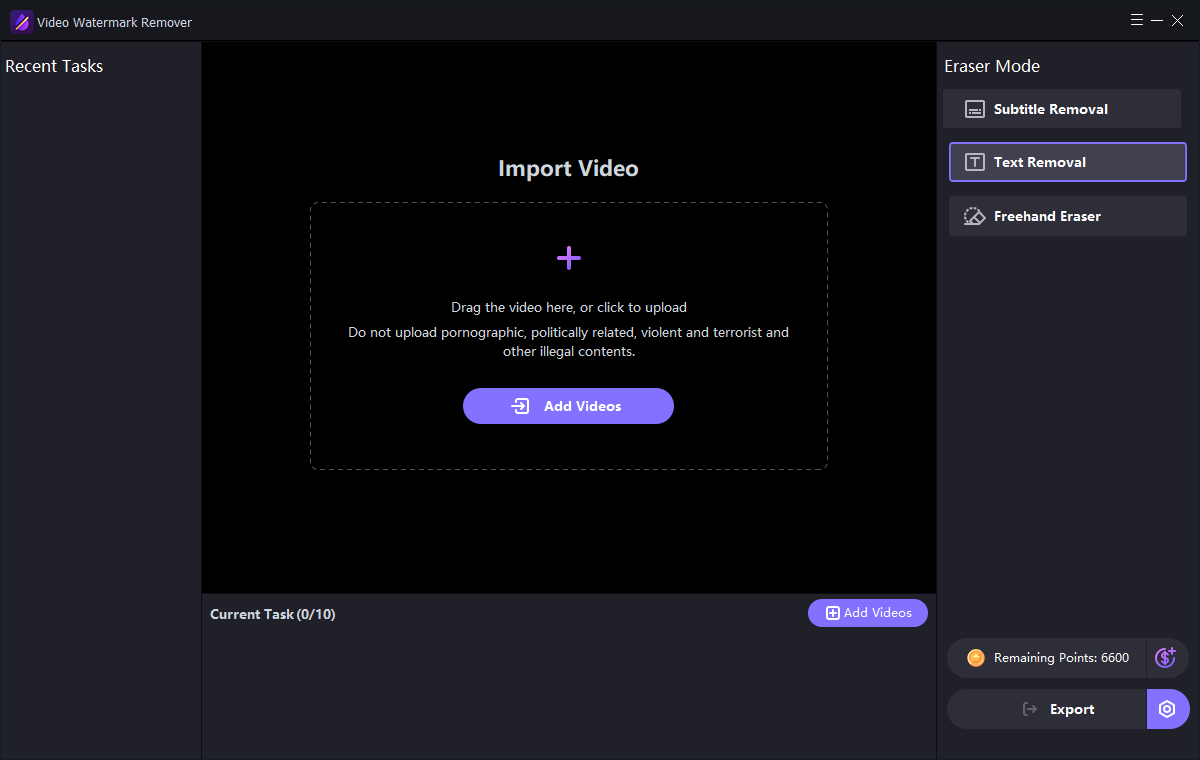
Use fixed cleanup for simple static marks, text tools for labels, and reconstruction only when the background requires it.
- Run a short diagnostic export
Test the most difficult interval and compare at normal speed, paused frames, and the final viewing size.
- Verify the final path and publishing version
Rename the result clearly, play it outside the editor, clear stale previews when needed, and replace the intended delivery asset.
Use the GiliSoft Watermark Remover Workspace
These are real product interfaces. Controls can change by release, so follow the task logic and preview your own source rather than assuming one setting fits every scene.
Review the Result Before Publishing
| File and time-range verification | Inspect the complete affected interval at normal speed and on representative paused frames. |
|---|---|
| Complete video | Check transitions, repeated appearances, captions, audio, duration, and the ending rather than only the first scene. |
| Delivery file | Play the exported file outside the application and verify the actual publishing or client-delivery asset. |
Frequently Asked Questions
Why does the mark remain at some frames?
The selection or active time range may not cover the mark’s complete size, shadow, animation, or repeated appearance.
Why does the repaired area flicker?
The replacement may not remain temporally consistent as the background, camera, or foreground motion changes.
Will stronger blur fix a poor result?
Usually not. It can make the patch larger and more visible. Tighten the region, change method, or use a clean source.
Should I overwrite the source video?
No. Keep the original and export a separate edited result so quality, rights, and provenance can be reviewed.
Why must I check the exported file?
A preview does not prove the final codec, timing, mask, captions, cache, or publishing asset is correct.